Skip to content

Get This Special Discount!

Save 20% OFF
FluentCommunity
  • Features
  • Use CasesExpand
    • Online Course
      Education
      Brands
      Workplace
      Social Network
      Professional
      Club & Association
      Nonprofits
      Coaching
      Creator
      • Buddyboss alternative
        FluentCommunity: The Ultimate BuddyBoss Alternative

        Read More

        Ashik Elahi
        Ashik Elahi
        February 7, 2025
      All Blogs
  • Pricing
  • Blog
  • Integration
  • Roadmap
  • DocsExpand
    • User Doc
    • Developer Docs
  • Account

Get This Special Discount!

Save 20% OFF
FluentCommunity

Getting Started

  • Introduction to FluentCommunity 
  • Install FluentCommunity
  • FluentCommunity Onboarding Guide
  • Global Activity Feed

Space Management

  • How to Create a Space
  • Managing Privacy of Spaces
  • Manage Members of Space 
  • Editing or Deleting a Space
  • Space Links
  • Add Custom Links
  • Activity Feeds
  • Activity Feed View
  • Creating & Managing Posts
  • Community Post Sorting in FluentCommunity
  • Creating and Managing Polls 
  • Handling Comments & Reactions
  • Documents/Files for Space
  • Membership Invitation for Spaces

Course Management

  • Creating and Managing Course
  • Course Privacy 
  • Course Enrollment Management
  • Course Links
  • Documents/Files for Course Lesson
  • Quiz Module

Member Management

  • Member Management
  • Members Profile
  • Follower & Block Module
  • Members List/Grid Layout View
  • Social Links Customization

Monetization

  • Monetizing Your Spaces
  • Monetizing Your Courses
  • Monetizing Your Spaces/Courses with Paymattic
  • Collect Recurring Payments for Private Spaces/Courses

Leaderboard Management

  • Leaderboard Management 

Notifications & Messaging

  • Global Email Notifications
  • Profile Notification Settings 
  • FluentCommunity Chat

Customization

  • Theme Compatibility Feature
  • Color Customization
  • Welcome Banner

Integration

  • FluentCart Integration with FluentCommunity 
  • FluentCRM Integration with FluentCommunity
  • Fluent Forms Integration with FluentCommunity
  • Paymattic Integration with FluentCommunity
  • Giphy Integration with FluentCommunity
  • Configuring CloudFlare R2 
  • Configuring Amazon S3
  • Configuring BunnyCDN

Migration

  • FluentCommunity BuddyPress Migration
  • FluentCommunity BuddyBoss Migration

Administration

  • General Settings 
  • Customize your Portal 
  • Manager Settings
  • Features & Addons Settings
  • Menu Settings
  • Space Group Settings
  • User Badge
  • Portal Access Settings
  • Generating a Sitemap
  • Privacy Settings
  • Media Module 
  • Manage Topic
  • Content Moderation Settings 
  • Customizing Login/Signup Form 
  • Access Management Through FluentCRM Tags

Miscellaneous

  • Report/Analytics
  • Community as Homepage
  • Adding Custom CSS & JavaScript
  • Incoming Webhook in FluentCommunity
  • Create an XML Sitemap in FluentCommunity

Changelog

  • Changelog
View Categories
  • Home
  • Docs
  • Customization
  • Theme Compatibility Feature

Theme Compatibility Feature

This feature lets you turn any page into part of your community portal site. For example, if you want to add a page under the FluentCommunity portal, you can easily do that using the theme compatibility feature. It helps you display regular WordPress pages right within your community portal.

In this guideline, we will show you how the FluentCommunity Theme Compatibility feature works. 

FluentCommunity seamlessly integrates with popular WordPress themes like Blocksy, Astra, Kadence, GeneratePress, OceanWP, Neve, Hello Elementor, and Bricks. This allows you to fully customize your community pages using the design and styling options these themes offer. While FluentCommunity is compatible with other WordPress themes as well, some functions may not work perfectly with them.

FluentCommunity is fully compatible with WordPress Default Themes.

Apply FluentCommunity Frame to Any Page #

To apply the FluentCommunity Portal frame to any page, first open the Page where you want to use the FluentCommunity Portal frame.

Next, look at the right sidebar and find the Template option and click on it, a popup will appear showing the current theme in use. Then, click the dropdown box to see available theme options.
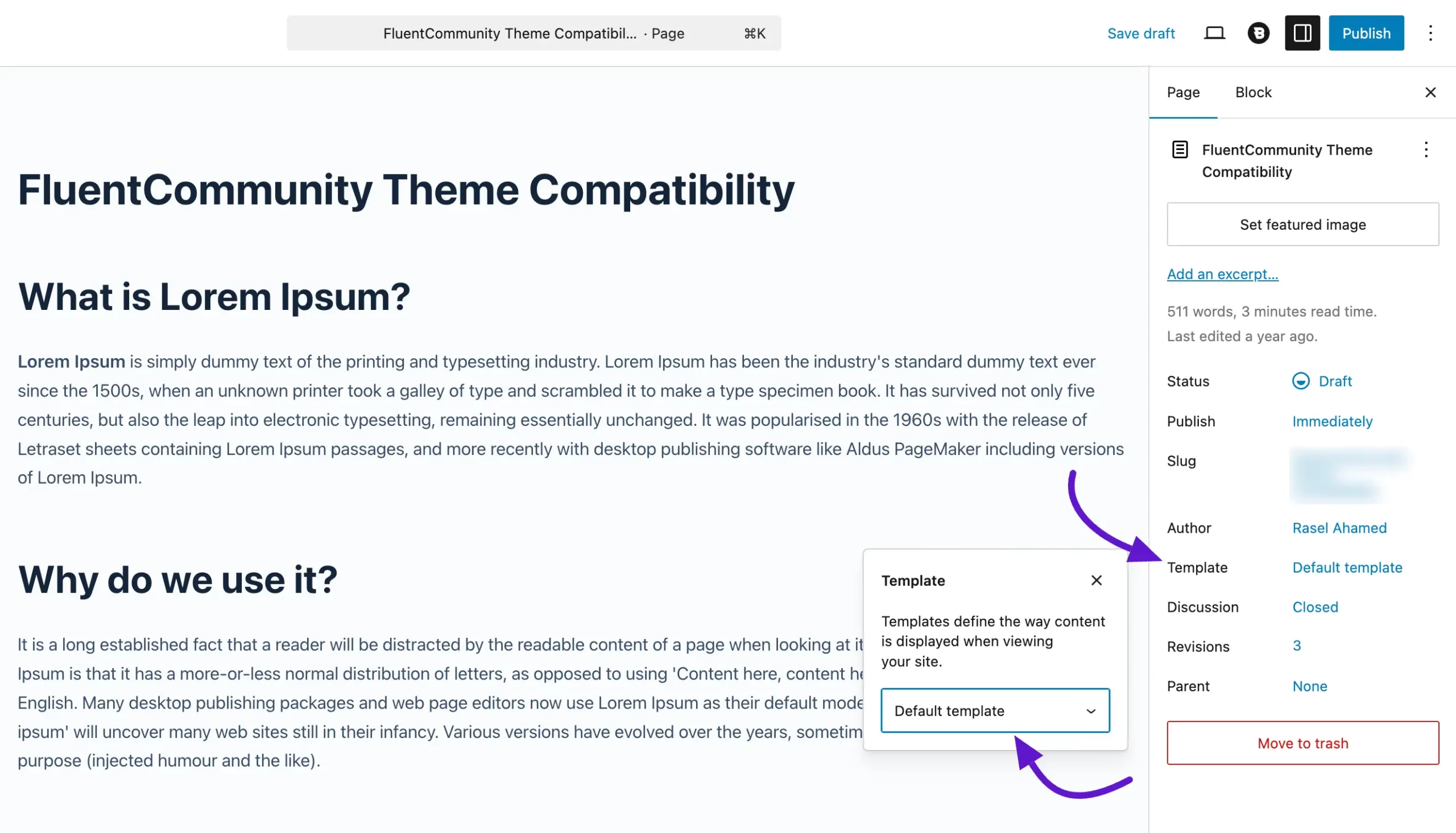
Once you click on the dropdown menu, you’ll see all the available theme options. Here you will also see the available FluentCommunity frames, these are:

  • FluentCommunity Frame: Selecting this will apply the default FluentCommunity portal along with its standard layout and preferences.
  • FluentCommunity Full Width Frame: If your current theme supports full-width layouts, this option will display your content in full width for a cleaner, more spacious look.
Customize Using the Theme Editor #

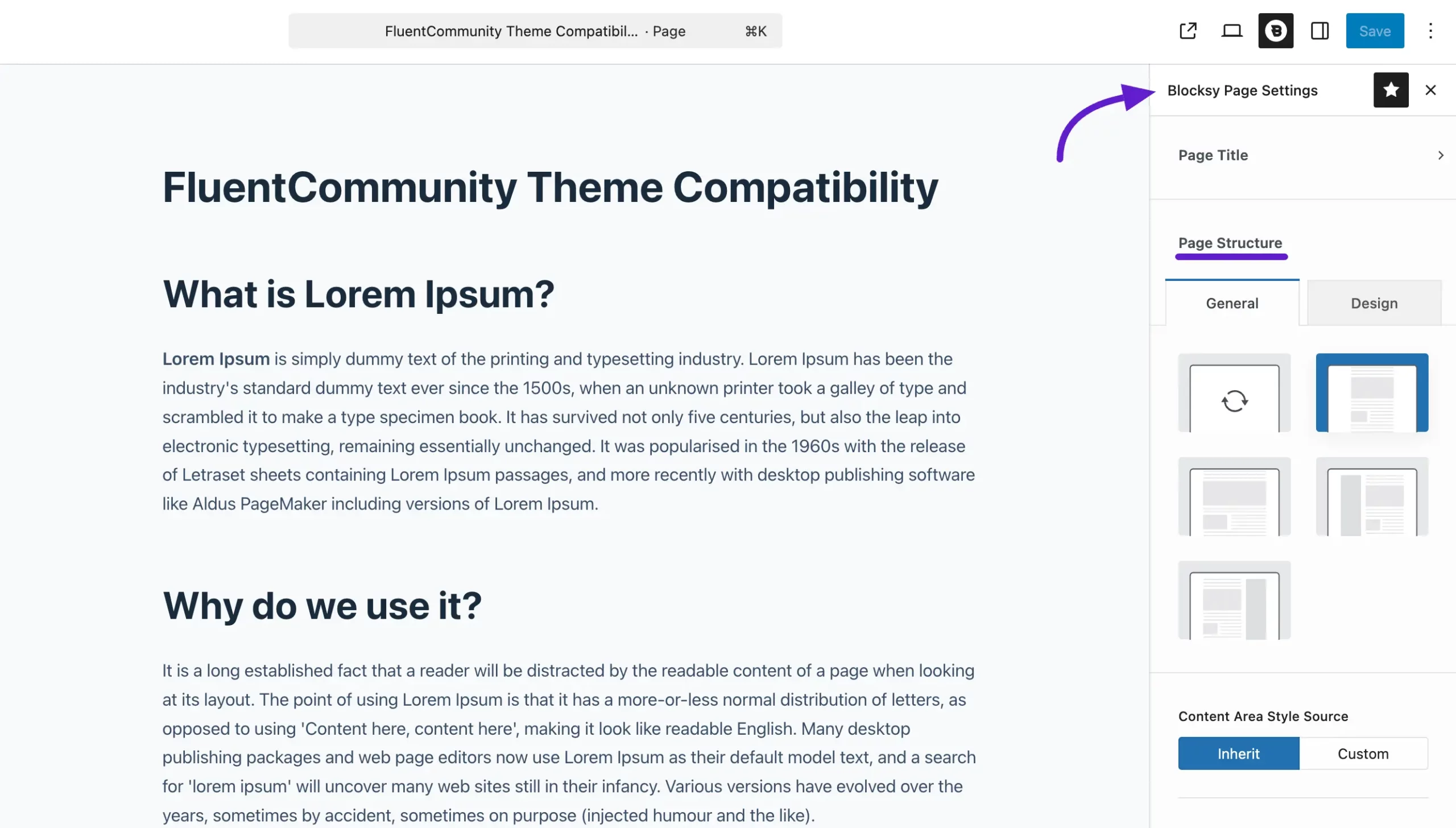
You can also customize your FluentCommunity frame using page with the theme’s built-in editor. 

For example, if you’re using the Blocksy theme, the Blocksy editor options will appear in the right sidebar. Make any design changes you need, and once you’re satisfied, click the Save button to apply them.
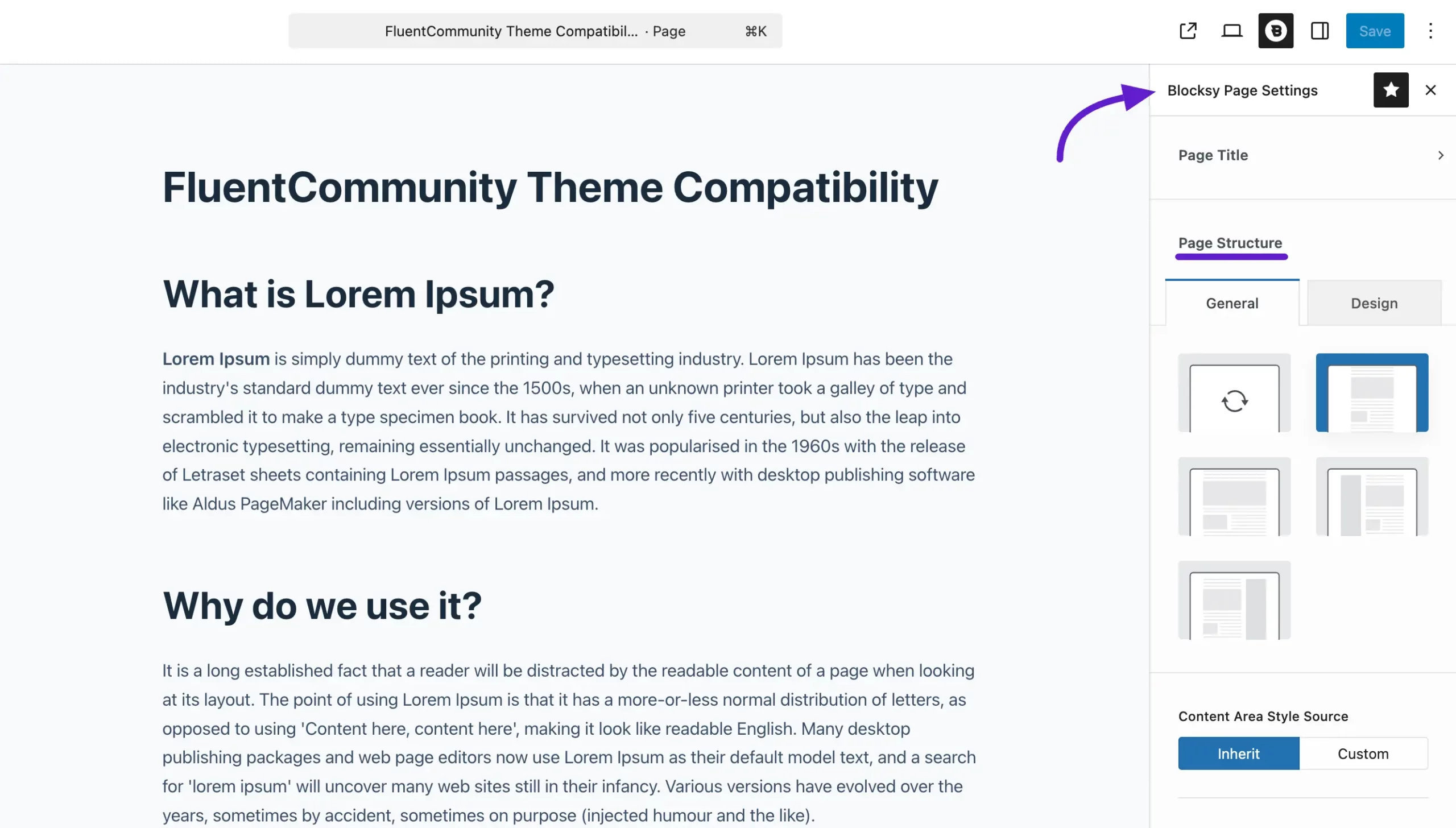
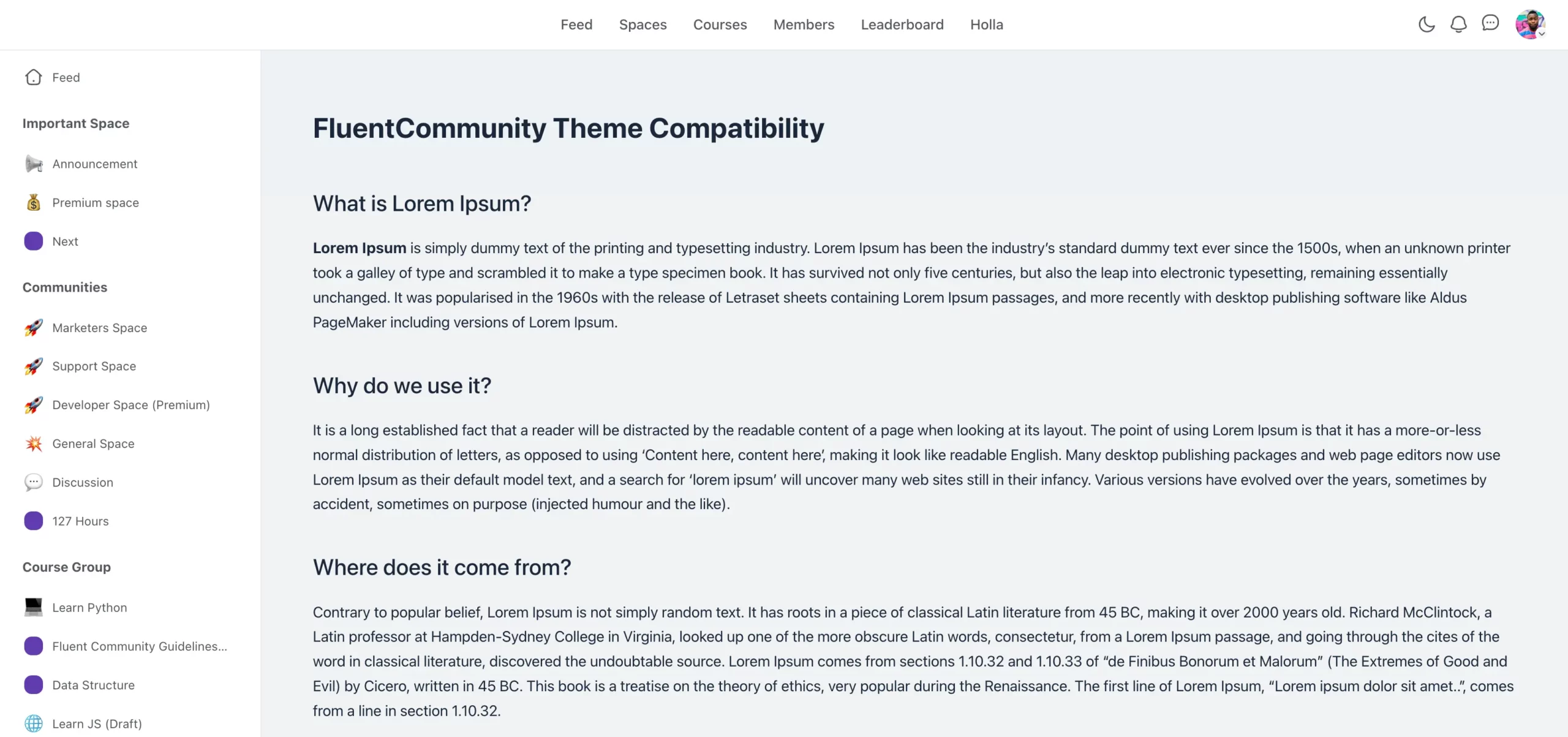
Finally, your Page will appear with the FluentCommunity Frame applied, just like this.
Create Custom Templates with FluentCommunity Block #

If you want to create a custom template using the FluentCommunity portal frame, you can easily do it with any WordPress Block theme template. 

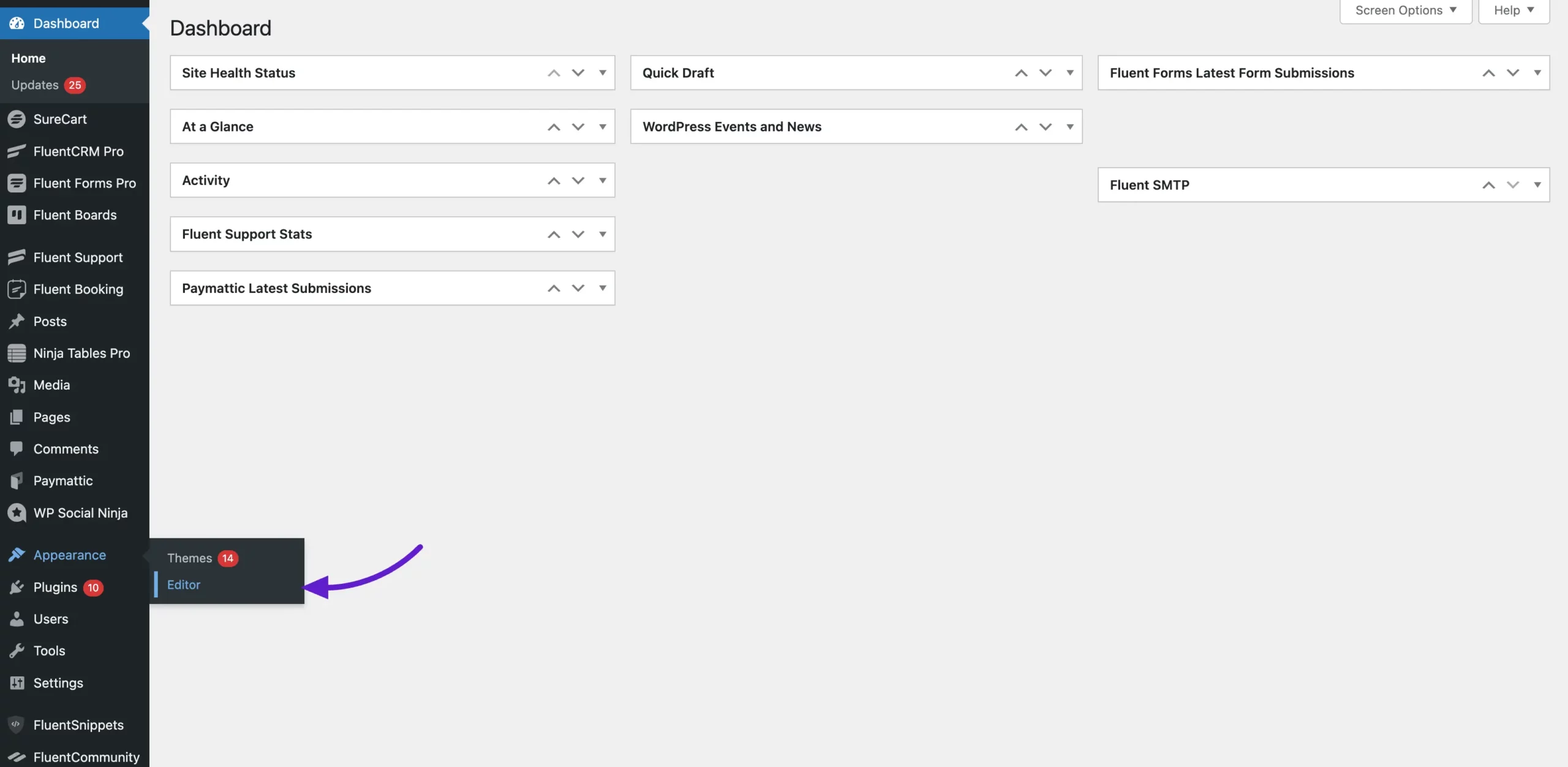
First, activate a WordPress Block theme, then go to Appearance from the WordPress left sidebar and click on the Editor option.
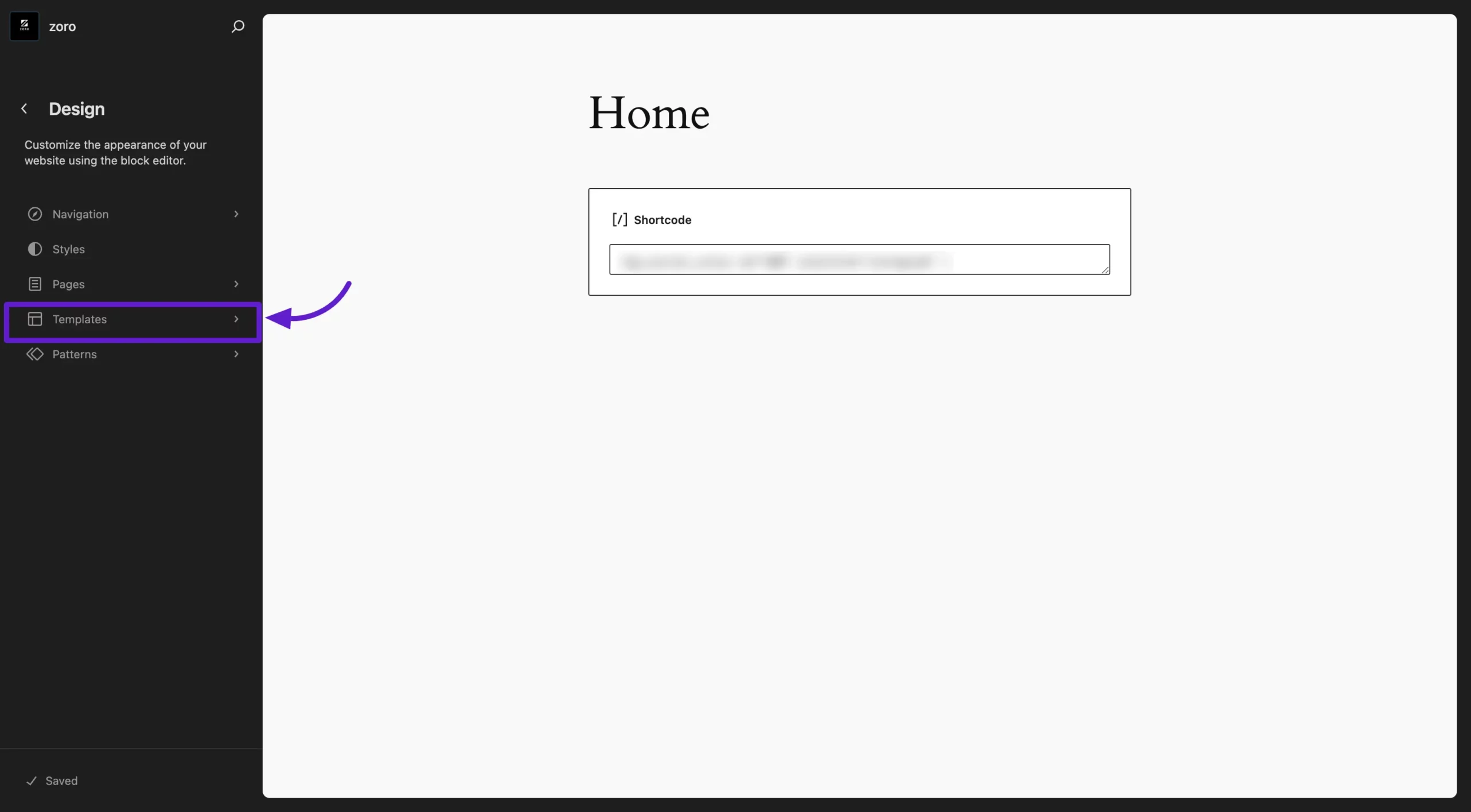
Next, from the left sidebar of the Site Editor, click on Templates to view and manage all your available templates.
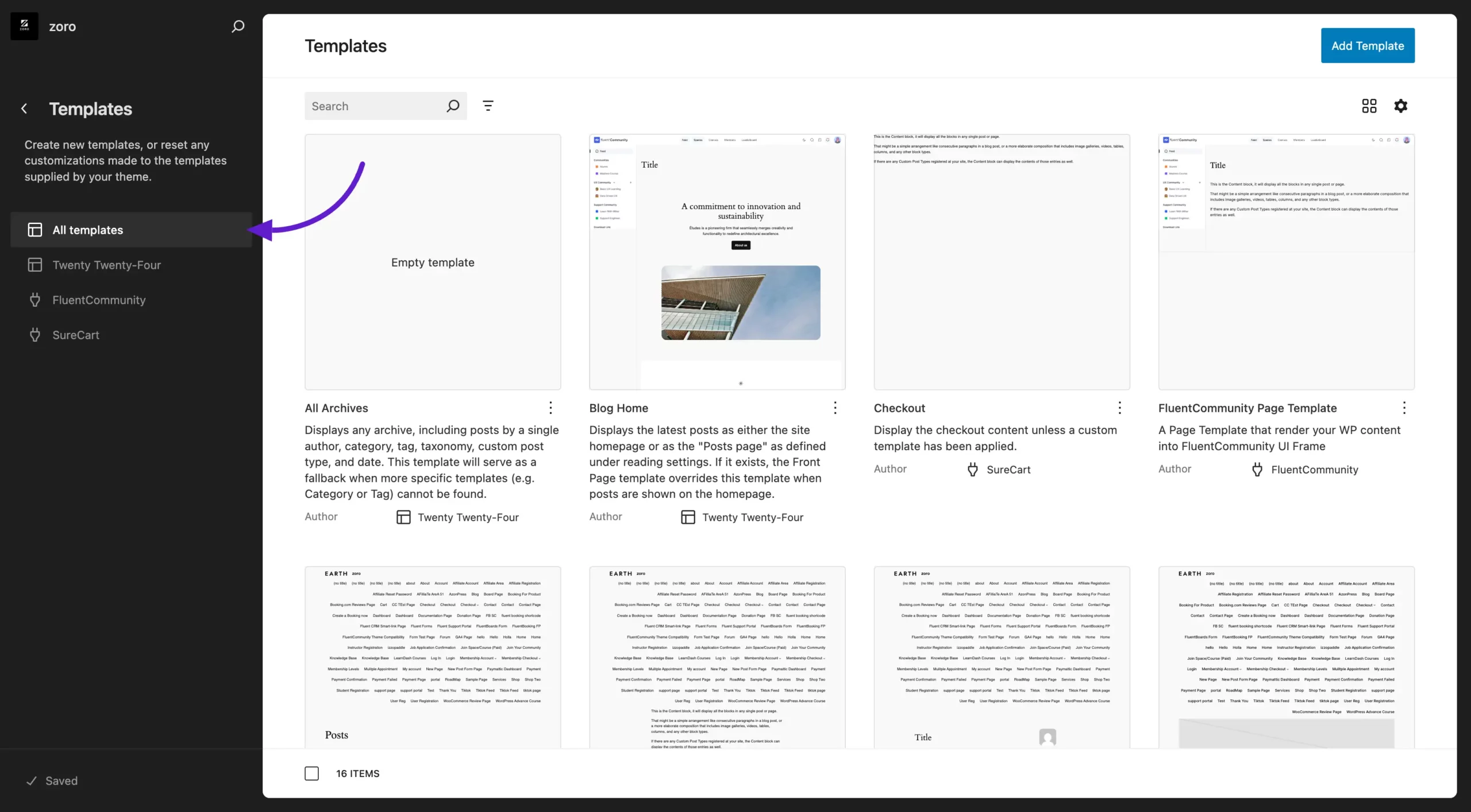
You can either choose an existing template or create a new one by clicking on the Add Template button. Here, we will create a template with an existing one. 
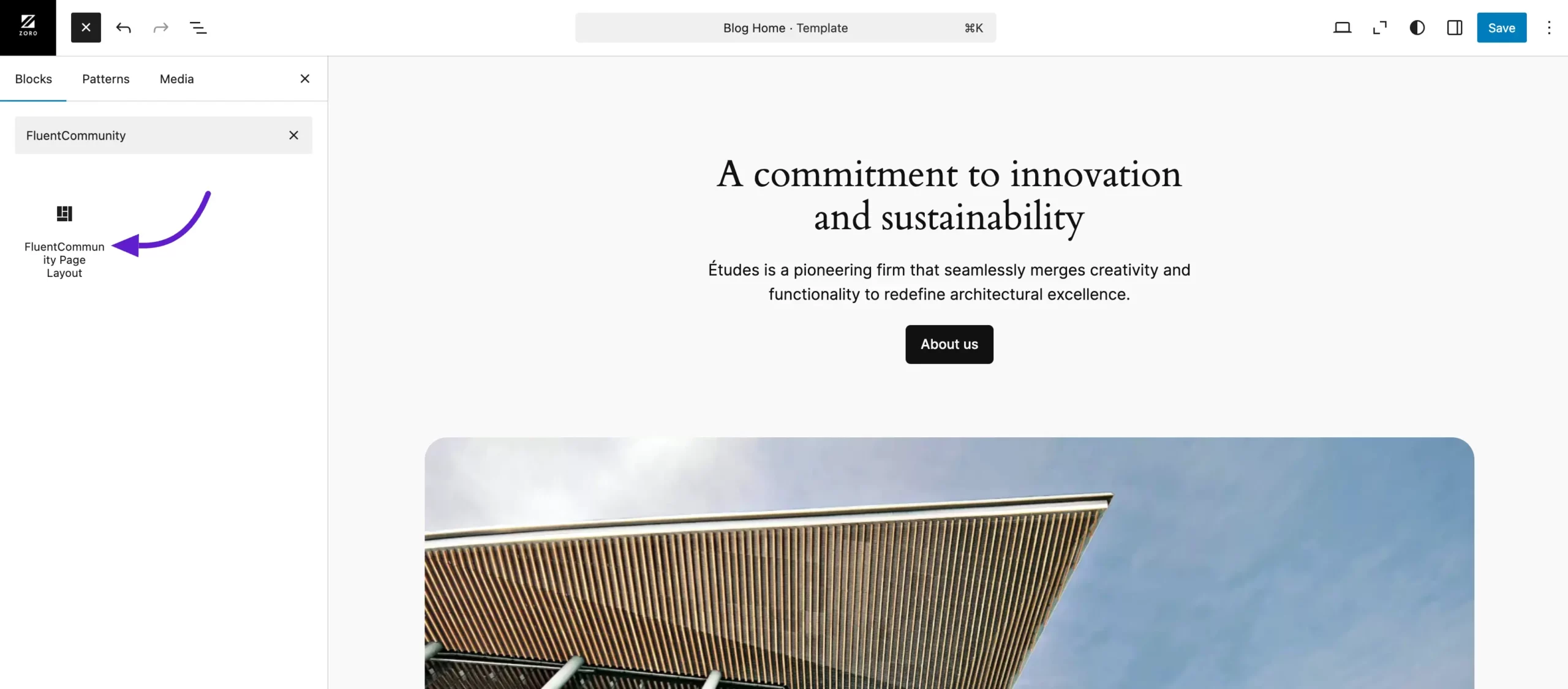
Now, you will see your existing template page. Click on the Plus icon for the Gutenberg block and search for the FluentCommunity Page Layout block.
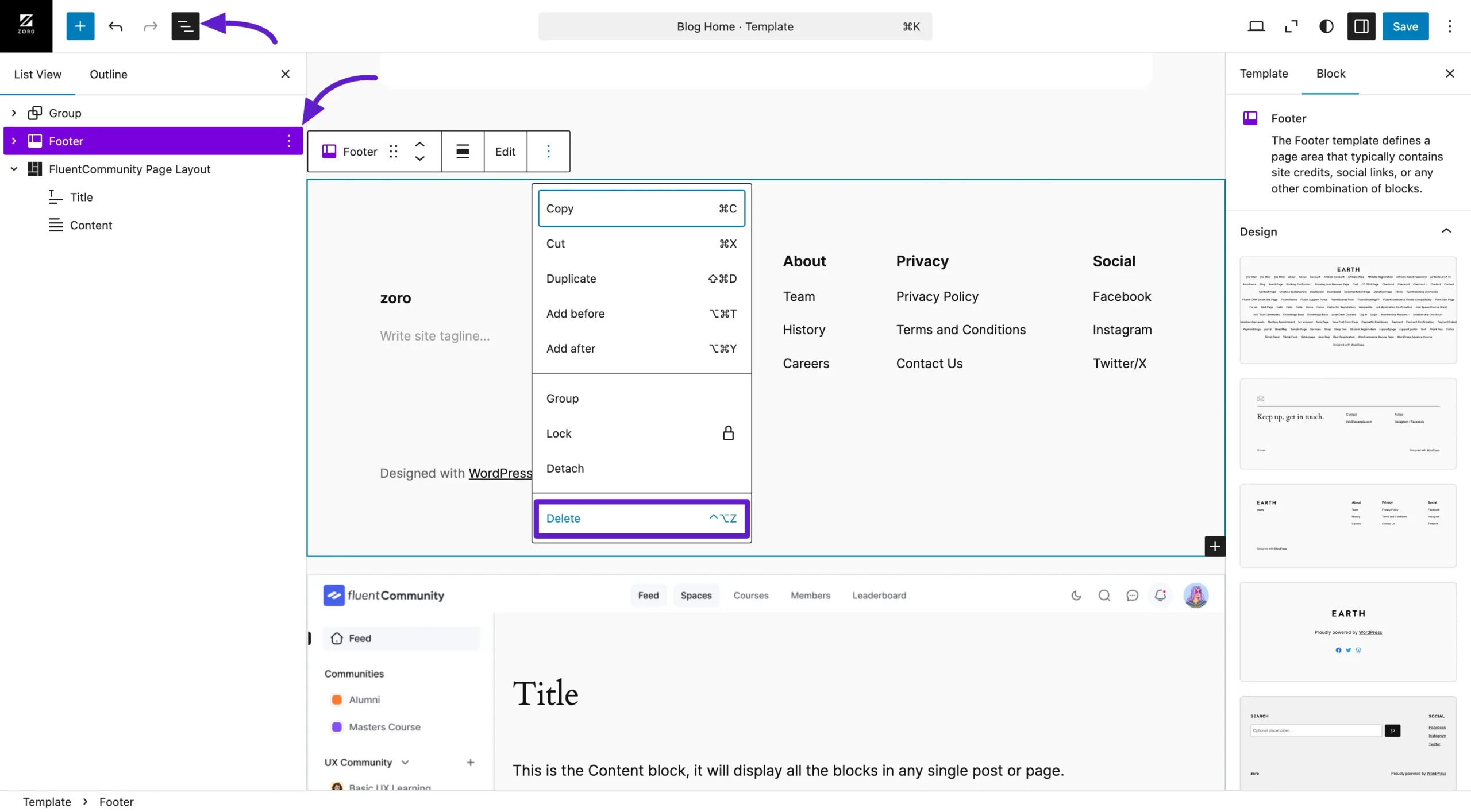
You’ll now see the FluentCommunity template block appear. You can remove any content from the existing template by clicking on the Layer icon button in the top menu and selecting the section you want to edit from the left sidebar. 

For example, to remove the Header and Footer sections, click on the Footer section, then click the three-dot button and select Delete to remove it.
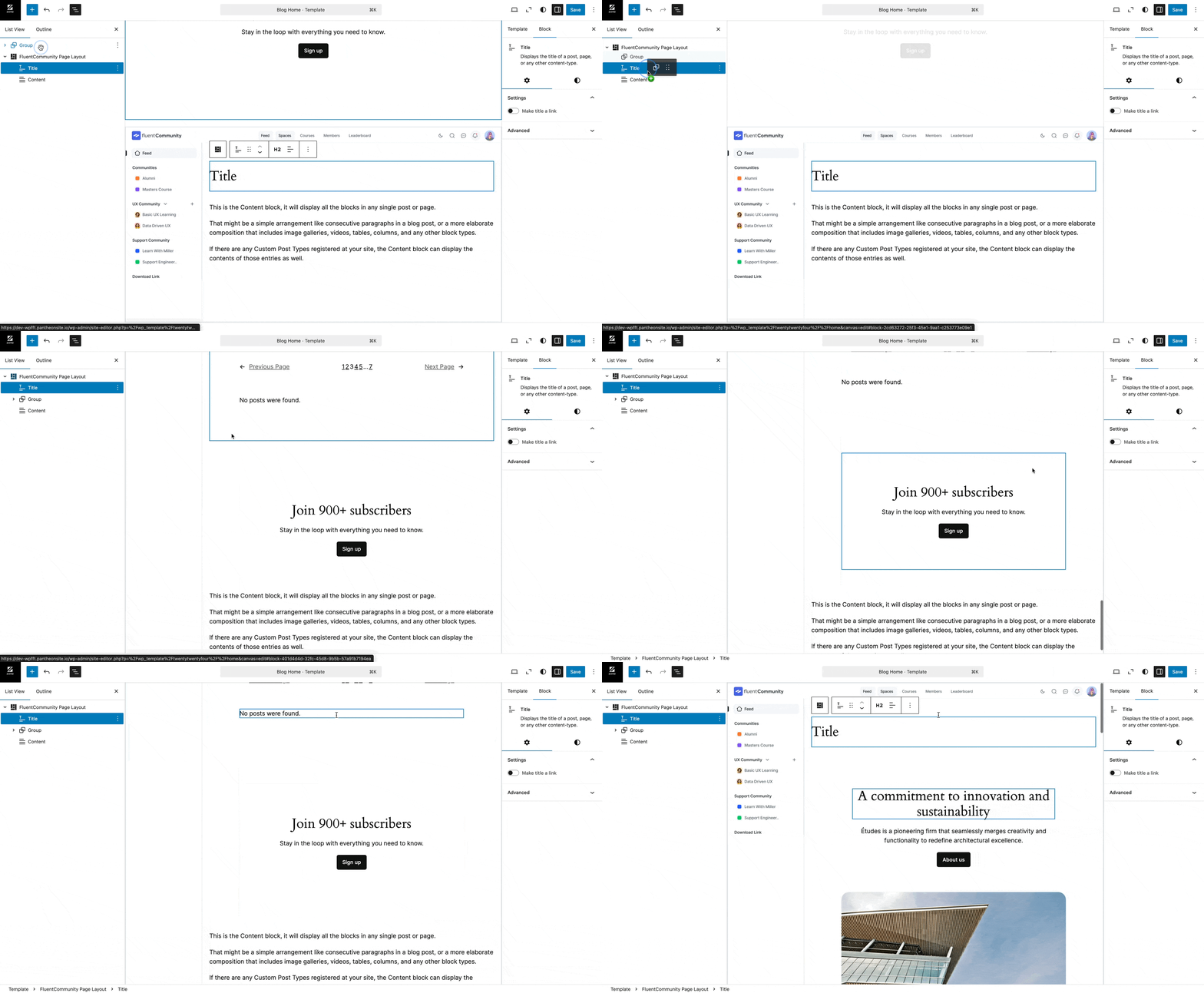
Next, drag and drop the Group section into the FluentCommunity Block layers to start creating your template with the FluentCommunity layout.
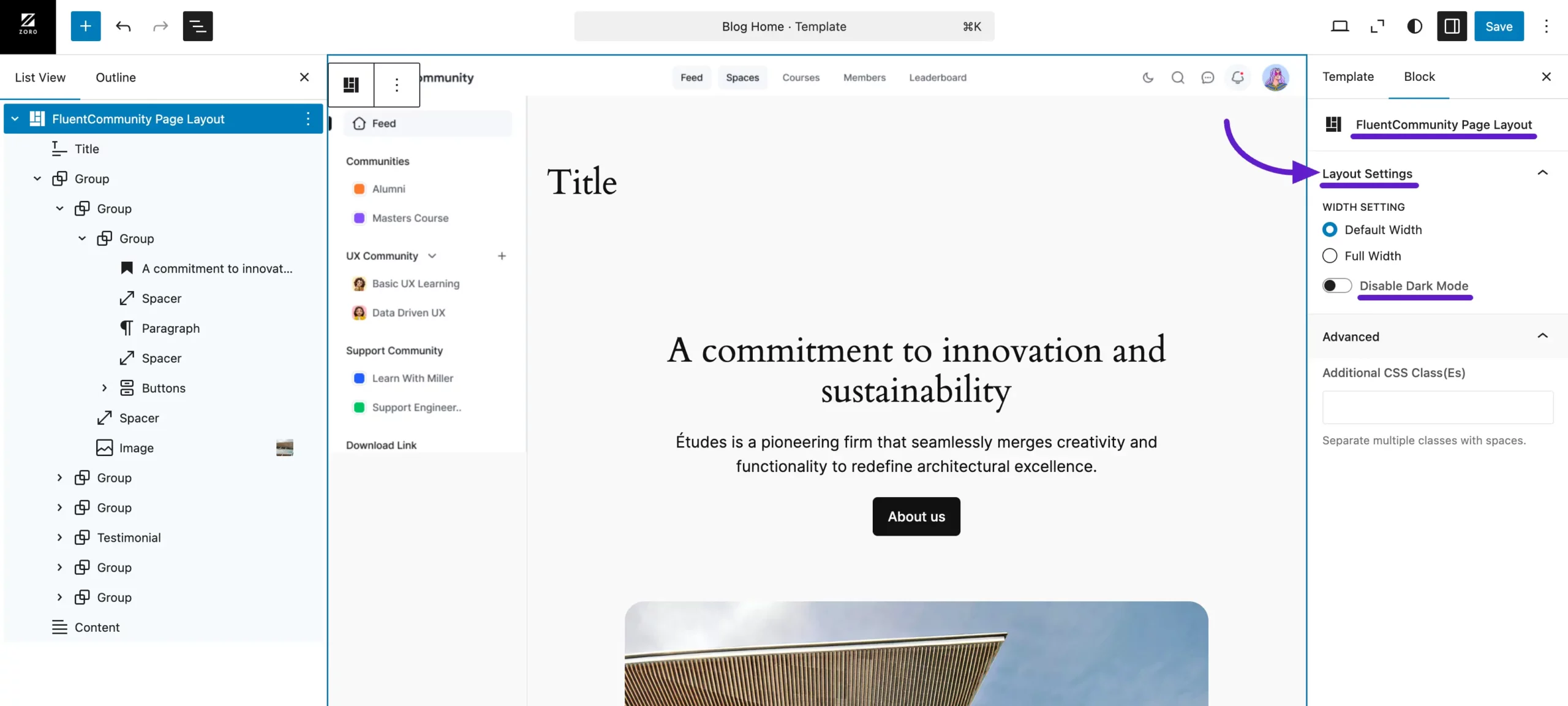
Once your template is created with the desired content, you can easily customize its layout. To adjust the layout, click on Blocks in the right sidebar to access the Layout Settings.

Here, you’ll find two width options:

  • Default Width: This keeps the content width as per the theme’s default setting.
  • Full Width: This option expands the content to cover the entire width of the page.

Additionally, you can enable the Disable Dark Mode option. This ensures that even if your community has dark mode enabled, users will always see this template page without dark mode.

Advanced Options #

For more customization, you can add custom CSS in the Advanced section to further tweak your template as needed.
This is how the FluentCommunity Theme Compatibility feature works. If you have any further questions or need assistance, feel free to reach out to us. We’re here to help!

What are your Feelings

Share This Article :

  • Facebook
  • X
  • LinkedIn
  • Pinterest
Still stuck? How can we help?

Still stuck? How can we help?

Updated on May 2, 2025
Welcome Banner
Table of Contents
  • Apply FluentCommunity Frame to Any Page
    • Customize Using the Theme Editor
  • Create Custom Templates with FluentCommunity Block
    • Advanced Options

Launch Your Own Social Media Platform Today!

Establish a meaningful connection with your people.

Buy Now

FluentCommunity is the fastest and the most efficient community plugin for WordPress

Social
  • WordPress
  • Facebook
  • YouTube
  • X
  • LinkedIn
RESOURCES
  • About Us
  • Features
  • Blog
  • Documentation
  • Support
  • Free vs Pro
  • vs BuddyBoss
  • vs Circle
  • vs Patreon
  • Online Community 101
  • FluentCommunity 101 Course
  • Account
  • Brand Guideline
Our Products
  • Fluent Forms
  • FluentCRM
  • FluentBooking
  • FluentBoards
  • FluentSupport
  • FluentSMTP
  • FluentSnippets
  • Ninja Tables
  • WP Social Ninja
  • Paymattic
  • AzonPress
  • FluentAffiliate
  • FluentCart
Use Cases
  • For Education
  • For Social Network
  • For Workplace
  • For Brands
  • For Online Course
  • For Professionals
  • For Club & Org.
  • For Coaching
  • For Nonprofits
  • For Creators
Popular
  • FluentCommunity: What It Is, Why We Built It, and Where It’s Headed
  • BuddyBoss migration with FluentCommunity
  • 9 Best Patreon Alternatives for 2025
  • Top 7 Udemy Alternatives for 2025

© 2026 FluentCommunity A Brand of  WPManageNinja™ | Privacy Policy | Terms & Conditions

Join the Waitlist

Get early access and be the first to experience FluentCommunity

Join Waitlist (#4)
  • Features
  • Use Cases
    • For Online course
    • For Education
    • For Brands
    • For Workplace
    • For Social Network
    • For Professionals
    • For Club & Org.
    • For Coaching
    • For Nonprofits
  • Blog
  • Pricing
  • About
  • Roadmap
  • Docs
    • User Doc
    • Developer Docs
  • FluentCommunity 101 Course