Skip to content
Special Discount Flat 20% OFF
Claim Now!
FluentCommunity
  • FeaturesExpand
    • All Features
    • Community Features
    • LMS Features
  • Use CasesExpand
    • Online Course
      Education
      Brands
      Workplace
      Social Network
      Professional
      Club & Association
      Nonprofits
      Coaching
      Creator
      • Buddyboss alternative
        FluentCommunity: The Ultimate BuddyBoss Alternative
        Read More
        Ashik Elahi
        Ashik Elahi
        February 7, 2025
      All Blogs
  • Pricing
  • Blog
  • Integration
  • Roadmap
  • DocsExpand
    • User Doc
    • Developer Docs
  • Account
Special Discount Flat 20% OFF
Claim Now!
FluentCommunity

Getting Started

  • Introduction to FluentCommunity 
  • Install FluentCommunity
  • FluentCommunity Onboarding Guide
  • Global Activity Feed

Space Management

  • How to Create a Space
  • Managing Privacy of Spaces
  • Manage Members of Space 
  • Editing or Deleting a Space
  • Space Links
  • Add Custom Links
  • Activity Feeds
  • Activity Feed View
  • Creating & Managing Posts
  • Community Post Sorting in FluentCommunity
  • Creating and Managing Polls 
  • Handling Comments & Reactions
  • Documents/Files for Space
  • Media Gallery for Space
  • Membership Invitation for Spaces

Course Management

  • Course Welcome Banners
  • Creating and Managing Course
  • Course Privacy 
  • Course Enrollment Management
  • Course Links
  • Documents/Files for Course Lesson
  • Quiz Module

Member Management

  • Member Management
  • Members Profile
  • Follower & Block Module
  • Members List/Grid Layout View
  • Social Links Customization
  • Add Users to Spaces/Courses from Profile

Monetization

  • Monetizing Your Spaces
  • Monetizing Your Courses
  • Monetizing Your Spaces/Courses with Paymattic
  • Collect Recurring Payments for Private Spaces/Courses

Leaderboard Management

  • Leaderboard Management 

Notifications & Messaging

  • Real-Time Chat
  • Global Email Notifications
  • Profile Notification Settings 
  • FluentCommunity Chat

Customization

  • Theme Compatibility Feature
  • Color Customization
  • Welcome Banner

Integration

  • Integrating FluentPlayer with FluentCommunity
  • FluentSocket with FluentCommunity
  • FluentCart Integration with FluentCommunity 
  • FluentCRM Integration with FluentCommunity
  • Fluent Forms Integration with FluentCommunity
  • Fluent Support Integration
  • Paymattic Integration with FluentCommunity
  • FluentSMTP Integration
  • Giphy Integration with FluentCommunity
  • Configuring CloudFlare R2 
  • Configuring Amazon S3
  • Configuring BunnyCDN

Migration

  • FluentCommunity BuddyPress Migration
  • FluentCommunity BuddyBoss Migration

Administration

  • Progressive Web App (PWA) (Pro)
  • General Settings 
  • Customize your Portal 
  • Manager Settings
  • Features & Addons Settings
  • Menu Settings
  • Space Group Settings
  • User Badge
  • Portal Access Settings
  • Generating a Sitemap
  • Privacy Settings
  • Media Module 
  • Manage Topic
  • Content Moderation Settings 
  • Customizing Login/Signup Form 
  • Access Management Through FluentCRM Tags

Miscellaneous

  • Report/Analytics
  • Community as Homepage
  • Adding Custom CSS & JavaScript
  • Incoming Webhook in FluentCommunity
  • Create an XML Sitemap in FluentCommunity

Changelog

  • Changelog
View Categories
  • Home
  • Docs
  • Administration
  • Progressive Web App (PWA) (Pro)

Progressive Web App (PWA) (Pro)

The Progressive Web App (PWA) module lets members install your community on their phone or desktop like a native app. Once enabled, an Install App button appears in the portal sidebar with one tap, and your community sits on the member’s home screen with your icon, your name, and no browser bar around the content.

You control exactly how that installed app presents itself: its name, its home-screen label, the color of its loading screen, its icon, and where the install button appears.

Use Case: Your members open your community from a browser tab every day and it never quite feels like “their” app. You enable the PWA module, upload your icon, set the app name to your community’s name, and now one tap from the sidebar puts a branded app icon on their home screen no App Store submission required.

Enabling the PWA Module #

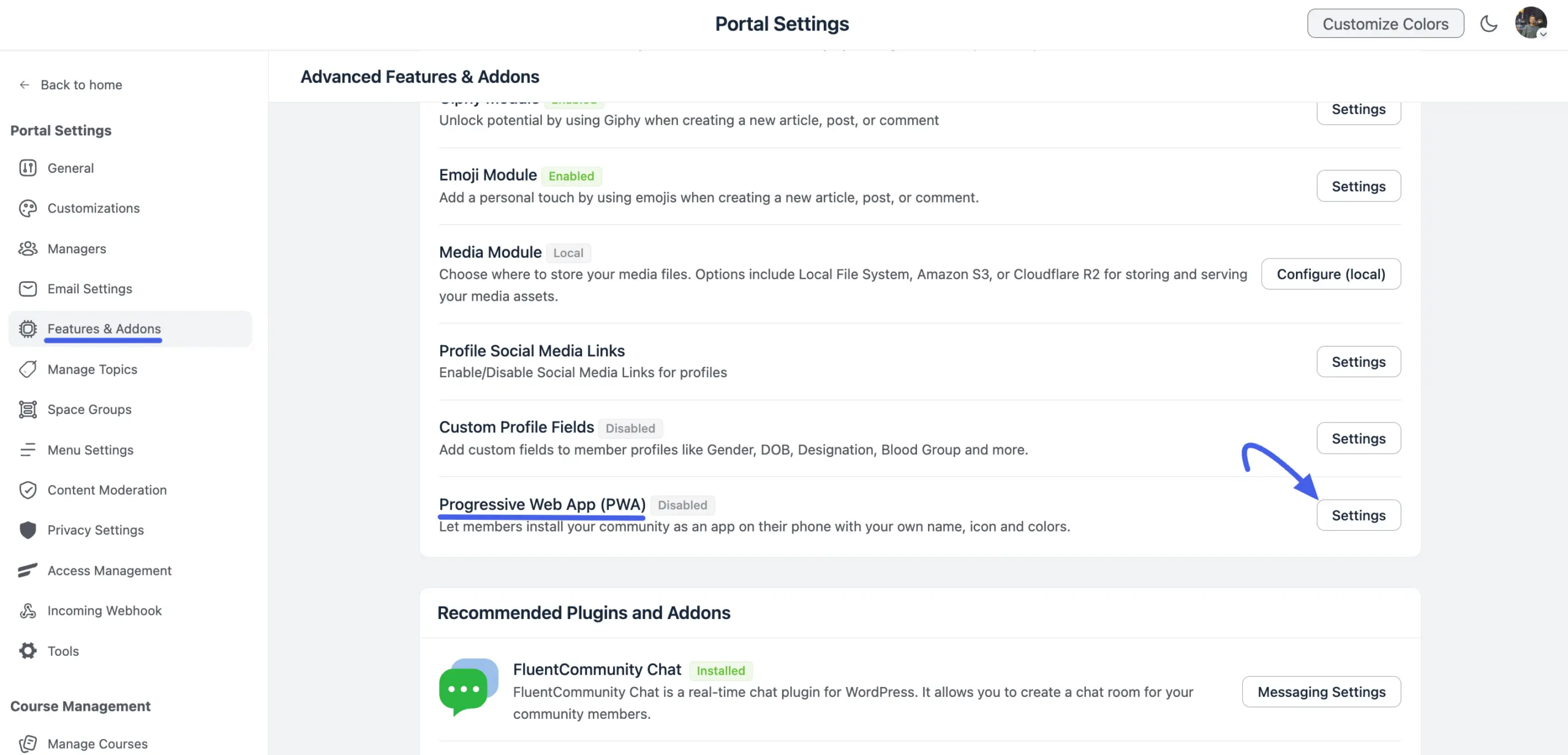
  1. Open your community portal and click Settings at the bottom of the left sidebar.
  2. In Portal Settings, click Features & Addons, then open Advanced Features & Addons.
  3. Scroll down to Progressive Web App (PWA) and click its Settings button.
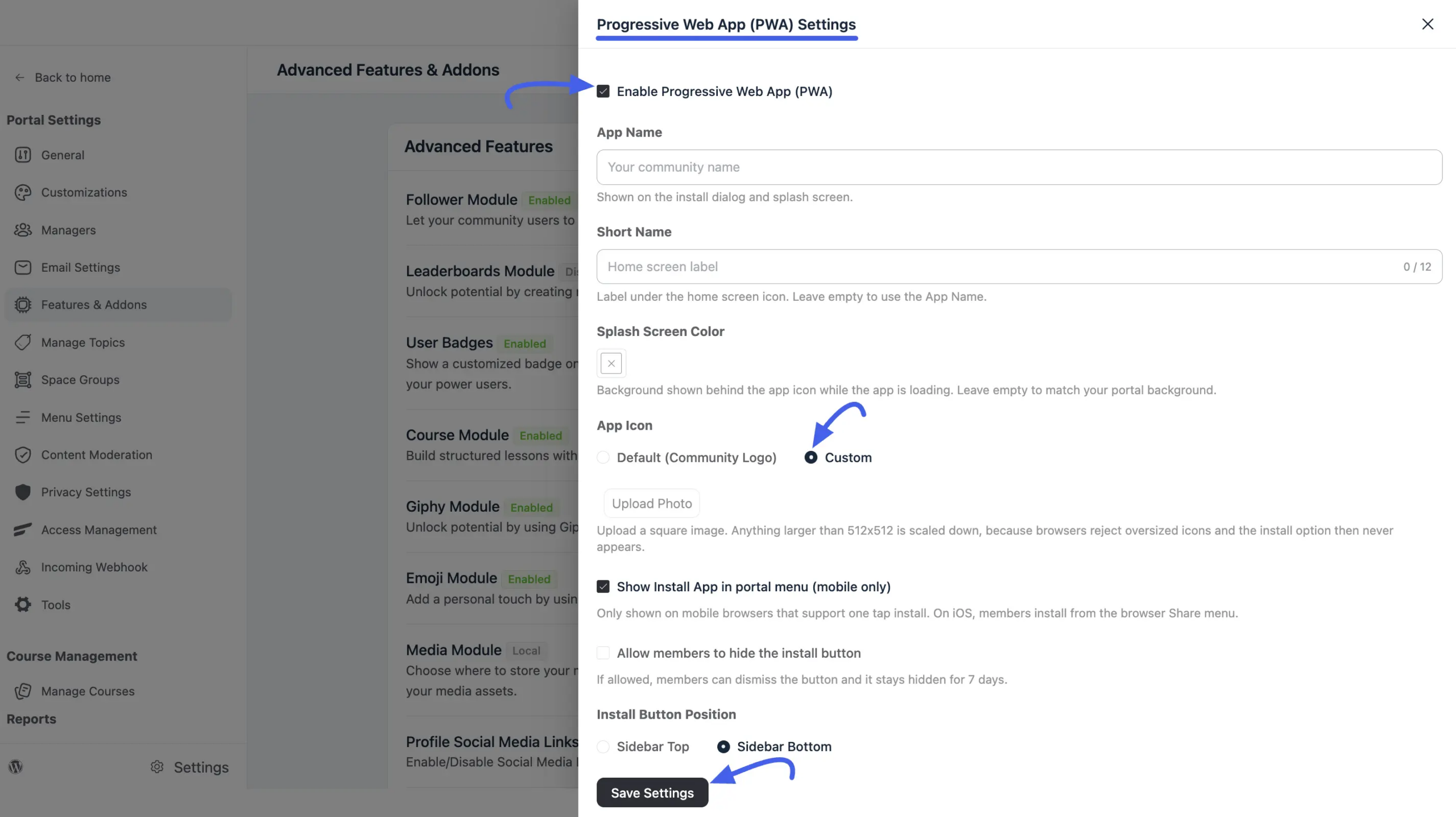
  1. In the drawer that opens, tick Enable Progressive Web App (PWA) at the top.

Once enabled, the module’s status on the Advanced Features & Addons list changes to Enabled, and the install button becomes available to members.

Configuring the Installed App #

With the module enabled, the same drawer exposes every setting for how the app looks and behaves.

FieldWhat it does
App NameThe full name shown on the install dialog and the splash screen. Defaults to your community name.
Short NameThe label shown under the icon on the member’s home screen, where space is limited. Capped at 12 characters; leave it empty to reuse the App Name.
Splash Screen ColorThe background color shown behind the app icon while the installed app is loading. Leave it empty to match your portal background.
App IconChoose Default (Community Logo) to reuse your existing site logo, or Custom to upload a dedicated app icon.

When you choose Custom, upload a square image. Anything larger than 512×512 pixels is scaled down automatically mobile browsers reject oversized icons outright, and if that happens the install option never appears for members at all.

Below the branding fields, three more settings control where and how members see the install button:

SettingWhat it does
Show Install App in portal menu (mobile only)Adds the Install App entry to the sidebar. It only appears on mobile browsers that support one-tap install on iOS, members install via the browser’s Share menu instead.
Allow members to hide the install buttonWhen enabled, members can dismiss the install button themselves. Once dismissed, it stays hidden for that member for 7 days.
Install Button PositionPlaces the Install App entry at the Sidebar Top or Sidebar Bottom of the portal menu.

Click Save Settings at the bottom of the drawer once you’re happy with the configuration; nothing takes effect until you save.

The Member Install Experience #

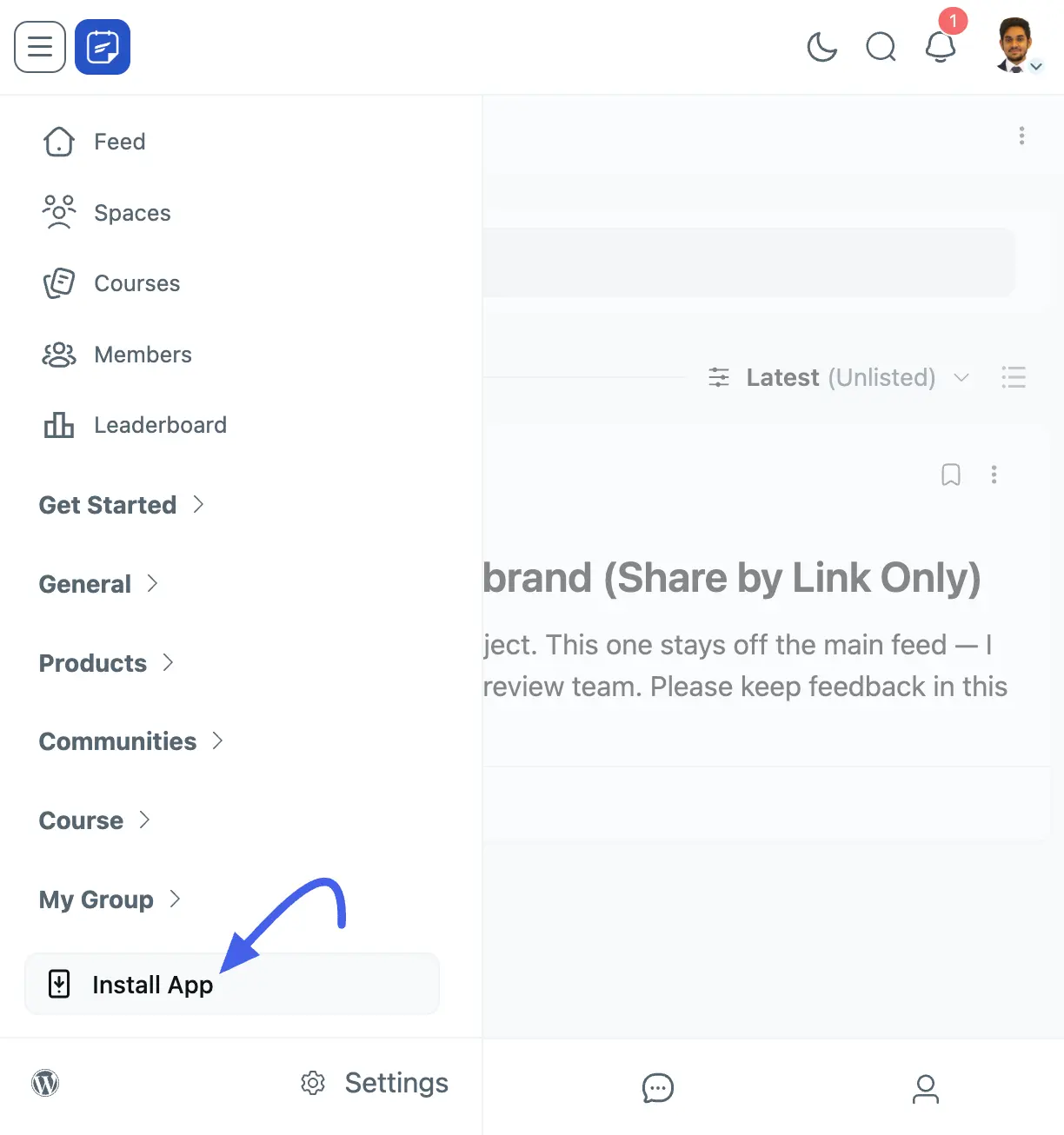
When Show Install App in portal menu is on, members see an Install App entry in the sidebar, positioned wherever you set Install Button Position by default, at the bottom, just above the WordPress Settings link.

Tapping it installs your community as an app using the details you configured: your icon on their home screen, your Short Name underneath it, and your App Name and Splash Screen Color on the loading screen.

The installed app also follows your community’s appearance in light and dark mode, keeping its title bar in sync with whichever color mode the member is using.

On iOS, browsers don’t support one-tap install prompts the way Android and desktop browsers do. iOS members instead install the app from their browser’s Share menu using Add to Home Screen.

Because the installed app carries your branding instead of a browser address bar, double-check your icon, App Name, and Splash Screen Color before rolling this out — treat it the same way you’d treat a mobile app store listing.

For Developers #

Several filters are available for finer control over the install experience, including the install button’s text, the app’s theme color, and its screen orientation, so agencies can tailor the PWA behavior for a client without adding extra settings screens.

For the on-site sidebar links that surround the Install App entry, see Menu Settings.

What are your Feelings

Share This Article :

  • Facebook
  • X
  • LinkedIn
  • Pinterest
Still stuck? How can we help?

Still stuck? How can we help?

Updated on August 20, 2026
Access Management Through FluentCRM TagsGeneral Settings 
Table of Contents
  • Enabling the PWA Module
  • Configuring the Installed App
  • The Member Install Experience
  • For Developers

Launch Your Own Social Media Platform Today!

Establish a meaningful connection with your people.

Buy Now

FluentCommunity is the fastest and the most efficient community plugin for WordPress

Social
  • WordPress
  • Facebook
  • YouTube
  • X
  • LinkedIn
RESOURCES
  • About Us
  • Features
  • Blog
  • Documentation
  • Support
  • Online Community 101
  • FluentCommunity 101 Course
  • Account
  • Brand Guideline
Popular
  • FluentCommunity: What It Is, Why We Built It, and Where It’s Headed
  • BuddyBoss migration with FluentCommunity
  • Create an Online Community
  • 9 Best Patreon Alternatives for 2025
  • Top 7 Udemy Alternatives for 2025
Use Cases
  • For Education
  • For Social Network
  • For Workplace
  • For Brands
  • For Online Course
  • For Professionals
  • For Club & Org.
  • For Coaching
  • For Nonprofits
  • For Creators
comparisons
  • Free vs Pro
  • vs BuddyBoss
  • Vs Learndash
  • vs Circle
  • vs Patreon
  • vs TutorLMS 
Our products
  • FluentCart
  • FluentPlayer
  • FluentAffiliate
  • Fluent Forms
  • FluentCRM
  • FluentSupport
  • WP Social Ninja
  • FluentBooking
  • FluentBoards
  • Ninja Tables
  • Paymattic
  • AzonPress
  • FluentSMTP
  • FluentSnippets
Miscellenoues
  • Wall Of Love
  • Share Your Story

© 2026 FluentCommunity A Brand of  WPManageNinja™ | Privacy Policy | Terms & Conditions

Join the Waitlist

Get early access and be the first to experience FluentCommunity

Join Waitlist (#4)
  • Features
  • Use Cases
    • For Online course
    • For Education
    • For Brands
    • For Workplace
    • For Social Network
    • For Professionals
    • For Club & Org.
    • For Coaching
    • For Nonprofits
  • Blog
  • Pricing
  • About
  • Roadmap
  • Docs
    • User Doc
    • Developer Docs
  • FluentCommunity 101 Course