The Quiz Module in FluentCommunity allows you to test your students’ knowledge easily. You can add quizzes to your course. This makes your courses more fun and effective!
This guide will show you how to set up and add quizzes to your course.
Add a New Quiz #
To use quizzes, you first need to create a new course or edit an existing one. If you’re not sure how to make a course, check out our other guide for help.
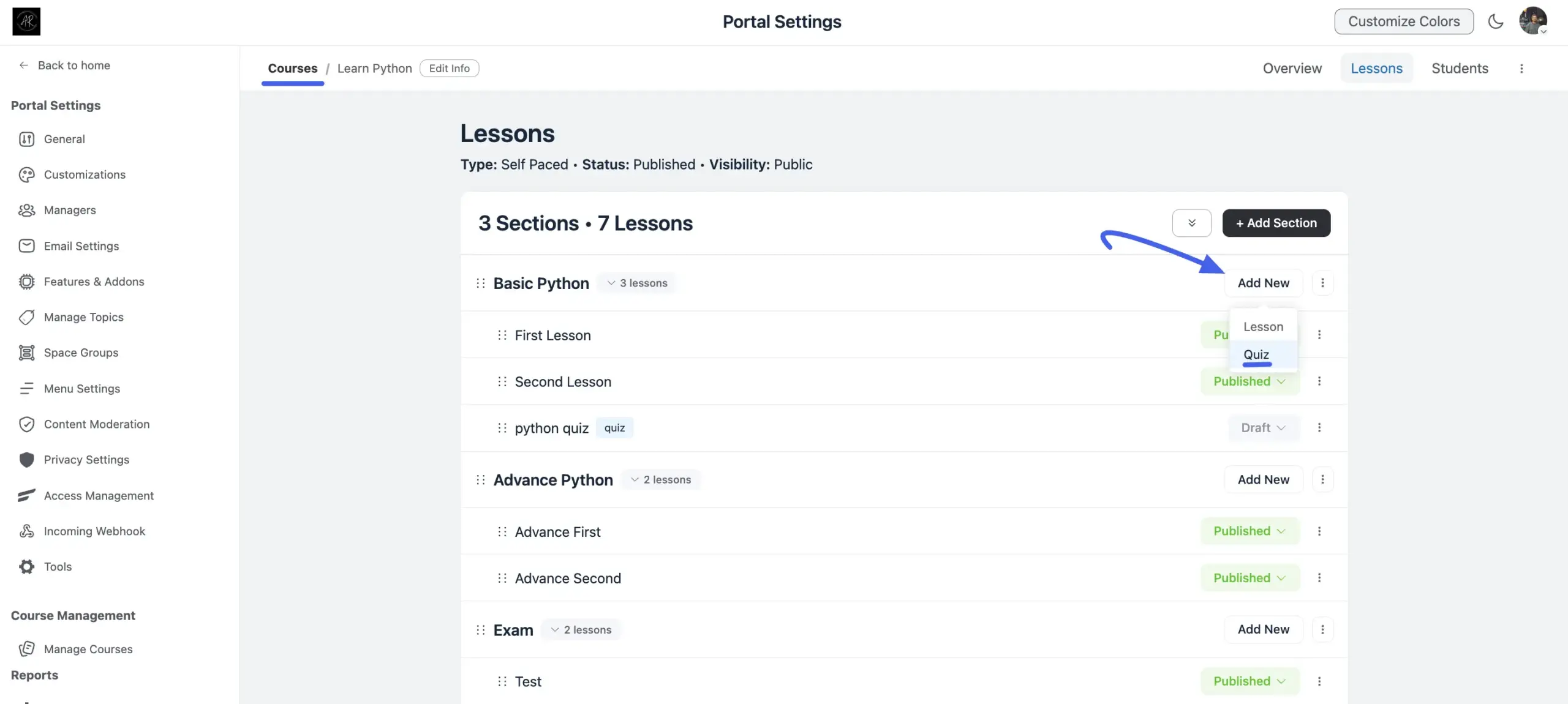
- Open your course editor.
- Click the Add New button.
- Select Quiz from the dropdown menu.
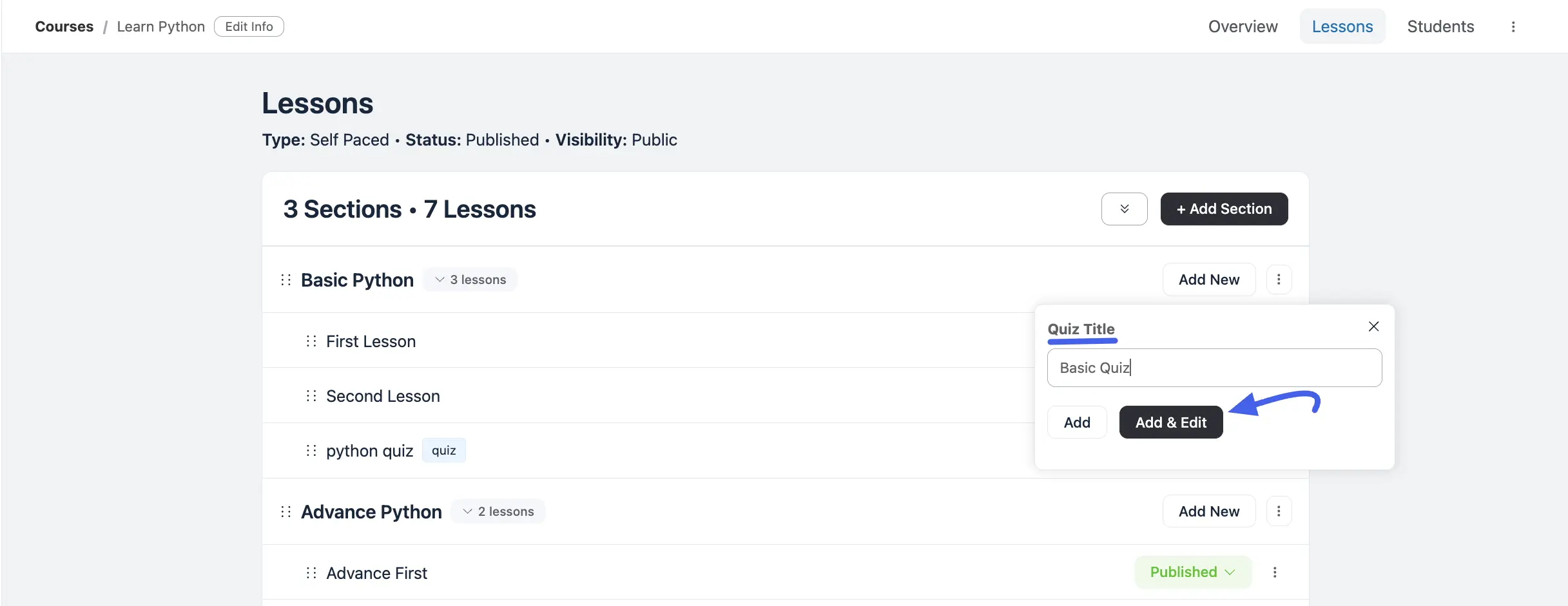
- Type your quiz name in the Quiz Title pop-up box.
- Click Add & Edit to open the quiz builder.
Configure Quiz Settings #
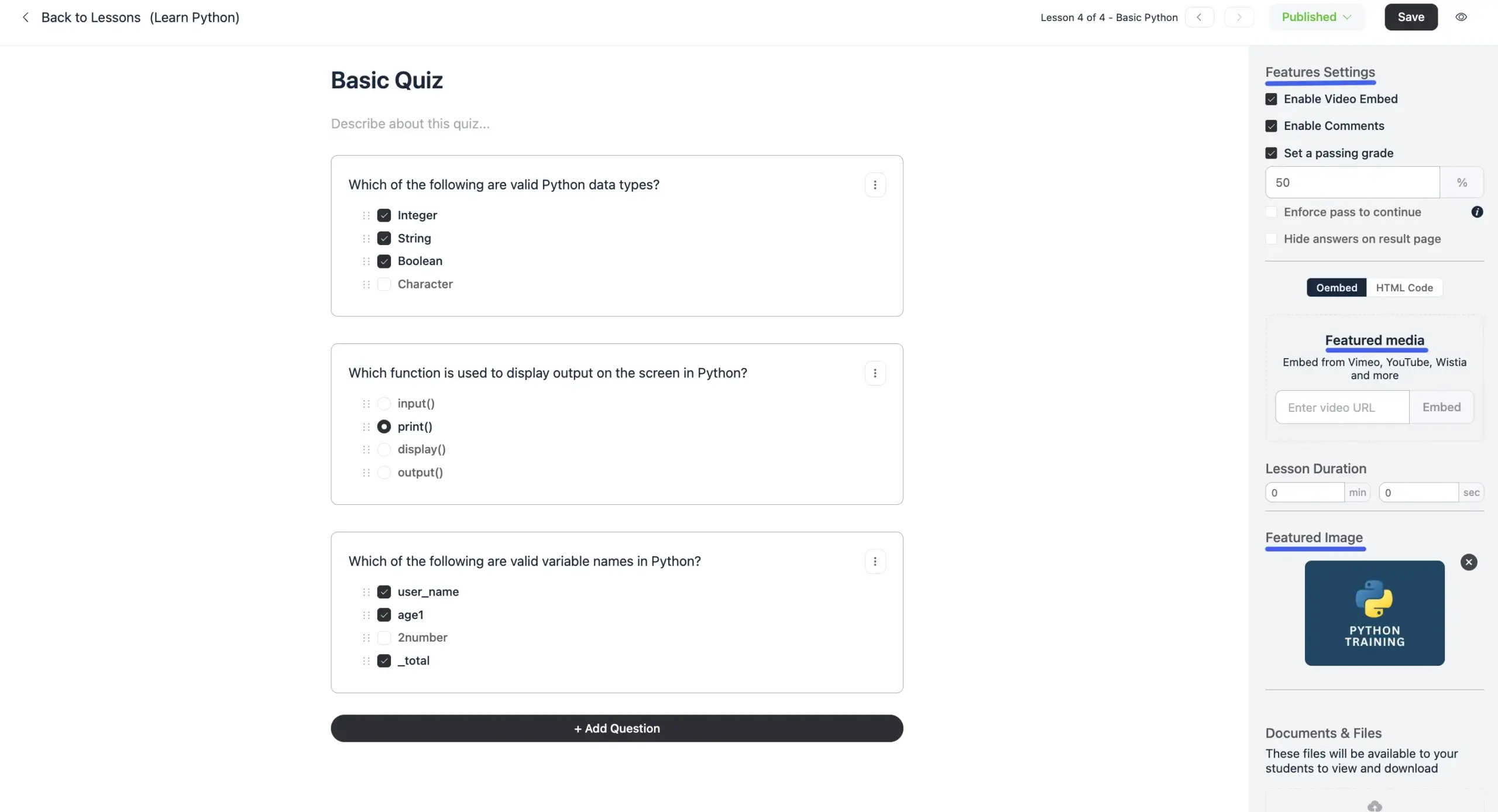
The right side of the quiz editor holds your settings panel. This is your control center for how the quiz behaves for your learners.
- Enable Video Embed: Show a video at the top of your quiz page.
- Enable Comments: Allow students to leave comments or ask questions below the quiz.
- Set a passing grade: Turn this on to require a specific score to pass. Enter the required percentage (for example, type 80 for 80%).
- Hide answers on result page: Keep the correct answers hidden after a student finishes the quiz. This is useful if you let students retake the test.
- Featured media: Paste a video URL (YouTube, Vimeo) into the Embed tab, or paste code into the Custom HTML Code tab to place a video at the top of the quiz.
- Lesson Duration: Enter the expected time in minutes and seconds it will take a student to complete the quiz.
- Featured Image: Click Upload Image to add a thumbnail graphic for your main course page.
- Documents & Files: Drag and drop extra materials, like PDF study guides, for students to download before they start.
Build Your Questions #
The quiz editor is fast, clean, and fully keyboard-accessible. You can add and build entire quizzes without ever touching your mouse!
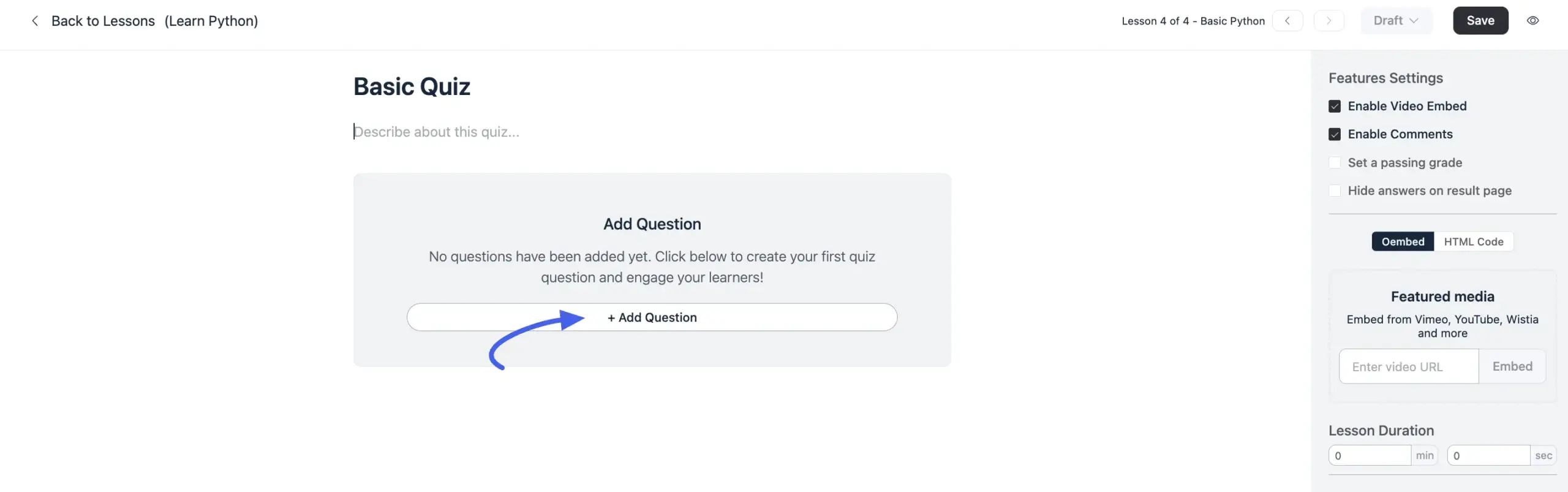
- Click the + Add Question button at the bottom of the screen.
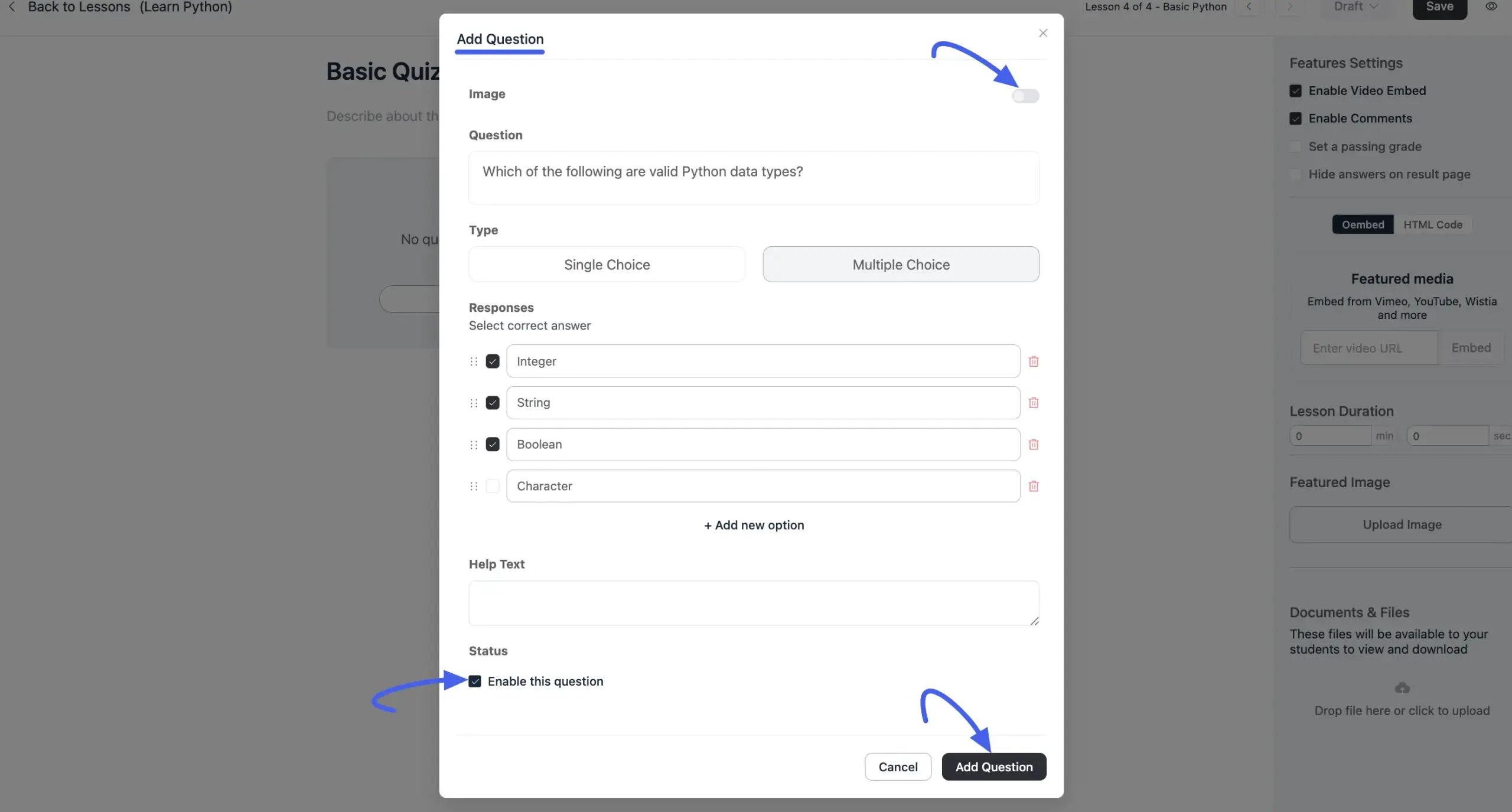
- Toggle Image on if you want to upload a picture at the top of the question.
- Choose your question Type: Single Choice (one right answer) or Multiple Choice (more than one right answer).
- Type your question in the Question box.
- Add your choices under Responses. Click the small circle next to the correct answer.
- Click + Add new option to include more choices.
- Type a hint in the Help Text box if you want to give students a clue.
- Click Add Question to save it to the list.
Manage and Reorder Questions #
It is very easy to organize your quiz layout directly from the editor.
- Reorder Answers: Easily grab and move answer choices up or down to change their order.
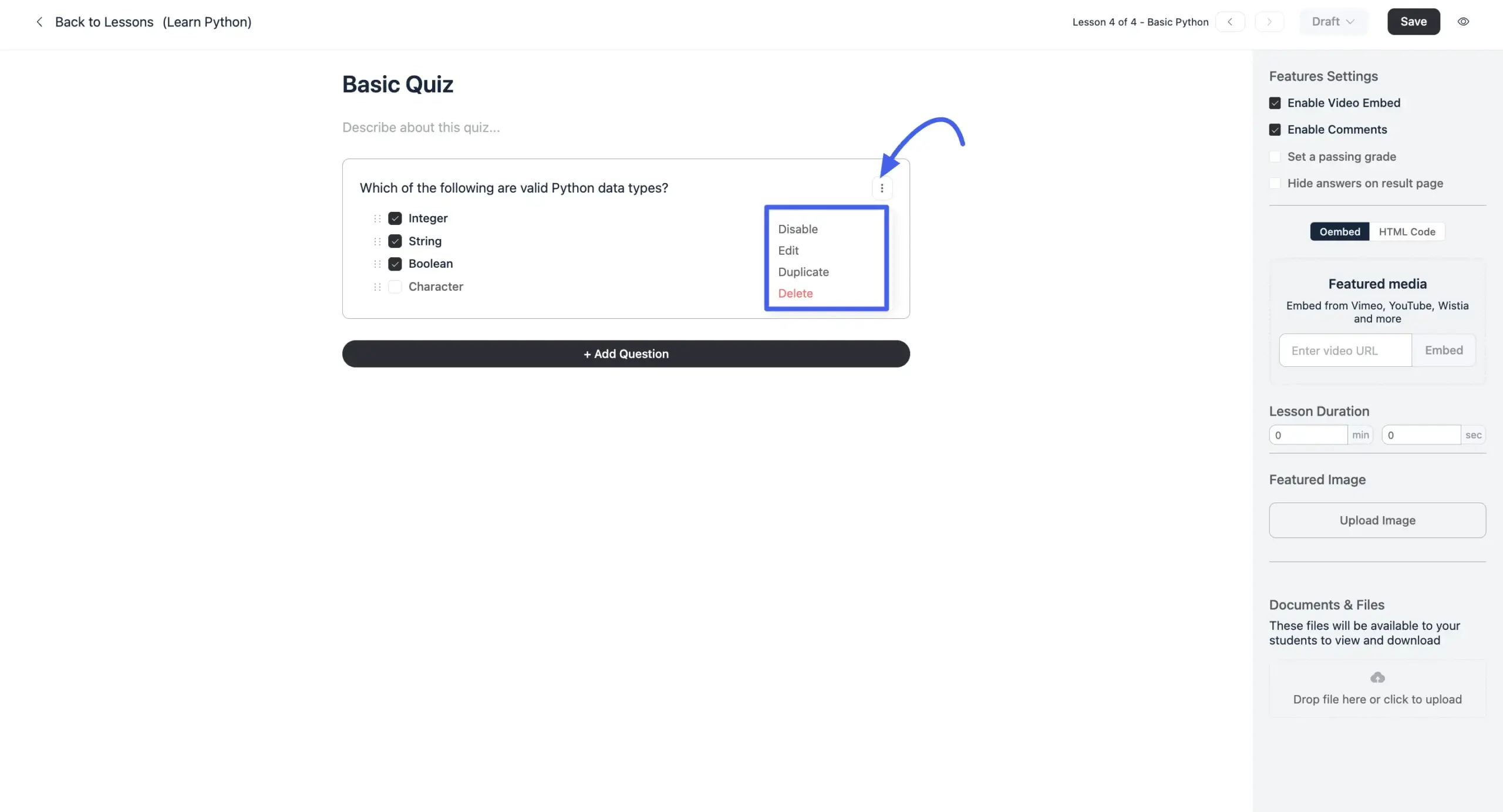
- Edit or Delete: Click the three-dot menu next to any question to edit its text, temporarily disable it, or delete it permanently.
- Duplicate a Question: Click the three-dot menu and select Duplicate. This instantly copies the question and its exact answers. The new copy will glow so you spot it instantly, allowing you to tweak just a few words for your next question.
Save and Preview Quiz Module #
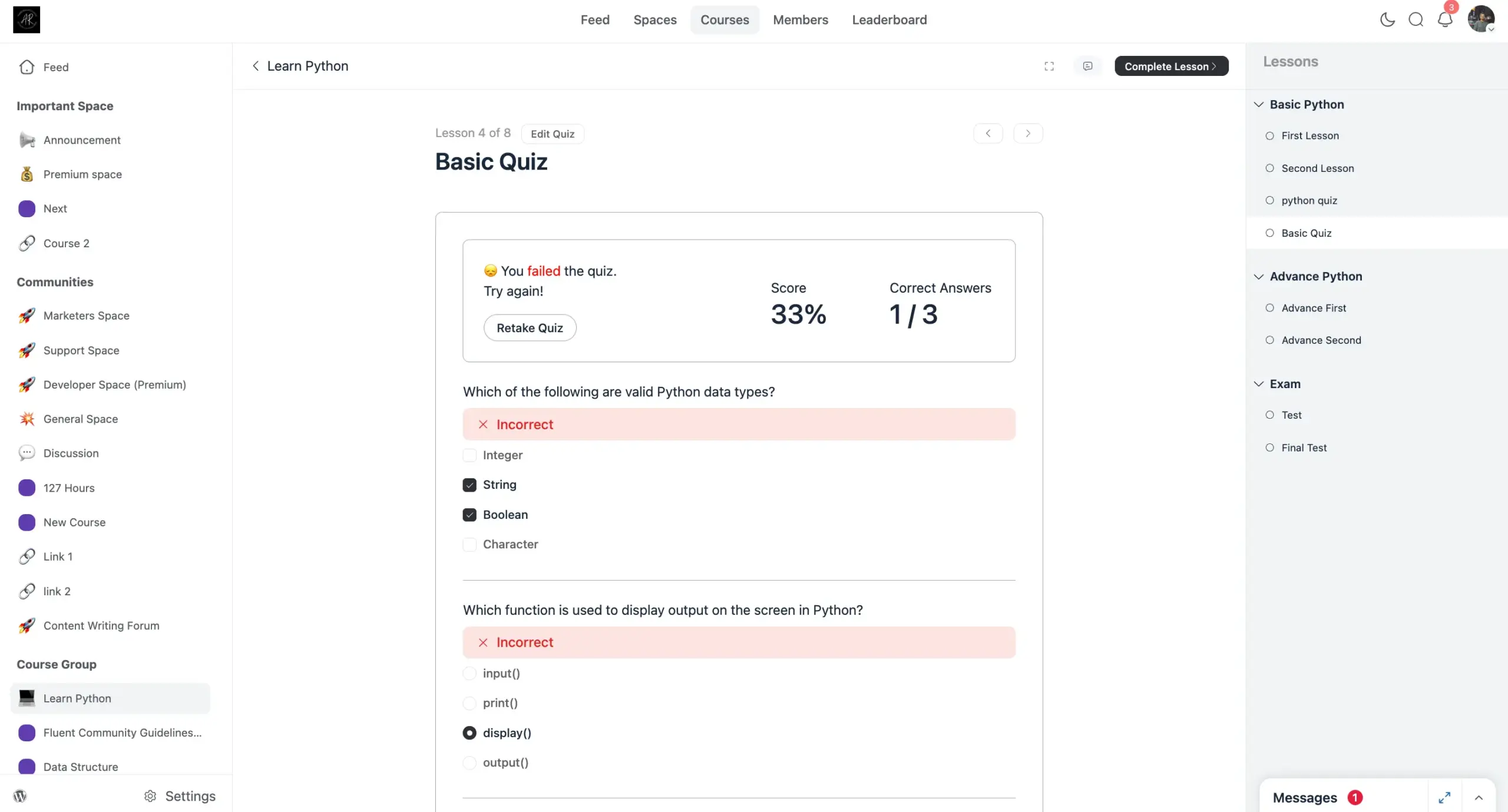
When students take the quiz, they will see their results right away after submitting their answers. Always remember to click the dark Save button in the top-right corner to keep everything updated.
If a student is not enrolled in the course, the Submit button will be disabled. A short message will explain why they cannot submit the form.
Before students can see or take the quiz, make sure you publish your quiz questions!
If you have any questions, please don’t hesitate to contact our support team.