FluentCommunity makes it incredibly easy to share downloadable resources — like PDFs, worksheets, or reference files — directly inside your course lessons. These files are strictly protected and accessible only to enrolled students, ensuring your premium content stays secure!
This guide will walk you through the simple steps to upload, manage, and share documents within your course lessons.
Unlike Spaces, where you need to manually enable the document feature from the Space Settings, Course Documents are enabled by default! There are no extra settings to toggle. You simply need to have the FluentCommunity Pro version installed and activated to start using this feature.
Step 1: Open the Course #
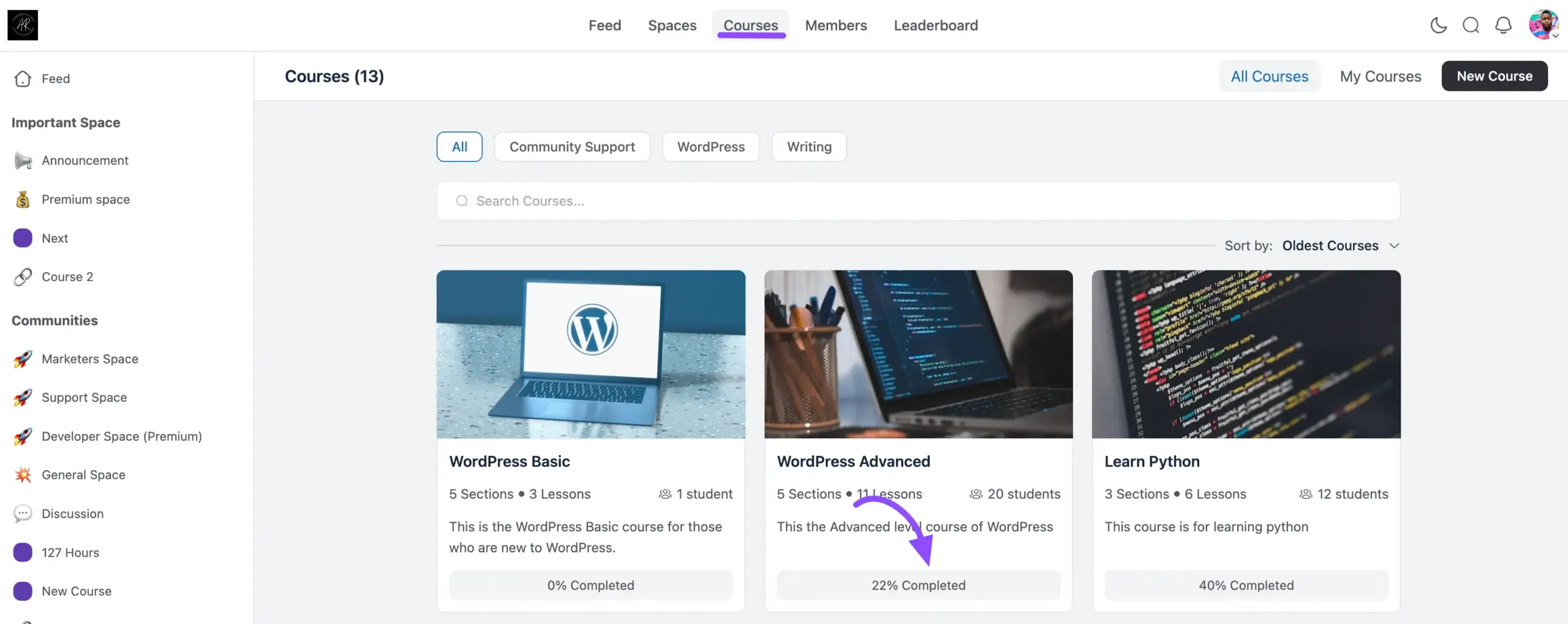
Start by navigating to the Courses section from the top navigation bar of your FluentCommunity portal. You will see all your available courses listed here.
Click on the specific course where you want to attach lesson files — for example, WordPress Advanced.
Step 2: Open the Lesson Manager #
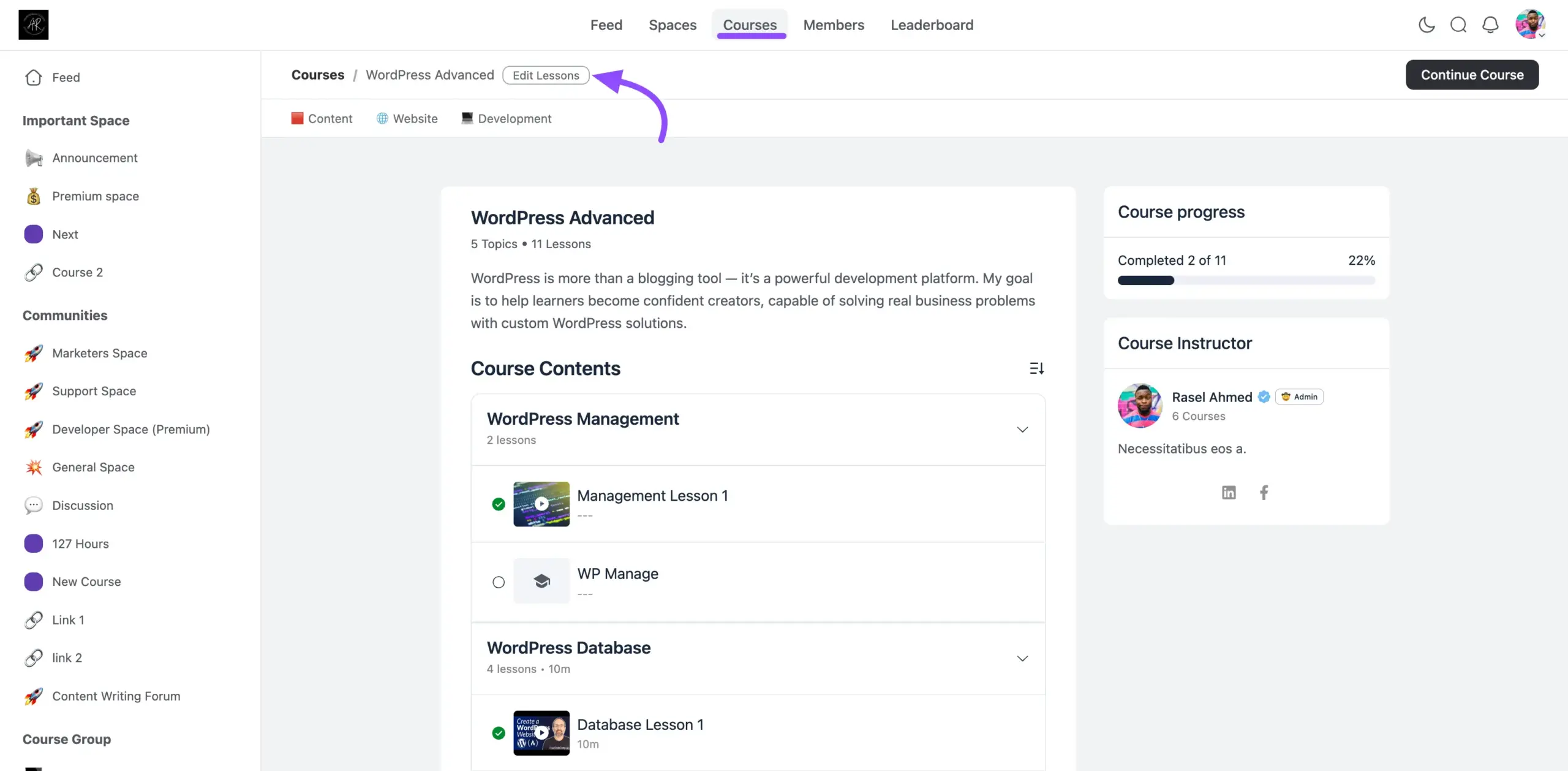
Once you are inside the course page, click the Edit Lessons button located near the top of the page.
This will take you directly to the lesson management area inside the Portal Settings, where you can see all your sections and lessons organized in one place.
Step 3: Open the Lesson Editor #
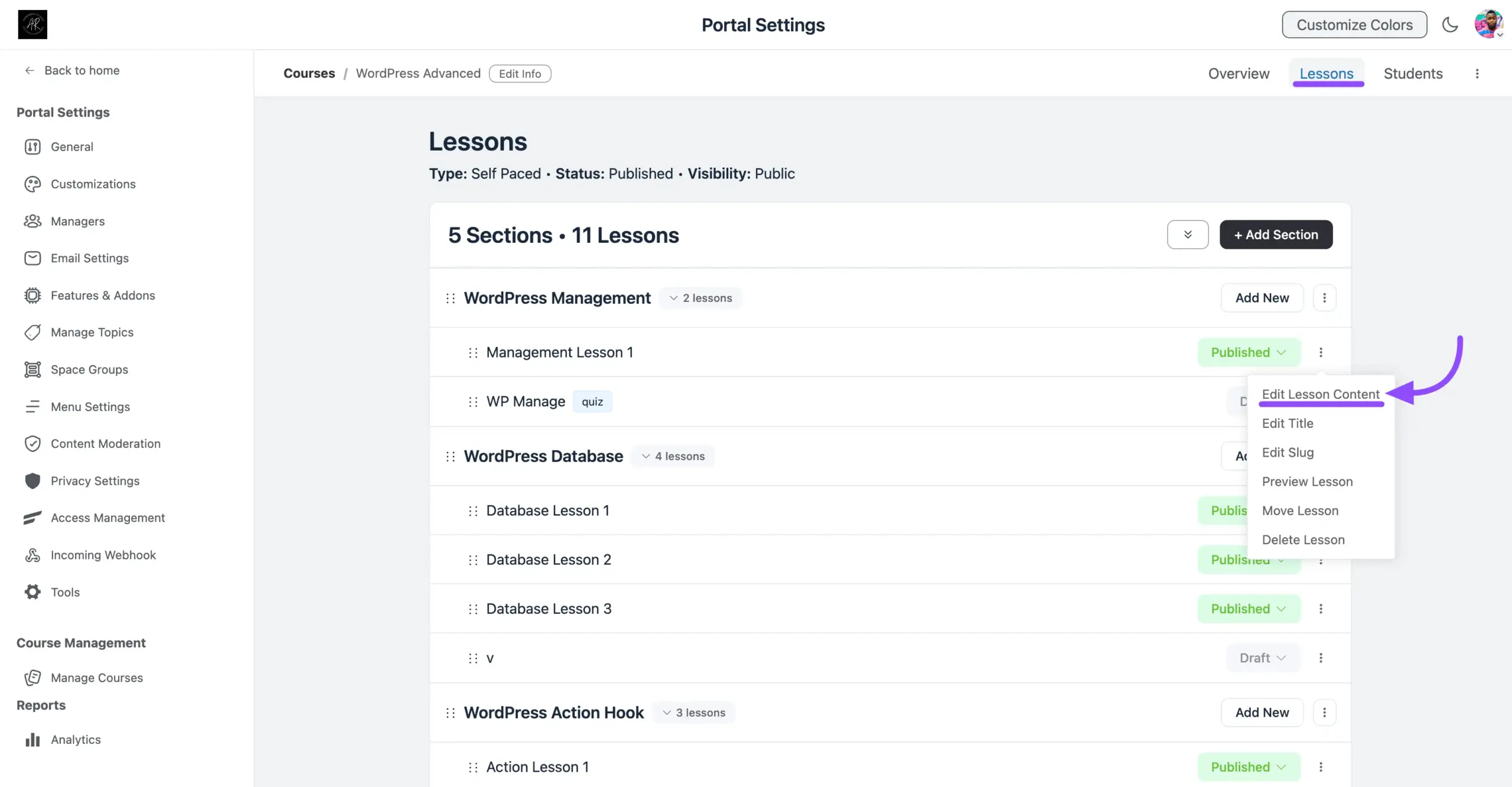
In the lesson management area, find the specific lesson you want to add files to. Click the three-dot menu (⋮) next to the lesson name to reveal a set of options, then select Edit Lesson Content from the dropdown.
Step 4: Access Documents & Files #
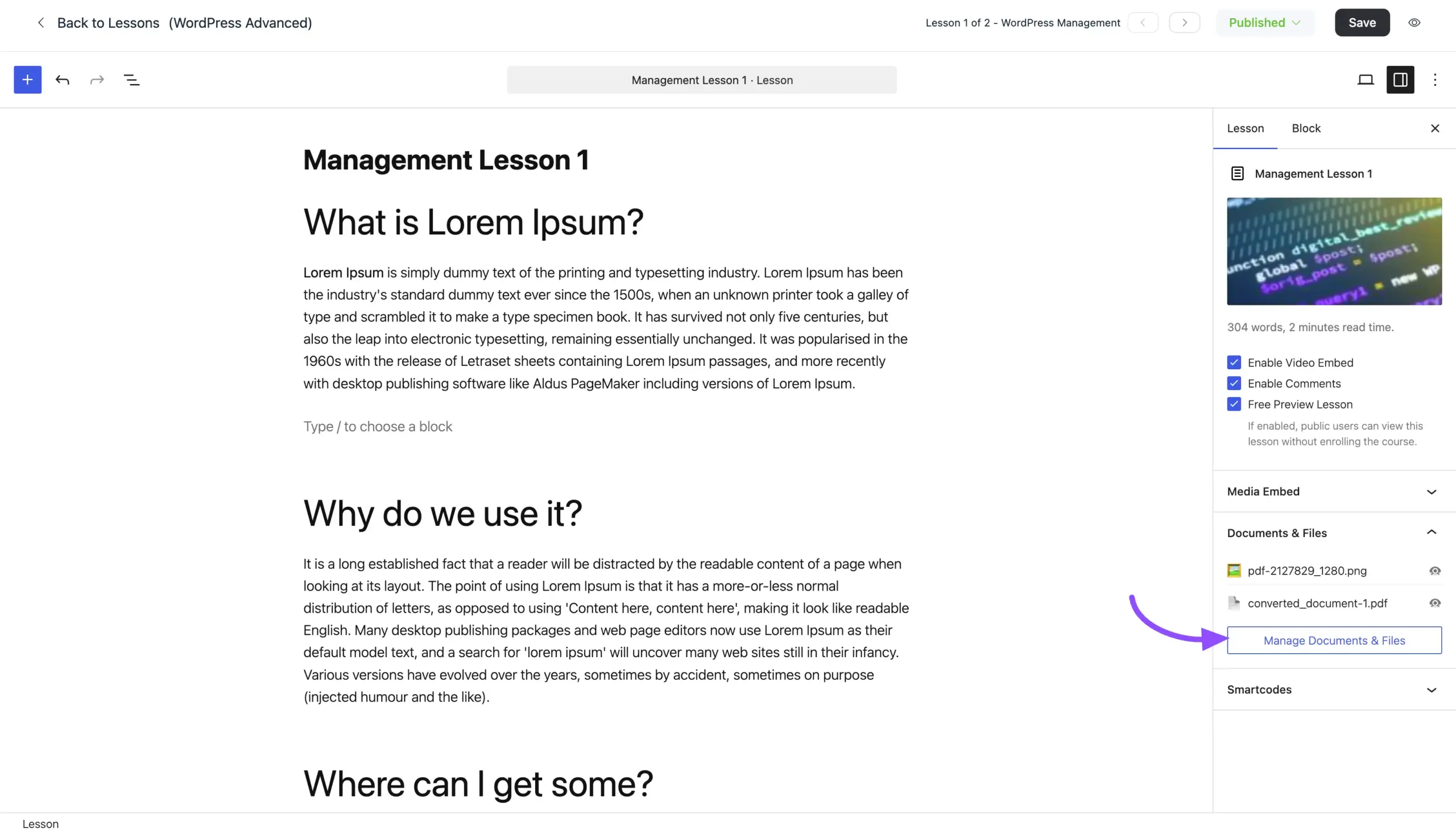
You are now inside the full lesson editor! On the right-hand sidebar, scroll down until you find the Documents & Files section. You will see any previously uploaded files already listed here.
To manage or add new files, click the Manage Documents & Files button.
Step 5: Upload Your Files #
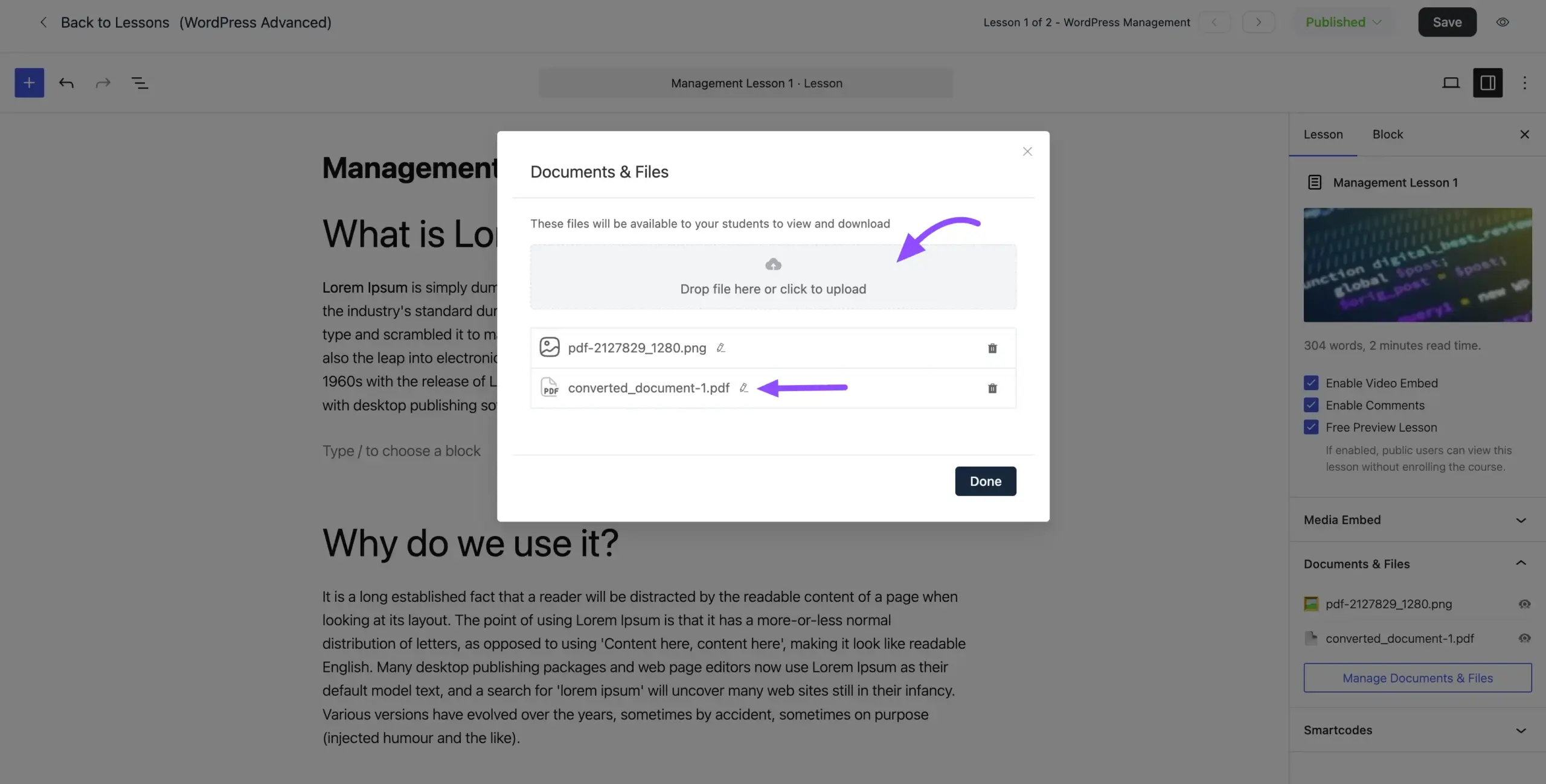
A panel will pop up showing the Documents & Files management area. Here, you can:
- Drag and drop your files directly into the upload box, or click the box to browse and select files from your device.
- Your uploaded files will appear in the list below the upload area as soon as they are added.
Once your files are uploaded, you have full control over how they appear. Next to each file in the list, you will find two action icons:
- Pencil Icon (✏️) — Rename: Click this to give the file a clean, descriptive name that makes sense to your students.
- Trash Icon (🗑️) — Delete: Click this to permanently remove the file from the lesson.
When you are happy with your files, click the Done button to close the panel.
Do not forget to click the Save button at the top right of the lesson editor to make sure all your changes are saved!
Want to see how everything looks from a student’s perspective? Click the Eye Icon in the top right corner to preview the lesson exactly as a student would see it.
The Student Experience #
When your students open the lesson, they will find all your uploaded materials right there waiting for them. A dedicated Documents & Files section appears within the lesson, where students can simply click to download any file directly to their device.
The interface is fully responsive — students can easily access and download their resources whether they are on a desktop, tablet, or mobile phone!