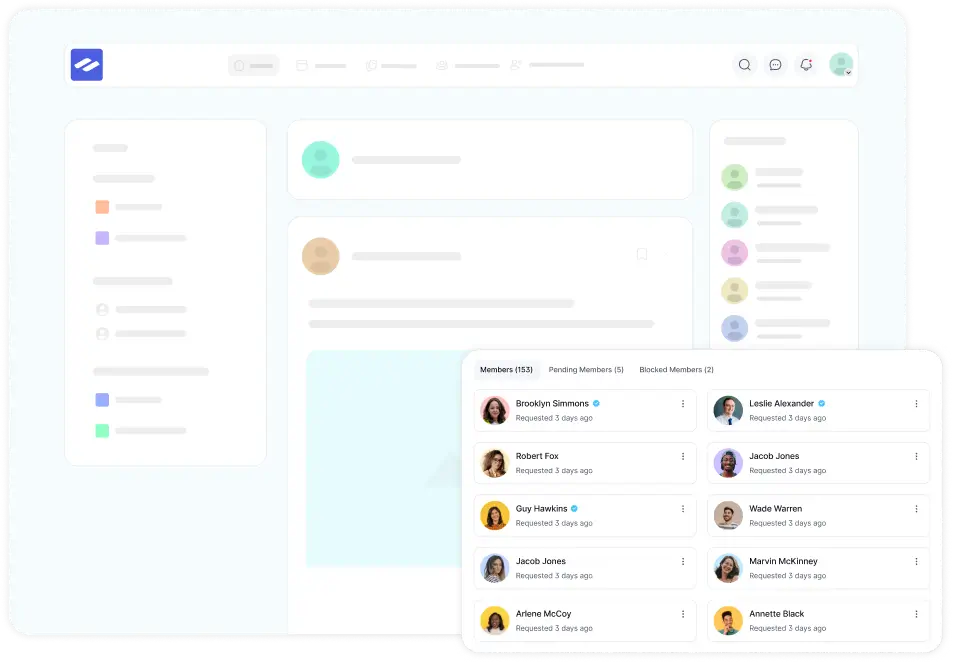
Admin and Members can personalize their notification options using the Profile Notification Settings. Admin and Members can customize their experience by choosing which notifications they wish to receive.
Access Notification Settings #
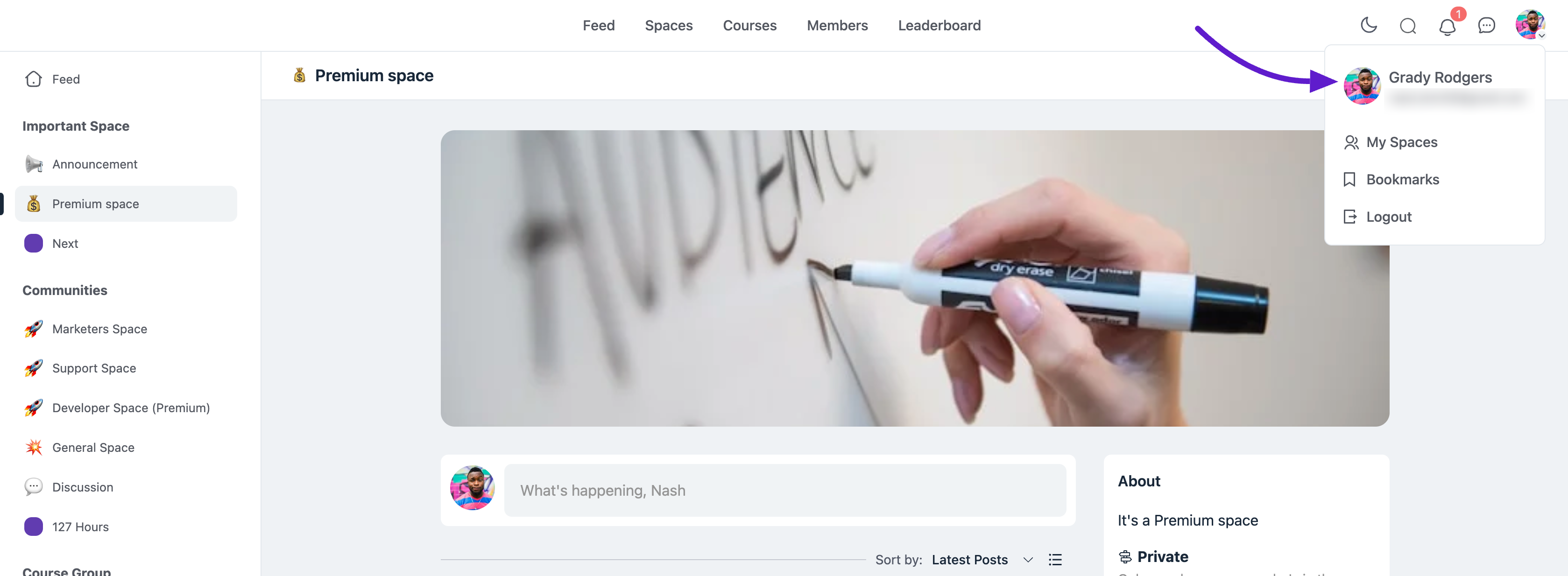
To access your profile settings, click on your profile picture in the top-right corner of the Community Dashboard, then select Your Profile.
Global Email Notification Settings #
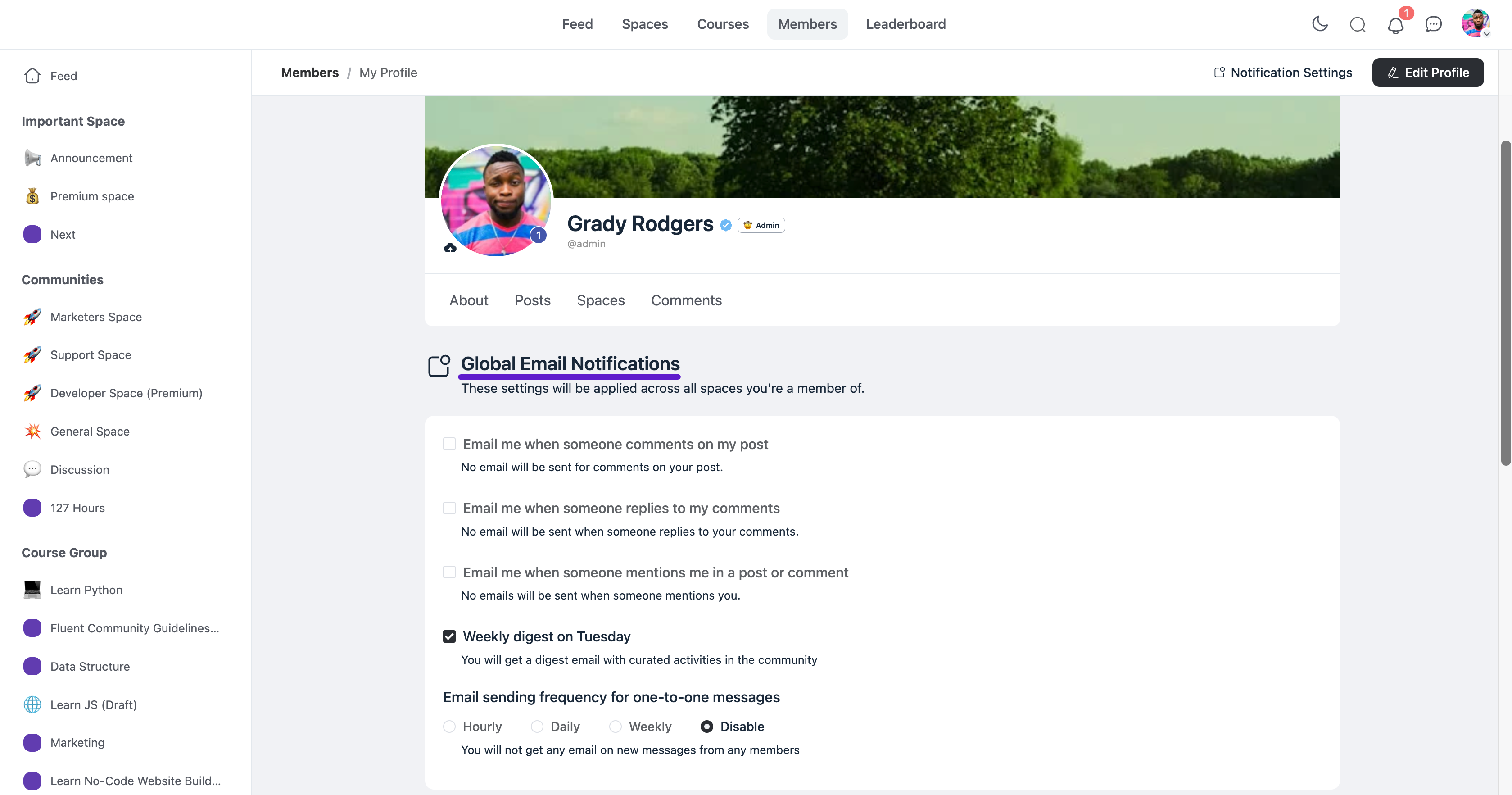
Next, click on Notification Settings in the menu bar to access the Global Email Notification Settings for your profile. These settings manage notifications for all the groups and spaces you’re a part of. Here are the options available to you:
- Email me when someone comments on my post: You’ll get an email when someone comments on one of your posts.
- Email me when someone replies to my comments: You’ll get an email when someone replies to your comments.
- Email me when someone mentions me in a post or comment: You’ll get an email when someone tags or mentions you.
- Weekly Digest on Monday: You can choose to get a summary of activities every Monday.
- Email Sending Frequency for One-to-One Messages: This setting appears if the Email Notification for one-to-one messages is enabled in the Messaging Settings. From here, you can choose your preferred email sending frequency by selecting one of the available options.
New Posts Notifications #
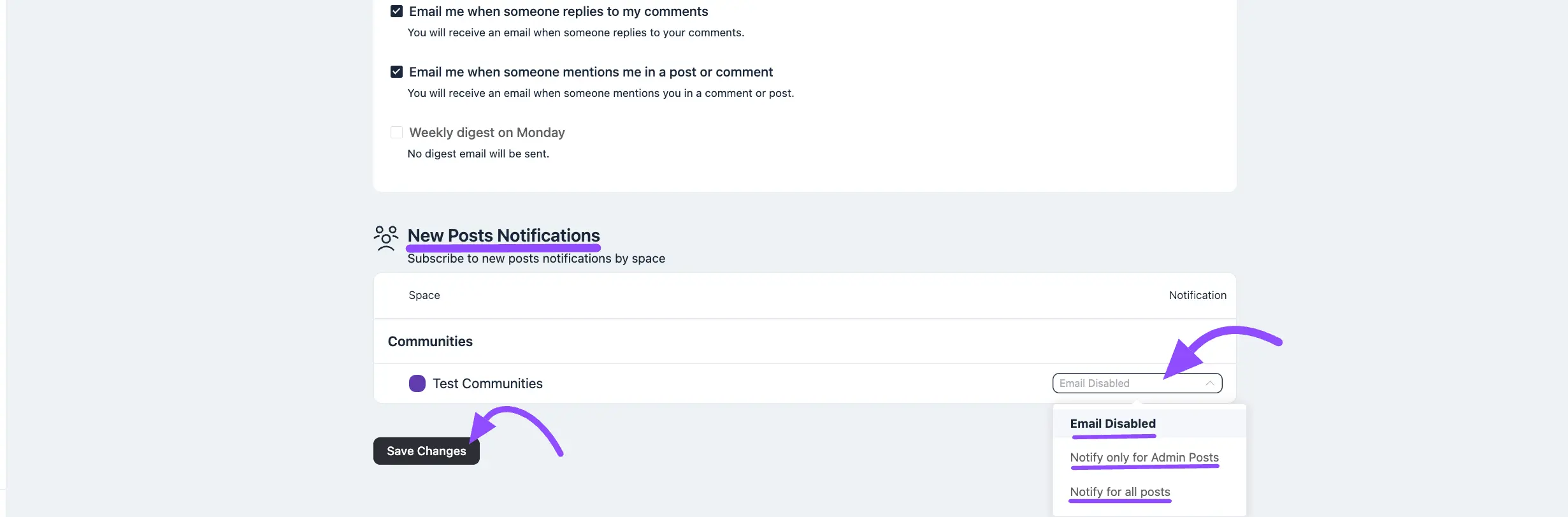
These settings control notifications for posts in each space:
- Email Disable: Turn off email notifications for posts in this space.
- Notify only for admin posts: Get notifications only for posts made by admins.
- Notify for all posts: Get notifications for all posts in this space.
With these settings, you can control what updates you get from your community, helping you stay informed without too many emails.
Recent Notifications #
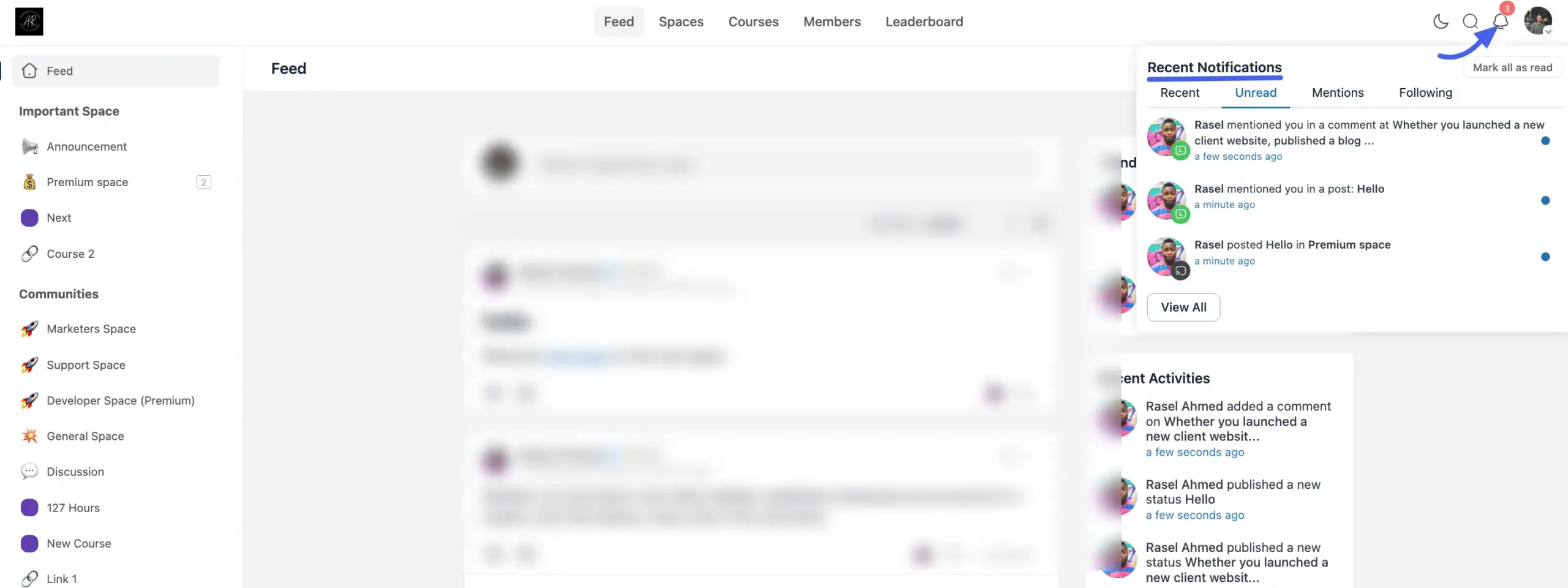
You can see all your notifications by clicking the Notification icon in the top-right corner of your screen. Notifications help you stay updated with activities in your community. There are three main options:
- Recent: Displays a chronological feed of your most recent notifications, giving you a quick snapshot of overall community interactions.
- Unread: Filter out viewed items instantly. The Unread tab isolates only the notifications you haven’t opened yet, marked by a blue indicator dot. Read states, profile badges, and navigation counters sync dynamically in real-time as you clear them.
- Mentions: Focuses strictly on specific threads where another member has tagged your name or profile directly in a post or comment.
- Following: Shows notifications for posts and users you are following.
Quick Actions within the Panel #
- Mark all as read: Located at the top right of the popover box, this instantly clears all unread indicators across your tabs.
- View All: Located at the bottom left of the menu overlay, click this button to open the full-screen notifications manager page for an expansive view of your history.
This system keeps you informed without too many updates, so you can stay connected with your community at a comfortable level.
If you have any further questions about this guide, please don’t hesitate to contact us.