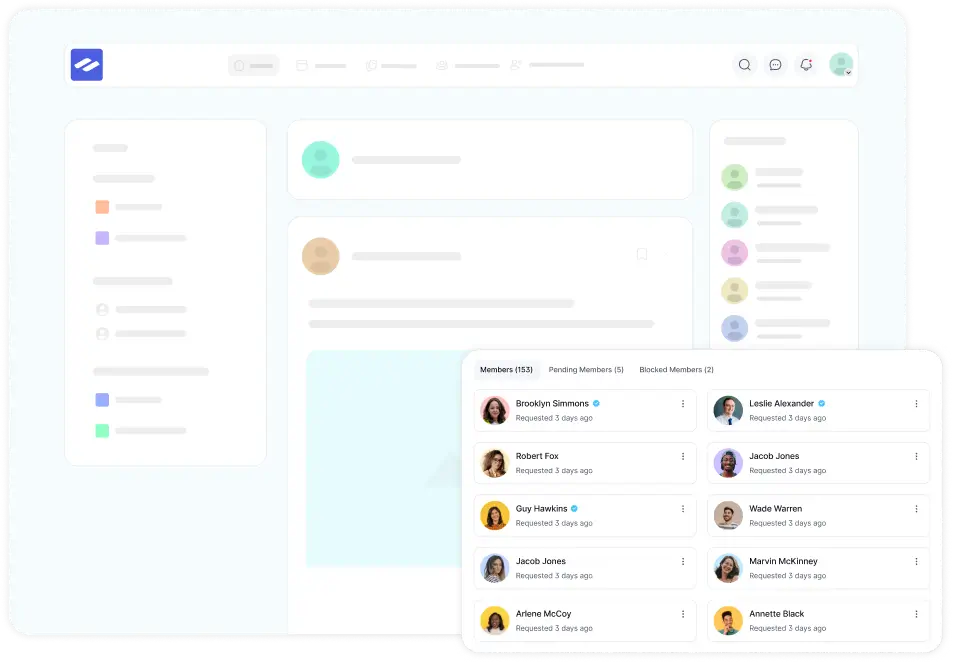
FluentCommunity automatically gathers every photo and video shared inside a Space and displays them together in one beautiful, browsable Media Gallery. Instead of scrolling through the feed to find that image someone posted last week, your members can open the gallery and see all of a Space’s visual content in a single, organized grid.
This guide will explain how to enable, configure, and use the Media Gallery for a Space.
The Media Gallery is a Pro feature — it is available when FluentCommunity Pro is active.
How the Media Gallery Works #
The Media Gallery is automatic. There is no separate “upload to gallery” step — any photo or video that gets shared in a Space’s posts is collected into that Space’s gallery for you. The gallery simply gives your members a cleaner way to browse media that already lives in the Space.
Enable the Media Gallery #
Go to the Spaces section from the FluentCommunity navbar. Open the Space where you want the gallery, click the three-dot menu in the top-right corner, and select Space Settings. Scroll down to the Permissions section.
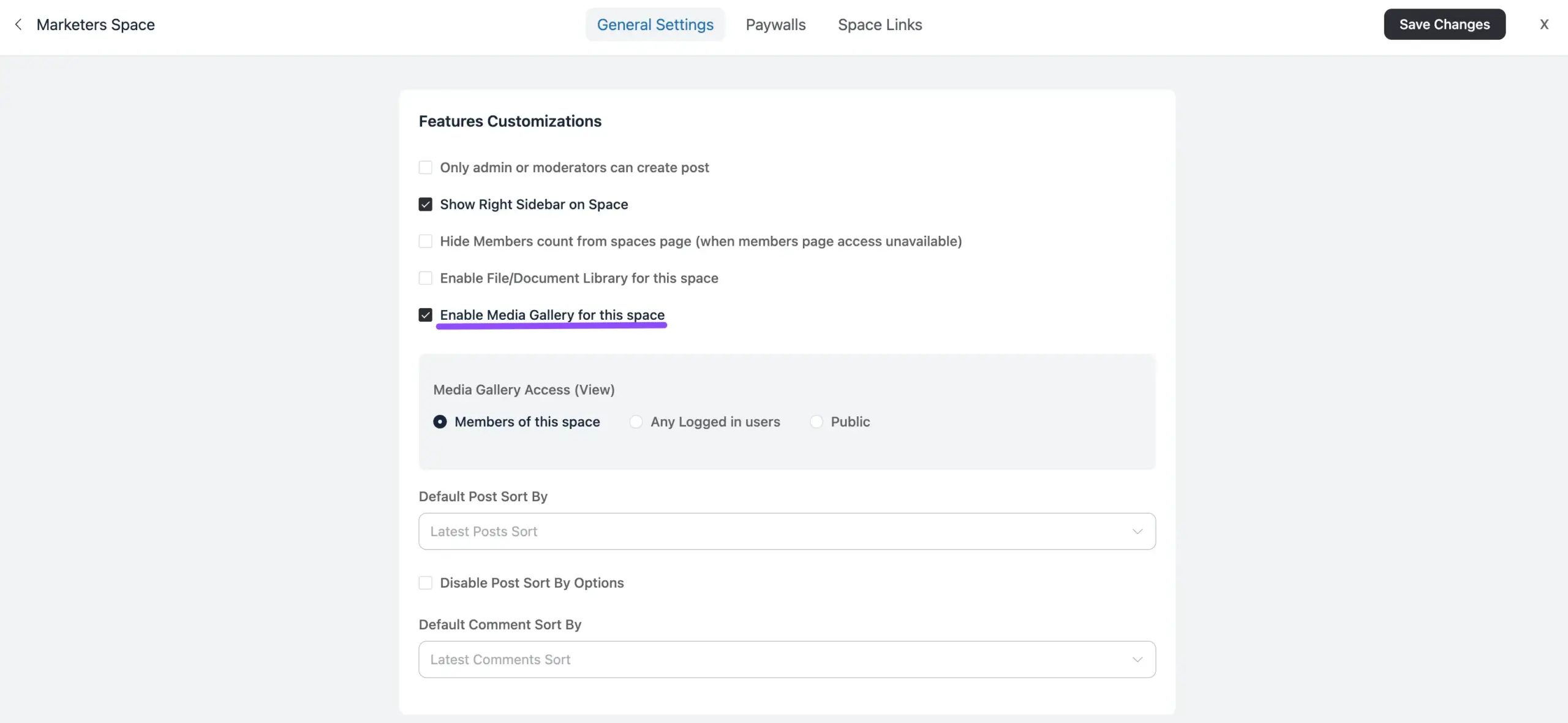
Enable Media Gallery: Find the Enable Media Gallery for this space option (marked with a (Pro Feature) badge) and check the box to turn the gallery on.
The Media Gallery is off by default — you turn it on per Space, exactly like the Documents/Files library.
Media Gallery Access (View): Once enabled, choose who is allowed to view the gallery under Media Gallery Access (View):
- Members of this space — only members of the Space can open the gallery.
- Any Logged in users — any logged-in user of your site can view it.
- Public — anyone can view it, even without logging in.
After configuring, scroll down and click the Update Info button to save your changes.
Privacy note: Private and secret Spaces always keep their gallery restricted to members, regardless of the access option you pick — the gallery never exposes media from a hidden Space.
Viewing the Media Gallery #
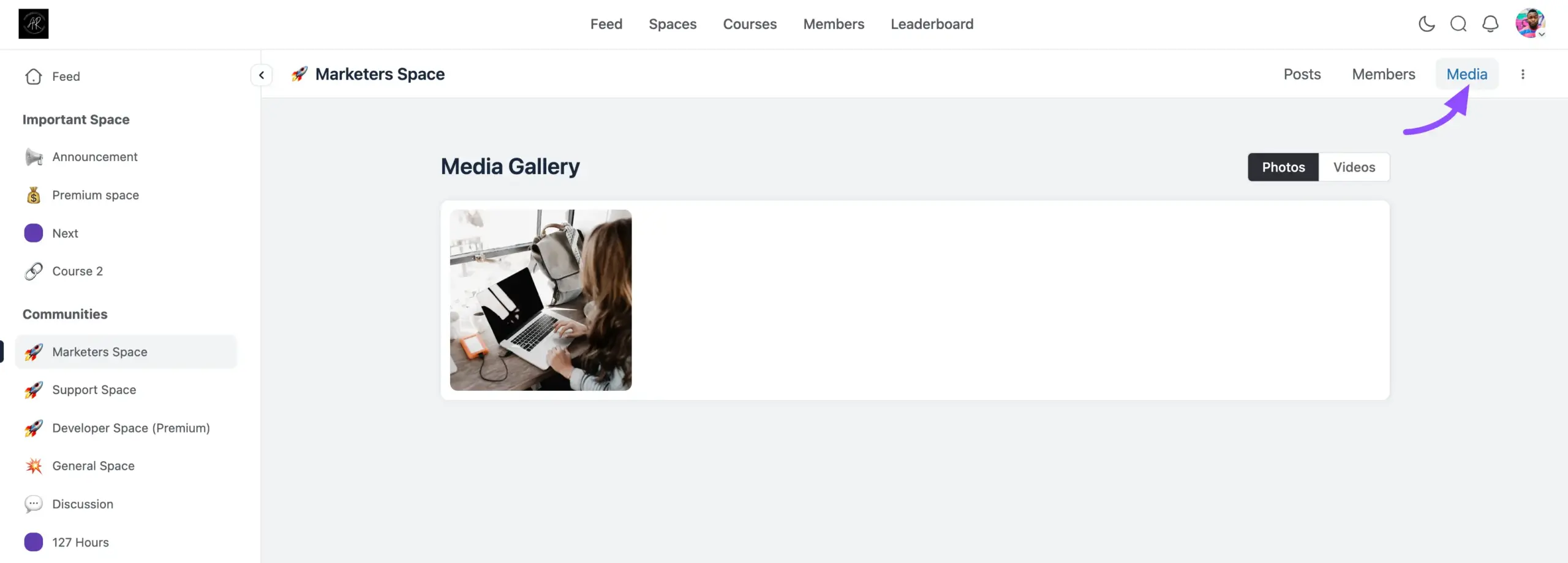
Once enabled, open the Space and go to the Media Gallery page. At the top you’ll find two tabs:
- Photos — every image shared in the Space, shown as a responsive thumbnail grid.
- Videos — every video shared in the Space, each shown with a preview thumbnail and a play badge so videos are easy to spot.
Opening Photos and Videos #
Photos: Click any photo to open it full-screen in a lightbox viewer. When a Space has several photos, the viewer shows a position counter (for example, _1 / 8_) so you always know where you are as you page through them.
Videos: Click any video to open the modern video lightbox. From there you can:
- Play the video right inside the lightbox.
- Jump to the Previous video or Next video using the arrow buttons.
- See the video’s title, its date, and a position counter in the meta bar.
- Close the lightbox to return to the grid.
The gallery is fully keyboard-accessible — you can move between items with the keyboard and open any photo or video with Enter or Space.
If You Don’t Have Access #
If a member opens a gallery they aren’t allowed to view, FluentCommunity shows a clear message — “Permission Denied” with the note _”You do not have permission to view this page”_ — and a Go to Space Home button to send them back to the Space.
The Media Gallery gives every Space a polished, automatic home for its shared photos and videos — no manual uploading, no extra work, and full control over who can see it.