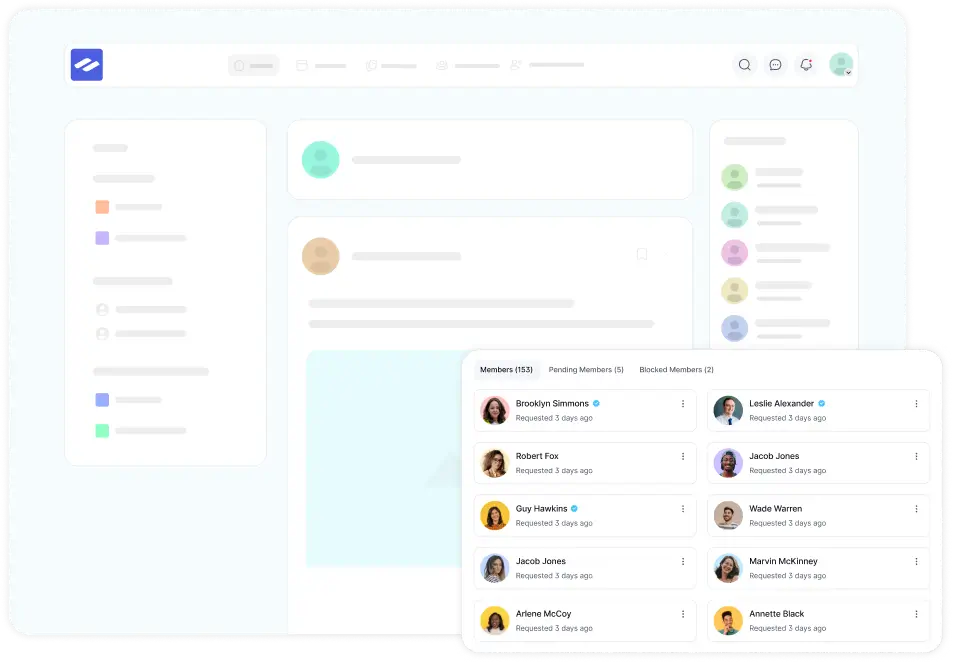
The Activity Feed in FluentCommunity keeps members updated on recent posts, comments, and other activities. It offers three view modes for easy browsing: Card View, List View, and Timeline View. Here’s a quick guide to both:
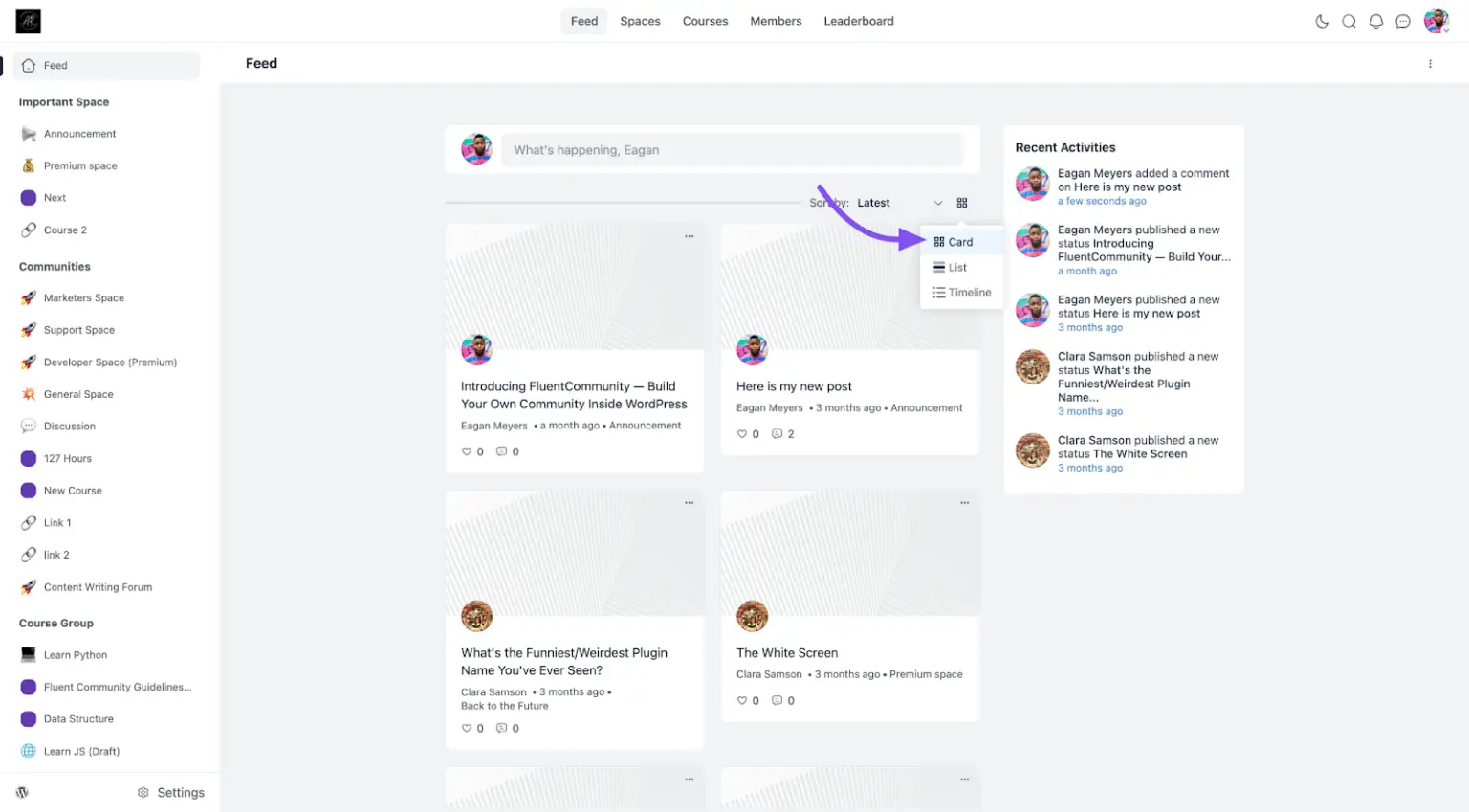
Card View #
- Layout: A structured grid layout displaying activities as individual cards.
- Features: Presents posts in a grid format, allowing for a quick overview of multiple updates.
- Ideal For: Members who prefer a visual grid to scan content at a glance.
How to Access: Click on the View icon button at the top of the Activity Feed to switch the view to Card View. You will also get this view option in the Space Settings Section.
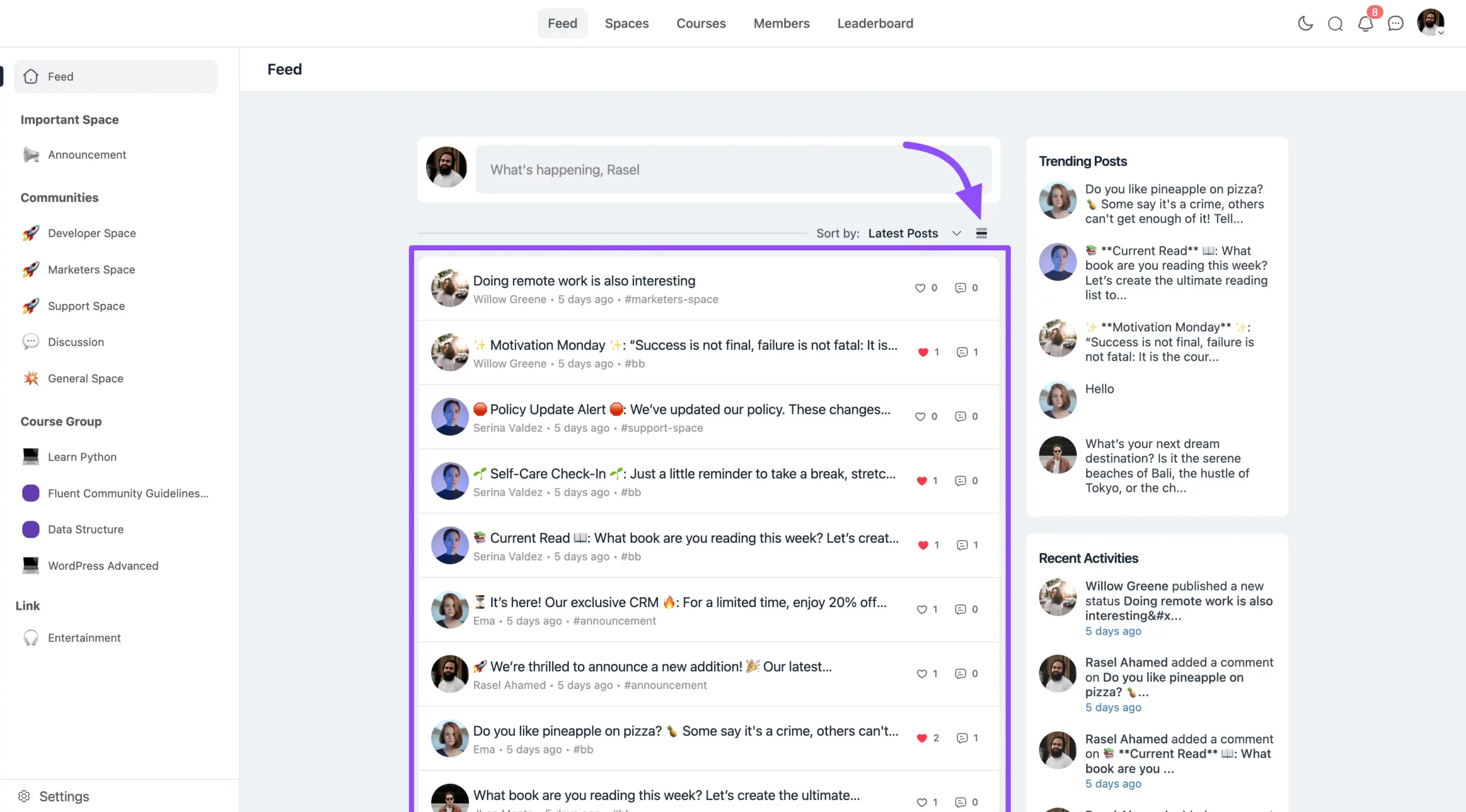
List View #
- Layout: A simple, compact list of activities in chronological order.
- Features: Quick interactions for liking, commenting, and sharing directly from the feed.
- Ideal For: Members who prefer a straightforward, streamlined layout.
How to Access: Click on the View icon button at the top of the Activity Feed to switch the view to List View.
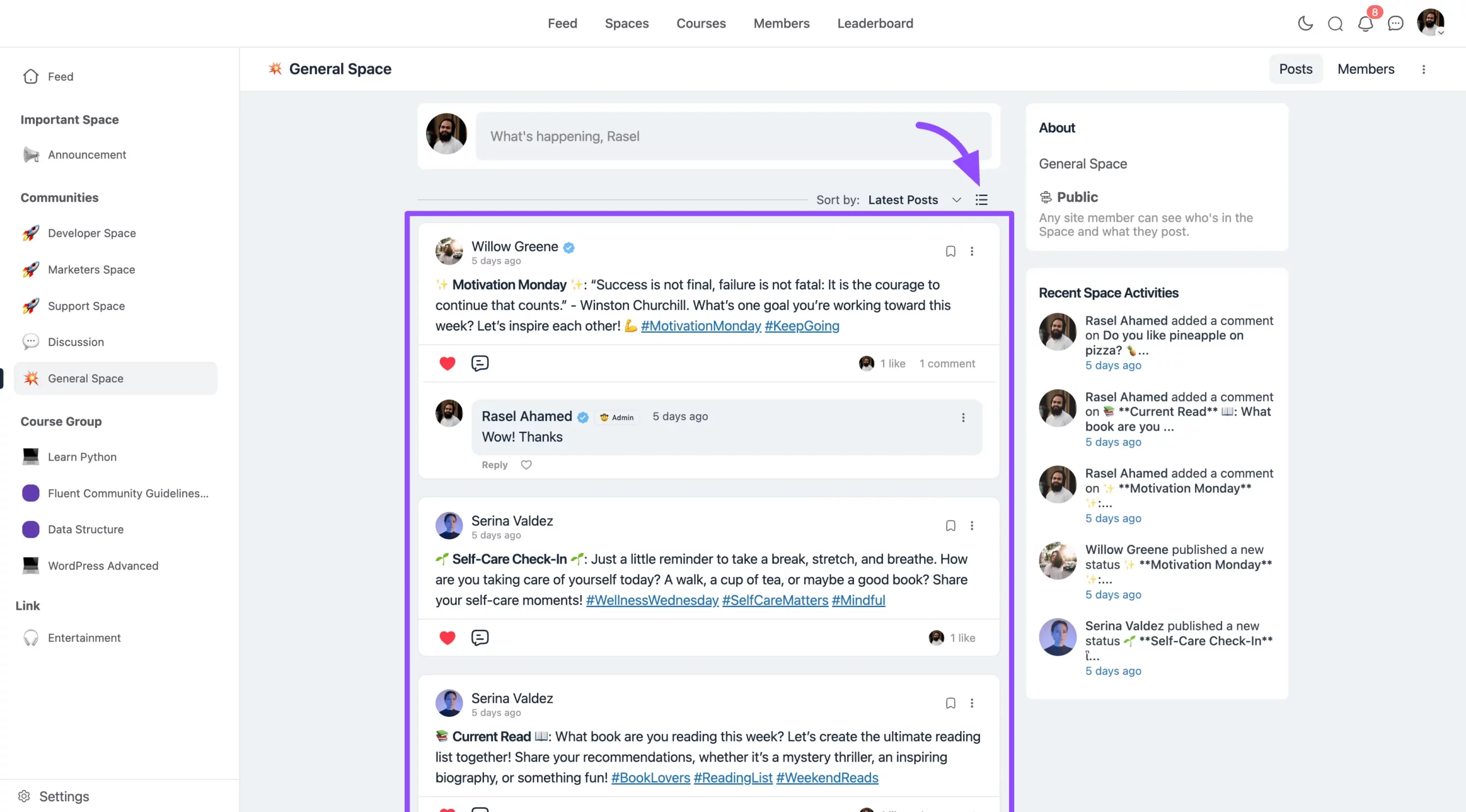
Timeline View #
- Layout: A visually organized timeline by date, highlighting posts and activities.
- Features: Expands previews for easier browsing and viewing of media.
- Ideal For: Members who enjoy a visual timeline and want to browse activities by date.
How to Access: Click on the View icon button at the top of the Activity Feed to switch the view to Timeline View.
These views let you choose the style that best fits your needs, making it easier to keep up with your space’s activities.