Skip to content

Get This Special Discount!

Save 20% OFF
FluentCommunity
  • Features
  • Use CasesExpand
    • Online Course
      Education
      Brands
      Workplace
      Social Network
      Professional
      Club & Association
      Nonprofits
      Coaching
      Creator
      • Buddyboss alternative
        FluentCommunity: The Ultimate BuddyBoss Alternative

        Read More

        Ashik Elahi
        Ashik Elahi
        February 7, 2025
      All Blogs
  • Pricing
  • Blog
  • Integration
  • Roadmap
  • DocsExpand
    • User Doc
    • Developer Docs
  • Account

Get This Special Discount!

Save 20% OFF
FluentCommunity

Getting Started

  • Introduction to FluentCommunity 
  • Install FluentCommunity
  • FluentCommunity Onboarding Guide
  • Global Activity Feed

Space Management

  • How to Create a Space
  • Managing Privacy of Spaces
  • Manage Members of Space 
  • Editing or Deleting a Space
  • Space Links
  • Add Custom Links
  • Activity Feeds
  • Activity Feed View
  • Creating & Managing Posts
  • Community Post Sorting in FluentCommunity
  • Creating and Managing Polls 
  • Handling Comments & Reactions
  • Documents/Files for Space
  • Membership Invitation for Spaces

Course Management

  • Creating and Managing Course
  • Course Privacy 
  • Course Enrollment Management
  • Course Links
  • Documents/Files for Course Lesson
  • Quiz Module

Member Management

  • Member Management
  • Members Profile
  • Follower & Block Module
  • Members List/Grid Layout View
  • Social Links Customization

Monetization

  • Monetizing Your Spaces
  • Monetizing Your Courses
  • Monetizing Your Spaces/Courses with Paymattic
  • Collect Recurring Payments for Private Spaces/Courses

Leaderboard Management

  • Leaderboard Management 

Notifications & Messaging

  • Global Email Notifications
  • Profile Notification Settings 
  • FluentCommunity Chat

Customization

  • Theme Compatibility Feature
  • Color Customization
  • Welcome Banner

Integration

  • FluentCart Integration with FluentCommunity 
  • FluentCRM Integration with FluentCommunity
  • Fluent Forms Integration with FluentCommunity
  • Paymattic Integration with FluentCommunity
  • Giphy Integration with FluentCommunity
  • Configuring CloudFlare R2 
  • Configuring Amazon S3
  • Configuring BunnyCDN

Migration

  • FluentCommunity BuddyPress Migration
  • FluentCommunity BuddyBoss Migration

Administration

  • General Settings 
  • Customize your Portal 
  • Manager Settings
  • Features & Addons Settings
  • Menu Settings
  • Space Group Settings
  • User Badge
  • Portal Access Settings
  • Generating a Sitemap
  • Privacy Settings
  • Media Module 
  • Manage Topic
  • Content Moderation Settings 
  • Customizing Login/Signup Form 
  • Access Management Through FluentCRM Tags

Miscellaneous

  • Report/Analytics
  • Community as Homepage
  • Adding Custom CSS & JavaScript
  • Incoming Webhook in FluentCommunity
  • Create an XML Sitemap in FluentCommunity

Changelog

  • Changelog
View Categories
  • Home
  • Docs
  • Integration
  • Configuring BunnyCDN

Configuring BunnyCDN

FluentCommunity now integrates with BunnyCDN, allowing you to store data online and reduce site storage usage.

This guide covers two ways to configure BunnyCDN with FluentCommunity: through the plugin’s UI or by using the WordPress wp-config.php file.

Bunny Settings in FluentCommunity  #

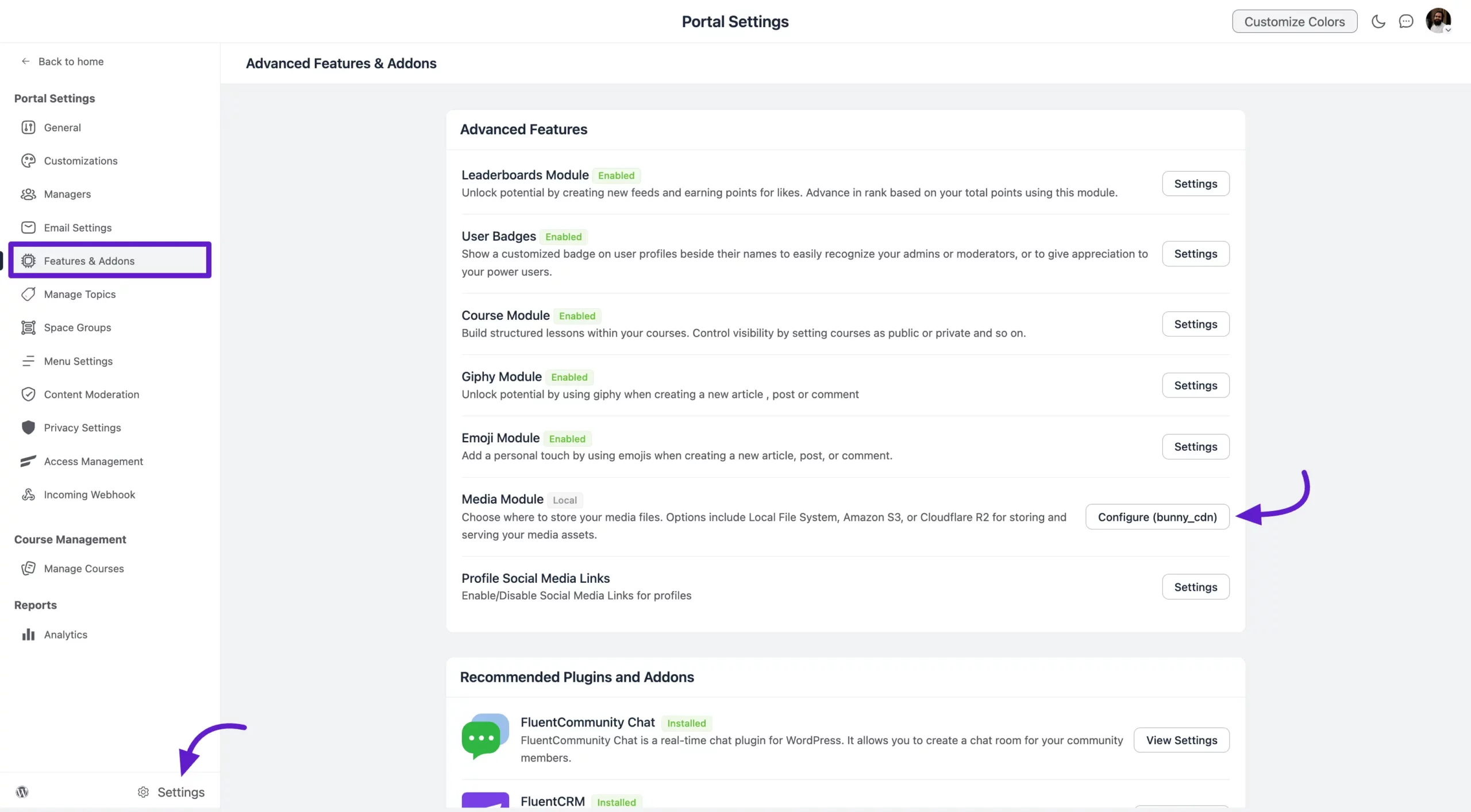
Navigate to FluentCommunity Settings, then click on Features and Addons from the left sidebar. Find the Media Module and click the Configure button next to it.
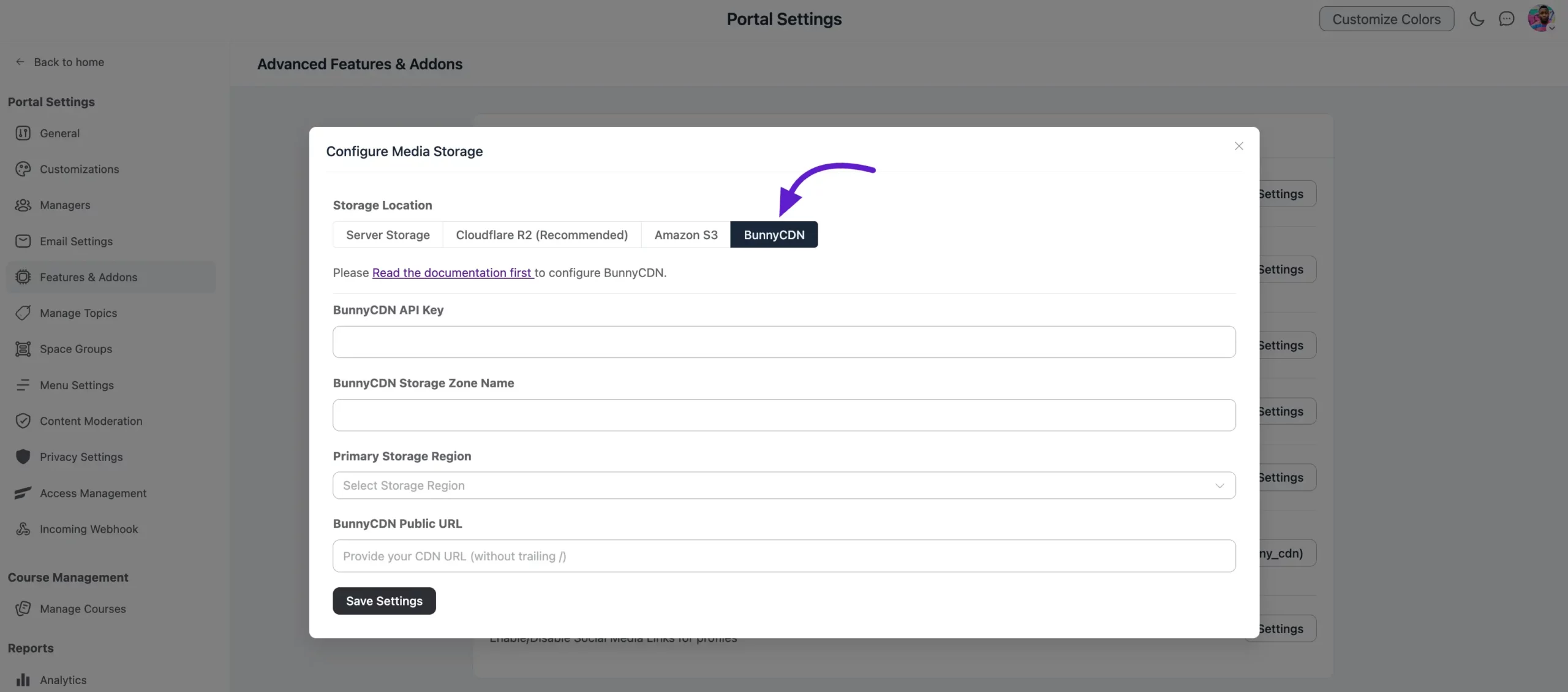
A pop-up will appear, showing that you need API credentials to connect FluentCommunity with BunnyCDN. You can find these credentials in your BunnyCDN account.
Get API Credentials from BunnyCDN #

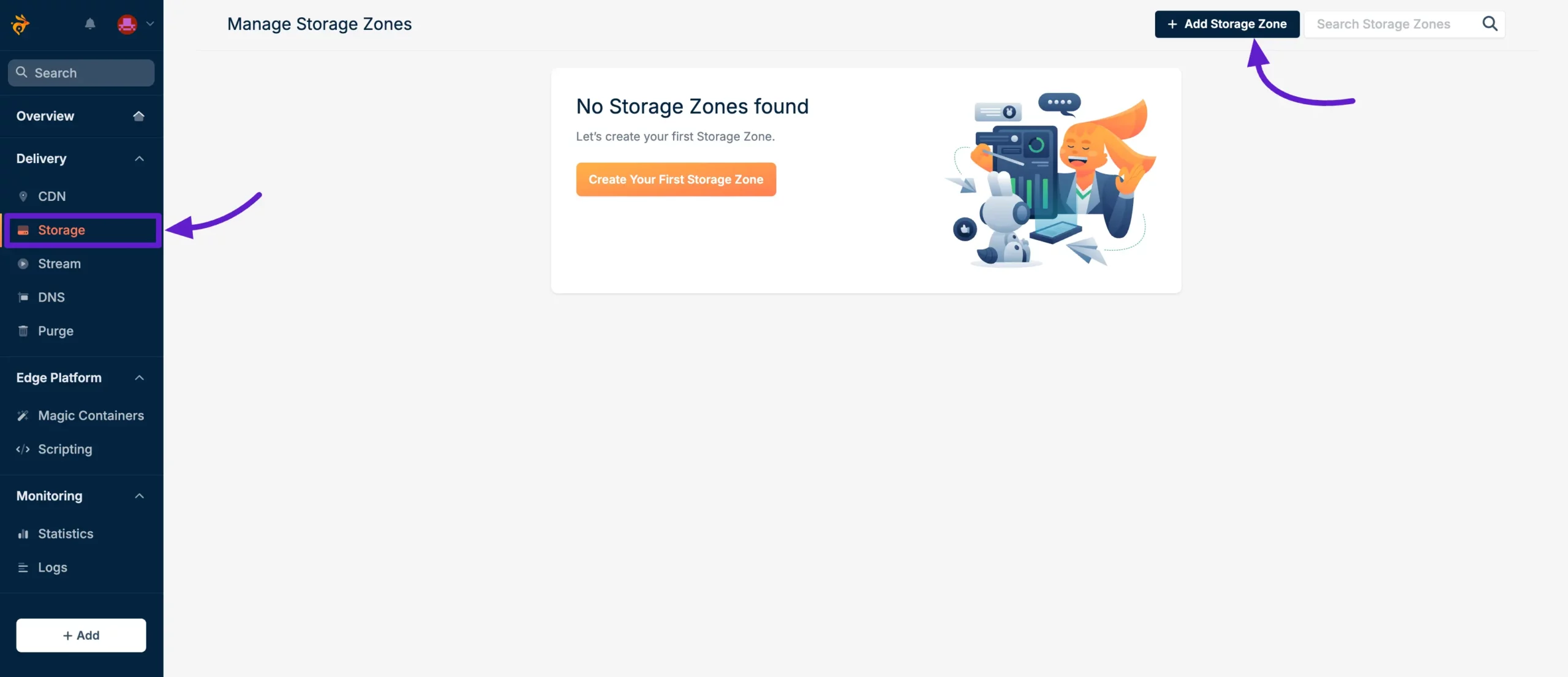
First, log into your Bunny account, then go to Storage from the left sidebar and click on Add Storage Zone.
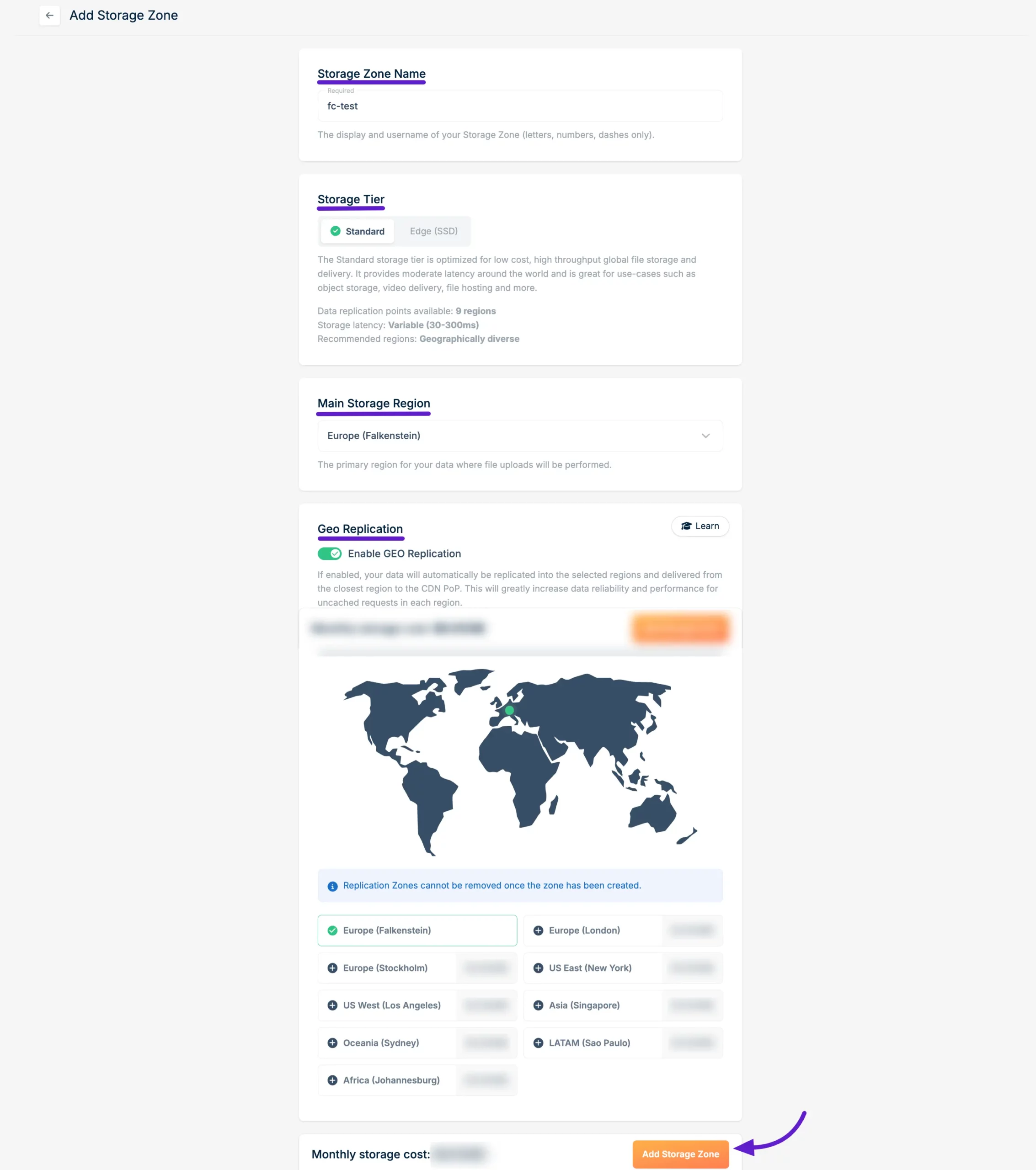
A pop-up will appear to set up the Storage Zone settings. Choose your preferred Storage Tier (we have selected Standard). Then, select the Main Storage Region based on your users’ location. Finally, click on the Add Storage Zone button.

Note: Keep track of the Main Storage Region you select, as you’ll need this information later when configuring BunnyCDN with FluentCommunity.
Connect Pull Zone #

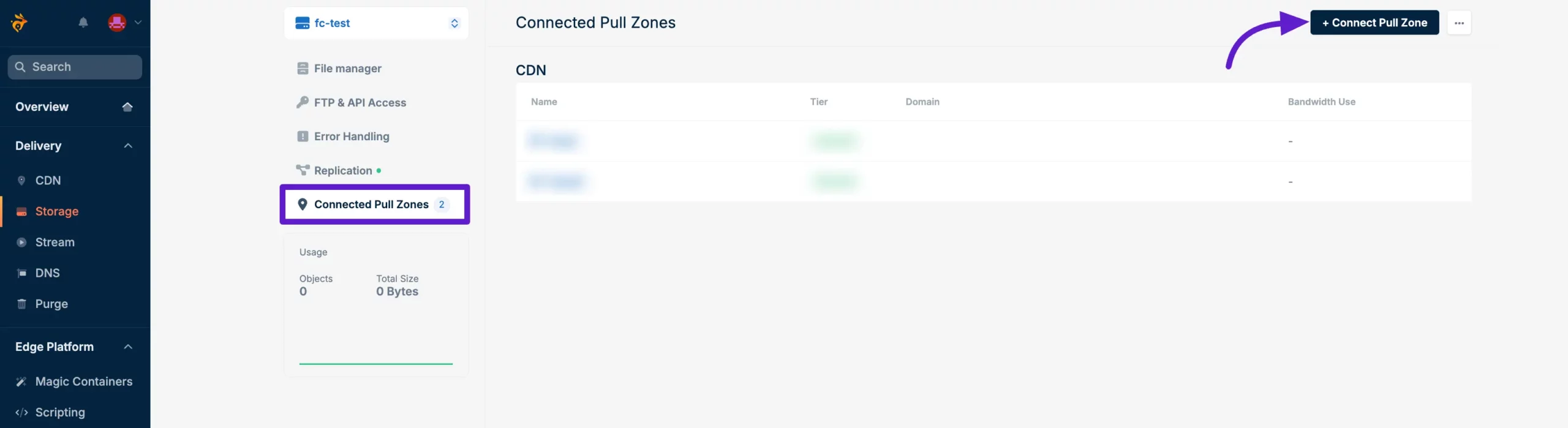
Go to the Storage Zone you just created, then select Connected Pull Zones from the left sidebar. Now, click on the + Connected Pull Zone button.
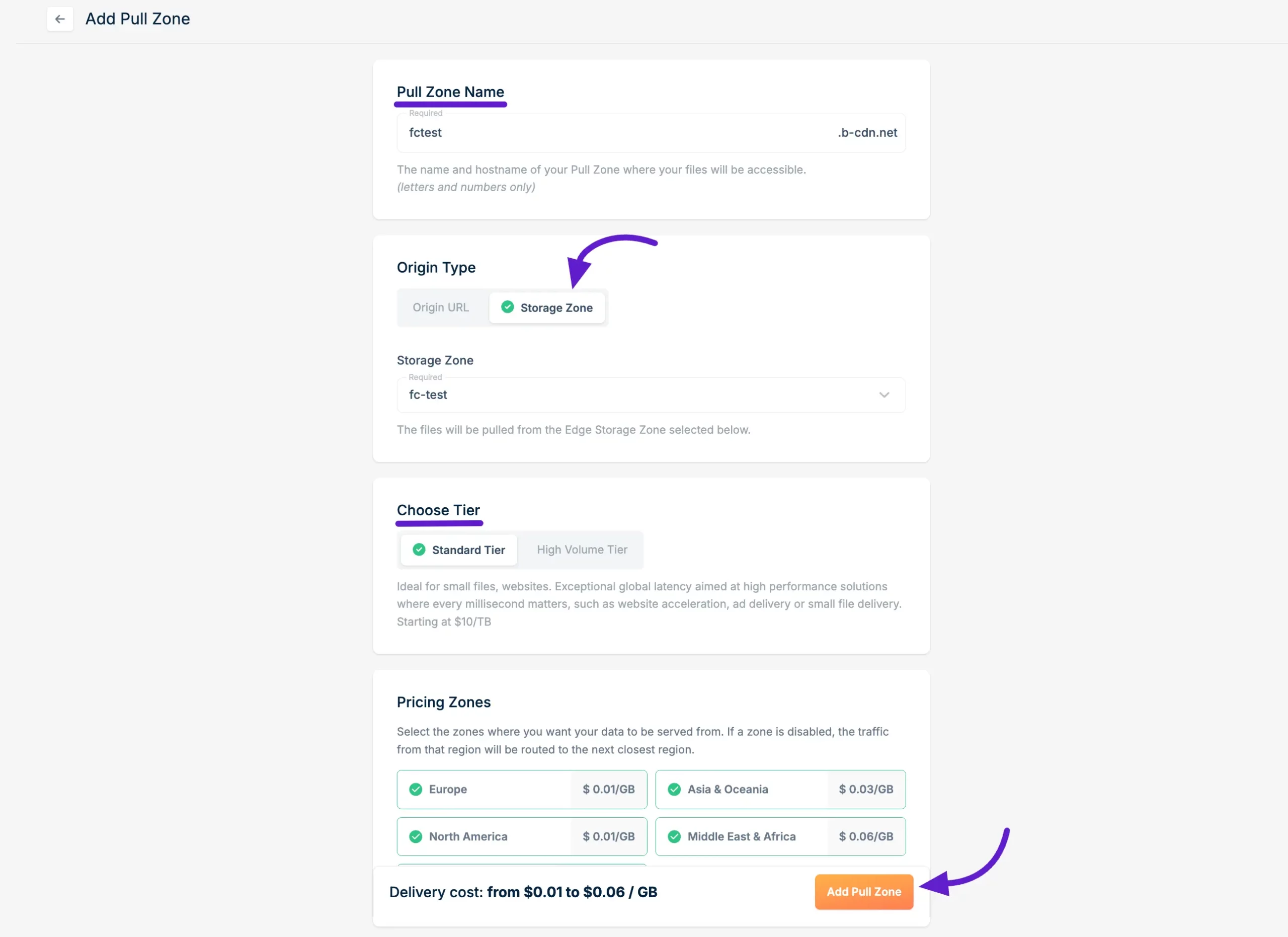
A Pull Zone setup pop-up will appear. First, enter a name for your Pull Zone. Then, in the Origin Type, select Storage Zone and choose the Storage Zone you created from the dropdown. 

Select the Tier as per your preference. Finally, click on the Add Pull Zone button to save.
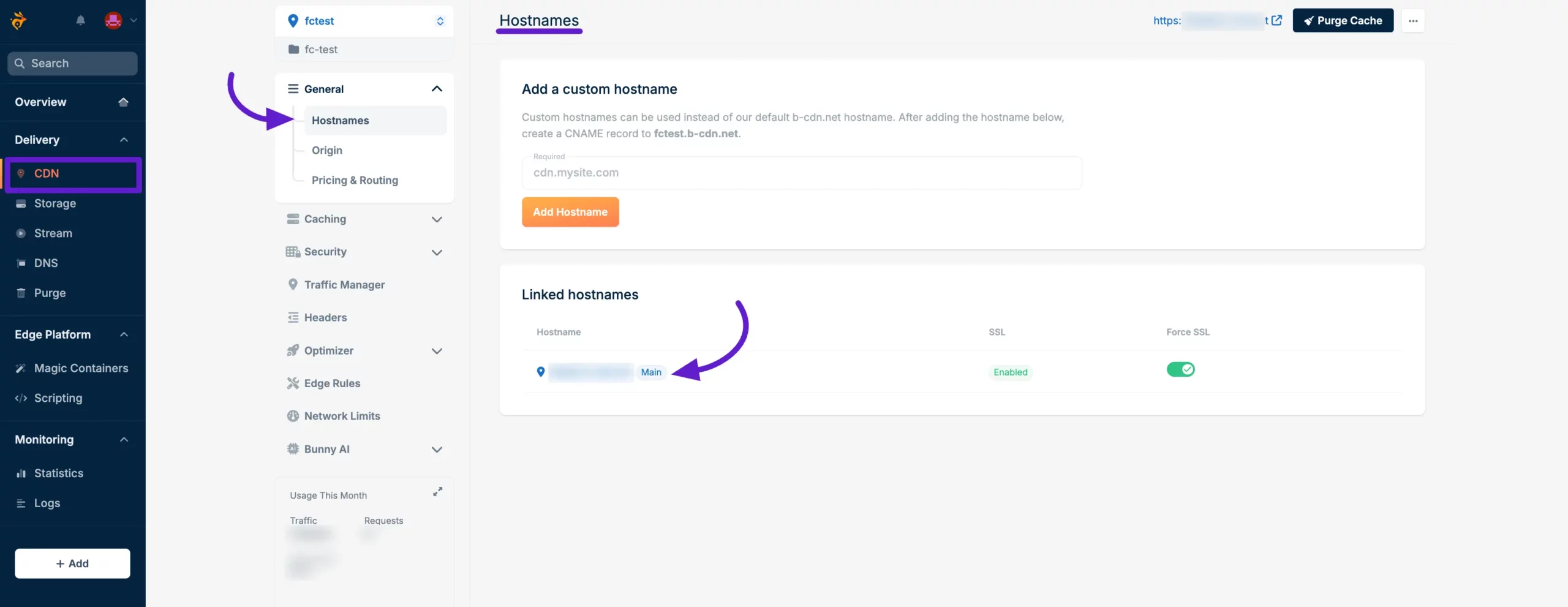
You will now see your Pull Zone Hostname. Copy the Hostname and save it to your clipboard for later use.

Note: This Hostname is the BunnyCDN Public URL that you’ll need to enter on the FluentCommunity Bunny configuration page.
API & Credentials #

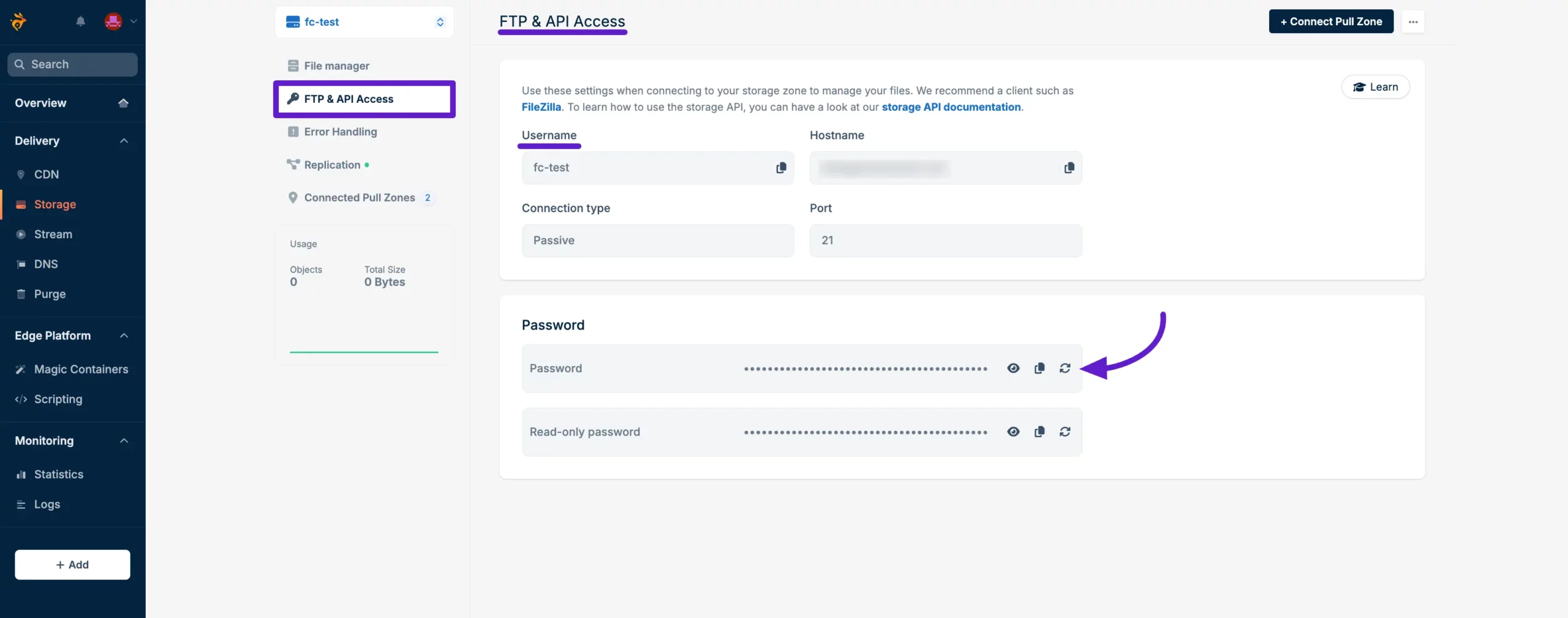
Go to the Storage Zone you just created and click on the FTP & API Access tab from the left sidebar. Here, you’ll find the Username and Password. Copy these two items for later use.

Note: The Username is the BunnyCDN Storage Zone Name, and the Password is the BunnyCDN API Key that you’ll need for the Bunny configuration page in FluentCommunity.
Connecting Bunny Using the Plugin UI #

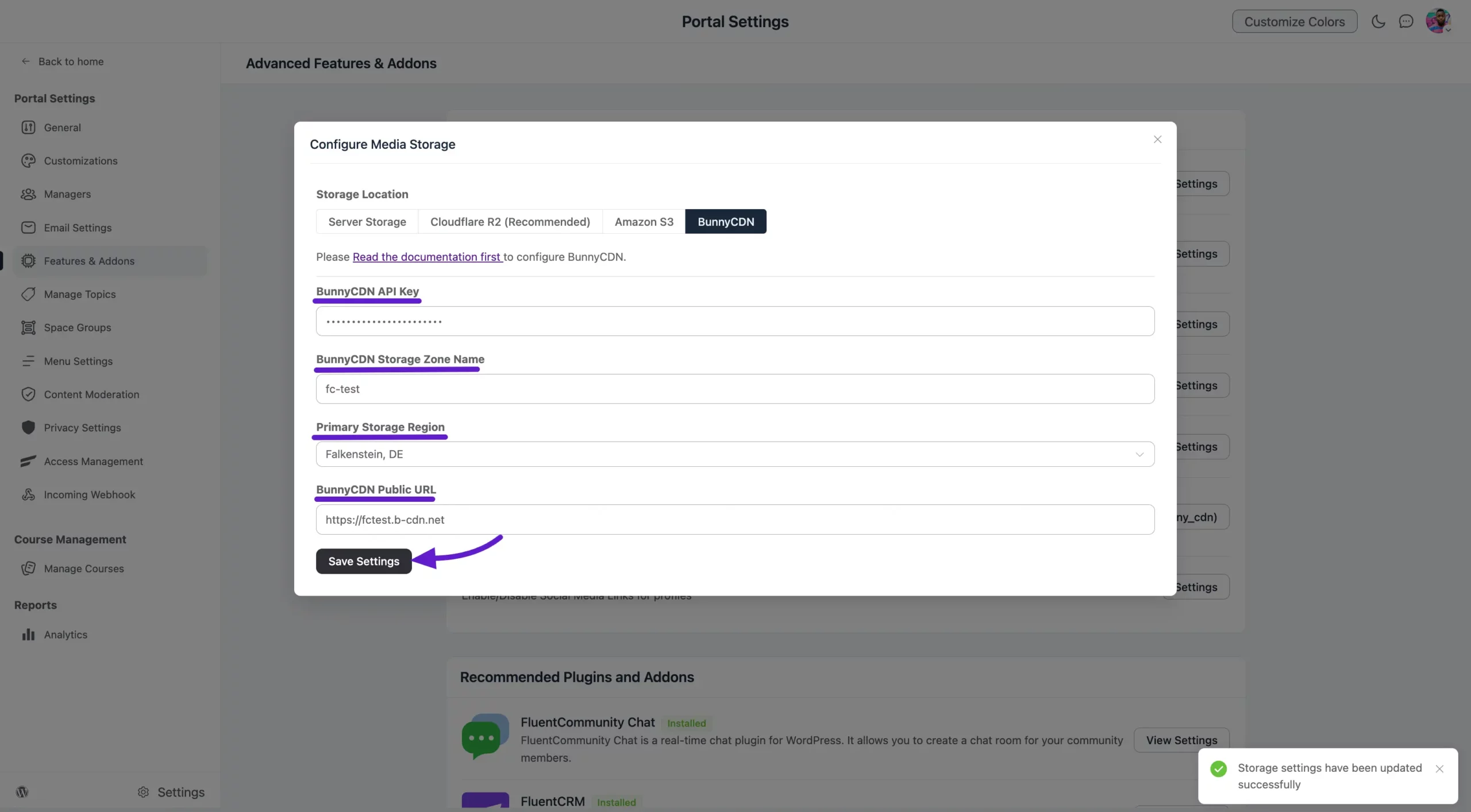
Now, go to the FluentCommunity Bunny Configure page and paste the credentials into the following fields:

  • BunnyCDN API Key: Paste the Password of your Storage Zone here.
  • BunnyCDN Storage Zone Name: Paste the Storage Zone Name here.
  • Primary Storage Region: Select the Primary Storage Region you previously chose for your Storage Zone in the Main Storage Region.
  • BunnyCDN Public URL: Paste the Hostname of the Pull Zone here, making sure to add https:// at the beginning.

Finally, click the Save Settings button to save your changes.
Preview #

Now, post anything in your FluentCommunity and attach a media file. 
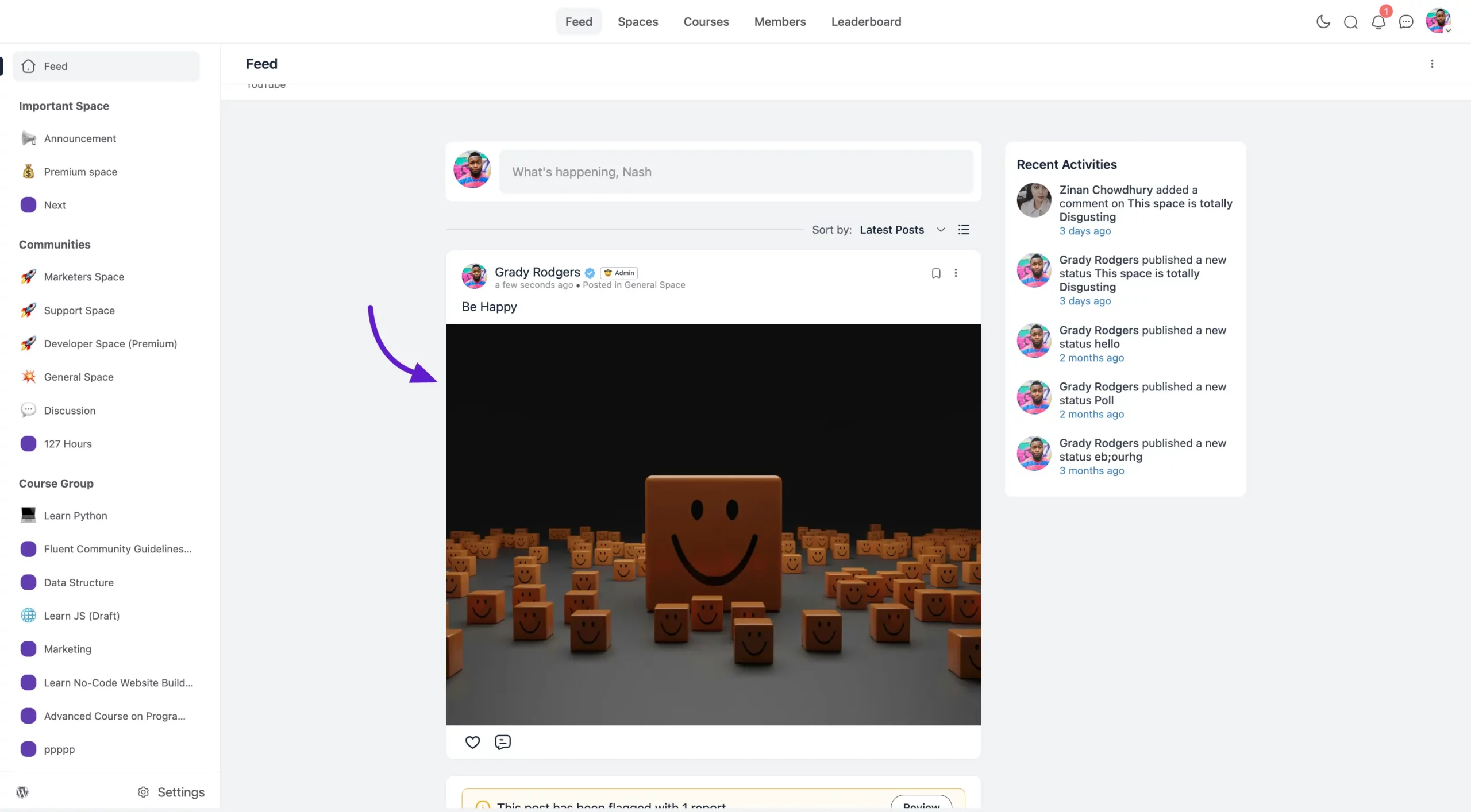
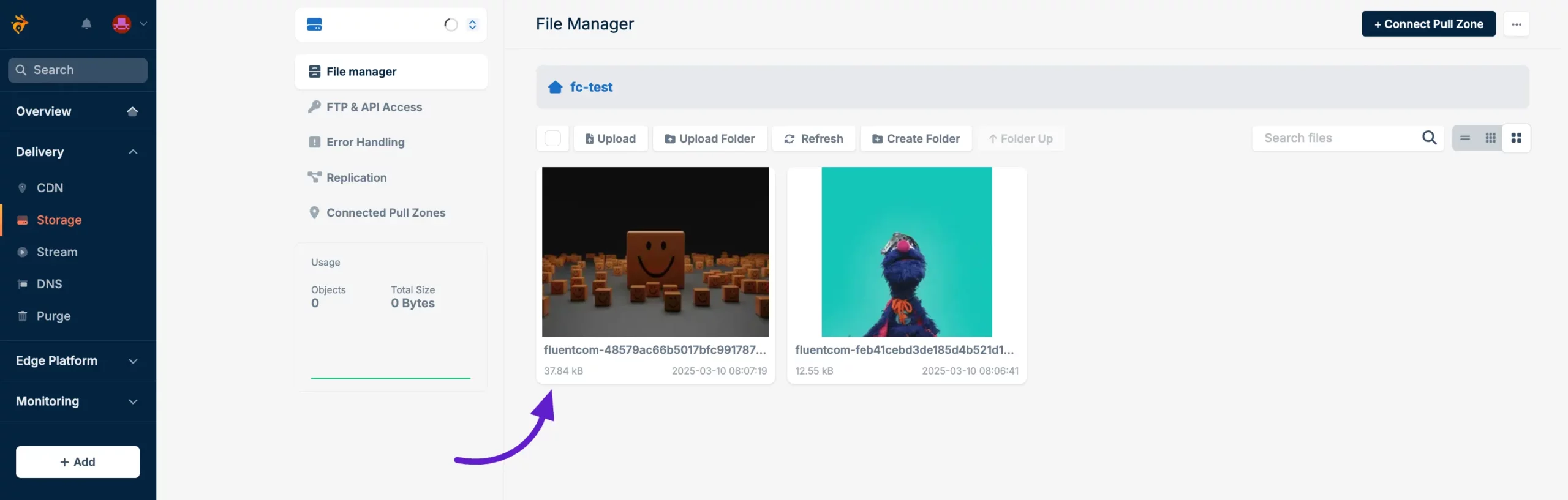
You will see that the file is automatically stored on BunnyCDN storage.
 Using wp-config.php #

Add the following definitions to your wp-config.php file, adjusting the values according to your Amazon S3 setup:

// Amazon BunnyCDN Configuration
define('FLUENT_COMMUNITY_CLOUD_STORAGE', 'bunny_cdn');
define('FLUENT_COMMUNITY_CLOUD_STORAGE_S3_REGION', 'storage.bunnycdn.com'); //  change with your region.check the next section
define('FLUENT_COMMUNITY_CLOUD_STORAGE_ACCESS_KEY', 'PASSWORD'); // Your Storage Zone Password
define('FLUENT_COMMUNITY_CLOUD_STORAGE_BUCKET', 'STORAGE_ZONE_NAME'); // Your Storage Zone Name
define('FLUENT_COMMUNITY_CLOUD_STORAGE_PUBLIC_URL', 'https://PULL_ZONE.b-cdn.net'); // Your BunnyCDN Public URL

Maps for FLUENT_COMMUNITY_CLOUD_STORAGE_S3_REGION

Please use the value for FLUENT_COMMUNITY_CLOUD_STORAGE_S3_REGION based on the region you selected when creating your Storage Zone:

  • Falkenstein, DE => storage.bunnycdn.com
  • London, UK => uk.storage.bunnycdn.com
  • New York, US => ny.storage.bunnycdn.com
  • Los Angeles, US => la.storage.bunnycdn.com
  • Singapore, SG => sg.storage.bunnycdn.com
  • Stockholm, SE => se.storage.bunnycdn.com
  • São Paulo, BR => br.storage.bunnycdn.com
  • Johannesburg, SA => jh.storage.bunnycdn.com
  • Sydney, SYD => syd.storage.bunnycdn.com

Notes #

  • If you use both methods, the wp-config.php settings will take precedence over the UI settings.
  • The UI method is more user-friendly and doesn’t require direct file access to your WordPress installation.
  • The wp-config.php method is more secure as it keeps sensitive information out of the database.
  • Ensure that all the credentials are correctly entered, regardless of the method you choose.

Limitations #

As BunnyCDN is not a full S3 compatible storage and does not support ACL. If you use the Document upload feature, then the full URL will still be served via the CDN.

If you have any further questions, concerns, or suggestions, please do not hesitate to contact our @support team.

What are your Feelings

Share This Article :

  • Facebook
  • X
  • LinkedIn
  • Pinterest
Still stuck? How can we help?

Still stuck? How can we help?

Updated on May 14, 2025
Configuring Amazon S3FluentCart Integration with FluentCommunity 
Table of Contents
  • Bunny Settings in FluentCommunity 
    • Get API Credentials from BunnyCDN
    • Connect Pull Zone
    • API & Credentials
    • Connecting Bunny Using the Plugin UI
    • Preview
  •  Using wp-config.php
    • Notes
    • Limitations

Launch Your Own Social Media Platform Today!

Establish a meaningful connection with your people.

Buy Now

FluentCommunity is the fastest and the most efficient community plugin for WordPress

Social
  • WordPress
  • Facebook
  • YouTube
  • X
  • LinkedIn
RESOURCES
  • About Us
  • Features
  • Blog
  • Documentation
  • Support
  • Free vs Pro
  • vs BuddyBoss
  • vs Circle
  • vs Patreon
  • Online Community 101
  • FluentCommunity 101 Course
  • Account
  • Brand Guideline
Our Products
  • Fluent Forms
  • FluentCRM
  • FluentBooking
  • FluentBoards
  • FluentSupport
  • FluentSMTP
  • FluentSnippets
  • Ninja Tables
  • WP Social Ninja
  • Paymattic
  • AzonPress
  • FluentAffiliate
  • FluentCart
Use Cases
  • For Education
  • For Social Network
  • For Workplace
  • For Brands
  • For Online Course
  • For Professionals
  • For Club & Org.
  • For Coaching
  • For Nonprofits
  • For Creators
Popular
  • FluentCommunity: What It Is, Why We Built It, and Where It’s Headed
  • BuddyBoss migration with FluentCommunity
  • 9 Best Patreon Alternatives for 2025
  • Top 7 Udemy Alternatives for 2025

© 2026 FluentCommunity A Brand of  WPManageNinja™ | Privacy Policy | Terms & Conditions

Join the Waitlist

Get early access and be the first to experience FluentCommunity

Join Waitlist (#4)
  • Features
  • Use Cases
    • For Online course
    • For Education
    • For Brands
    • For Workplace
    • For Social Network
    • For Professionals
    • For Club & Org.
    • For Coaching
    • For Nonprofits
  • Blog
  • Pricing
  • About
  • Roadmap
  • Docs
    • User Doc
    • Developer Docs
  • FluentCommunity 101 Course