Skip to content

Get This Special Discount!

Save 20% OFF
FluentCommunity
  • Features
  • Use CasesExpand
    • Online Course
      Education
      Brands
      Workplace
      Social Network
      Professional
      Club & Association
      Nonprofits
      Coaching
      Creator
      • Buddyboss alternative
        FluentCommunity: The Ultimate BuddyBoss Alternative

        Read More

        Ashik Elahi
        Ashik Elahi
        February 7, 2025
      All Blogs
  • Pricing
  • Blog
  • Integration
  • Roadmap
  • DocsExpand
    • User Doc
    • Developer Docs
  • Account

Get This Special Discount!

Save 20% OFF
FluentCommunity

Getting Started

  • Introduction to FluentCommunity 
  • Install FluentCommunity
  • FluentCommunity Onboarding Guide
  • Global Activity Feed

Space Management

  • How to Create a Space
  • Managing Privacy of Spaces
  • Manage Members of Space 
  • Editing or Deleting a Space
  • Space Links
  • Add Custom Links
  • Activity Feeds
  • Activity Feed View
  • Creating & Managing Posts
  • Community Post Sorting in FluentCommunity
  • Creating and Managing Polls 
  • Handling Comments & Reactions
  • Documents/Files for Space
  • Membership Invitation for Spaces

Course Management

  • Creating and Managing Course
  • Course Privacy 
  • Course Enrollment Management
  • Course Links
  • Documents/Files for Course Lesson
  • Quiz Module

Member Management

  • Member Management
  • Members Profile
  • Follower & Block Module
  • Members List/Grid Layout View
  • Social Links Customization

Monetization

  • Monetizing Your Spaces
  • Monetizing Your Courses
  • Monetizing Your Spaces/Courses with Paymattic
  • Collect Recurring Payments for Private Spaces/Courses

Leaderboard Management

  • Leaderboard Management 

Notifications & Messaging

  • Global Email Notifications
  • Profile Notification Settings 
  • FluentCommunity Chat

Customization

  • Theme Compatibility Feature
  • Color Customization
  • Welcome Banner

Integration

  • FluentCart Integration with FluentCommunity 
  • FluentCRM Integration with FluentCommunity
  • Fluent Forms Integration with FluentCommunity
  • Paymattic Integration with FluentCommunity
  • Giphy Integration with FluentCommunity
  • Configuring CloudFlare R2 
  • Configuring Amazon S3
  • Configuring BunnyCDN

Migration

  • FluentCommunity BuddyPress Migration
  • FluentCommunity BuddyBoss Migration

Administration

  • General Settings 
  • Customize your Portal 
  • Manager Settings
  • Features & Addons Settings
  • Menu Settings
  • Space Group Settings
  • User Badge
  • Portal Access Settings
  • Generating a Sitemap
  • Privacy Settings
  • Media Module 
  • Manage Topic
  • Content Moderation Settings 
  • Customizing Login/Signup Form 
  • Access Management Through FluentCRM Tags

Miscellaneous

  • Report/Analytics
  • Community as Homepage
  • Adding Custom CSS & JavaScript
  • Incoming Webhook in FluentCommunity
  • Create an XML Sitemap in FluentCommunity

Changelog

  • Changelog
View Categories
  • Home
  • Docs
  • Miscellaneous
  • Community as Homepage

Community as Homepage

By default, your FluentCommunity lives on its own page, usually at yoursite.com/portal. But what if you want your community to be the main event the very first thing visitors see when they arrive at your site?

This guide will show you how to make your community the true front door of your entire website. We’ll walk through two powerful goals, with the main focus on the first one:

  1. Making your community your actual homepage (so it loads at yoursite.com).
  2. Giving your community a nicer URL (like yoursite.com/community) as a simpler alternative.

Goal 1: Make Your Community the Actual Homepage #

Method A: Using Code Snippet Plugin

This method is the best choice for the vast majority of users. We will use a popular, free plugin called FluentSnippets to add the necessary code without ever needing to touch your sensitive core WordPress files.

Think of this plugin as a safe, managed sandbox for adding custom code. It’s fantastic because if you make a mistake, you can easily deactivate the snippet with a single click, which instantly fixes the problem. It’s safe, completely reversible.

Step 1: Create a New Snippet

  1. Select “FluentSnippet” from the left sidebar of WordPress and click on New Snippet button.

Step 2: Add and Configure the Homepage Code

This is where we tell WordPress what we want to do.

  1. Give it a clear title: Add a title for your snippet, like “Set Community as Homepage”. 
  2. Confirm the Code Type: Make sure the “Snippet Type” is set to “PHP Snippet”.

Paste the code: In the large code box, carefully copy and paste the following single line of code:

define('FLUENT_COMMUNITY_PORTAL_SLUG', '');

What this code does: This line is a simple instruction that tells FluentCommunity, “Don’t use any extra words like /portal in the URL; I want the community to be the main homepage.”

  1. Scroll down below the code box. Under the “Where to Run” section, ensure the method is set to “Run Everywhere”. This is the default and is what we need.
  2. Finally, click the “Create Snippet” then the “Activate” button.
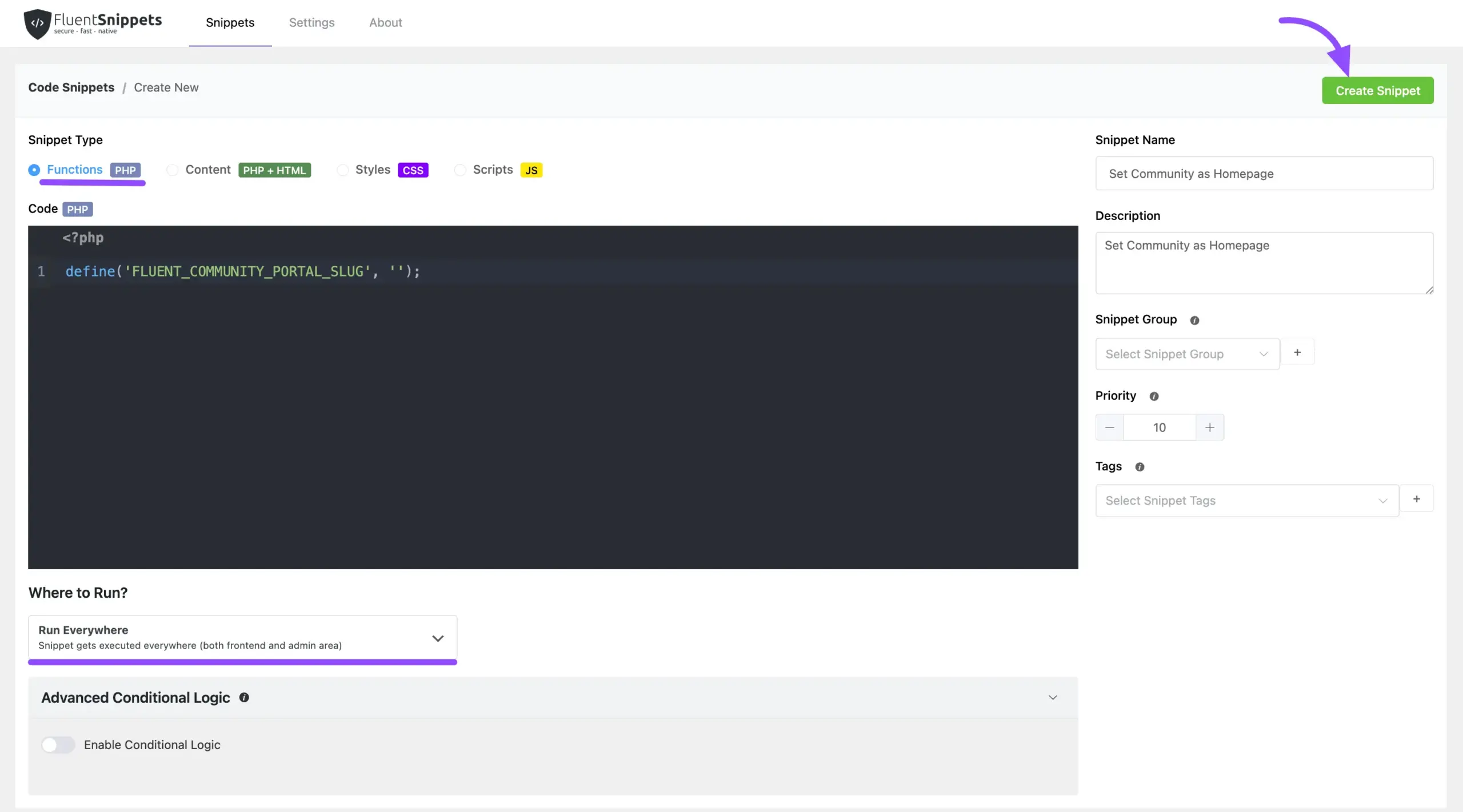
Create Snippet

Step 4: Refresh Your Permalinks

This last step is crucial. You’ve told WordPress to make a big change to your site’s structure, and now you need to tell WordPress to update its internal “map” of all your pages.

  1. Go back to your main WordPress Admin Dashboard.
  2. Navigate to Settings → Permalinks.
  3. You don’t need to change any of the settings on this page. Just scroll to the bottom and click the Save Changes button.
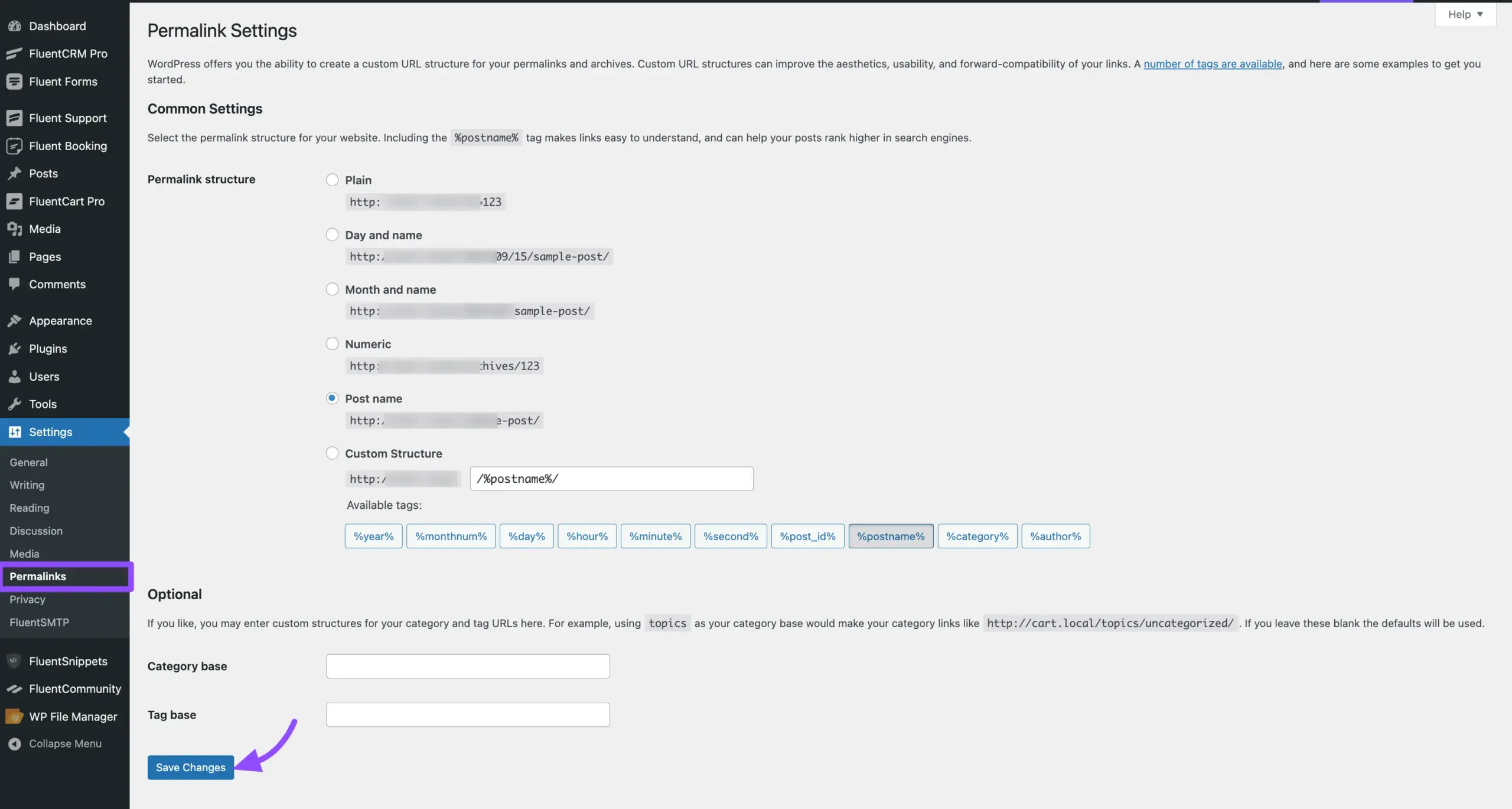
Permalink Settings Page

Your website’s homepage is now your FluentCommunity portal. Open your website in a new browser tab to see it in action.

Method B: Changing wp-config.php file 

This is for when you want your entire website’s main address (yoursite.com) to be the community itself.

Step-by-Step Guide to Editing wp-config.php #

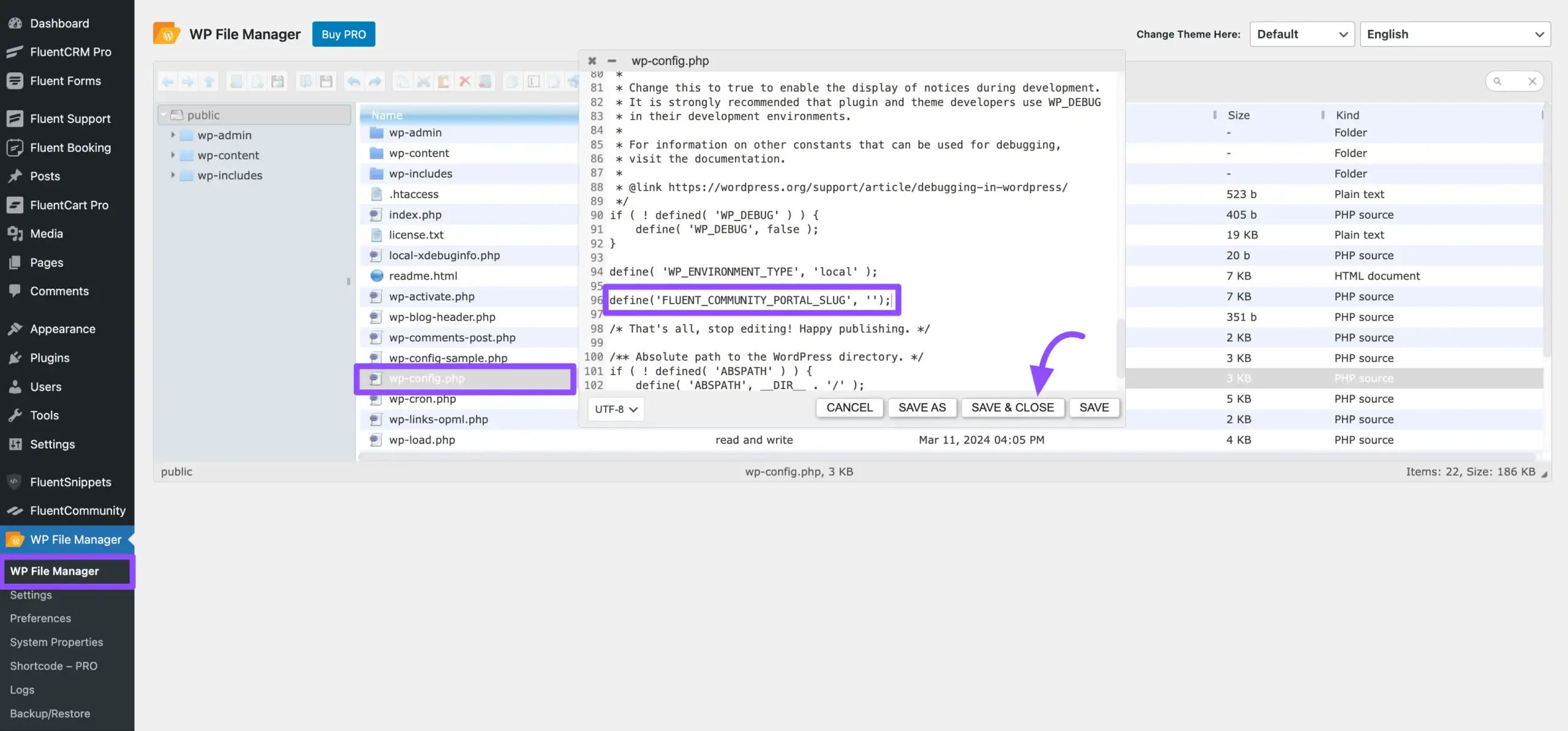
  1. Connect to Your Website’s Files: You will need to access your site’s file system. You can do this using the File Manager plugin in your website.
  2. Locate the wp-config.php file: This file is located in the main (root) folder of your WordPress installation. 
  3. Open the File to Edit: Right-click on wp-config.php and choose “Edit.”
  4. Find the Correct Spot: Scroll down carefully until you see the following line of text: /* That’s all, stop editing! Happy publishing. */

Paste the Code: On a new line directly above paste the following code snippet:

PHP
define('FLUENT_COMMUNITY_PORTAL_SLUG', '');
  1. By setting the slug to be empty (the ”), you are telling WordPress, “I want my community to be the main homepage, with no extra words in the URL.”
  2. Save and Close the File: Double-check your work, then click the “Save” button in your file editor.
  1. Refresh Your Permalinks (Crucial!): This final step makes your new homepage live.
    • Go back to your WordPress Admin Dashboard.
    • Navigate to Settings → Permalinks.
    • Don’t change any settings here. Just scroll to the bottom and click the Save Changes button.

Congratulations! Go to your website’s main address in a new browser tab. Your community should now be your homepage!

Goal 2: Give Your Community a Nicer URL #

If making your community the entire homepage is more than you need, a great alternative is to simply give it a cleaner, more professional URL, like yoursite.com/members.

  1. From your WordPress dashboard, navigate to FluentCommunity.
  2. You will be taken to the Dashboard page with various settings. Look for the Change Community URL settings.
  3. Inside, you should see a field labeled Change Community URL.
  4. Simply give the slug words with no spaces (hyphens are okay). Examples: community, members, hub, my-group.
  5. And click the Change Portal URL button.
  6. Final Step: Go to Settings → Permalinks from your main WordPress menu and just click Save Changes. This refreshes your website’s internal map of links.
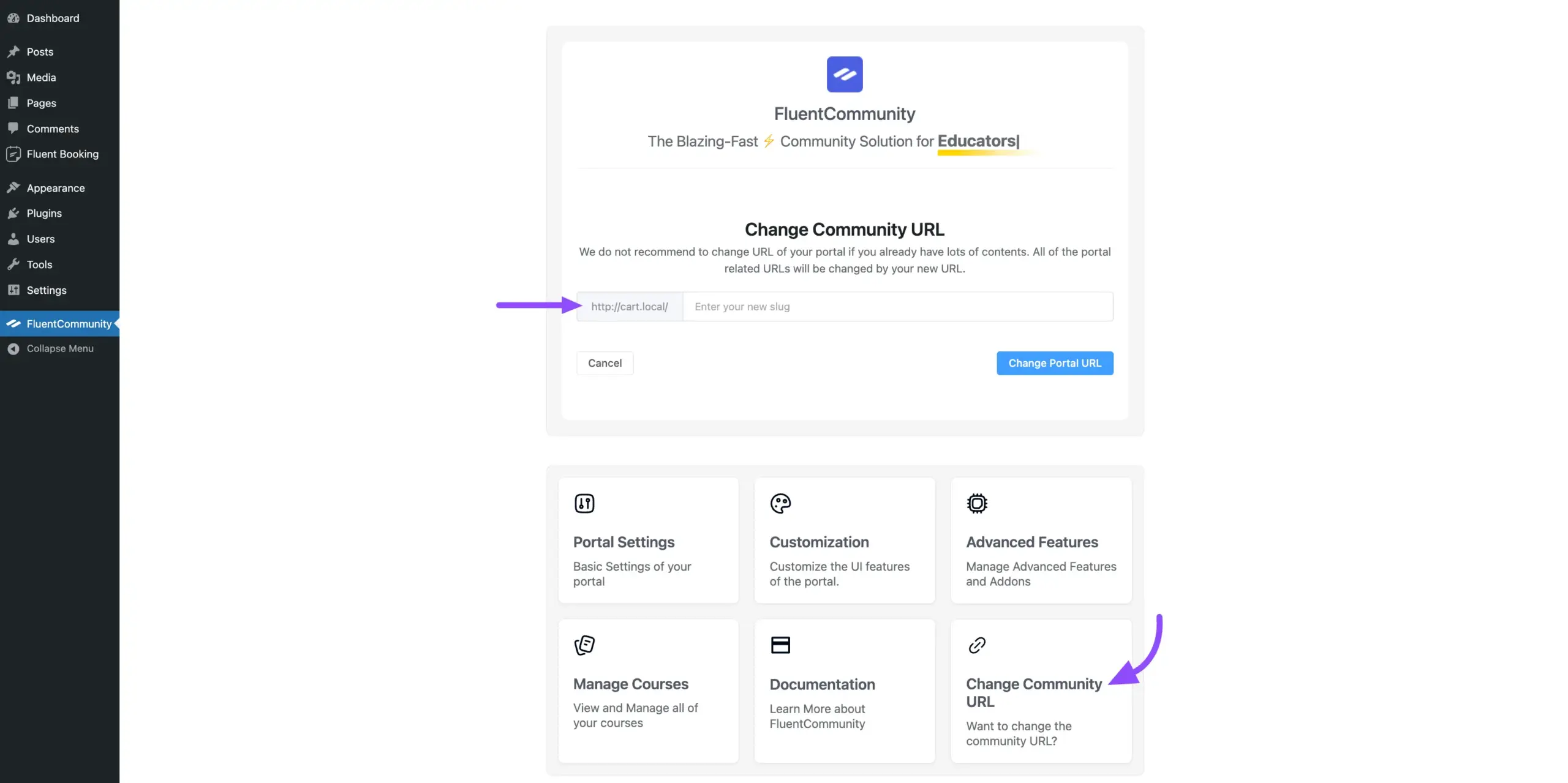
That’s it! Your community now has a beautiful, custom URL.

Quick Fixes for Common Issues #

  • Problem: “Help! After editing wp-config.php, my site is just a blank white page!”
    • Solution: Don’t panic! This almost always means there’s a tiny typo in the code. Re-open the wp-config.php file and check the code you added. Correcting the typo will bring your site back. If you can’t find it, restore your backup.
  • Problem: “I get a ‘Page Not Found’ error after changing the URL.”
    • Solution: You need to refresh your permalinks. Go to Settings → Permalinks in WordPress and click Save Changes. This fixes it 99% of the time.
What are your Feelings

Share This Article :

  • Facebook
  • X
  • LinkedIn
  • Pinterest
Still stuck? How can we help?

Still stuck? How can we help?

Updated on September 16, 2025
Report/AnalyticsAdding Custom CSS & JavaScript
Table of Contents
  • Goal 1: Make Your Community the Actual Homepage
    • Step-by-Step Guide to Editing wp-config.php
  • Goal 2: Give Your Community a Nicer URL
    • Quick Fixes for Common Issues

Launch Your Own Social Media Platform Today!

Establish a meaningful connection with your people.

Buy Now

FluentCommunity is the fastest and the most efficient community plugin for WordPress

Social
  • WordPress
  • Facebook
  • YouTube
  • X
  • LinkedIn
RESOURCES
  • About Us
  • Features
  • Blog
  • Documentation
  • Support
  • Free vs Pro
  • vs BuddyBoss
  • vs Circle
  • vs Patreon
  • Online Community 101
  • FluentCommunity 101 Course
  • Account
  • Brand Guideline
Our Products
  • Fluent Forms
  • FluentCRM
  • FluentBooking
  • FluentBoards
  • FluentSupport
  • FluentSMTP
  • FluentSnippets
  • Ninja Tables
  • WP Social Ninja
  • Paymattic
  • AzonPress
  • FluentAffiliate
  • FluentCart
Use Cases
  • For Education
  • For Social Network
  • For Workplace
  • For Brands
  • For Online Course
  • For Professionals
  • For Club & Org.
  • For Coaching
  • For Nonprofits
  • For Creators
Popular
  • FluentCommunity: What It Is, Why We Built It, and Where It’s Headed
  • BuddyBoss migration with FluentCommunity
  • 9 Best Patreon Alternatives for 2025
  • Top 7 Udemy Alternatives for 2025

© 2026 FluentCommunity A Brand of  WPManageNinja™ | Privacy Policy | Terms & Conditions

Join the Waitlist

Get early access and be the first to experience FluentCommunity

Join Waitlist (#4)
  • Features
  • Use Cases
    • For Online course
    • For Education
    • For Brands
    • For Workplace
    • For Social Network
    • For Professionals
    • For Club & Org.
    • For Coaching
    • For Nonprofits
  • Blog
  • Pricing
  • About
  • Roadmap
  • Docs
    • User Doc
    • Developer Docs
  • FluentCommunity 101 Course