FluentCommunity gives you more control over your community with its new Content Moderation feature. This feature allows you to review, filter, and manage user-generated content to keep the community safe and respectful for all members. It also helps prevent spam, harmful, and abusive Content (i.e., Post and Comment), ensuring a positive environment.
This article will guide you through setting up the Content Moderation in your FluentCommunity.
Enable Content Moderation #
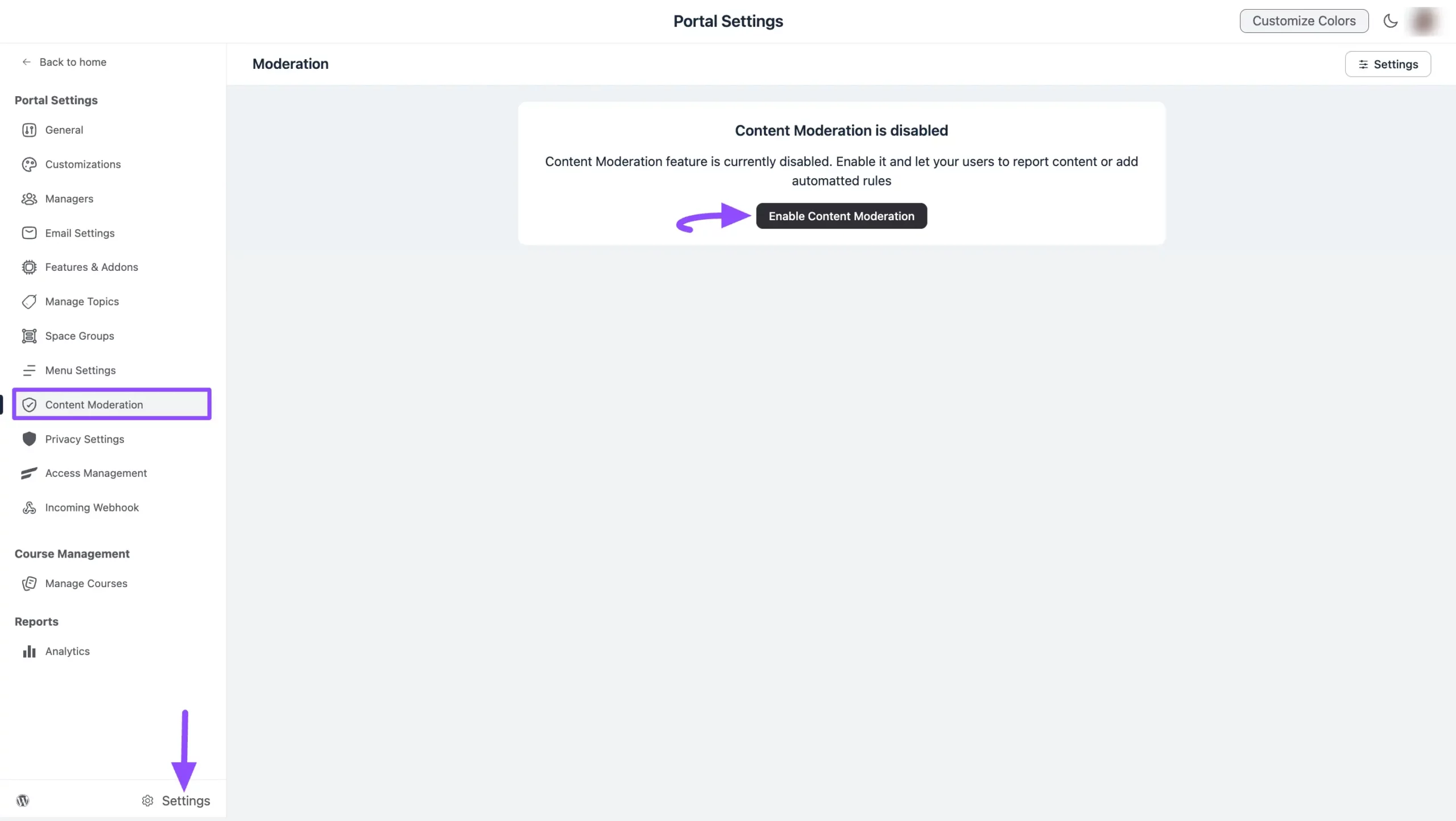
To start the process, first, you need to enable the Content Moderation in your FluentCommunity. To learn the process, follow the steps below –
Go to Settings from the FluentCommunity Left Sidebar, open the Content Moderation, click Enable Content Moderation, and the Content Moderation Settings will be enabled.
Repost a Post/Comment #
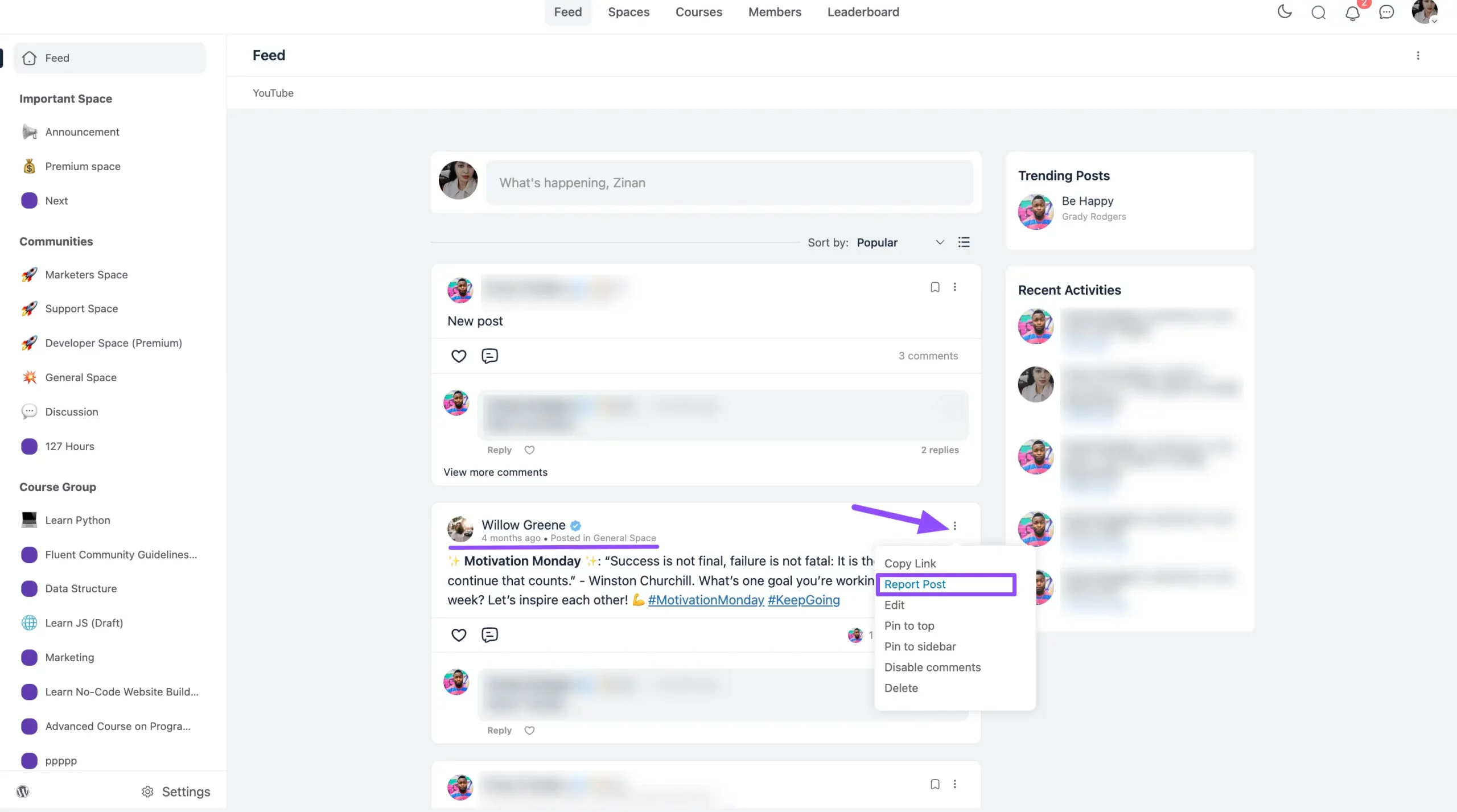
Once you enable the settings, the Report Post and Report Comment options will be enabled. Without enabling this option, users can not report any content.
To report a post/comment, go to the desired post/comment, click the three-dot icon, press the Report Post/Comment option, and that post/comment will be reported.
Statuses of Moderated Content #
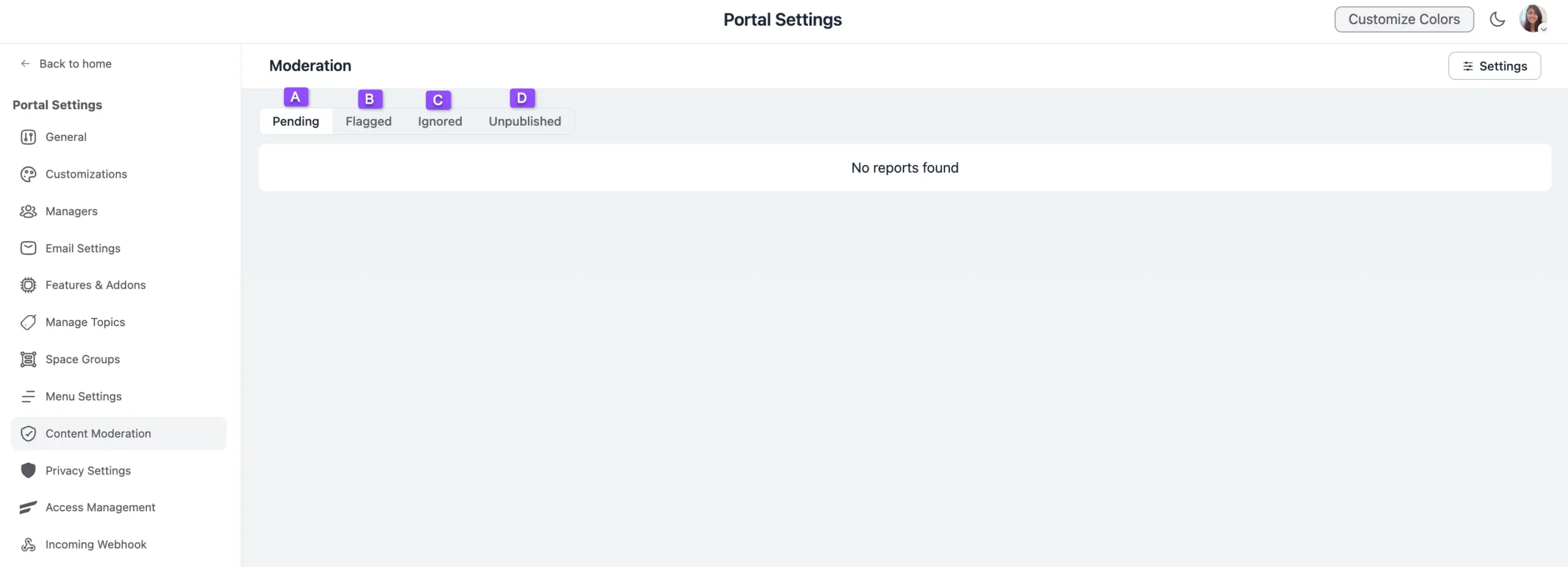
In the Content Moderation settings page, you will have four Status options under which the reported content (includes feed posts and comments) will be held. These are:
- A. Pending: This status includes content that has been reported by community members and is awaiting admin/moderator approval for moderation. All reported content remains here until an admin/moderator reviews it and decides whether to keep it (by ignoring the report) or remove it (by unpublishing it).
- B. Flagged: Here, you will find content that has already been flagged (i.e., content that automatically goes into the review state before being posted, based on your Moderation Settings). All flagged content remains here until an admin/moderator reviews it and decides whether to approve it (by ignoring the report) or disapprove it (by unpublishing the report) for the feed.
- C. Ignored: In this section, you’ll find all the reported Pending and Flagged content you chose not to act on by simply ignoring the report requests and keeping the post/comment as it is on the feed.
- D. Unpublished: This status includes all reported Pending and Flagged content that you have unpublished (removed) from the feed.
Setup Moderation Settings #
You will also have another Settings option to define which content will automatically go under the Flagged status (i.e., go for the review state before being posted).
To learn the process of setting up the Moderation Settings, follow the steps below:
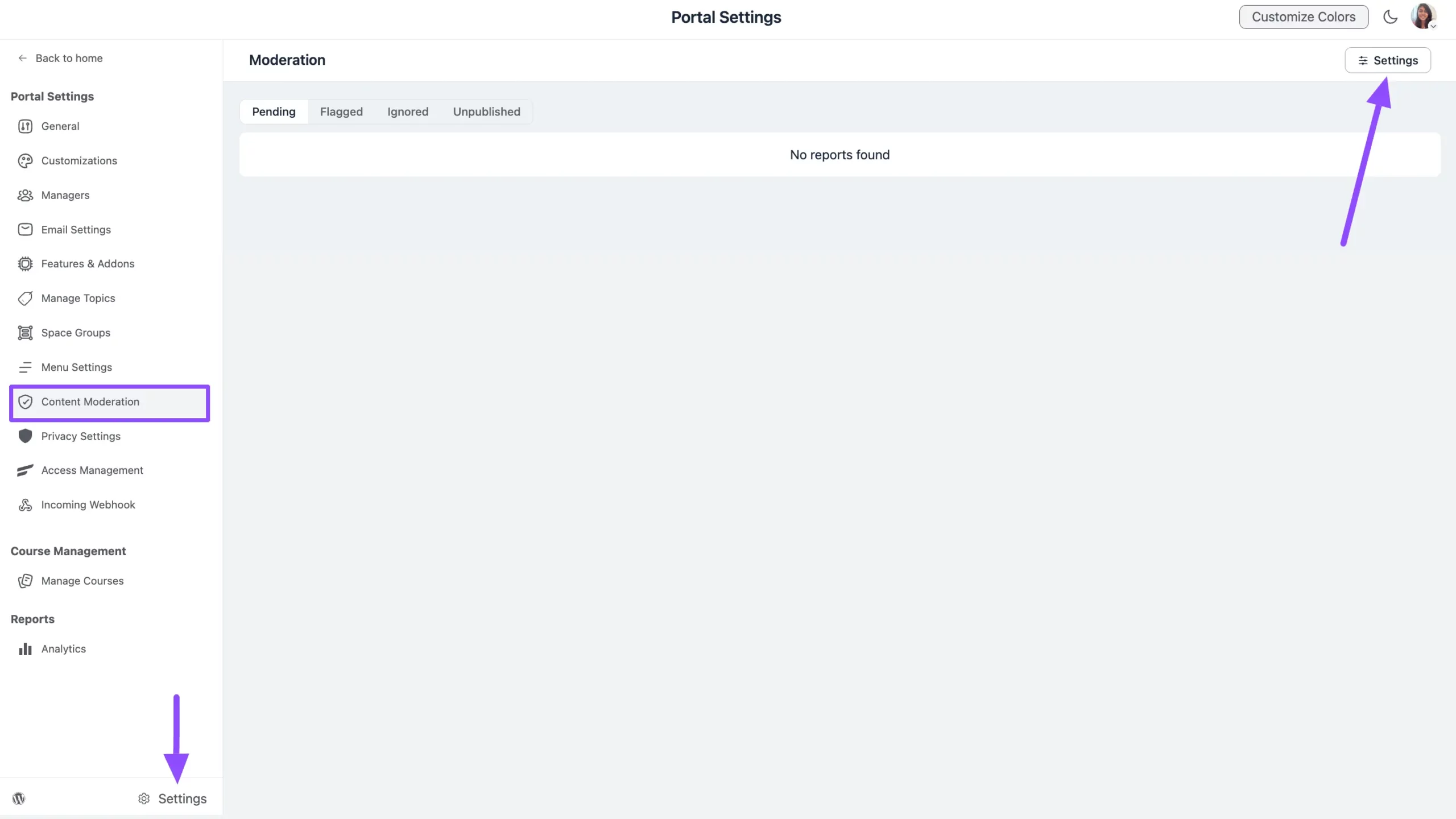
Open the Content Moderation page from the left menu of FluentCommunity Settings and click the Settings button of Content Moderation in the top right corner.
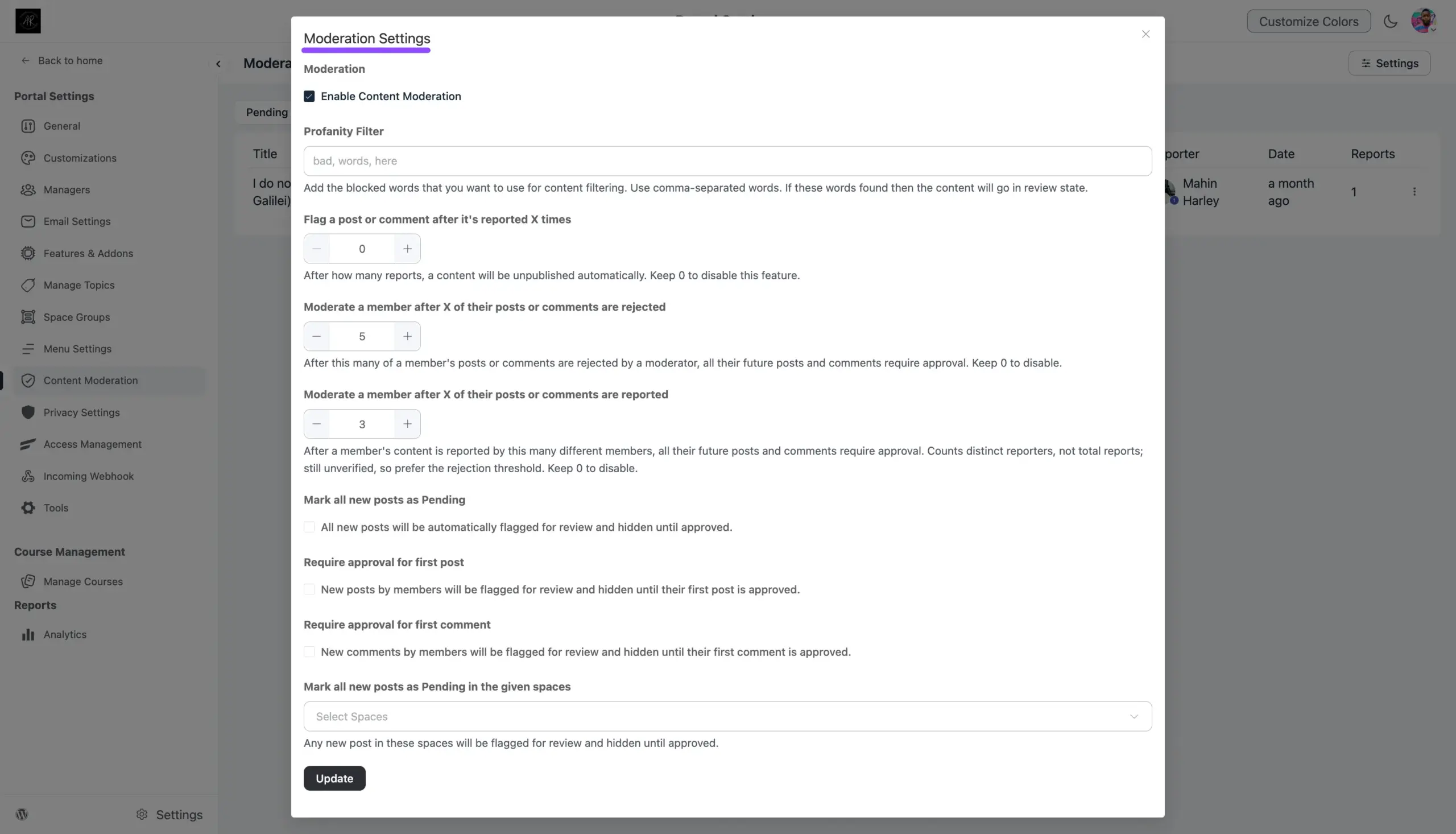
Now, a Moderation Settings popup page will appear with various settings options. These are:
Remember, before starting the process, make sure the Enable Content Moderation checkbox at the top of this popup is turned on. But if you don’t want any content being reported by users, just disable the settings.
A. Profanity Filter: This filtering tool detects and blocks offensive language in text or communication to maintain respectful and safe conversations. Here, provide the blocked words (separated by commas) you want to use for content filtering. If any Post/Comment contains the provided word/s, it will automatically be moved to the review state (i.e., Flagged status) and wait for the approval.
B. Flag a post or comment after it’s reported X times: Using this option, you can set the number of reports after which content will be unpublished automatically. Set it to “0” if you want this feature disabled.
C. Moderate a member after X of their posts or comments are rejected: With this option, once a member has this many of their posts or comments rejected by a moderator, all of their future posts and comments will automatically require approval before going live. Set it to “0” to disable this feature.
D. Moderate a member after X of their posts or comments are reported: This option automatically puts a member’s future posts and comments under review once their content has been reported by this many different members. It counts distinct reporters, not the total number of reports. Since reports are still unverified, it’s best to rely on the rejection threshold (option C) as your primary control. Set it to “0” to disable this feature.
E. Mark all new posts as Pending: This setting ensures that every new post created by users is automatically marked as Flagged for review. This means new posts/comments will not appear on the feed until an admin/moderator reviews and approves them.
F. Require approval for first post: This setting requires admin/moderator approval only for the first post made by a new user. Once their first post is approved, their future posts will be published directly without requiring review.
G. Require approval for first comment: Similar to the setting above, this requires admin/moderator approval for a member’s very first comment. New comments will be flagged for review and hidden until that first comment is approved, after which future comments are published directly.
H. Mark all new posts as Pending in the given spaces: Here you can define the space/s in which new posts will be flagged. This means any new posts in the selected space/s will be flagged for review and hidden until approved by an admin/moderator.
After completing the setup, click the Update button to save all your changes and make it functional.
How to Review/Ignore/Unpublish a Reported Content #
To learn how to Review/Ignore/Unpublish a Reported Content, follow the steps below –
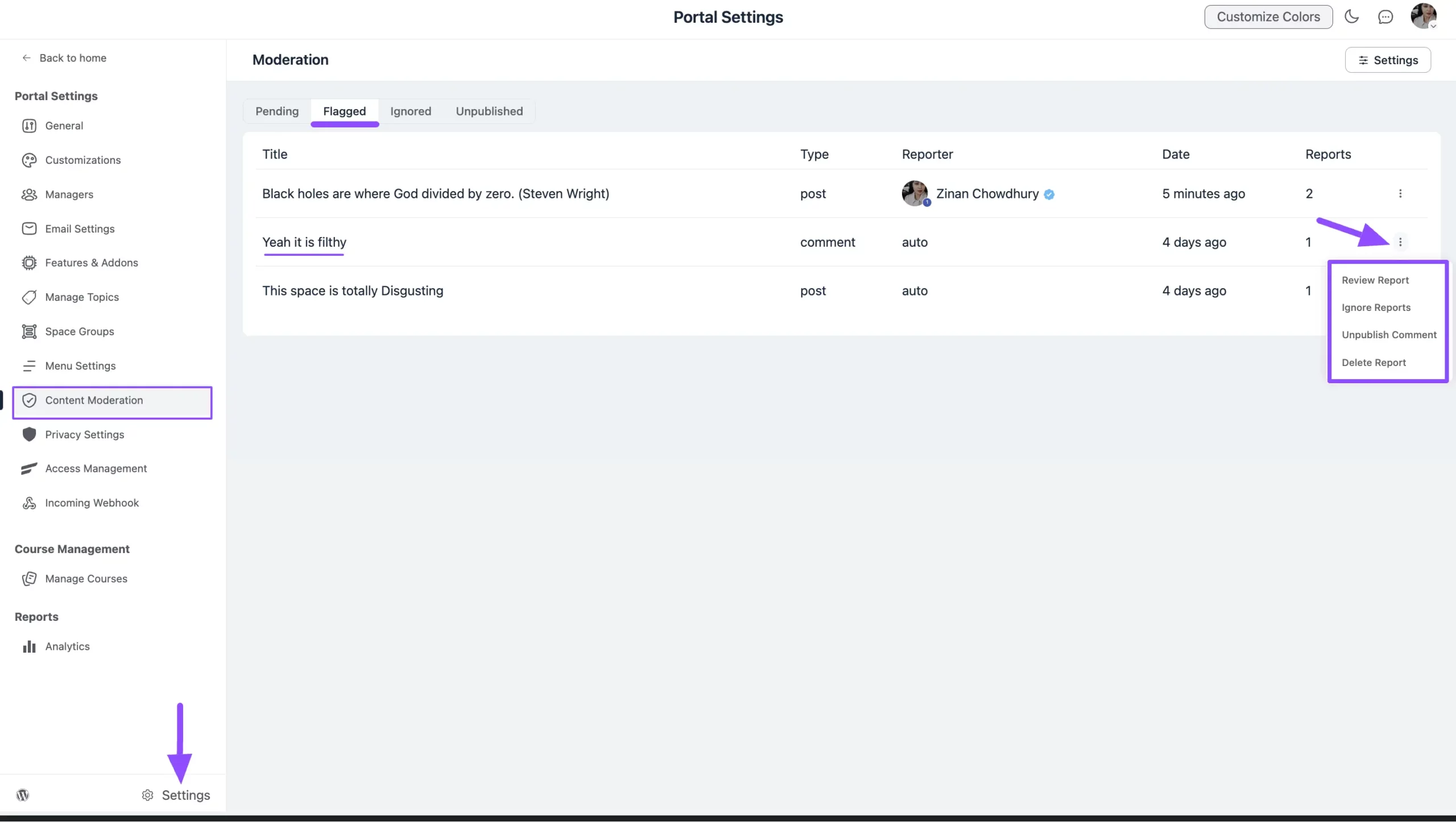
First, go to FluentCommunity Settings, open the Content Moderation page, go to the Pending or Flagged status, and select the desired Post or Comment.
Now, open the Three-dot Icon in the right side, and you will get the following options:
- Review Report: This option allows you to review the details of the report submitted by community members. It helps you understand why the post/comment was reported and decide whether further action is needed.
- Ignore Reports: This option lets you dismiss the report request without taking any action. The reported post/comment will remain published on the feed as it is.
- Unpublish Comment/Post: This option allows you to remove the reported post/comment from the feed without deleting it entirely. The content will no longer be visible to users but can be restored later if needed.
- Delete Report: This option removes the report itself from the system. It does not affect the post/comment, which will remain published unless you take additional action.
Reviewing Unlisted Posts (Pro) #
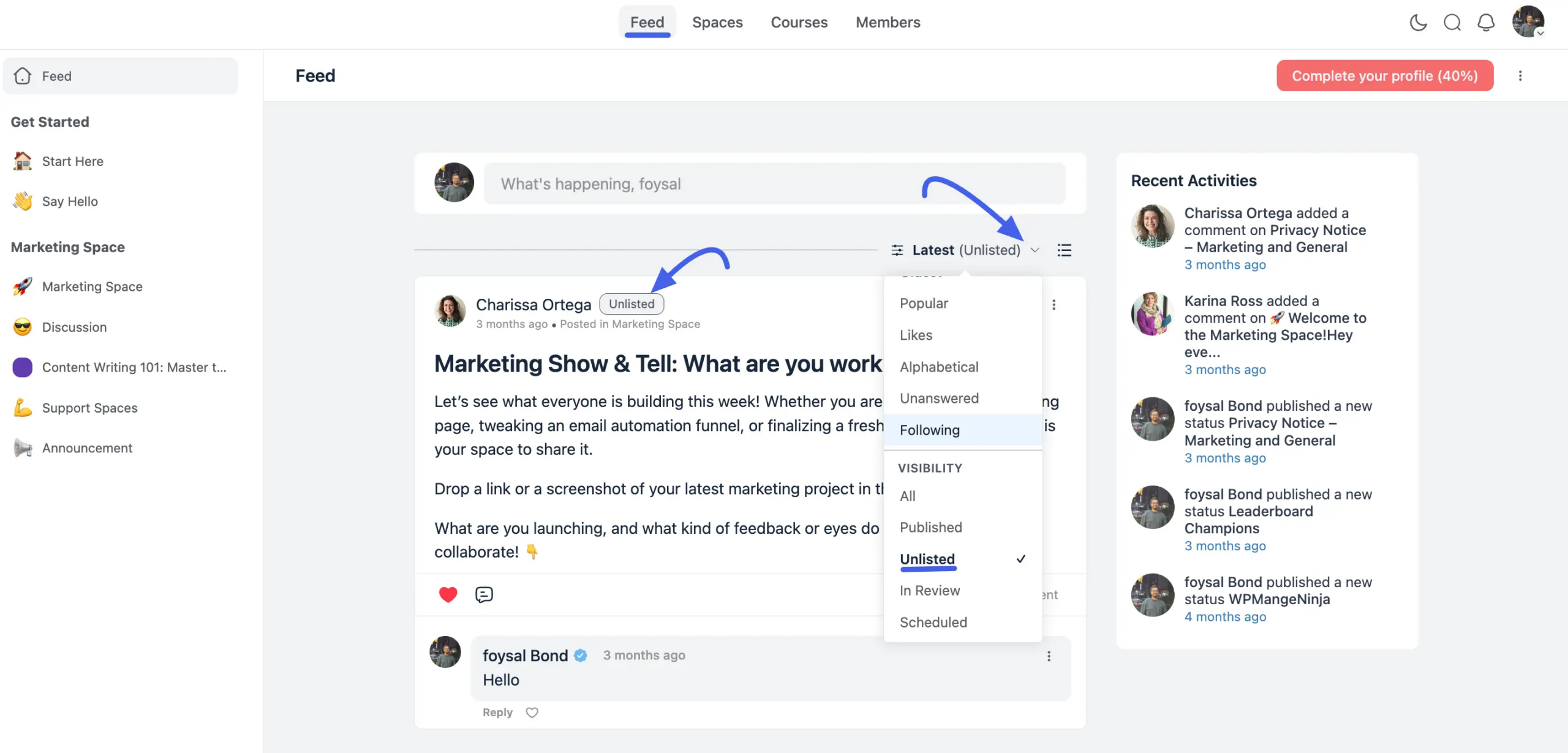
Unlisted posts stay off every feed and listing by design, but moderators still need a way to see them all in one place.
Open any feed’s Sort by dropdown and switch on the Unlisted visibility filter to list every unlisted post together. FluentCommunity marks the active sort with an “(Unlisted)” tag next to the field name (for example, “Latest (Unlisted)”) so it’s obvious the filter is on.
If you have any further questions, concerns, or suggestions, please do not hesitate to contact our support team.