In FluentCommunity, you can create, share, and even monetize spaces/courses. This guide will walk you through monetizing your spaces/courses within FluentCommunity using Paymattic.
Monetize Space with Paymattic #
To monetize your Space, you need to complete a few steps to set up the desired Space in FluentCommunity.
Follow the steps with screenshots below to learn the process of setting up Space –
Create or Edit a Space #
First, you need to open the desired space you want to monetize. You can start the process by creating a new Space in FluentCommunity or using an existing one.
For example, I opened an existing Space to show you the whole process. To learn the detailed guide on Space creation, check out this documentation here.
Set Space Privacy to Private #
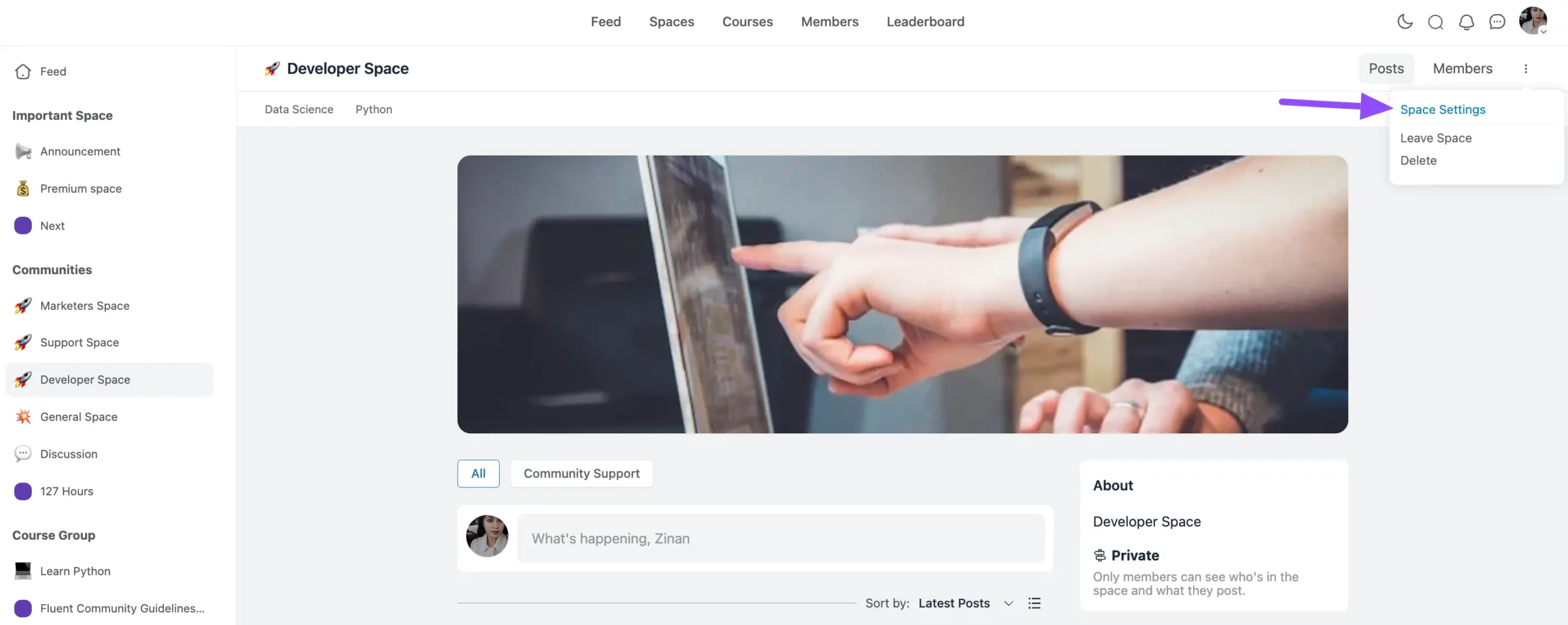
Once you are on the desired space you wish to monetize, click the Three-dot button in the top right corner and select the Space Settings option.
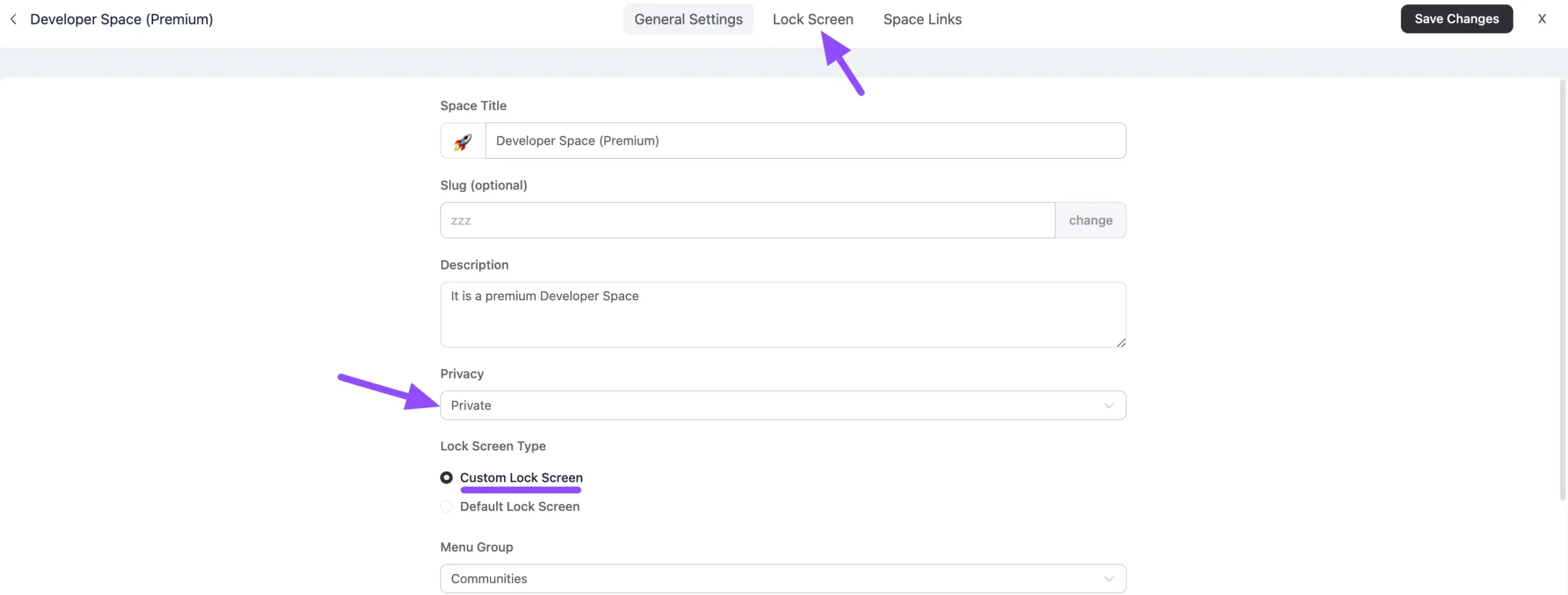
Now set the Space Privacy to Private and select Custom Lock Screen. The Custom Lock Screen will only be visible when the privacy setting is set to Private.
After setting the Space to private, click on the Lock Screen option at the top menu.
Enable Space Lock Screen #
Once you are on the Lock Screen, go to the Editor of Call to action (CTA) option by clicking the Pencil Icon from the left menu.
“Additionally, to learn more details about Lock Screen Customization, read this documentation.”
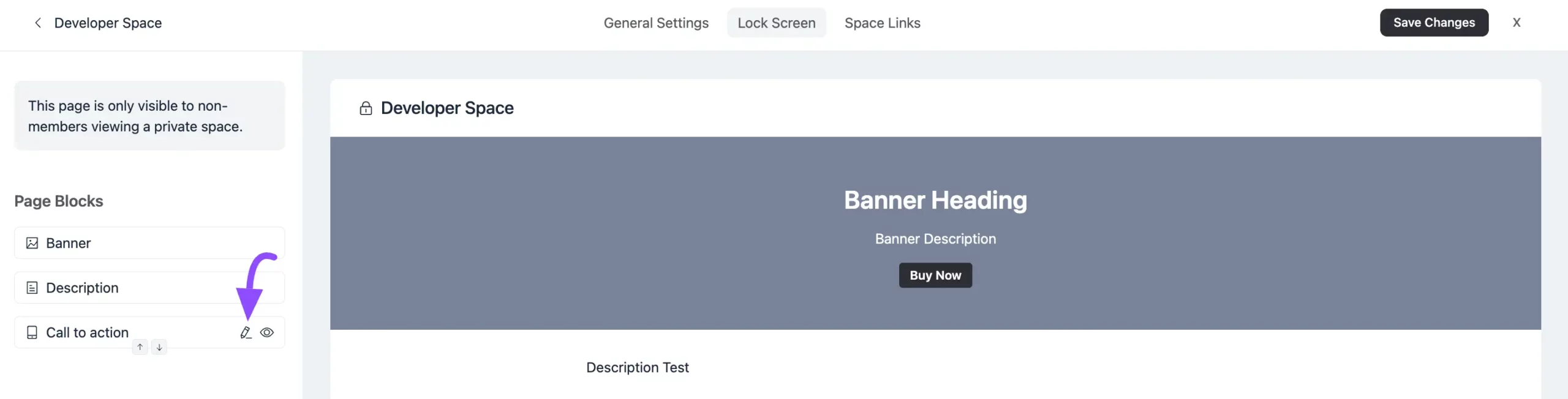
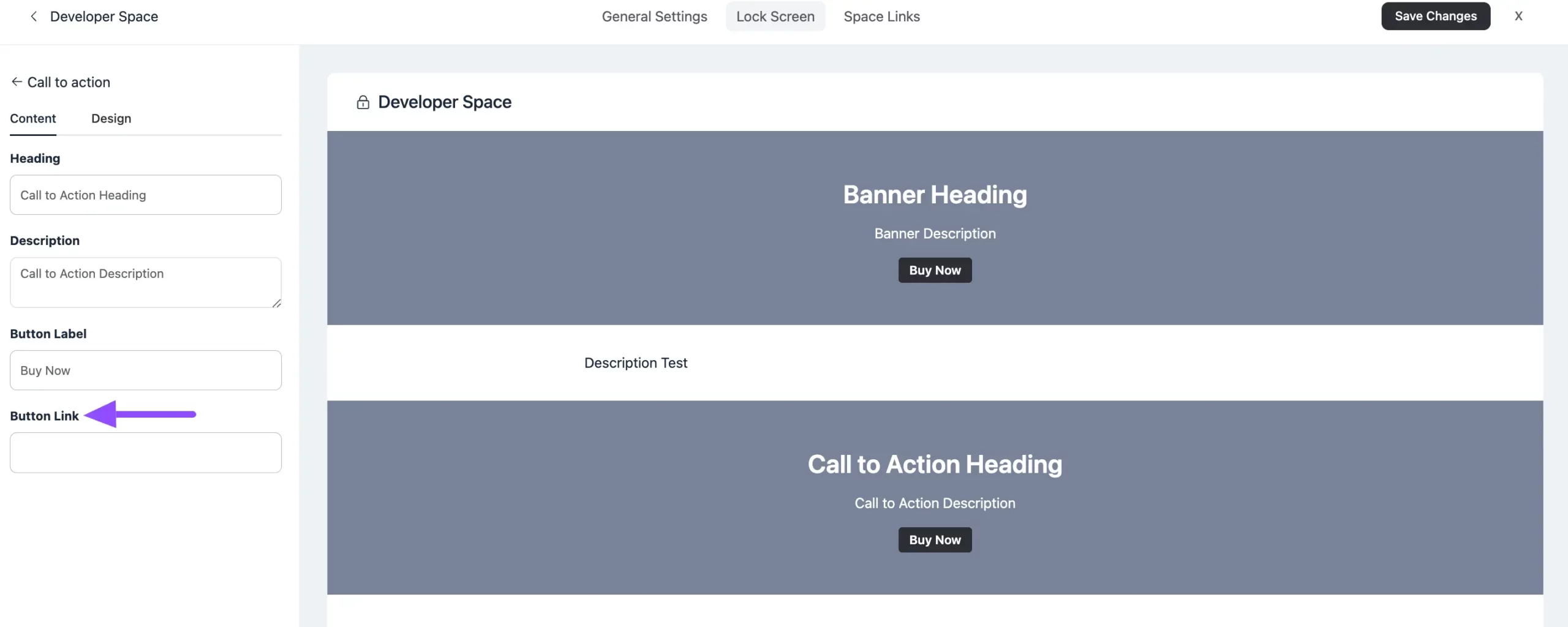
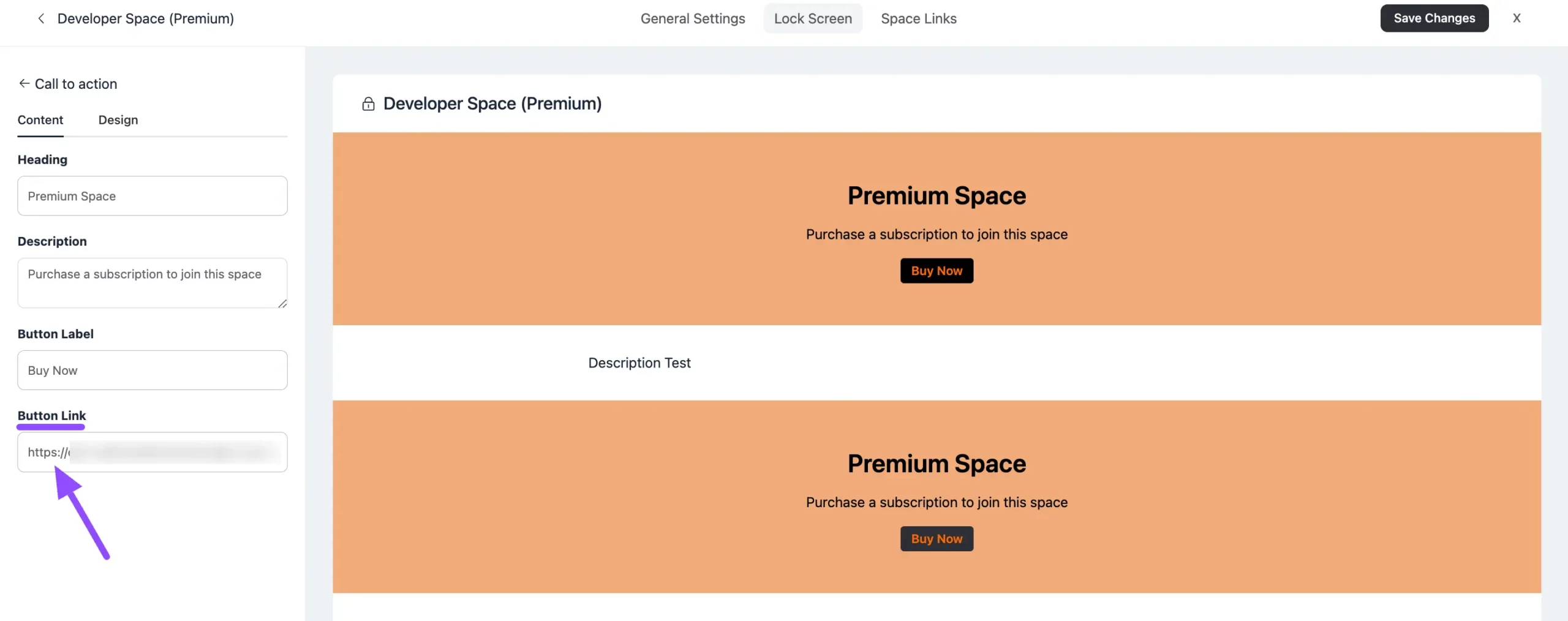
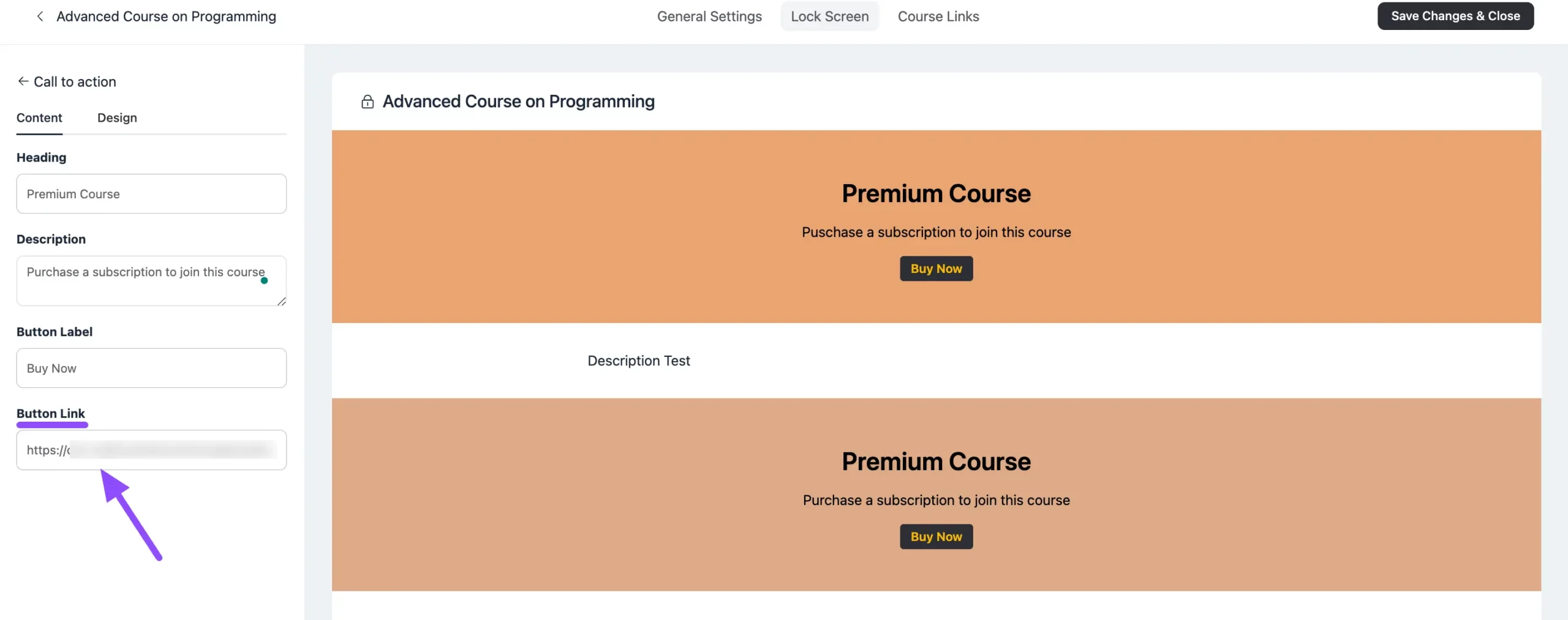
Now, finally, provide the desired Paymattic Form URL inside the Button Link field in the left menu through which you want to add members to this space and collect payments from them.
Paymattic is a WordPress plugin that can build forms to collect payment and donation. To learn the process of getting this Paymattic Form URL, click here.
Monetize Course with Paymattic #
In FluentCommunity, you need to complete a few steps to set up the desired Course to monetize your Courses.
Follow the steps with screenshots below to learn the process of setting up Course–
Create or Edit a Course #
To start the process, select the desired course you want to monetize. You can do it by creating a new course in FluentCommunity or using an existing one.
For example, I opened an existing Course to show you the whole process. To learn the detailed guide on Course creation, check out this documentation here.
Set Course Privacy to Private #
Once you are on the preferred course you want to monetize, and go to its General Settings option.
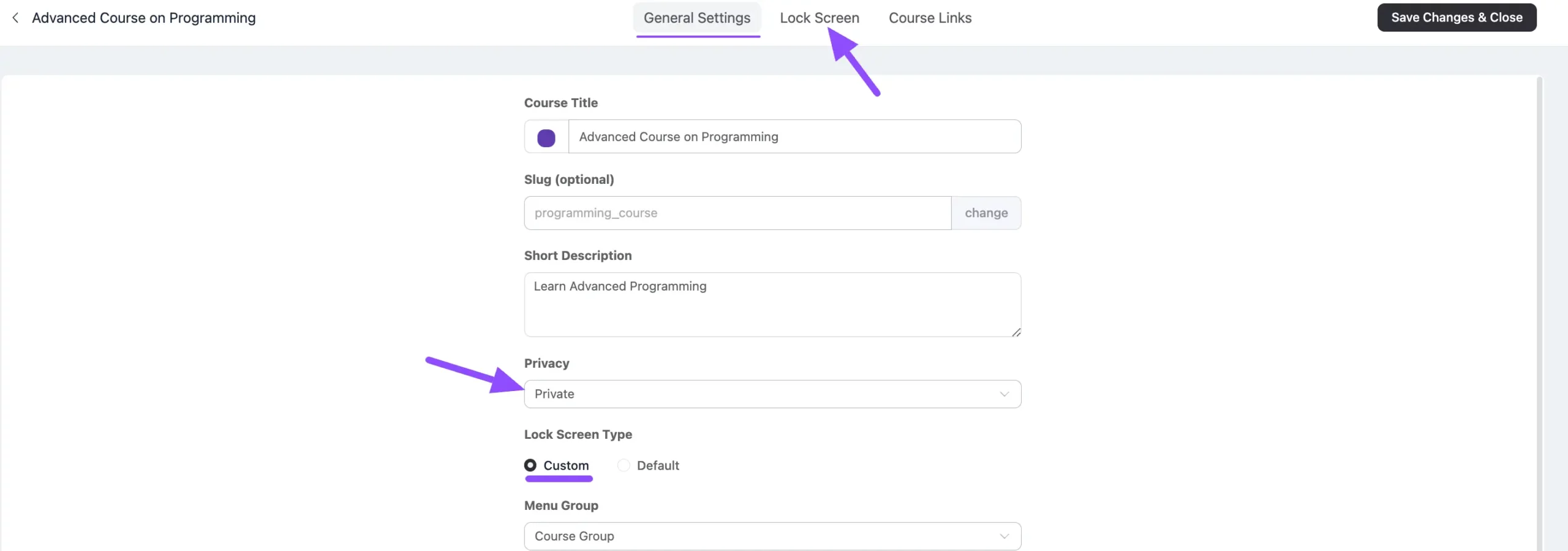
Now set the Privacy to Private and select Custom Lock Screen. The Custom Lock Screen will only be visible when the privacy setting is set to Private.
Once set up the Course to private, click on the Lock Screen option at the top menu.
Enable Course Lock Screen #
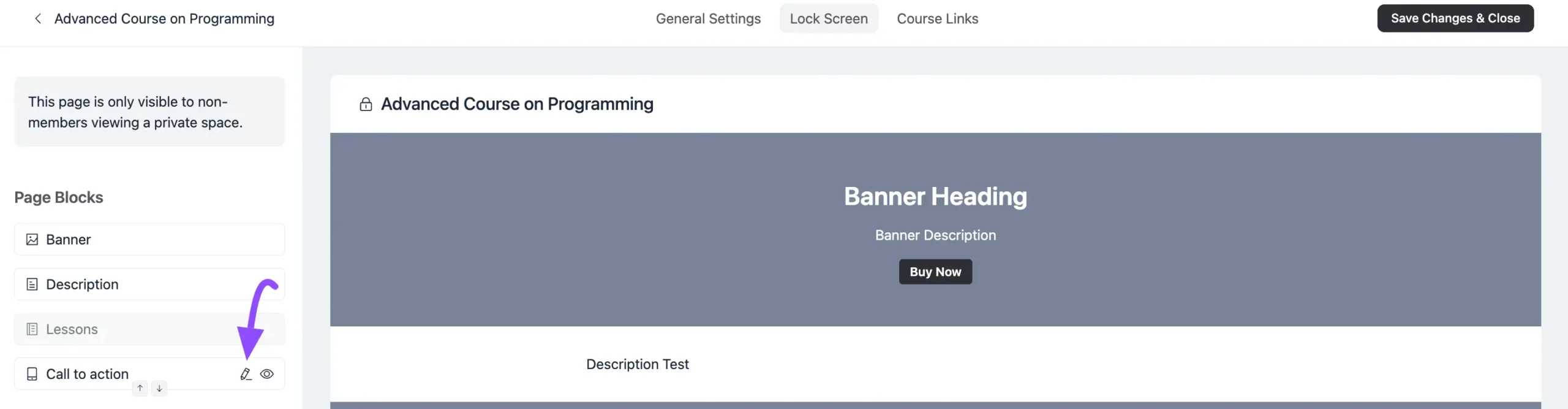
When you are on the Lock Screen, go to the Editor of Call to action (CTA) option by clicking the Pencil Icon from the left menu.
Additionally, to learn more details about Lock Screen Customization, read this documentation.
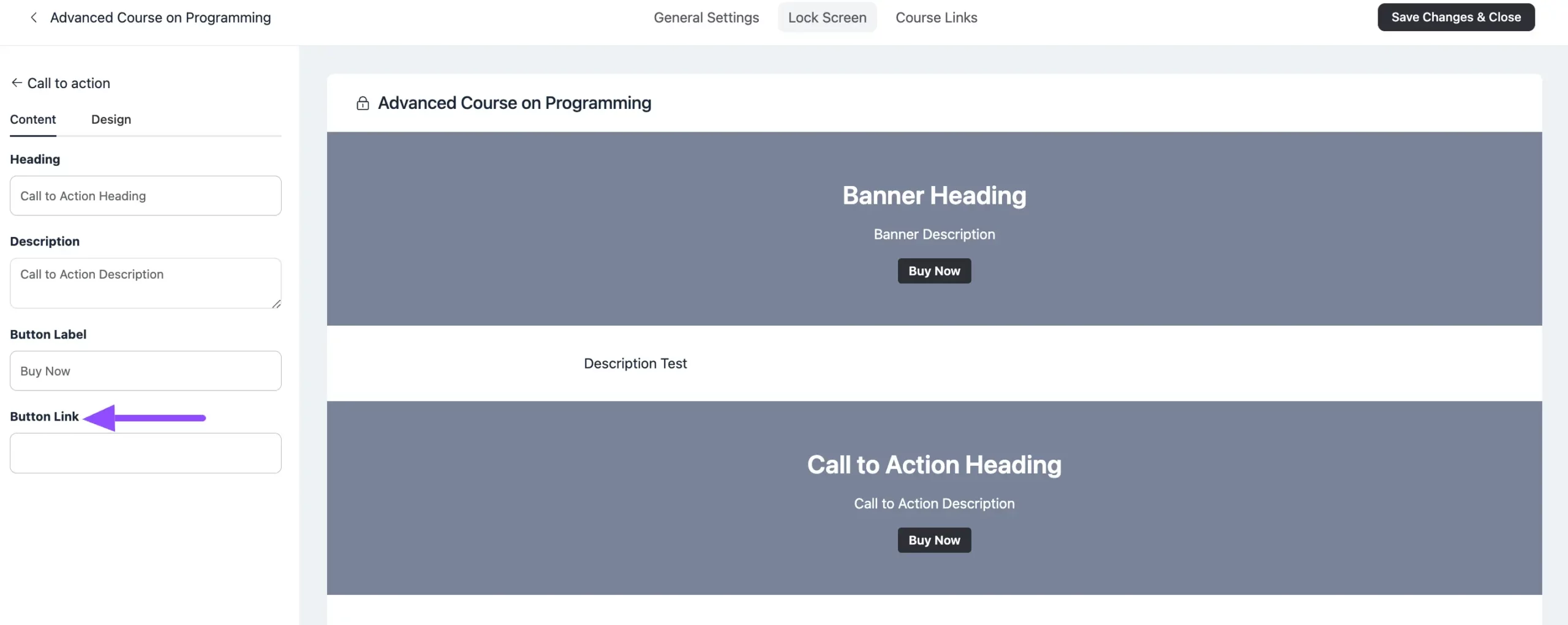
Finally, provide the desired Paymattic Form URL under the Button Link field in the left menu through which you want to add members to this course and collect payments from them.
Paymattic is a WordPress plugin that can build forms to collect payment and donation. To learn the process of getting this Paymattic Form URL, click here.
Collect Paymattic Form URL to add in Space/Course #
You can monetize your Space/Course easily using the Payment Form created through the Paymattic plugin. To learn the whole process, follow the steps below accordingly –
Integrate Paymattic with FluentCommunity #
At first, you need to integrate Paymattic with your FluentCommunity. Integrating Paymattic with FluentCommunity allows you to collect payments and add members to the Premium (paid) Spaces and Courses of FluentCommunity directly through Paymattic Forms.
To learn the detailed guideline of Integrating Paymattic with FluentCommunity, read this documentation.
Add Desired Space/Course in Paymattic Form #
At this stage, you need to add the desired Space or Course into any Paymattic Form to monetize them.
But, remember, you need to add the Space/Course into the Payment Form to collect the money. To learn how to create a Payment Form, read this documentation.
For example, I chose an existing payment form to show you the process.
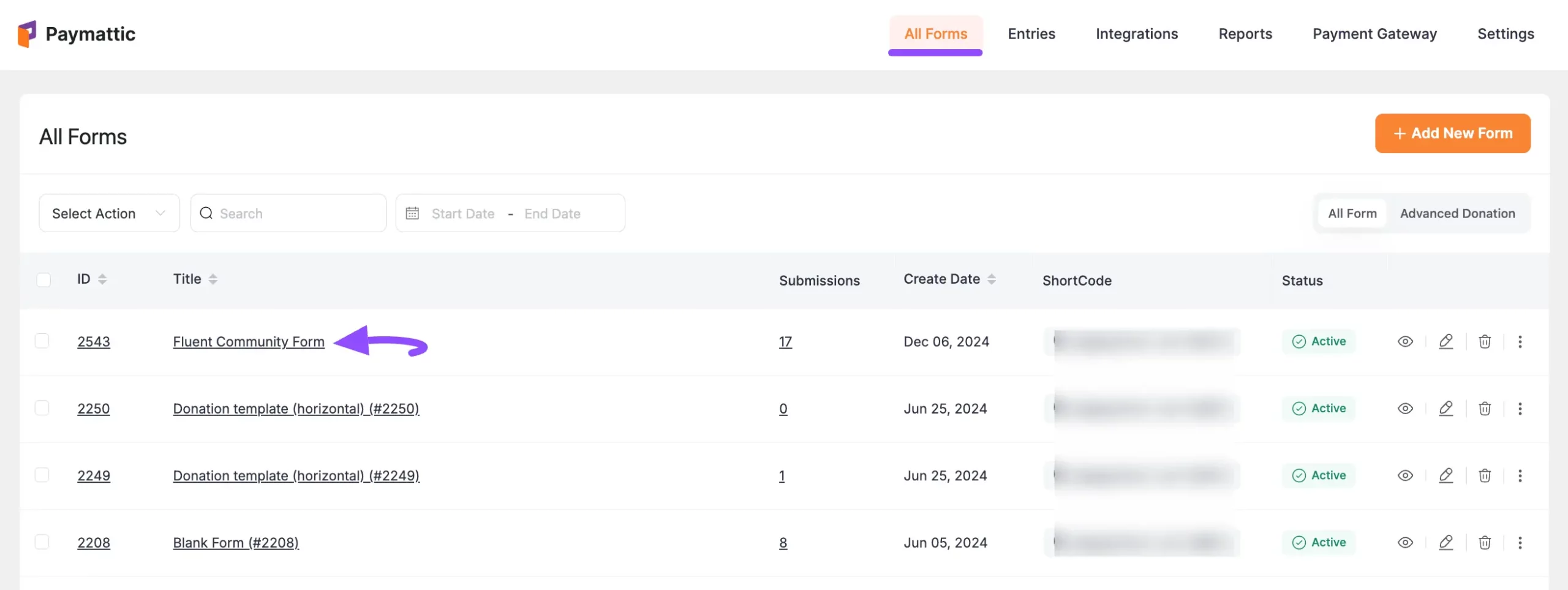
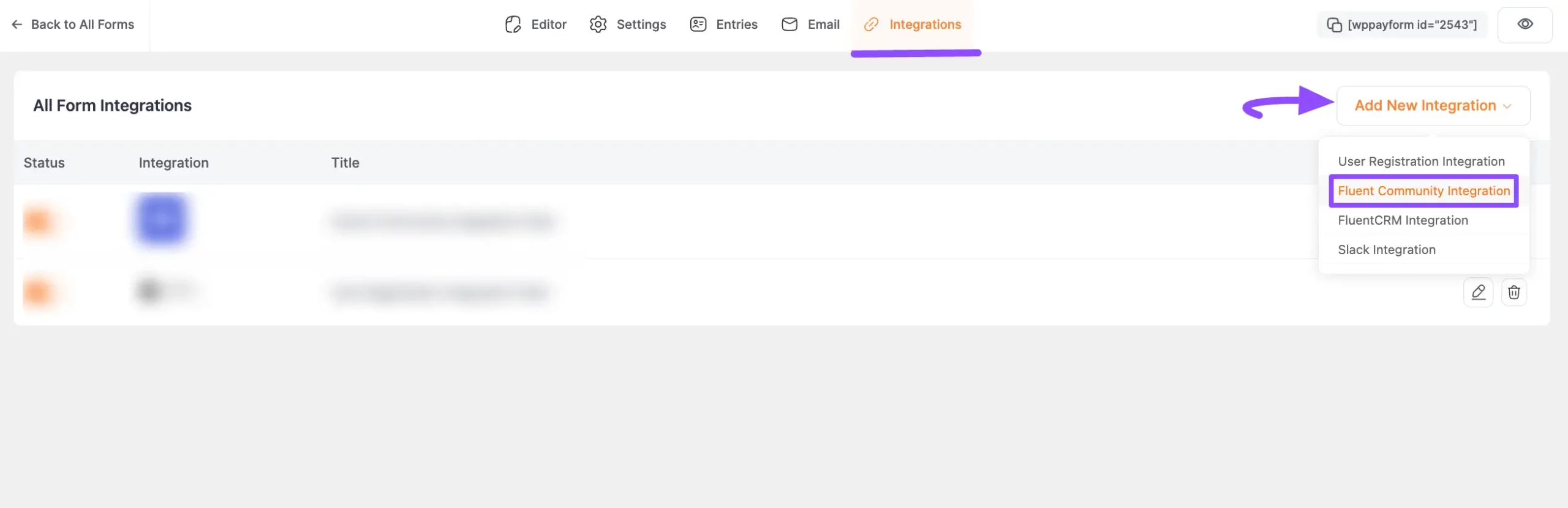
Once you are on the Editor page of your desired form, go to the Integrations tab, open the Add New Integration dropdown list, and select the FluentCommunity Integration option.
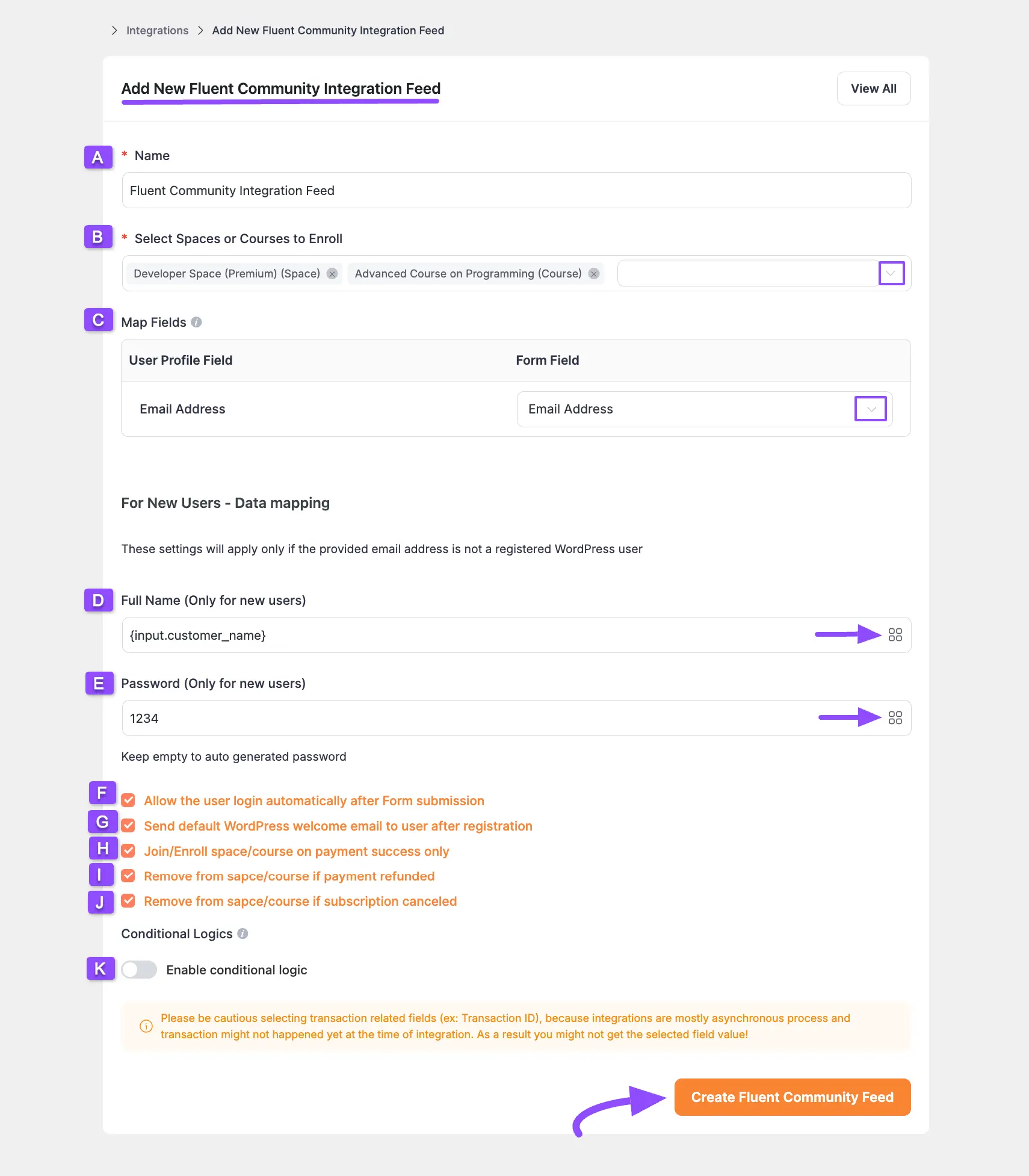
Now, a pop-up page will appear with various settings options for configuring FluentCommunity.
All the settings options mentioned in the screenshot below are briefly explained:
A. Name: Here, you can set a name according to your preference for your feed
B. Select Spaces or Courses to Enroll: Here, you can select your desired or all Space/s and Course/s to set where your users will add as members/students immediately after form submission. For example, I selected a Space (Developer Space) and a Course (Advanced Course on Programming).
C. Email Address: In this field, you need to select the Email Address.
D. Full Name (Only for new users): Here, use the {input.customer_name} shortcode by clicking the ShortCode Icon.
E. Password (Only for new users): Here, you can set a fixed password for every new user. Or, you can keep it empty to automatically generate a new password for each user.
F. Allow the user login automatically after Form submission: Enable this option and your user will be directly logged into your Paymattic User Dashboard after submitting the form.
G. Send default WordPress welcome email to a user after registration: Enable this option to send a welcome email notification to your users with login details including a password reset option.
H. Join/Enroll space/course on payment success only: Check this option if you want your users to Join/Enroll in a Space/Course only when the payment is successful. If you keep it unchecked, users can get access to the space/course without payment succeed.
I. Remove from space/course if payment refunded: Checking this option will allow you to remove users automatically from space/course if payment is refunded.
J. Remove from space/course if subscription canceled: Checking this option will allow you to remove users automatically from space/course if they cancel their subscription.
K. Enable conditional logic: Enable this toggle if you want to set any conditions on this form submission. To learn the details of the use of this Conditional Logic, read this Documentation. Plus, to get access to this feature, you need the Paymattic Pro Plugin.
Once you set up the page, click the Create Fluent Community Feed button and the feed will be added.
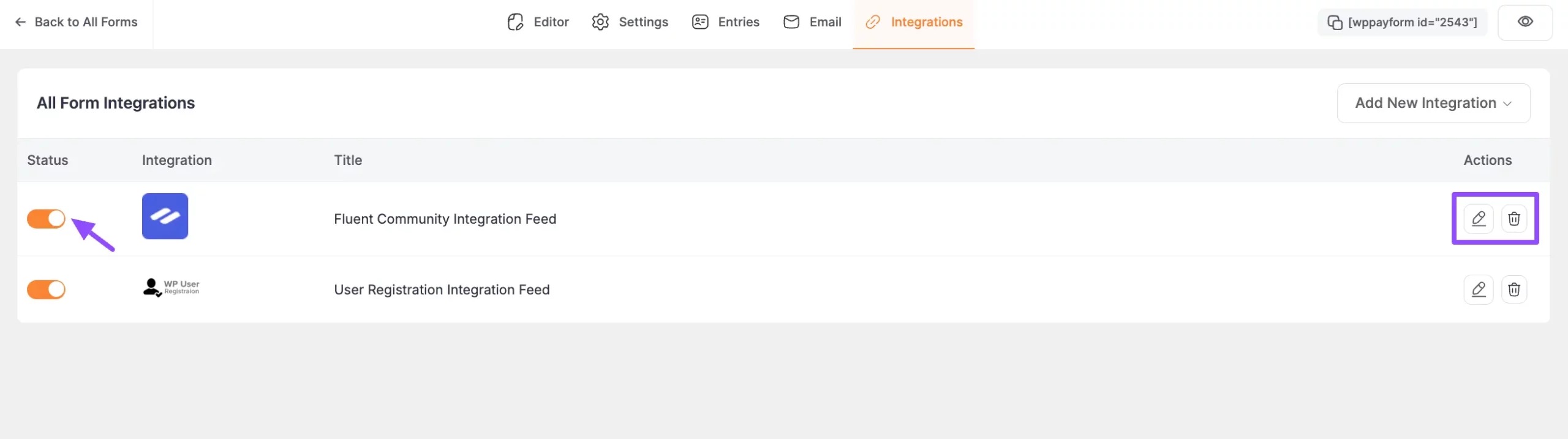
Now you will see that your FluentCommunity Integration Feed has been added here.
You can modify your FluentCommunity Feed anytime by clicking the Pencil Icon and delete it from here by clicking the Trash Icon. Also, you can disable/enable this feed anytime by clicking the Toggle button if needed.
Additionally, to add Users automatically in WordPress through the Payamttic Form Entries, you can also add the User Registration Integration Feed. To learn the process of adding User Registration Feed, read this documentation.
Publish Your Paymattic Form #
You can display the Paymattic Form where you add the FluentCommunity Space/Course on the front-end using its shortcode.
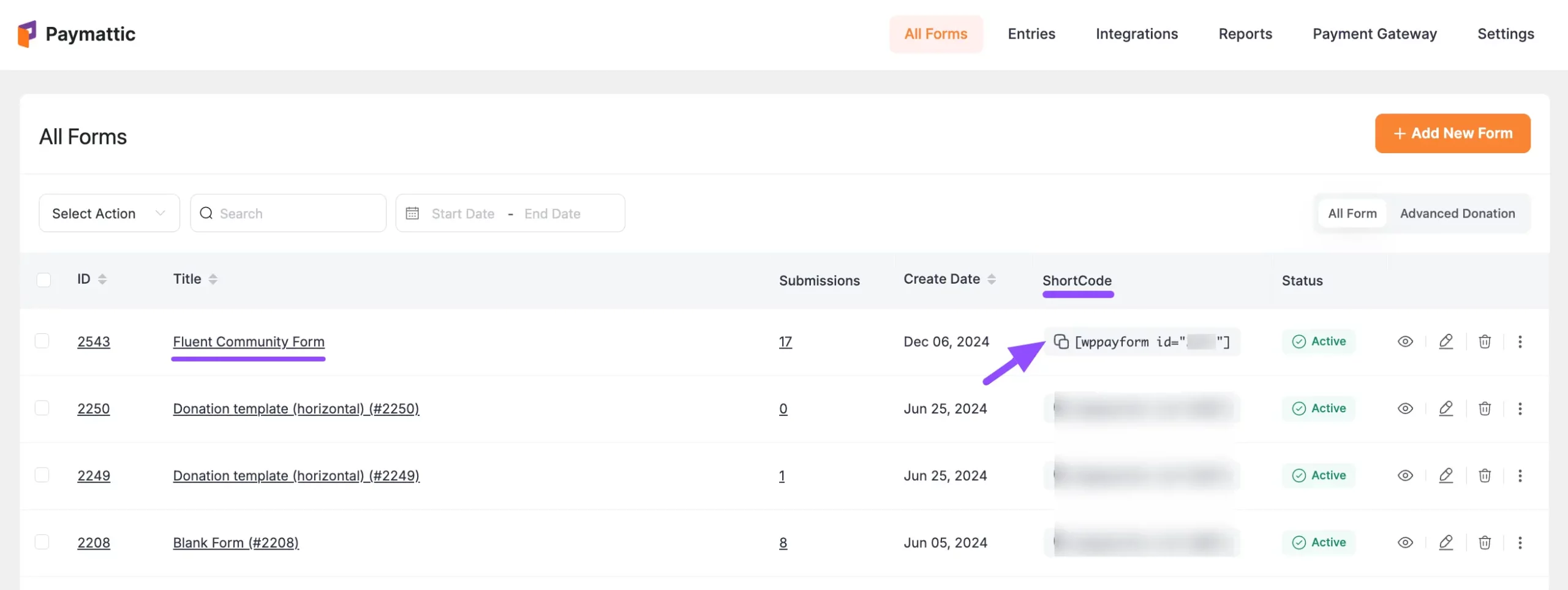
To display your Payment Form on the front end of your desired WordPress Site, copy the Shortcode of your desired Form.
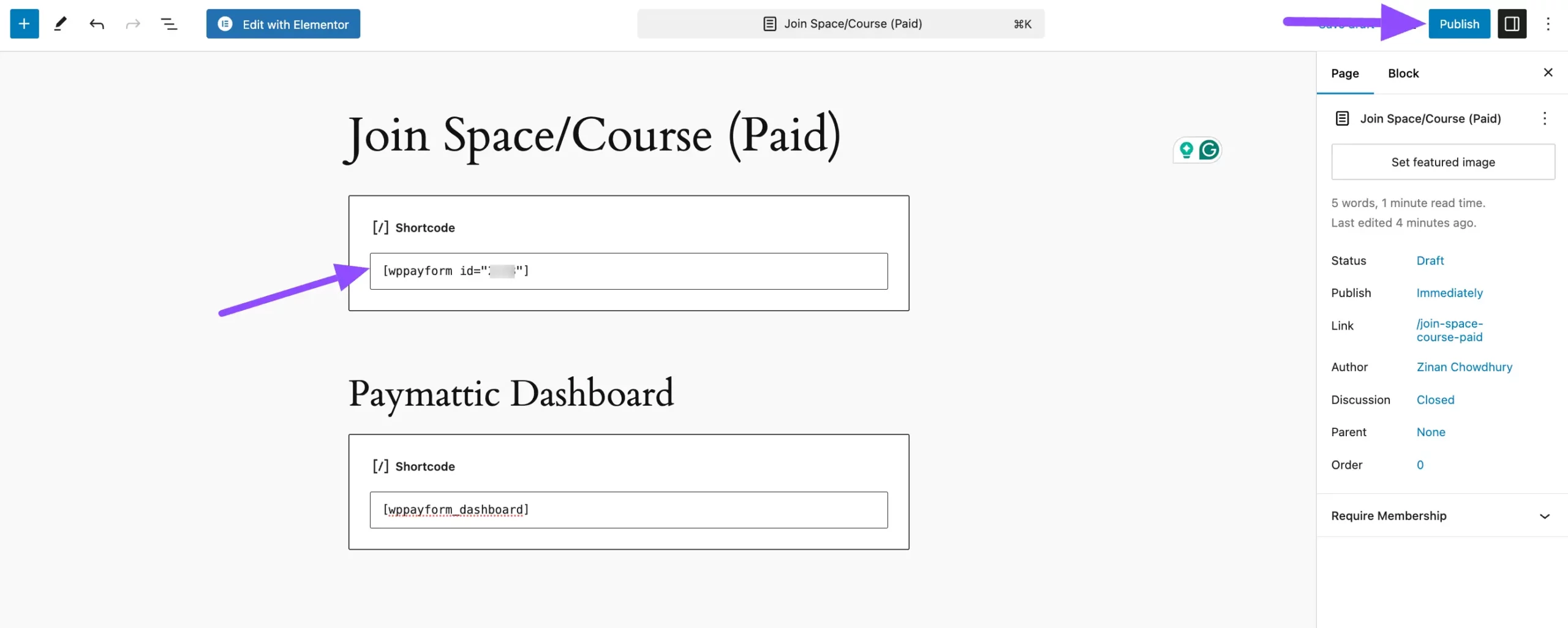
Then, paste the shortcode to the desired Page/Post where you want to display your Payment Form.
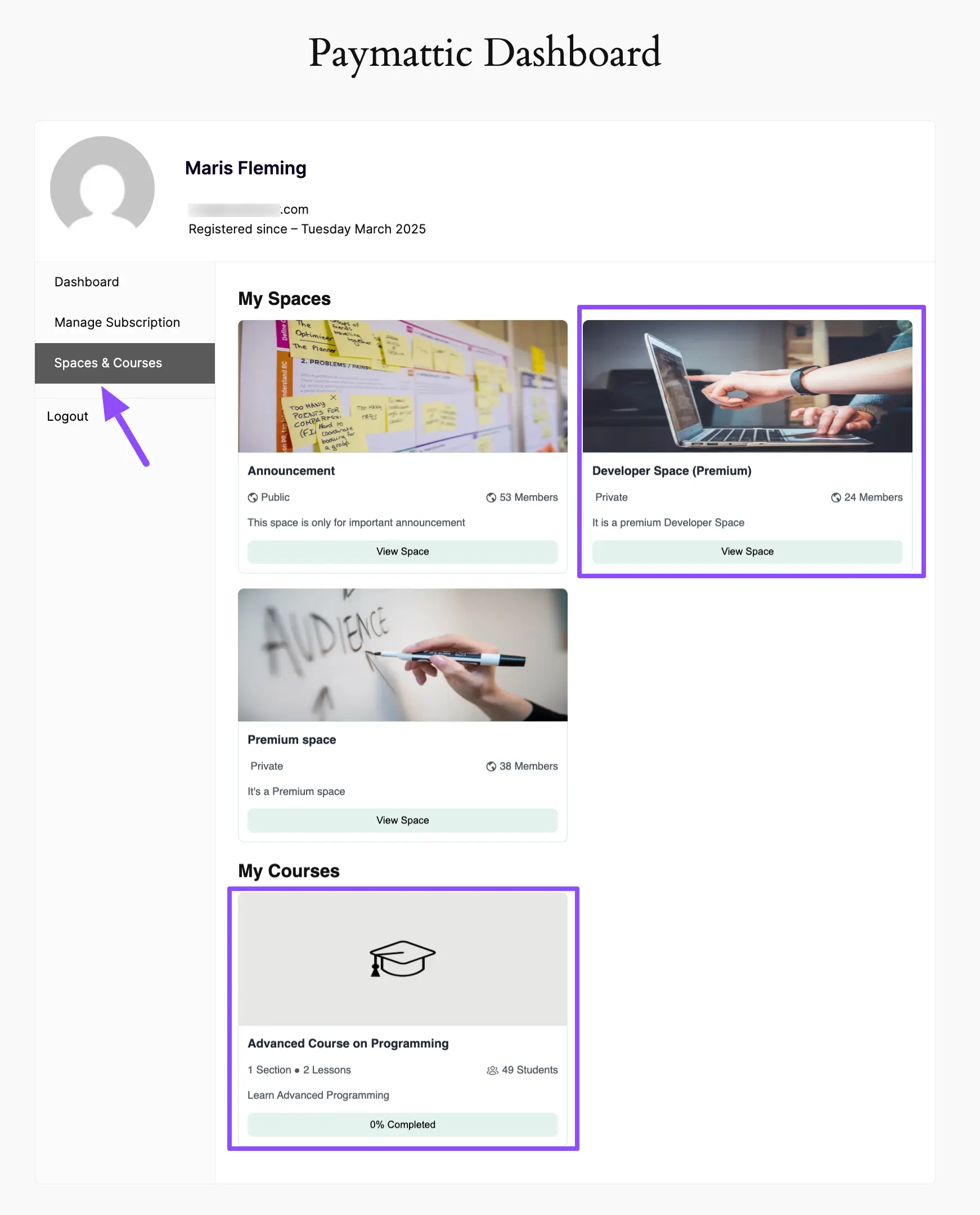
Plus, use this “[wppayform_dashboard]” shortcode to add the Paymattic User Dashboard to your form. This will allow the users who access the FluentCommunity Spaces/Courses through Paymattic Form to see a dedicated section called “Spaces & Courses” in their user dashboard.
To learn the detailed guideline about Paymattic User Dashboard with FluentCommunity, read this.
Once you are done, click the Publish button (or Save button to update existing Post/Page).
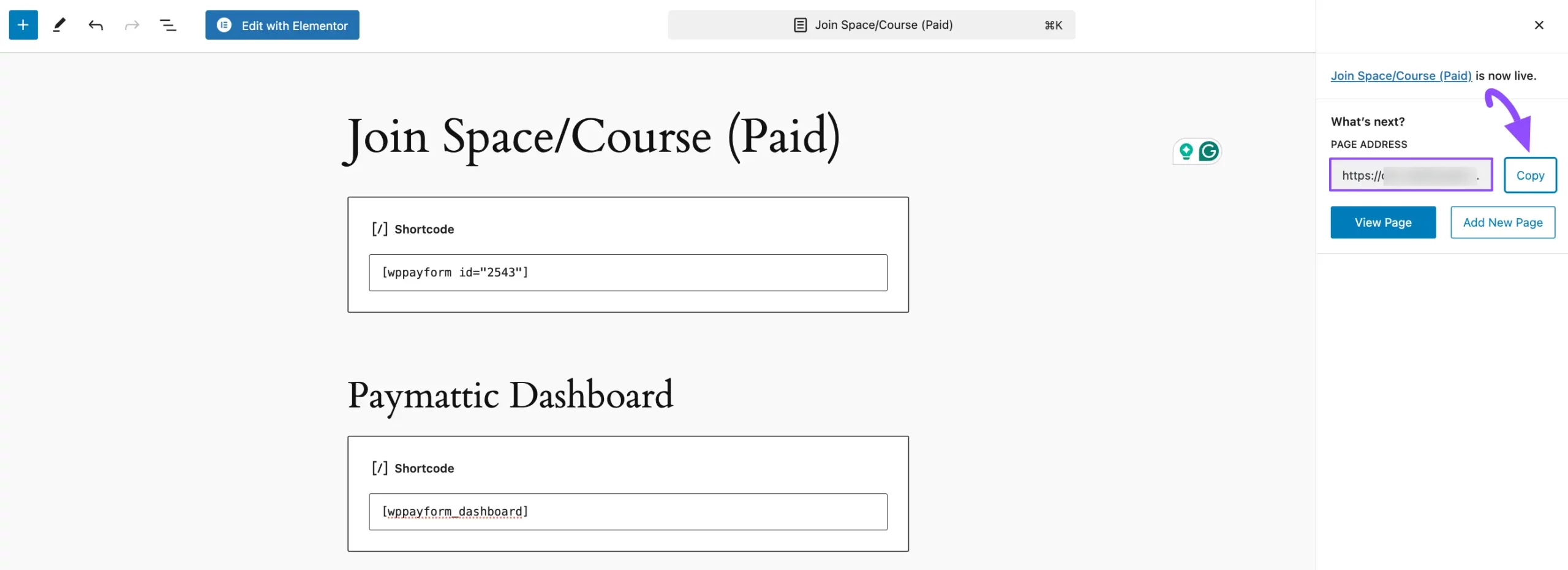
Finally, here is your desired Paymattic Form URL. Now, copy it.
Link the Form URL to the Space/Course Lock Screen #
Now, go back to your Lock Screen’s CTA button of pace or Course and paste the form URL into the Button Link field.
Paymattic Form & User Dashboard Preview #
Here, you can see the Preview of your Form where you integrated the FluentCommunity Space and Course.
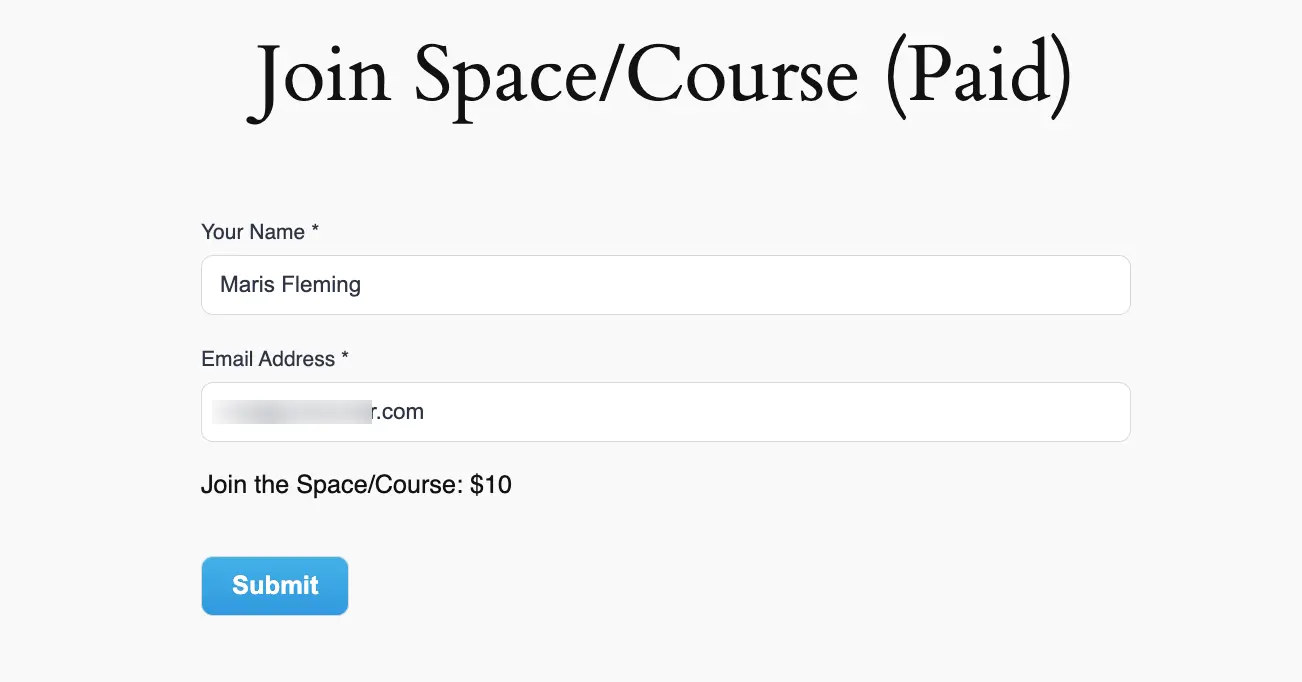
Once the user fills out the form and clicks the submit button, they will see this Paymattic User Dashboard with a dedicated section for Spaces & Courses.
This section provides an overview of their community activities, such as the spaces they have joined and the courses they are enrolled in.
Start Selling Your Space/Course #
With these settings, your Space/Course is ready to be sold. When users visit the Space/Course, they’ll see the Lock Screen with the CTA button directing them to the payment form. Upon completion, you can grant them access to the space/course.
This setup enables seamless space/course monetization within your FluentCommunity platform. If you have any further questions about this guide, please don’t hesitate to contact us.