

Profanity Filter for Positive Online Communities on WordPress

Table of Content
Subscribe To Get
WordPress Guides, Tips, and Tutorials


It’s 2 a.m.
A new member drops a comment packed with insults into your busiest thread, and nobody on your team is awake to see it.
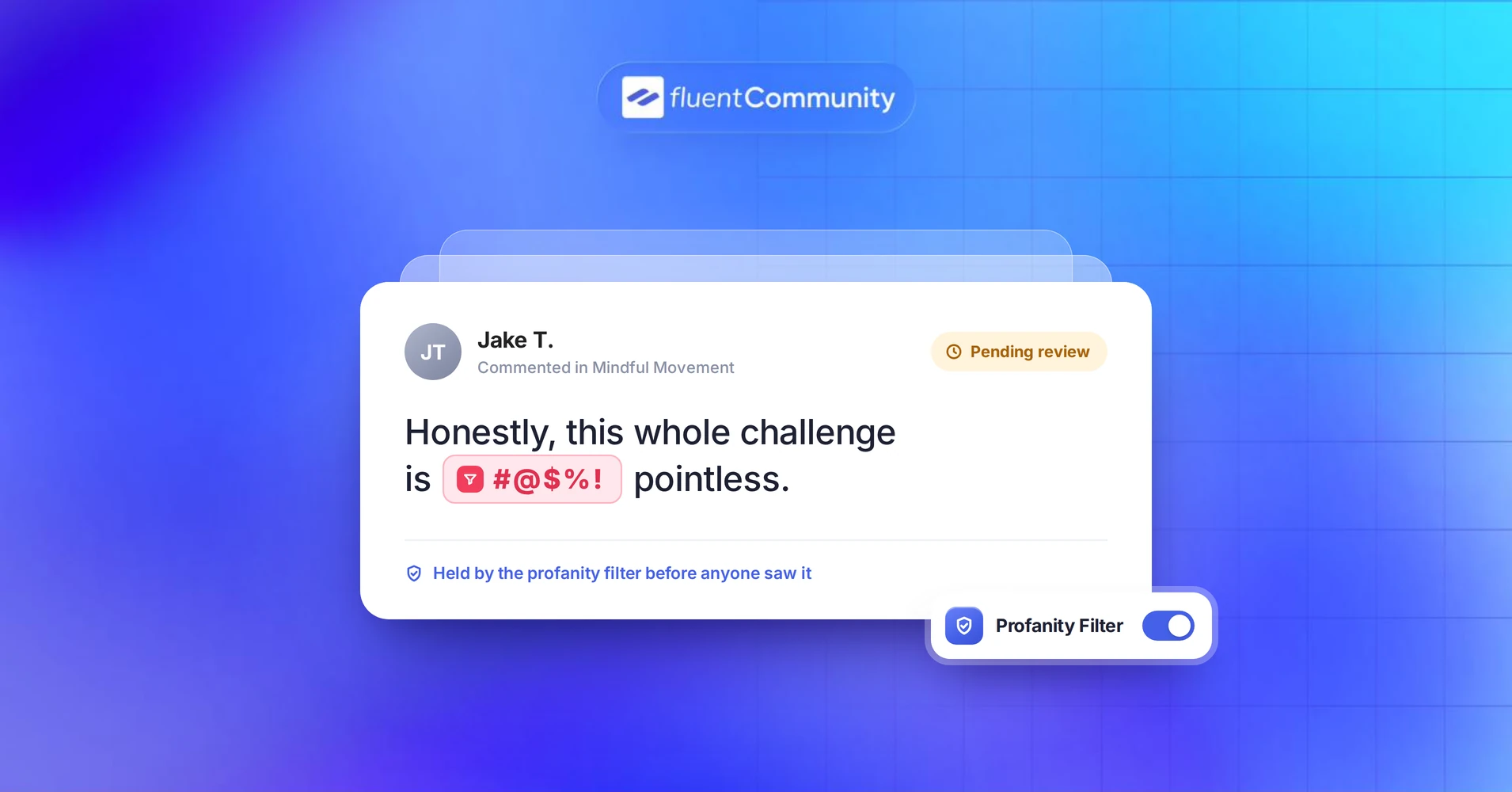
By breakfast, a dozen newcomers have. A profanity filter can hold that comment before anyone sees it.
Here’s how filters work and how to set one up in WordPress.
Key Takeaways
- A profanity filter checks posts and comments against your blocked words and acts before members see them
- Holding matches for review is safer than silent deletion or asterisk masking for most communities
- A short, tiered word list beats a giant list copied from the internet
- Filters miss sarcasm, creative spelling, and polite cruelty, so pair them with reporting and human moderators
- FluentCommunity lets you add blocked words, send matching posts to review, and manage reports from one dashboard
What a Profanity Filter Is and How It Works
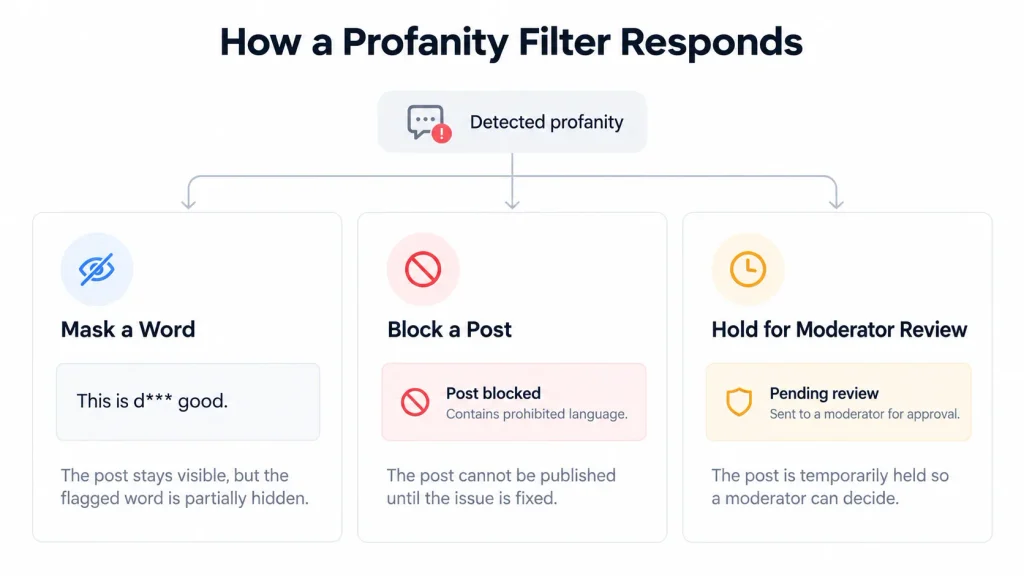
A profanity filter is a moderation tool that scans user-generated text, like posts and comments, for words you’ve blocked. When it finds a match, it either masks the word, rejects the post, or holds it for a moderator to approve before it goes public.
In simple terms, it’s a bouncer with a list of words that aren’t getting in. Every new post gets checked at the door. Anything on the list gets stopped, and everything else walks right through.
Most community filters are keyword-based. They compare text against a list you control, so they’re predictable and easy to adjust. Some paid services add machine learning to guess at tone, but the core idea doesn’t change: find a match, then act on it.
Mask, Block, or Hold: The 3 Ways Filters Respond
Not every filter reacts the same way when it spots a blocked word. Here’s how the three common responses compare:
| Response | What happens | What the member experiences | Works best for |
| Mask | The blocked word is swapped for asterisks | The post goes live with the word starred out | Fast live chat where speed matters most |
| Block | The post is rejected outright | An error message, or the post simply fails | Usernames, signup forms, and kids’ platforms |
| Hold for review | The post goes to a moderation queue | The post waits until a moderator approves or removes it | Communities where a wrong call costs trust |
Masking looks tidy, but honestly, it has a weird side effect. A reply that reads “you’re a ****” still lands as an insult, because everyone fills in the blank. Masking hides the word. It doesn’t hide the intent.
Blocking is stricter, but a false match punishes a member who did nothing wrong. Holding for review sits in the middle. The software does the first pass, and a human makes the final call. That’s the model FluentCommunity uses, and it’s the right starting point for most communities.
Why Your Community Needs a Profanity Filter
Online harassment isn’t a fringe problem. ADL’s 2024 survey of online hate and harassment found that 56% of Americans have experienced it in their lifetimes, the highest rate since 2020. Half of teens ages 13 to 17 reported being harassed in the past year.
Big social networks get the headlines, but small communities feel it faster. In a group of a few hundred members, one ugly thread might be the first thing a newcomer reads. Many won’t bother reporting it. They’ll just leave quietly and never come back.
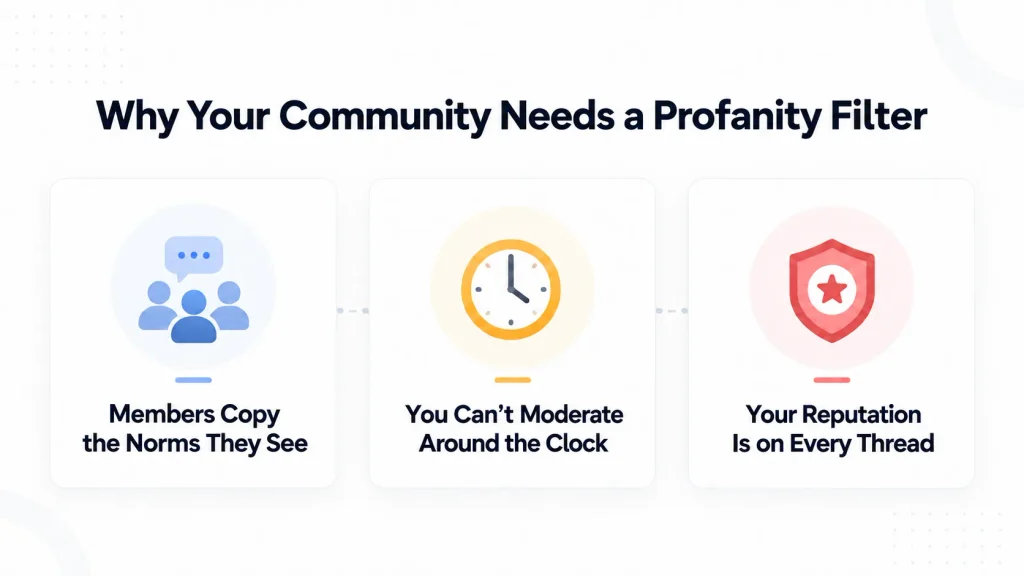
Members Copy the Norms They See
People adapt to the room they walk into. When Reddit banned two hate-focused subreddits in 2015, researchers studied more than 100 million posts and comments. According to the peer-reviewed study of Reddit’s 2015 ban, accounts that stayed on the site cut their hate speech by at least 80%.
The communities those users moved into saw no significant rise in hate speech either. That’s the quiet power of clear norms, and a filter is one of the ways you set them. From day one, it signals what your space is and what it isn’t.
You Can’t Moderate Around the Clock
Most community owners moderate between other jobs. You’re teaching a course, running a store, or managing a nonprofit.
A filter works the night shift, so the worst content waits in a queue instead of sitting on your feed for eight hours.
Your Reputation Is on Every Thread
If your community supports a course, a product, or a cause, every public thread reflects on you.
Paying students, sponsors, and partners notice what’s allowed to stay up. A filter is cheap insurance for a reputation that took years to build.
What a Profanity Filter Can’t Do
Here’s the honest part most vendor pages skip. A word filter is literal. It can’t read the room, and it can’t guess what someone meant.
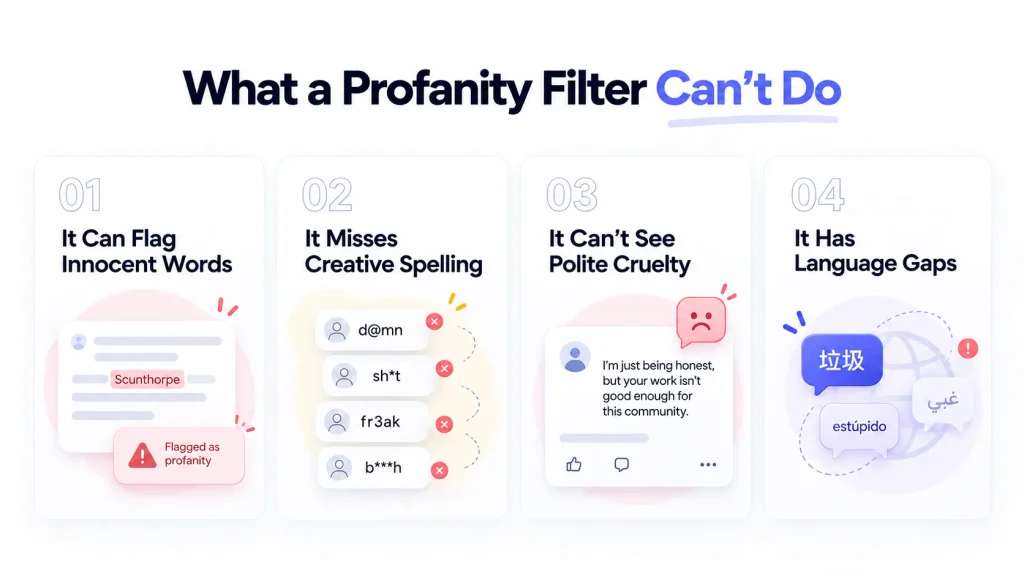
It Can Flag Innocent Words
In 1996, AOL’s profanity filter stopped residents of Scunthorpe, a town in England, from creating accounts because the town’s name contains a vulgar word. Tech people still call this the Scunthorpe problem.
It still happens today. Everyday words like “class,” “assignment,” and “Essex” contain short strings that a careless filter might catch. A course community with a sloppy list could end up holding half its homework threads.
It Misses Creative Spelling
Determined members will find a way around a word list. They swap letters for symbols, add spaces between letters, or invent fresh slang.
A keyword filter only catches what you’ve actually written down.
It Can’t See Polite Cruelty
“Nobody here actually cares what you think” contains zero blocked words. Neither does a pile-on where five members mock someone in perfectly clean English.
Harassment doesn’t need swear words, and a word filter can’t measure tone.
It Has Language Gaps
If your members post in several languages, an English-only list leaves big holes. You’ll need terms for each language your community actually uses, ideally reviewed by a native speaker.
None of this means filters don’t work. It means a filter is your first layer, not your whole moderation plan. We’ll stack the other layers on top in a minute.
How to Build a Blocked Words List That Works
Your word list is the brain of the filter. A sloppy list creates chaos in one direction or censorship in the other. Before adding anything, sort candidate words into these three tiers:
- Tier 1, always hold: slurs, threats, and explicit sexual terms
- Tier 2, your call: mild swearing and crude slang
- Tier 3, never block: words your members legitimately need
Tier 1: Deal-Breakers Every Community Should Hold
Slurs targeting race, religion, disability, gender, or sexuality belong here. So do direct threats and explicit sexual terms. In a typical course, brand, or club community, there’s no context where these words help the conversation.
Tier 2: Mild Language Depends on Your Audience
This is where your community’s personality shows up. A space for indie game developers might shrug at casual swearing. A parenting group or a faith community probably won’t. Neither is wrong, so match the list to what your members expect.
Tier 3: Words You Should Never Block
Many word lists floating around online include identity terms like “gay” or “queer,” plus medical and anatomy words. In a health, LGBTQ+, or sex education community, blocking those words silences the exact people you serve. Read every entry before it goes on your list.
Habits That Keep Your List Healthy
A word list isn’t a one-time project. These habits keep it accurate as your community grows:
- Start short with clear deal-breakers, then add words from real incidents
- Include common misspellings and spaced-out versions of Tier 1 words
- Check the queue weekly for false matches and remove the culprits
- Revisit the list whenever you launch a new space or audience
- Keep the full list private and publish only the categories in your guidelines
How to Set Up a Profanity Filter in FluentCommunity
FluentCommunity is a WordPress community plugin with content moderation built in, so you don’t need a separate filter plugin or a paid API. These steps follow the current FluentCommunity content moderation documentation.
Step 1: Open the Content Moderation Settings
From your WordPress dashboard, go to FluentCommunity > Settings and click the Content Moderation tab. This is the same screen where your moderation dashboard lives, so you’ll come back here often.
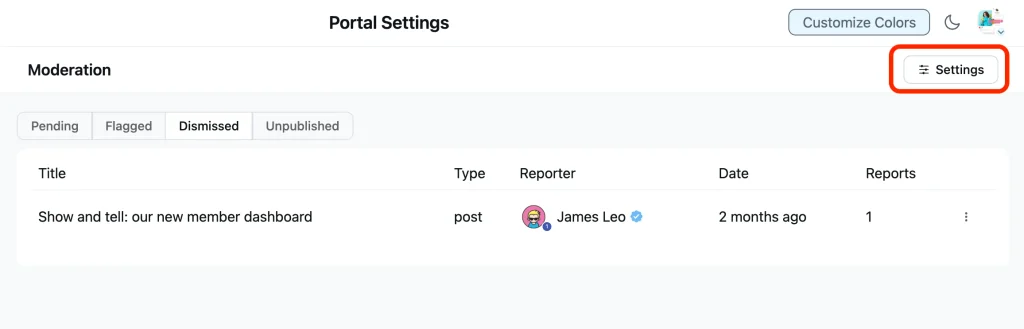
Step 2: Turn On Content Moderation
Click the settings (gear) icon to open the Moderation Settings window, then check Enable Content Moderation.
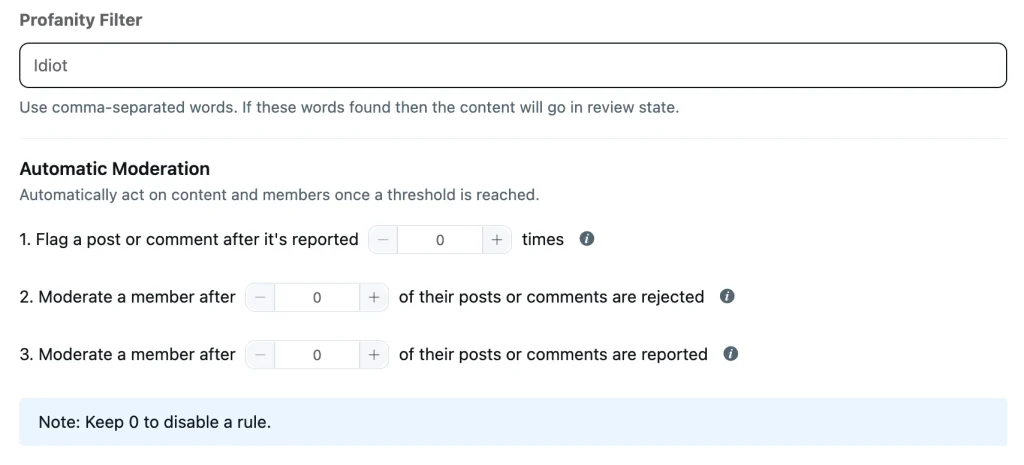
This switches on the moderation workflow, including the Report option members see on every post and comment.
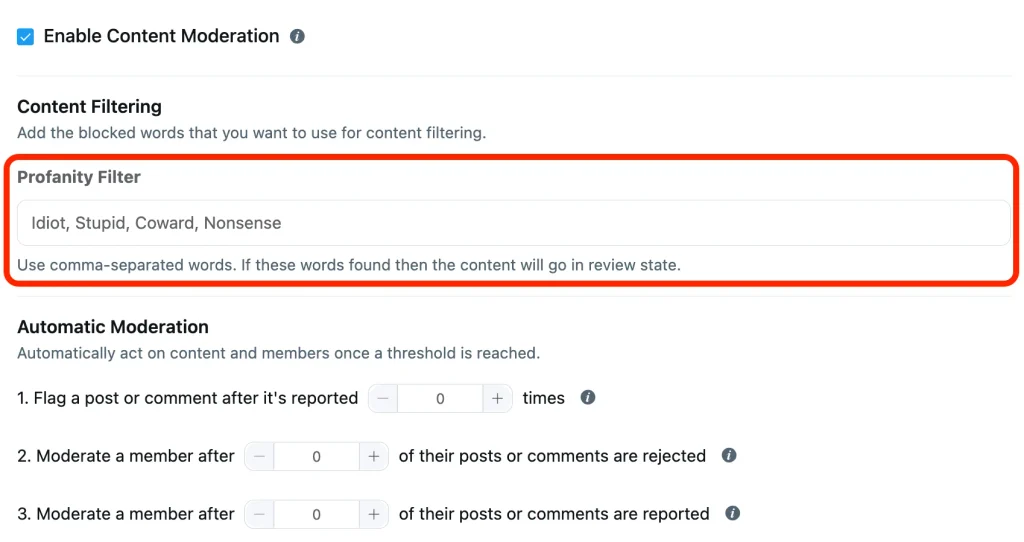
Step 3: Add Your Blocked Words
In the Profanity Filter field, type your Tier 1 words, plus any Tier 2 words you’ve chosen, separated by commas. Any post or comment that matches one of them is sent to review instead of publishing right away.
Step 4: Set Your Report Threshold
The “Flag a post or comment after it’s reported X times” setting decides how many member reports automatically unpublish a piece of content. Enter 0 to turn it off.
A threshold of two or three usually balances quick action with protection against one member reporting posts they simply dislike.
Step 5: Add Approval Rules for Newcomers or Sensitive Spaces
Three more options give you extra control over what goes live:
- Mark all new posts as Pending: every new post waits for admin approval
- Require approval for first post: only a member’s first post is held
- Mark all new posts as Pending in the given spaces: review applies only to spaces you choose
First-post approval is the sweet spot for growing communities. It catches drive-by spammers at the door, while your regular members post without delays. Space-specific review works well for a beginner Q&A space or anywhere sensitive topics come up.
Step 6: Save and Test With a Dummy Account
Click Update to save. Then log in as a test member and publish a post containing one of your blocked words. Next, post something harmless that includes a blocked word inside a longer word.
This shows you how your setup handles partial matches before real members find out.
How to Review Held Posts Without Burning Out
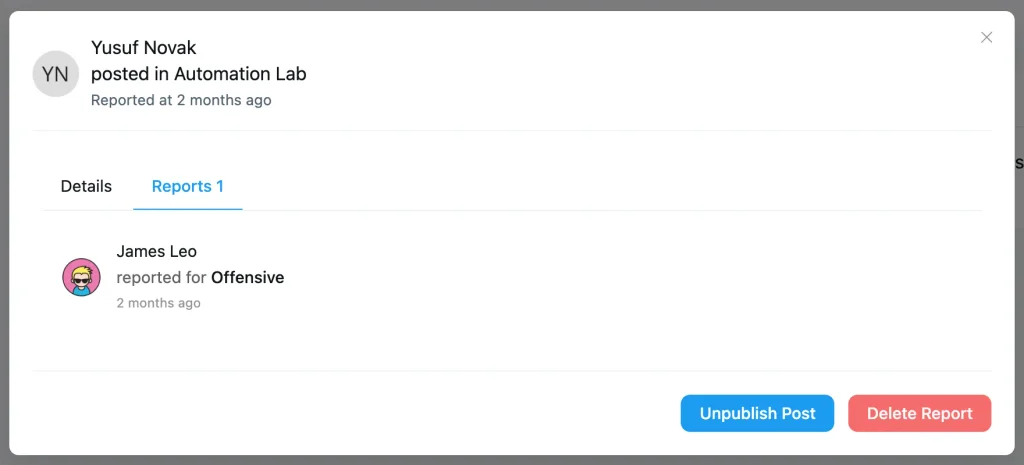
Filtered and reported content lands in one place: the moderation dashboard under FluentCommunity > Settings > Content Moderation. Tabs sort items into Pending, Flagged, Dismissed, and Unpublished. Each row shows the title, content type, reporter, date, and report count.
For each item, the three-dot menu gives you these actions:
- Review Report to see who reported it and why
- Approve Post to restore the content to the feed
- Delete Report to clear it from the queue
FluentCommunity also notifies admins and moderators when a post or comment is reported, so nobody has to sit and refresh the dashboard all day.
Set a Review Rhythm
A queue nobody checks is worse than no queue, because good posts get stuck in limbo. Pick a rhythm your team can actually keep, like a quick morning and evening check.
Members forgive a short delay. They don’t forgive a post that disappears for three days.
Share the Load With Moderators and Managers
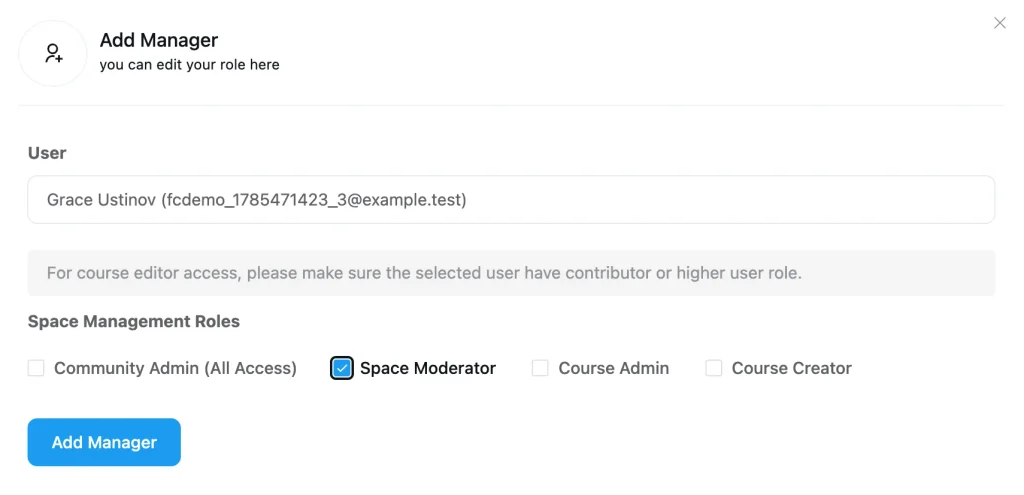
You don’t have to carry this alone. FluentCommunity has Space-level roles, so you can promote a trusted member to Moderator in a single Space. Moderators can edit or delete any post or comment in that Space without touching your site settings.
For wider coverage, the Managers settings let the WordPress Admin assign roles like Space Moderator or Space Admin. Volunteers get the access they need without full WordPress admin rights, which keeps your site safer too.
Explain Your Decisions
Here’s a research finding worth borrowing. A study of 32 million Reddit posts found that explaining why a post was removed lowered the odds of that user’s future posts being removed. Explanations from bots worked about as well as those from human moderators.
So keep a few short, friendly templates ready. Something like: “Your post was held because it included language our guidelines don’t allow. Feel free to edit and share it again.” One clear message turns a frustrated member into an informed one.
Build a Layered Moderation System Around Your Filter
Remember those limits?
This is where you cover them. Think of moderation like home security. The filter is the lock on the front door, but you still want lights, good neighbors, and someone who checks in. Each layer catches what the one before it missed:
| Layer | What it catches | FluentCommunity feature |
| Community guidelines | Unclear expectations before anyone posts | A guidelines page members can easily find |
| Profanity filter | Blocked words in posts and comments | Profanity Filter in Moderation Settings |
| Newcomer approval | Drive-by spam and trolls | Require approval for first post |
| Space-level review | High-risk or sensitive spaces | Pending posts in selected spaces |
| Member reports | Polite cruelty, scams, and off-topic posts | Report Post, Report Comment, and the auto-flag threshold |
| Member self-protection | Personal conflicts and unwanted contact | Follow and Block module, plus chat mute, block, and report (Pro) |
| Human moderators | Context, judgment, and appeals | Space Moderator roles and Managers |
The reporting layer matters more than people expect. When members report a post, they pick a reason from a list, such as harassment or spam, and can add a short note. That gives your moderators context a word list never could.
Member self-protection matters too. With the Follow and Block module turned on under FluentCommunity > Portal Settings > Features & Addons, members can block another account from its profile. The block is silent, and the member stops seeing that account’s posts.
In chat, FluentCommunity Pro’s chat moderation tools let members mute a conversation, block a user in direct messages, or report someone to admins. You can see how all these pieces fit together on the FluentCommunity community features page.
Profanity Filter Settings for Different Communities
No two communities need the same filter. Use these setups as a starting point, then adjust based on what lands in your queue.
Online Course and Coaching Communities
Students often paid to be there, and they came to learn. Hold Tier 1 words, keep mild language flexible, and turn on first-post approval.
A beginner Q&A space deserves pending review so nervous first-timers don’t get mocked. See how FluentCommunity works for online courses.
Brand and Customer Communities
Frustrated customers will vent, and venting is often useful feedback. Filter abuse, not complaints.
Hold slurs and threats, keep Tier 2 light, and rely on member reports for anything nasty that slips through. Here’s how brands run communities with FluentCommunity.
Nonprofits, Clubs, and Associations
Volunteers usually moderate these groups, so lean on automation.
Pair first-post approval with a modest Tier 1 list, then give two or three trusted members the Moderator role in their own Spaces. Learn more about community tools for nonprofits.
Communities With Younger Members
If teens can join, go strict. The same ADL research found that 59% of teens worry about being harassed or targeted online.
Use broad Tier 1 and Tier 2 lists, consider pending review for every new post in spaces they use, and check the legal rules for minors where you operate.
Professional and Workplace Communities
Members usually post under their real names, so problems are rarer but more damaging when they happen.
A focused Tier 1 list, first-post approval, and clear guidelines handle most situations. Explore FluentCommunity for the workplace.
WordPress Profanity Filter Options Compared
If your community runs on WordPress, you’ve got a few ways to filter language. They aren’t built for the same job, so it helps to know what each one covers.
WordPress itself has two boxes under Settings > Discussion. Words in Comment Moderation hold matching comments for review, and words in Disallowed Comment Keys get matching comments deleted without notice, according to the WordPress comment moderation docs. Both are designed for classic blog comments.
Standalone filter plugins usually mask words in posts and comments. Check maintenance before installing one. At the time of writing, the Bleep Filter plugin page warns that it hasn’t been tested with the last three major WordPress releases.
Paid moderation APIs send your members’ text to an outside service for scoring. They can catch more context, but they add monthly costs, developer work, and a privacy question, since member posts leave your server.
Here’s how the options stack up side by side:
| Option | Where it works | What happens to matches | Cost and effort | Best for |
| WordPress Discussion settings | Classic blog comments | Held for review or deleted | Free and built in | Blogs with open comments |
| Standalone filter plugin | Depends on the plugin | Usually masked | Free or low cost, check update history | Simple blogs |
| Third-party moderation API | Wherever a developer connects it | Scored, then masked, blocked, or flagged | Ongoing fees plus developer time | Large platforms with dev teams |
| FluentCommunity moderation | Community posts and comments | Held for moderator review | No per-member or per-request fees | WordPress communities of any size |
The big difference with a built-in community tool is that the filter, review queue, reporting, and roles all live in one dashboard. Every post stays in your own WordPress database, too. If you’re still weighing platforms, this guide to choosing a community engagement platform for WordPress covers the bigger picture.
Common Profanity Filter Mistakes to Avoid
A good filter can still backfire if it’s set up carelessly. Watch out for these common mistakes:
- Copying a giant word list from the internet without reading it
- Blocking words members need to talk about their own lives
- Letting the review queue pile up for days
- Treating the filter as your entire moderation plan
- Setting the report threshold to one, so a single grudge can unpublish a post
- Filtering silently without mentioning it in your guidelines
Every mistake on this list has the same root cause: forgetting there’s a real person behind each held post. Keep that in mind, and most filter decisions get a lot easier.
Start Small, Stay Human, and Grow a Kinder Community
A profanity filter won’t make your community kind on its own. Your members and moderators do that. What a filter does is buy you time, set the tone from day one, and keep the worst content off the feed while you sleep.
Start with a short Tier 1 list and turn on first-post approval. Test everything with a dummy account, then check your queue on a schedule your team can actually keep. Add layers as you grow.
If you’re building on WordPress, FluentCommunity puts the profanity filter, review queue, member reporting, and moderator roles in one place, with every post stored in your own database. Pricing is per site, not per member. Compare the FluentCommunity pricing plans or explore the free version on WordPress.org, then build your first blocked words list this week.
Frequently Asked Questions About Profanity Filters
Is a Profanity Filter a Form of Censorship?
Not in the way most people mean it. Your community is a private space with its own rules, like a club or a classroom. A filter enforces rules you’ve published, and holding posts for review keeps a human in the loop, so legitimate posts still get approved.
Can a Profanity Filter Replace Human Moderators?
No. A filter handles the predictable stuff, like slurs and explicit words, so your moderators can focus on judgment calls. Sarcasm, pile-ons, and harassment written in clean language still need a person who understands context.
Will a Profanity Filter Block Innocent Words?
It can. This is called the Scunthorpe problem, where a harmless word contains a blocked string of letters. Test your list with a dummy account using words like “class” or “assignment,” and remove any entry that keeps causing false matches.
How Often Should I Update My Blocked Words List?
Review it at least once a month, and any time you launch a new space or audience. The best additions come from your own moderation queue, because they reflect what your members actually post.
Does WordPress Have a Built-In Profanity Filter?
Sort of. WordPress core has Comment Moderation and Disallowed Comment Keys under Settings > Discussion, which hold or delete blog comments containing listed words. For community posts, you’ll want a community plugin with its own moderation tools, like FluentCommunity.
What Happens When a Post Matches a Blocked Word in FluentCommunity?
The post or comment is sent to review instead of publishing right away. An admin or moderator can then check it, approve it if it’s fine, or keep it off the feed if it breaks your guidelines.
Should I Publish My Blocked Words List?
Usually not. A public list doubles as a cheat sheet for anyone trying to dodge it. Instead, publish the categories you filter, like slurs, threats, and explicit content, in your community guidelines.

Ashik Elahi
Ashik Elahi is a seasoned Digital Marketing Strategist with a passion for Content Marketing. He believes in the power of storytelling and crafting valuable content that resonates with readers.





Add your first comment to this post