


How to Sort Community Posts in WordPress with FluentCommunity

Table of Content
Subscribe To Get
WordPress Guides, Tips, and Tutorials


Every active community eventually runs into the same problem. In the early days, a single feed works perfectly because there are only a handful of posts, and everyone can scroll through them in a minute. However, as your community grows, that same feed slowly turns into a wall of content. Valuable discussions get buried under newer posts, unanswered questions slip out of sight, and members start missing the conversations they actually came for. As a result, engagement drops, not because people lost interest, but because they could not find what mattered to them.
This is exactly where post sorting makes a real difference. Instead of forcing every member to see content in one fixed order, FluentCommunity lets you decide how the feed is arranged by default, while also giving members the freedom to sort posts their own way. Whether someone wants the latest updates, the most popular discussions, or the questions that still need an answer, they can get there with a single click.
In this guide, we will walk through what the Post Sorting feature does, how to set it up from your dashboard, and, more importantly, how to choose the right sorting strategy for your type of community.
Why the Order of Posts Shapes Your Community?
It is easy to think of feed order as a small design detail. In reality, however, the order of posts quietly decides which conversations grow and which ones fade away. Members naturally engage with what they see first, so the posts at the top of the feed collect most of the replies, likes, and attention.
For that reason, a feed that always shows the newest post first rewards whoever posted last, not necessarily whoever posted something useful. Meanwhile, a thoughtful question from yesterday can sink ten quick updates below and never receive a single reply. Over time, members who feel ignored stop posting altogether, and the community loses exactly the kind of contribution it needs most.
On the other hand, when you control the sorting, you control what your community pays attention to. You can bring active discussions back to the surface, highlight posts that members genuinely value, or push unanswered questions forward so they finally get a response. In other words, sorting is not just about organizing content; it is about steering engagement in the right direction.
What Post Sorting Does in FluentCommunity?
The Post Sorting feature gives you seven ways to arrange your community feed, and each one serves a different purpose.
First, New Activity sorts posts by their most recent activity, including new comments and likes. This means an older post jumps back to the top as soon as someone joins the conversation, which keeps ongoing discussions alive. Next, Latest shows the newest posts first, so members always see fresh content as soon as it is published. In contrast, Oldest places the earliest posts at the top, which works well when your content follows a natural sequence, such as a step-by-step series or a cohort that started together.
Beyond time-based options, Popular highlights posts with the most engagement, so members can quickly find the discussions that the community has responded to most. Similarly, Likes sorts posts by the number of likes they have received, putting the most appreciated content front and center. For more structured browsing, Alphabetical arranges posts by title from A to Z, which is especially helpful when members are searching for a specific resource or topic.
Finally, Unanswered shows posts that have received no replies or engagement yet. This option is arguably the most valuable for community managers because it surfaces the members who are still waiting for someone to respond.
How to Set the Default Feed Sorting
Setting up post sorting takes only a couple of minutes. To begin, open your FluentCommunity Dashboard and select Portal Settings from the left sidebar. Then, click on the Customization section and scroll down until you reach the Feed Sorting option.
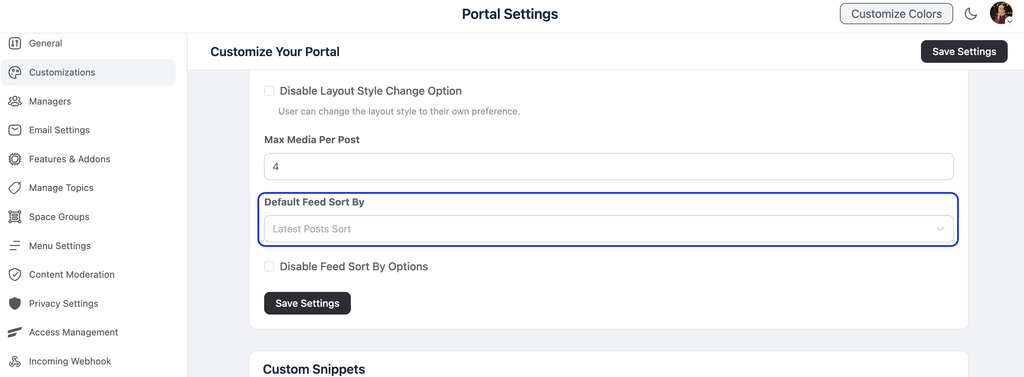
Here, you will find the Default Feed Sort By dropdown. Simply choose the sorting option you want every member to see when they first open the feed. For example, if you want ongoing conversations to stay visible, New Activity is a strong starting point, whereas Latest suits communities built around fresh announcements and updates.
In some cases, you may prefer to keep a single, fixed order for everyone. If so, check the box next to Disable Feed Sort By Option, and members will no longer be able to change the order themselves. Once you are happy with your choices, click Save Settings to apply the changes across your community.
How Members Sort the Feed
Once sorting is enabled, members do not need any special permissions or settings to use it. They simply open any community feed or space and look for the Sort by dropdown in the top-right corner of the feed. From there, they can pick the order they prefer, and the posts rearrange instantly.
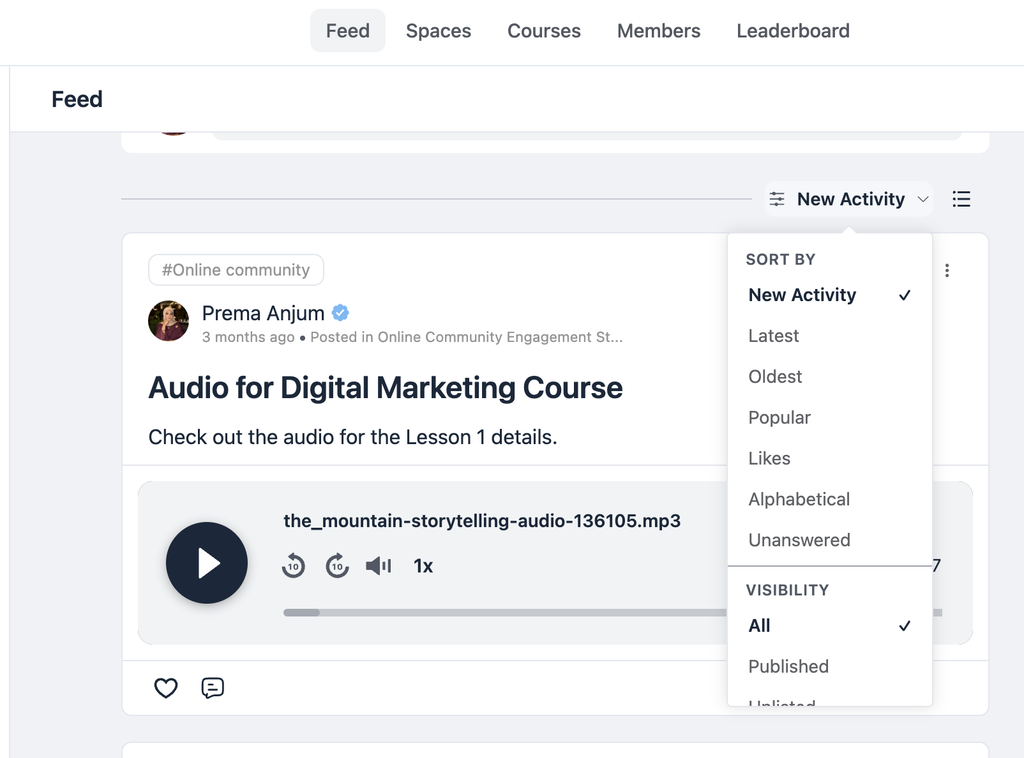
As a result, each member can browse the community in the way that suits them best. A new member might sort by Popular to understand what the community cares about, while a regular member might switch to New Activity to catch up on what changed since their last visit. Consequently, the same feed works for both people without you having to build separate views.
Choosing the Right Default for Your Community
Although members can switch the order themselves, most people never change the default. Therefore, the default sort you choose shapes the experience of the majority of your members, and it deserves careful thought.
If you run a course or learning community, New Activity is usually the most practical choice. Students often return to older lesson discussions with follow-up questions, and this setting makes sure those questions resurface instead of disappearing. Alternatively, Oldest can work well for a cohort-based program where the content is meant to be followed in order from the very first post.
For a support or Q&A community, on the other hand, consider making Unanswered a regular part of your moderation routine, even if it is not your default. By checking this view daily, your team can make sure no member leaves without a reply. In fact, a quick first response is often what turns a one-time visitor into a returning member.
If your community is built around announcements, news, or creator updates, Latest makes the most sense, since members mainly want to see what is new. Meanwhile, for professional networks or knowledge-sharing groups, Popular or Likes can bring the most valuable insights to the surface, so members spend their time on proven, high-quality discussions. Lastly, if your spaces act as a resource library, Alphabetical helps members find a specific guide or topic without endless scrolling.
The key, ultimately, is to match the default with the main reason people visit your community. When the first thing members see matches what they came for, they stay longer and engage more.
Reviewing Unlisted Posts (Pro)
In addition to the standard options, FluentCommunity Pro gives moderators and admins one more choice in the same Sort by dropdown: Unlisted. Selecting it filters the feed to show only unlisted posts, meaning the posts that are hidden from regular feeds and listings.
This is particularly useful for moderation, because you can review all hidden posts in one place instead of hunting for them across different spaces. While this view is active, an “(Unlisted)” tag appears next to the sort name, for example, “Latest (Unlisted)”, so you always know which view you are in. Moreover, FluentCommunity remembers this choice the next time you open that feed, which saves moderators from setting it up again on every visit. For the complete moderation workflow, you can also check the Content Moderation settings in the documentation.
Practical Tips to Get the Most Out of Post Sorting
To make the feature truly work for your community, start by revisiting your default sort as your community grows. A setting that worked well for fifty members may not suit five thousand, so it is worth reviewing every few months.
Furthermore, tell your members that sorting exists. Many people never notice the dropdown on their own, so a short welcome post or onboarding message that mentions it can noticeably improve how they browse. Likewise, encourage your moderators to build the Unanswered view into their daily routine, since it is the fastest way to spot members who need attention.
Conclusion
Ultimately, post sorting is a small feature with a large impact on how your community feels. By choosing a smart default and letting members sort the feed their own way, you make sure valuable discussions stay visible, questions get answered, and members spend less time scrolling and more time engaging.
If you already use FluentCommunity, head to Portal Settings → Customization → Feed Sorting and choose the default that fits your community today. If you are still deciding on a platform, explore FluentCommunity to see how much control a self-hosted WordPress community gives you. Check the full setup guide in the FluentCommunity documentation to get started.

Prema Anjum
My full name is Anzuman Ara Chowdhury. But people know me as Prema Anjum. I’m a Digital Marketer by profession, a WordPress community contributor, and a travel enthusiast by heart.





Add your first comment to this post