

How to Use Role Manager in FluentCommunity

Table of Content
Subscribe To Get
WordPress Guides, Tips, and Tutorials


At some point, every growing community hits the same wall. One admin can’t do everything anymore. Posts need moderating, new members need approving, spaces need managing. All in all, the person who built the community is now spending every morning on tasks that don’t need their specific judgment at all.
The instinct at this point is usually to hire help or recruit a volunteer moderator. But without a proper way to define what that person can and can’t touch, you’re stuck choosing between giving them full admin access. That is risky, or leaving them with almost no real ability to help, which defeats the purpose.
Role Manager in FluentCommunity solves this directly. It lets you assign specific permissions to specific members. So you can bring in moderators, space managers, or content reviewers without handing over the keys to your entire community.
If you’re still doing every moderation task yourself, or you’ve been hesitant to bring in help. This feature is worth setting up before your community grows any further.
What Role Manager Actually Does?
Role Manager lets you create and assign roles with defined permissions across your community. Instead of a binary choice between “admin” and “regular member,” you can create roles that sit in between. A moderator who can manage posts and comments but can’t change community settings.
A space manager who can run one specific Space without touching anything else, or a content reviewer who can approve posts before they go live without needing broader access.
Each role you define maps to specific actions, such as managing members, moderating content, editing Spaces, adjusting settings, and so on. You decide exactly what each role can and can’t do, and then assign it to as many members as needed.
Why This Matters More Than It Looks?
You can define exactly what a moderator can and can’t touch. A role in FluentCommunity is a specific set of permissions, not an all-or-nothing switch. You can build a moderator role that can approve posts and manage comments in one Space. But can’t see billing, change community-wide settings, or touch any other Space. That specificity is what makes delegating a task you can actually verify, not something you have to take on faith.
Every task you personally handle today is a task that doesn’t get done the moment you’re unavailable. For example, approving join requests, moderating a heated thread, answering a repeated question. None of these require your specific judgment once someone else has the right permissions and a clear standard to follow. Splitting that work across two or three people means your community keeps functioning on a day you’re traveling, sick, or simply busy with something else.
A member with a defined role has a concrete reason to stay engaged. Recognition alone, a badge, a shout-out- doesn’t come with anything to act on. A scoped role does, specific posts to review, a specific Space to keep on track. Whether that translates into longer-term engagement will vary by member and by community, but it gives you a way to test the idea with someone who’s already shown up consistently, rather than guessing.
More members means more edge cases, and those don’t scale linearly with one person watching everything. Spam accounts, disputes between members, content that drifts off-topic. All of it becomes more frequent as your community grows. Exactly when a single admin stops being able to catch everything depends on how active your community is, not a fixed member count. But the pattern is consistent. The busier your feed gets, the more a second or third set of eyes with clearly scoped access matters.
How to Set Up Role Manager in FluentCommunity
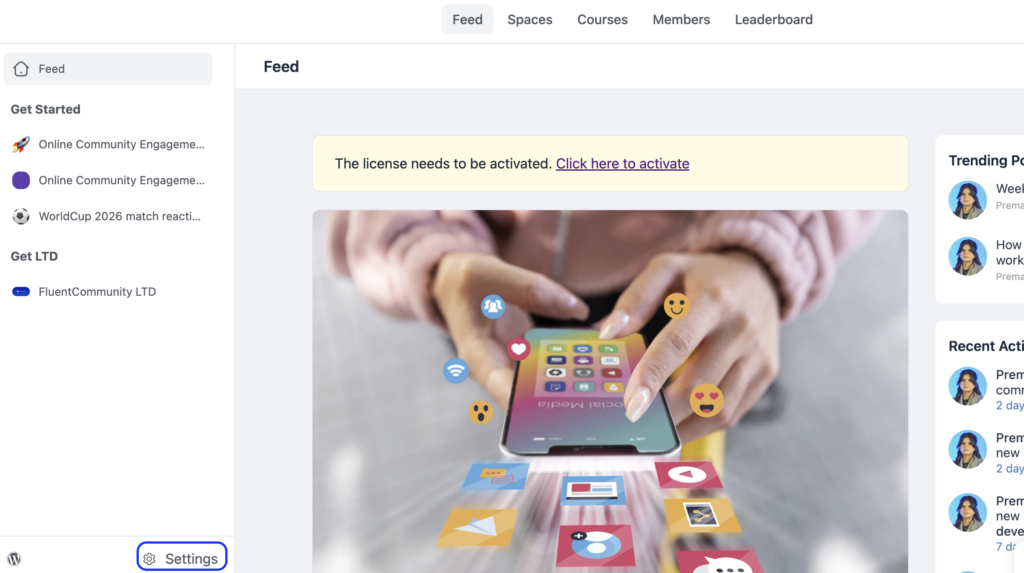
From your FluentCommunity dashboard, click the Settings button in the bottom-right corner.
Navigate to the Managers section in the sidebar. Click on the Add Manager section, and set the user role.
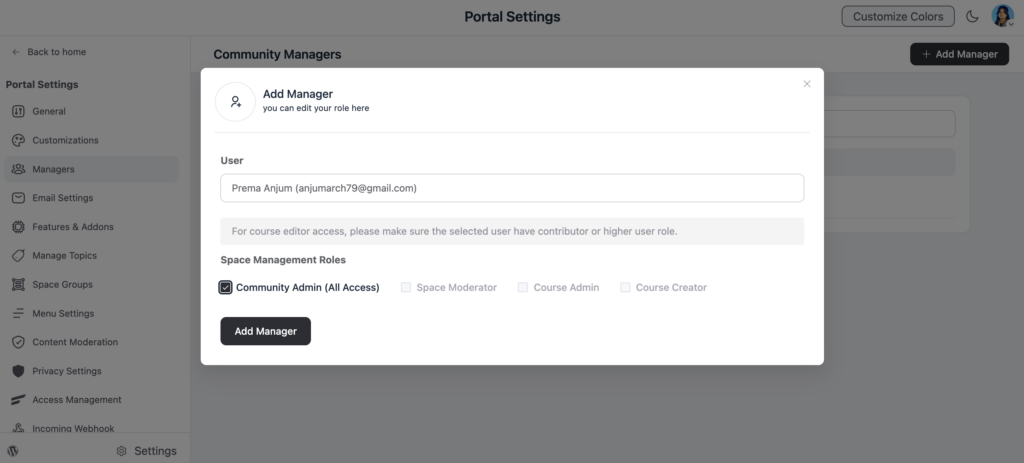
Review the default roles already available. These typically include options like Admin, Moderator, and Member, each with a different baseline level of access.
Assign the role to a specific member from their profile or from the members list, selecting the new role from a dropdown. Test the role yourself, or ask the assigned member to confirm they can access what they need and nothing beyond it.
Revisit your roles periodically as your community grows. What worked with 200 members may need adjusting at 2,000.
Deciding Who Gets What Role
The hardest part of Role Manager isn’t the setup. It’s deciding who to trust with which permissions. A few principles help:
Start with the members who are already doing informal moderation, the ones answering questions, welcoming new members, and flagging issues without being asked. They’ve already shown the judgment the role requires.
Match the role to the actual workload, not to status. A member who’s active in one specific Space doesn’t need permissions across your entire community. Give them a role scoped to what they’re already managing.
Review access periodically. Someone who was an active moderator a year ago may have drifted away from the community. Don’t let permissions outlive engagement.
What Does This Look Like Inside FluentCommunity?
Here’s how this plays out in an actual community running on FluentCommunity.
Picture a 1,200-member professional network for marketers, run by a single admin. For the past year, that admin has personally approved every join request, answered every question in the general Space, and stepped in whenever a discussion needed moderating. It’s manageable most weeks, until a launch or a viral post drives a spike in new members, and everything backs up at once.
Rather than hiring anyone, the admin looks at who’s already been helping unprompted, a member named in this example as Dana, who’s welcomed new joiners and answered questions in the “Email Marketing” Space for months without being asked. From the members list, the admin opens Dana’s profile and assigns her a space manager role scoped to that one Space, nothing more.
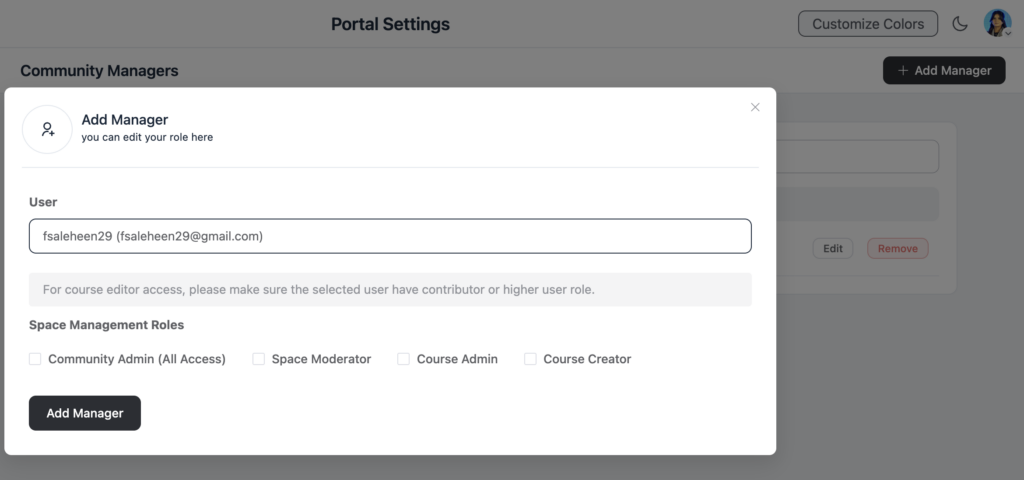
From that point on, Dana can approve posts and moderate discussion inside Email Marketing on her own. The admin still owns billing, settings, and every other Space, but one entire corner of the community now runs itself. A short public post introduces Dana in her new role, so members know exactly who to ask when a question comes up there.
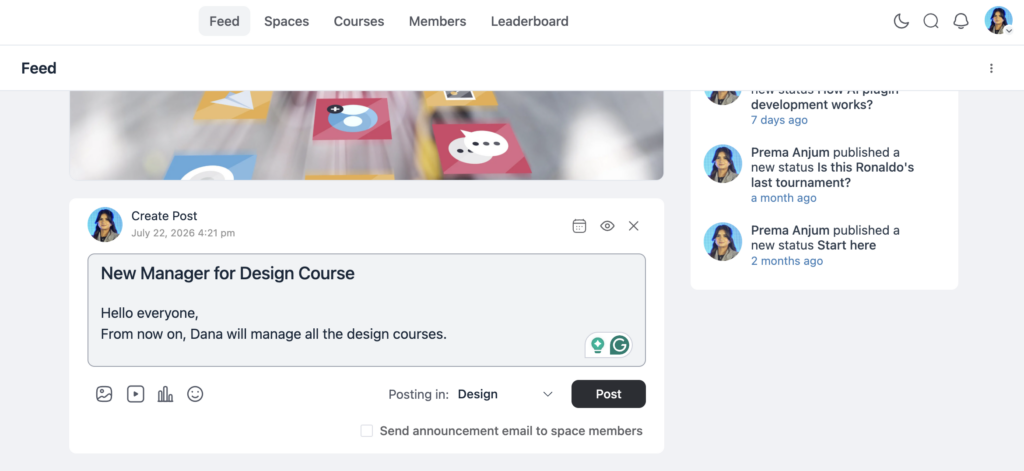
Three months later, the admin repeats the same process for two more active Spaces, each time promoting someone who’d already shown the judgment the role required, rather than searching for outside help.
Common Mistakes to Avoid
Making someone a full admin just because it’s faster than defining a scoped role tends to backfire later. Full admin access means they can change billing, settings, and every Space, not just the one thing you actually needed help with. If that person makes a mistake or leaves on bad terms, you’re undoing changes across your entire community instead of one clearly bounded area.
Multiple roles covering the same responsibility without a clear owner is a common setup mistake. If a moderator, a space manager, and an admin can all approve the same join requests, a request can sit untouched because each assumes someone else has already handled it. Assign one clear owner per responsibility, even if more than one role technically has the permission.
A role that gets assigned and then forgotten defeats most of the point of assigning it. Check in on what a new moderator has actually approved, rejected, or moderated in their first few weeks. This isn’t about distrust; it’s the only way to catch a miscalibrated decision, a missed genuine spam, or being too strict with a borderline post before it repeats a dozen times.
Leaving what each role is responsible for undocumented causes more inconsistency than most admins expect. One moderator ends up enforcing a rule strictly while another lets the same thing slide, and members notice the difference faster than you do. A short pinned post or internal doc naming exactly what a moderator or space manager can decide on their own removes that guesswork.
Building a Simple Moderation Team Over Time
Most communities don’t need a moderation team on day one, and trying to build one too early usually means assigning roles to people who haven’t actually demonstrated they’re a good fit yet. A more reliable approach is to let the team form gradually, based on who shows up consistently.
Keep an informal list of members who answer questions unprompted, welcome new joiners, or flag issues without being asked. These members have already shown you the judgment a role requires, before you’ve handed them any actual permissions. When your community reaches the point where you genuinely need help, this list becomes your first source of candidates, rather than guessing who might be reliable.
Start new moderators with a narrow, clearly scoped role, one Space, one specific responsibility, rather than broad access from day one. This protects your community if the fit turns out to be wrong, and it gives the new moderator a manageable starting point rather than an overwhelming one. Expand their role over time as they prove themselves in the smaller scope.
Communicating Role Changes to Your Community
When you promote a member to a moderator or space manager role, it’s worth telling your community, not just the individual. A short, public post acknowledging the new role does two things: it tells the rest of your members who to go to for help in that specific area, and it reinforces that active, helpful participation is genuinely recognized and rewarded in your community.
This also matters when a role changes in the other direction. If someone steps back from a moderator role, a brief, respectful note prevents confusion about who’s currently responsible for what and avoids members continuing to direct questions to someone who’s no longer covering that area.
Final Thoughts
Role Manager exists for the exact moment when running a community stops being a one-person job. Setting it up before you’re overwhelmed, rather than after, means you can bring in help deliberately, with clear boundaries, instead of scrambling to fix access problems while your community is already straining under the weight of one admin trying to do everything.

Prema Anjum
My full name is Anzuman Ara Chowdhury. But people know me as Prema Anjum. I’m a Digital Marketer by profession, a WordPress community contributor, and a travel enthusiast by heart.
![SEO Title: 5 Best Community Portal Software [WordPress + SaaS Options]](https://fluentcommunity.co/wp-content/uploads/2026/10/community-portal-software-featured-1-1024x536.webp)
Add your first comment to this post