

Introducing Community Events, a Getting Started Checklist and Many More – FluentCommunity 2.14

Table of Content
Subscribe To Get
WordPress Guides, Tips, and Tutorials


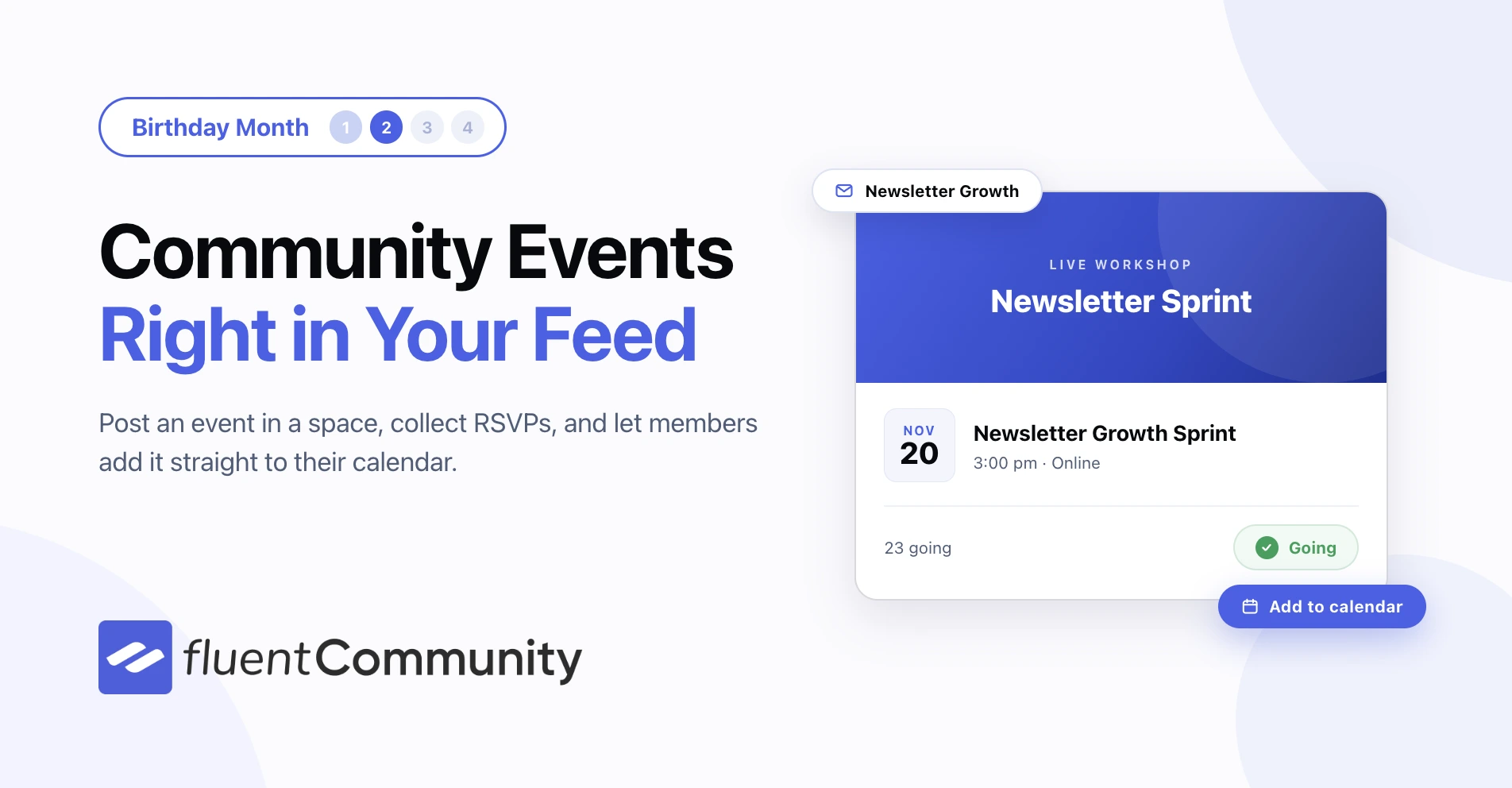
Welcome to week two of FluentCommunity’s Birthday Month. Every week this month we ship a release built around one idea, and this week the idea is events. Your community already has a feed, spaces and courses. From 2.14.0 it can have a calendar too.
The headline is Community Events, powered by the new FluentEvent add-on. Alongside it come a Getting Started checklist for new communities, a proper code editor for custom CSS and JavaScript, and a clearer Customization screen. Plus the usual round of fixes.
Community Events, Posted Like Any Other Post
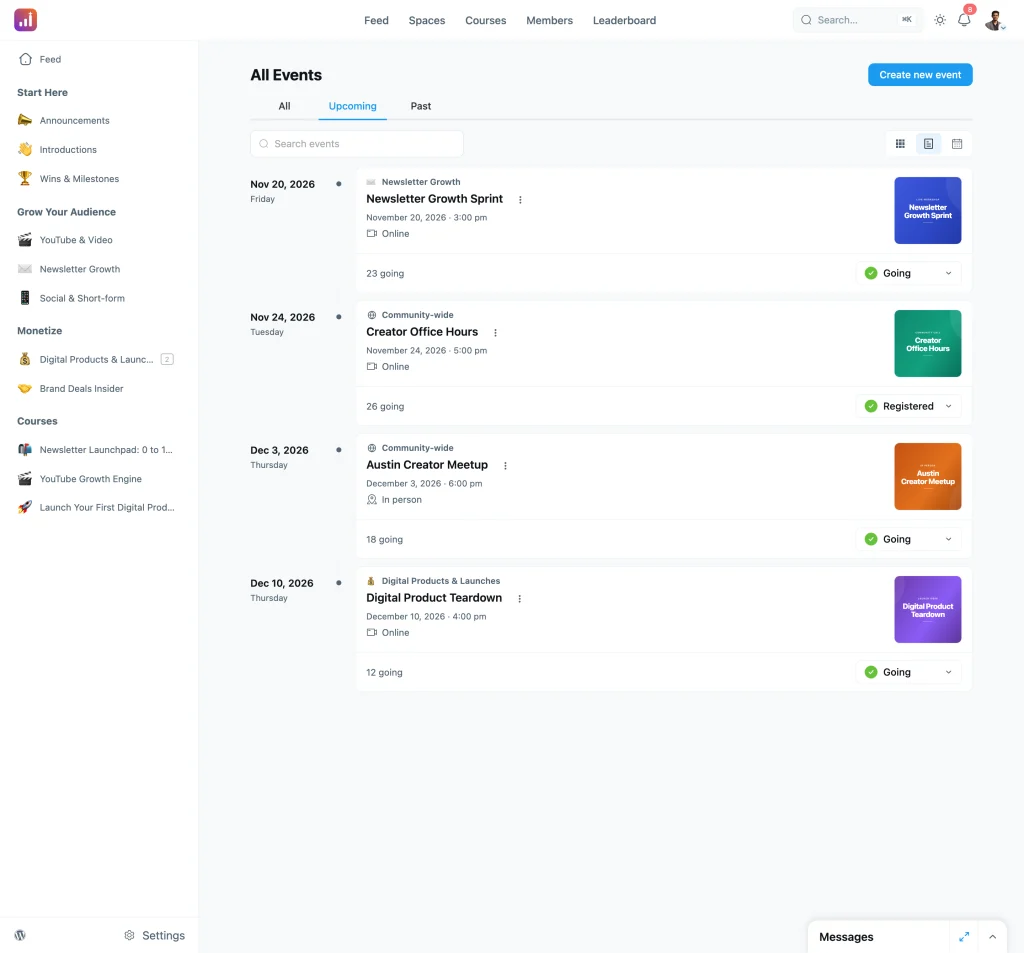
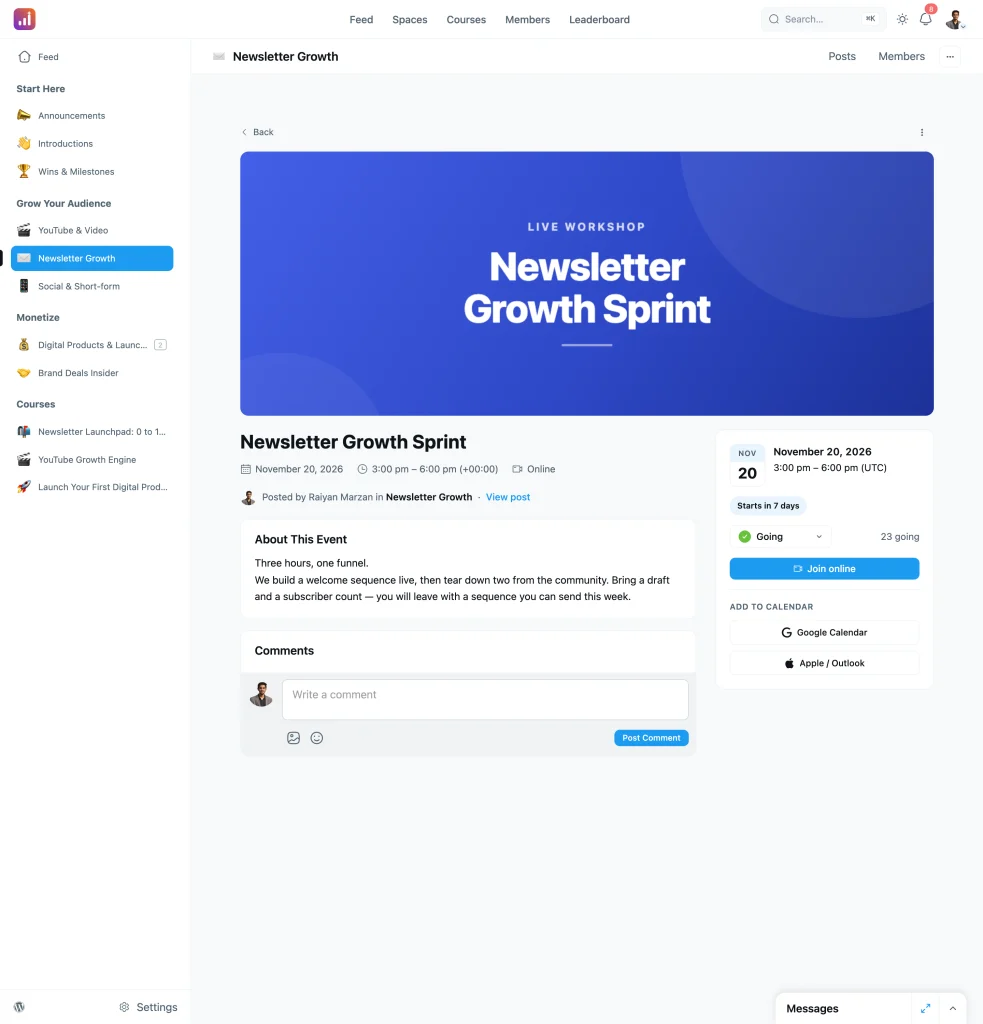
Events in FluentCommunity are not a separate silo. An event is a post in a space, so it lands in the feed your members already read, carries comments like any other post, and follows the same space permissions. The difference is the card on top: a date, a location, and a button to say you are coming.
One Form, Two Things Created
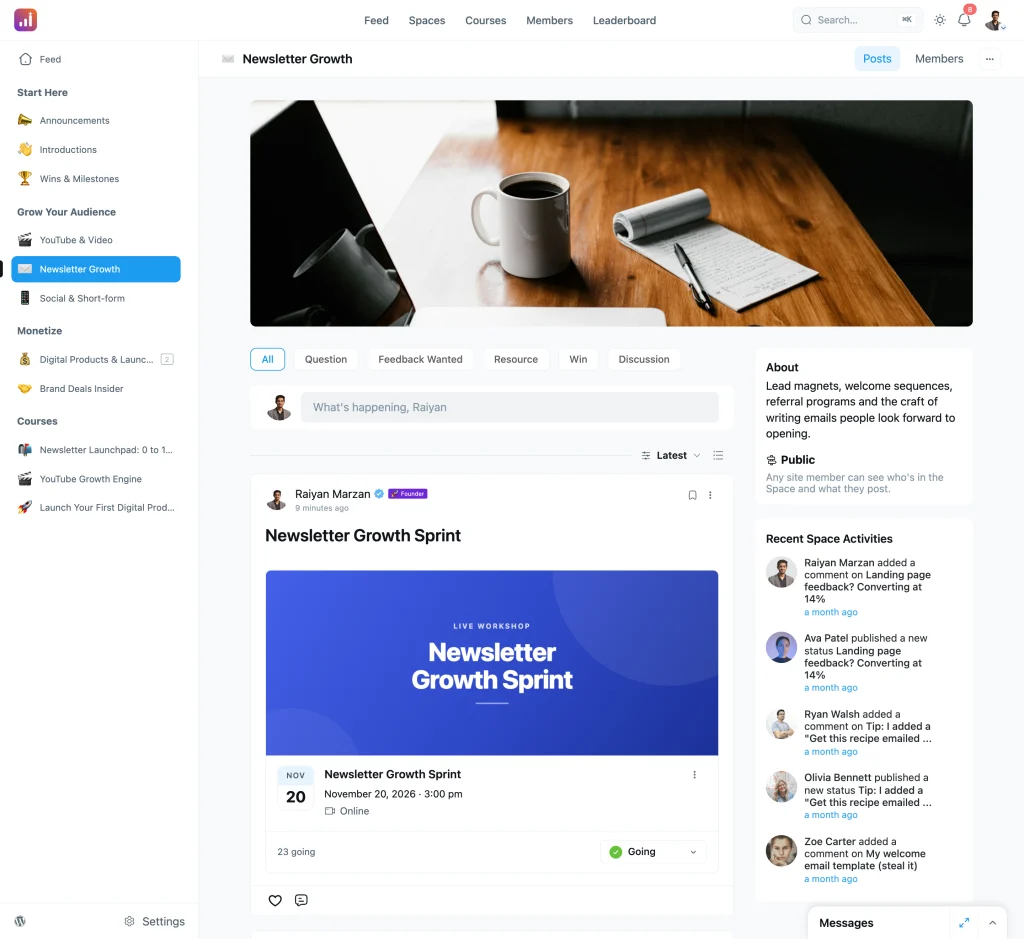
The Create Event screen writes the feed post and the event at the same time. You choose where it goes, write the post members will see, add a cover image, then set the name, the description and the date. Community managers create events; the admin capability is what the form checks, so members cannot post one by accident.
Events can be online with a meeting link, or in person with a venue and an address. You decide whether people register with an RSVP, join an open event without registering, or simply read the details. If your community allows community-wide posts, an event can also sit outside any space.
One Page for Everything Coming Up
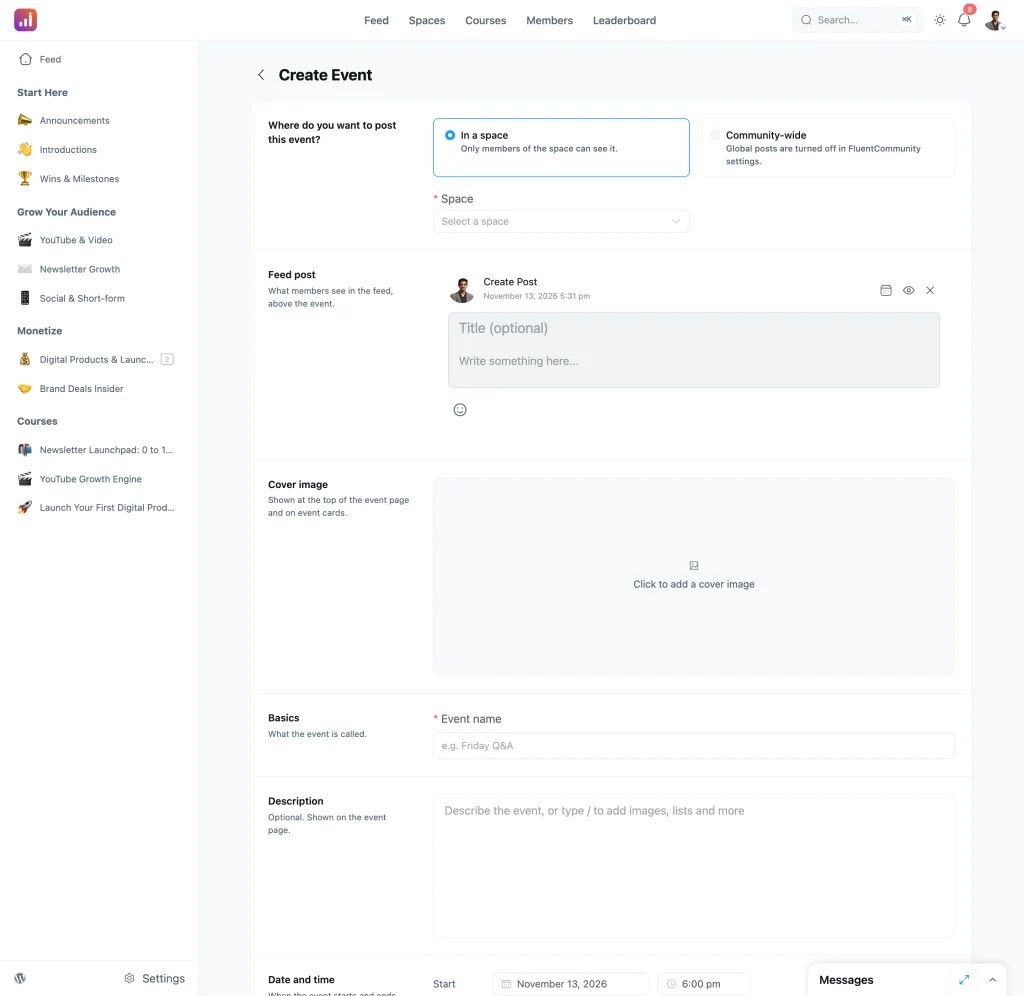
The Events page collects every event a member is allowed to see, across every space. Tabs split it into All, Upcoming and Past, a search box filters by name, and three view modes let members read it as a list, as cards, or on a calendar. Each row shows the date, whether it is online or in person, how many people are going, and the member’s own RSVP.
Everything a Guest Needs on One Screen
Open an event and the cover sits above the title, the date and the location. The right column holds the date card, a countdown, the RSVP control, the running guest count and the link to join. Below that, members can add the event to Google Calendar or download it for the calendar app they use.
The description and the comments live on the same page, so the conversation before an event happens where the event is, not in a separate thread someone has to find.
Getting the FluentEvent Plugin
Events live in FluentEvent, a separate free plugin. Open Settings → Features & Addons and scroll to Recommended Plugins and Addons. The FluentEvent card sits there with an Install FluentEvent button.
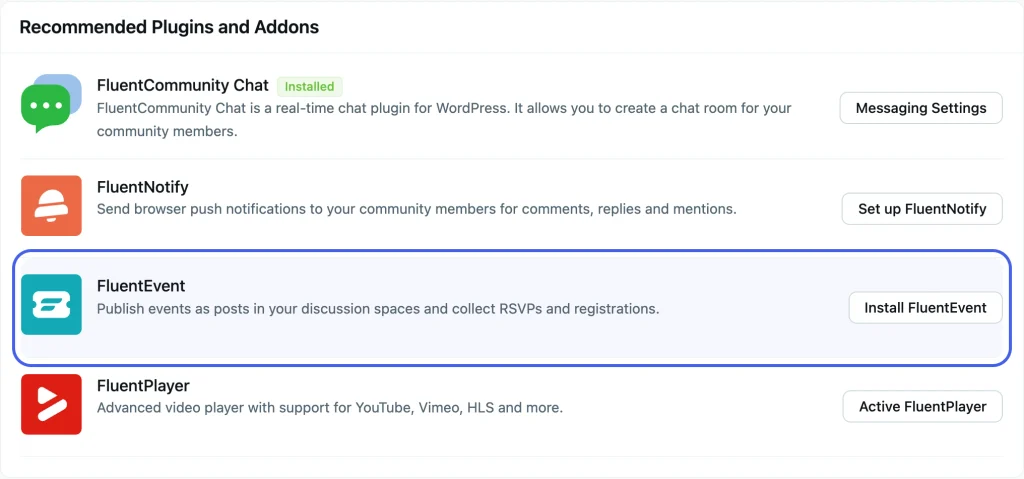
On FluentCommunity Pro, that button does the work: one click installs and activates FluentEvent, and you can go straight to turning it on.
On the free plugin, the button asks you to install FluentCommunity Pro first. That is a WordPress.org rule, not a paywall: a plugin hosted on WordPress.org is not allowed to fetch and install code from our servers. FluentEvent itself is free, so download it and install it the normal way:
- Download fluent-event.zip.
- In WordPress, go to Plugins → Add New Plugin → Upload Plugin.
- Choose the file, click Install Now, then Activate.
Either way you end up in the same place, and the switch below is what turns it on.
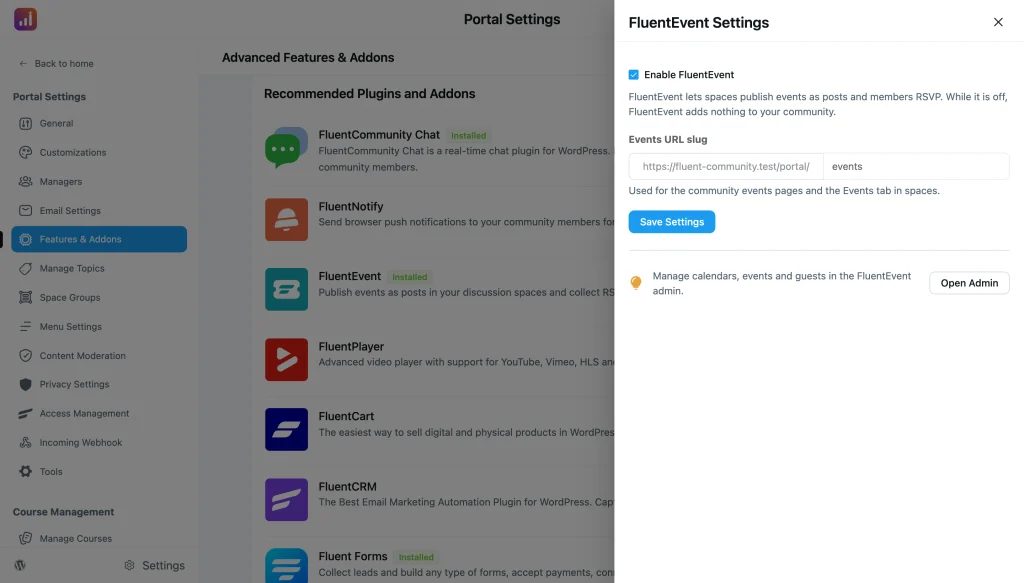
Turn It On in About a Minute
Events come from FluentEvent, a separate plugin. Install it from Features & Addons, tick one box, and the Events pages appear. The URL slug is yours to set, so you can use /events, /meet-ups or whatever your community calls them. While the switch is off, FluentEvent adds nothing to your community at all.
After you turn it on, a short list of next steps points you at the menu setting, the space setting and the create button, so nobody has to go hunting for where events actually show up.
A Checklist for a New Community
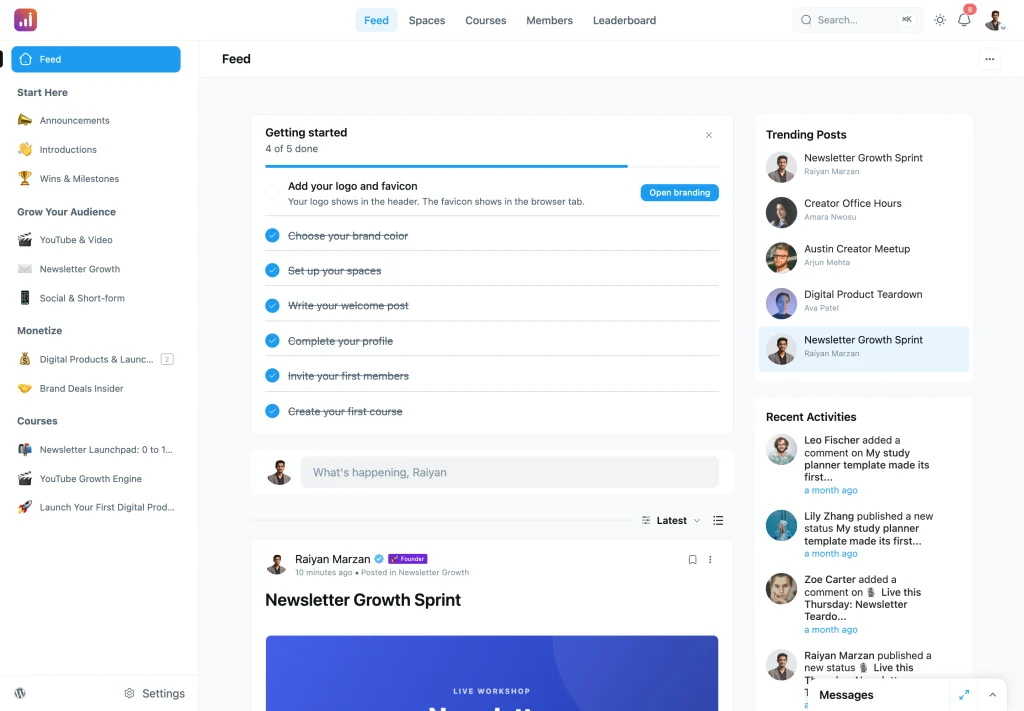
Setting up a community means a dozen small decisions, and it is easy to ship one half-finished. The new Getting Started card sits at the top of the feed for admins and tracks the basics: your logo and favicon, your brand color, your spaces, a welcome post, your own profile, your first invitations and your first course.
Each step checks itself off when the work is done, and each one has a button that takes you straight to the right screen. Only admins see it, members never do, and you can dismiss it once you are set up.
Courses That Open on a Date
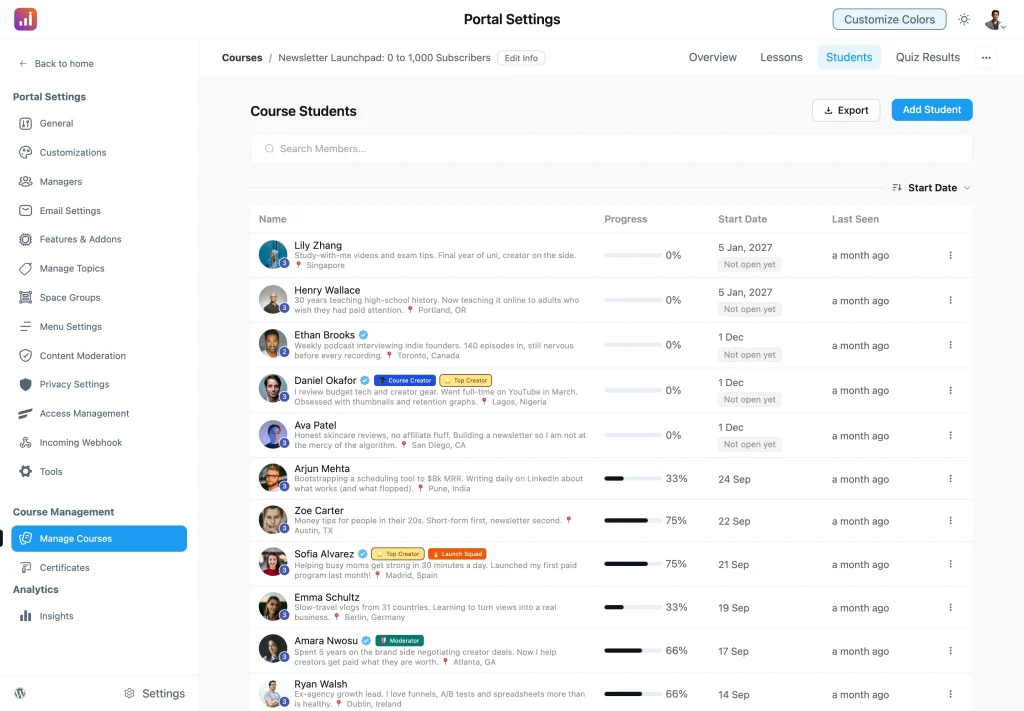
Enrol a student with a start date and the course stays shut until that morning, then opens on its own. The students list shows the date and marks the row Not open yet, so you can see a whole cohort waiting at a glance instead of checking one by one.
It is the small piece that makes a cohort practical. Sell a course in November for a January start, enrol everyone as they buy, and nobody gets in early while nobody has to be let in by hand on the day.
Email, Decided One Space at a Time
Members used to face a single choice about email: all of it, or none of it. One busy space would push someone into turning everything off, and then they stopped hearing about the spaces they actually cared about.
Now the choice is per space, and it lives in the space itself. Open the ••• menu, pick Email Notifications, and choose one of three:
- Every new post — an email each time anyone posts there.
- Posts by space admins — only posts from admins and moderators.
- None — no new-post emails from that space.
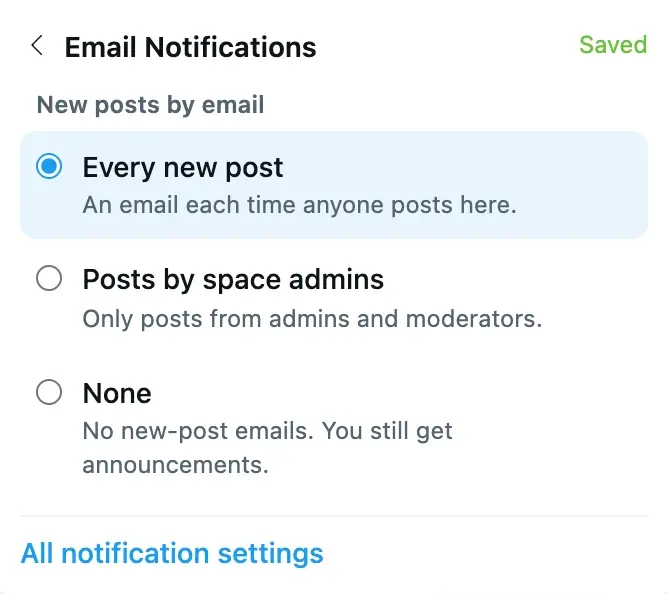
Announcements are deliberately kept out of it. A member who picks None for a space still receives announcements, so the one message you genuinely need everybody to read is never the message that got muted.
A Real Editor for Custom CSS and JavaScript
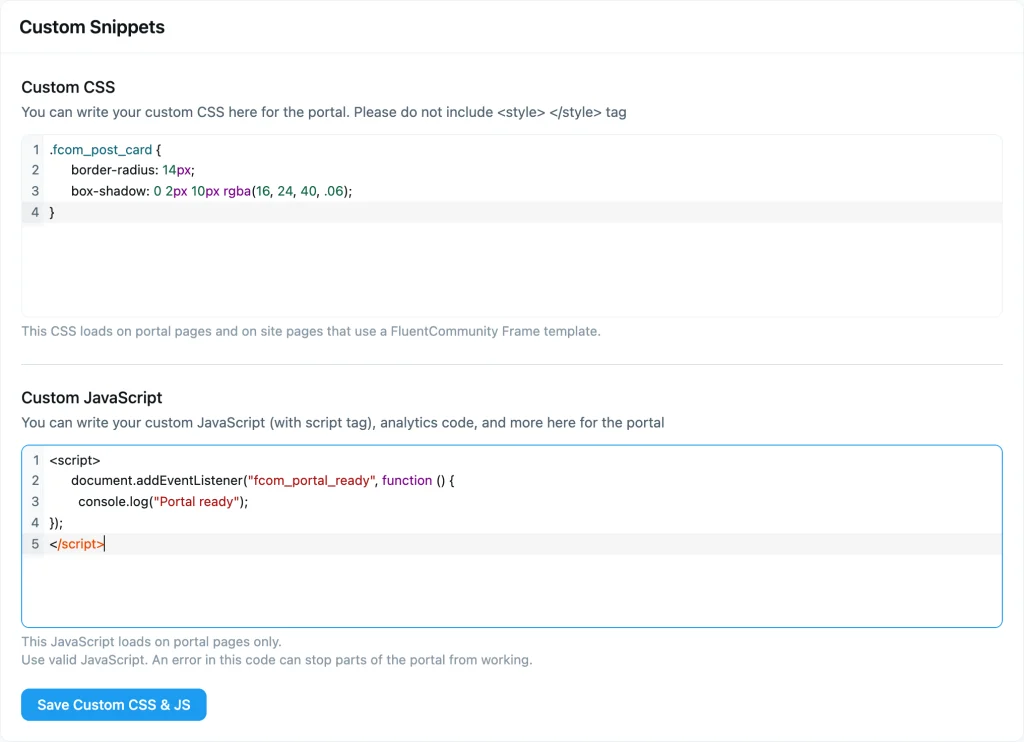
Custom CSS and JavaScript used to be two plain text boxes. They are now proper code editors with line numbers, syntax highlighting and bracket matching, which makes a missing brace much easier to spot before you save it.
Each box now says where its code runs. The CSS loads on portal pages and on site pages that use a FluentCommunity Frame template. The JavaScript loads on portal pages only, with a plain warning that an error in that box can stop parts of the portal from working. Knowing the scope before you paste saves the guesswork afterwards.
Customization Settings You Can See
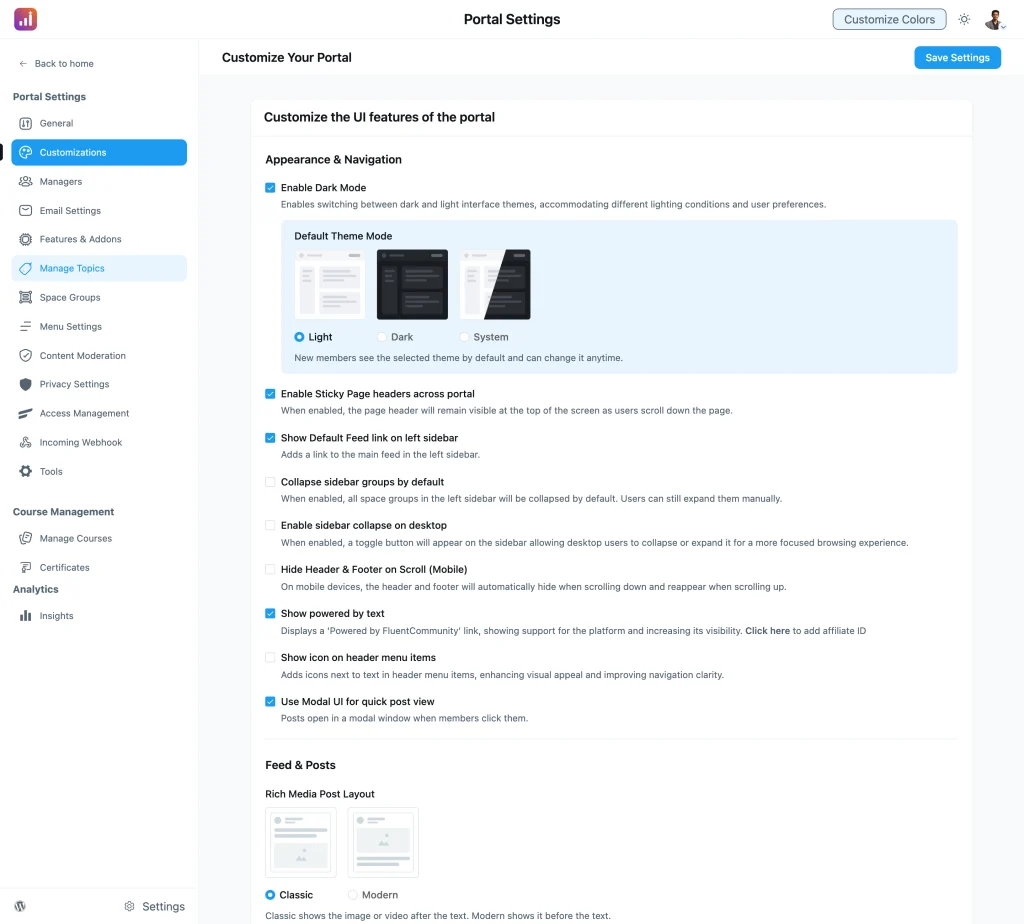
The Customization screen has been reorganised into clear groups, and the choices that change how something looks now show a picture of it. The default theme mode is three small previews rather than three words. The post layout shows you what Classic and Modern actually do before you pick one.
Smaller Things Worth Knowing
Custom profile fields can explain themselves. Each field now takes a line of help text, shown next to the label, so members know what you want in the box.
Members can sort their own profile lists. The Spaces and Courses tabs on a profile have a Sort By control, and you can set the default for the whole community, or turn the control off entirely.
Announcements and spaces have their own email preferences. Members can decide separately what reaches their inbox rather than choosing between everything and nothing.
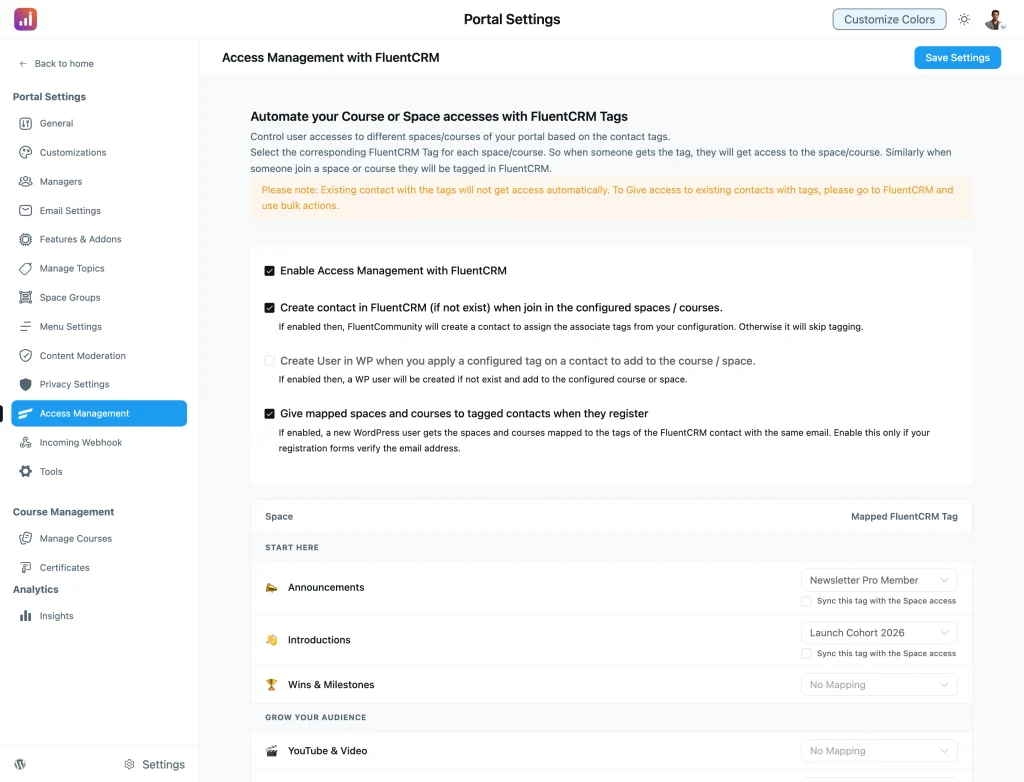
FluentCRM tags can hand out access at registration. Map a space or a course to a tag, and a new member who already carries that tag on their contact arrives with the access granted. Previously the tag only worked on contacts who were already members, so anyone who signed up afterwards had to be added by hand.
Moderators can delete reported content. A report that turns out to be right can now be acted on from the moderation screen itself.
Logins survive a security plugin. Community login now works with Wordfence two-factor authentication, and when another security plugin challenges a sign-in, the member is sent to the login page to finish it instead of hitting a dead end.
A favicon upload, finally. Set it in Portal General Settings and it shows in the browser tab.
Paste a link over selected text. Select a few words in the editor, paste a URL, and the words become the link. Bold, italic and line breaks in the post editor also behave properly now.
For developers. Add-ons can reuse the community’s own composer, comment box and markdown editor for their own post types, and hook into the menus, the space settings tabs and the member list queries. New filters cover branding, the WordPress admin link, add-on installs and the portal auth paths. Cloud storage gained a strict mode that rejects uploads when the feature is off (pro).
Security Hardening
This release closes another batch of findings from the ongoing security review, covering rate limiting, counters that must not drift under parallel requests, and access control across searches, imports and email jobs. No action is needed on your side — update and it is applied.
Bug Fixes and Stability
Pinned posts. Pinning a post now refreshes the feed straight away, a pinned post no longer disappears when the sort or the saved filter changes, and deleting one works.
Bookmarks. The bookmarks list no longer goes stale after you toggle a bookmark, and bookmarking your own post is no longer blocked.
WordPress page templates. Content no longer jumps on load, the double scrollbar is gone, the white gap below page content on desktop is fixed, sticky elements behave on classic frame templates, short pages fill the screen, and the admin bar stays visible on phones.
Text limits and counts. Composer character counts and the profile bio limit now agree with each other, and post length limits count non-Latin text correctly instead of cutting it short.
Deleting things cleanly. Deleting a user no longer leaves rows behind, deleting a post clears the cached feed pages that still listed it, and deleting reported content clears the reports and notifications that pointed at it.
Everyday polish. Lesson videos no longer expire when a student returns to the first lesson, the mention list stops appearing over popups, spaces and courses pages no longer show stale results, and the menu managers for feed and course links no longer overwrite each other’s saves. On pro, document posts no longer appear unlisted to members, and certificate text fits its lines and keeps the starter wording in other languages.
Wrapping Up
That is week two of Birthday Month. Events give your community a reason to show up on a particular day, and the Getting Started checklist makes sure a new community is ready when they do. Another release lands next week.
Update from your WordPress dashboard whenever you are ready. As always, tell us what you build with it.
FluentCommunity 2.14.0
- Introduced: Community Events With FluentEvent
- Added: Getting Started Checklist for Community Admins
- Added: Scheduled Course Enrollment With a Start Date
- Added: Shared Composer, Comments, Editor and Hooks for Add-ons
- Added: Wordfence 2FA and Security Plugin Challenges in Community Login
- Added: Announcement and Space Email Preferences
- Added: Help Text for Custom Profile Fields
- Added: Sort By Option on Profile Spaces and Courses
- Added: Delete Content Action in Moderation
- Added: Favicon Upload in Portal General Settings
- Added: CRM Tag Access Sync on User Registration
- Added: Paste a Link Over Selected Text to Link It
- Added: Enable and Disable Menu Links With Visibility Status
- Added: Strict Mode for Cloud Storage Uploads (pro)
- Added: Filters for Branding, Admin Links, Add-on Installs and Auth Paths
- Added: Custom CSS and JavaScript Editor With Warnings and Scope Notes
- Improved: Customization Settings Layout With Visual Pickers
- Improved: Pinch to Zoom in the Media Gallery Preview
- Improved: Paging and Full CSV Export for Top Contributors
- Improved: Count and Progress Queries on Course and Space Pages
- Improved: Certificate Text Fit and Translated Starter Text (pro)
- Security: Rate Limiting, Atomic Counters and Access Control Hardening
- Fixed: Pinned Post Updates, Visibility and Deletion
- Fixed: Bookmark List Staleness and Bookmarking Your Own Posts
- Fixed: Bold, Italic and Line Breaks in the Post Editor
- Fixed: Scrolling, Gaps, Sticky Elements and Admin Bar on Page Templates
- Fixed: Overlapping Saves in Feed and Course Link Managers
- Fixed: Stale Feed Pages After Deleting a Post
- Fixed: Lesson Video Expiring After Returning to the First Lesson
- Fixed: Character Counts and Length Limits for Non-Latin Text
- Fixed: Leftover Data After Deleting a User
- Fixed: Unlisted Document Posts by Members (pro)

Shahjahan Jewel
Hello, this is Jewel, CEO & Head of Ideas at WPManageNinja. I am obsessed with WordPress since 2009. My aim is to be a user-centric developer first, and a serial entrepreneur second. You will find me discussing various tech issues and trying to come up with scalable solutions on different forums when I am not busy coding.

Add your first comment to this post