

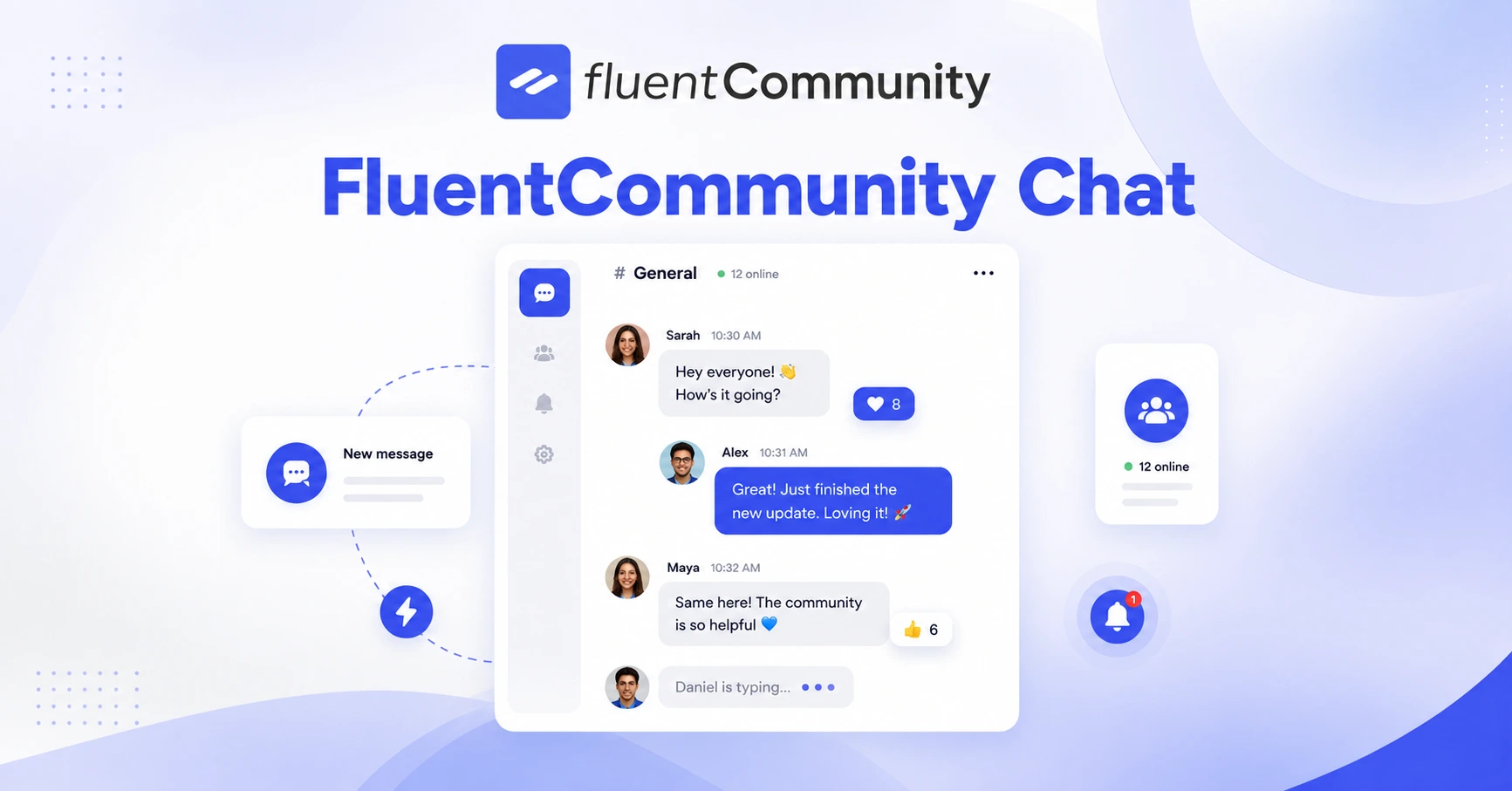
How to Use FluentCommunity Chat to Keep Your Community Connected in Real Time

Table of Content
Subscribe To Get
WordPress Guides, Tips, and Tutorials


Running an online community is about more than just posting content. It’s about the conversations that happen between posts, the quick questions, the spontaneous ideas, the moments where members feel genuinely heard and connected. That’s something a feed alone can’t deliver. A community truly comes alive when members can reach out to each other without waiting for a comment reply or an email notification to bounce back and forth. This is exactly the gap that FluentCommunity Chat is designed to fill.
FluentCommunity Chat is a real-time private messaging feature built directly into your WordPress community. It allows members to send one-on-one messages to each other without ever leaving the platform. No external tools, no third-party integrations, no asking your members to move the conversation somewhere else. Everything stays within your community, on your server, under your control. Whether you’re running a course platform, a coaching community, a membership site, or a professional network, enabling real-time chat can dramatically improve how your members interact with each other and how connected they feel to your community as a whole.
In this guide, you’ll learn exactly how to activate and configure FluentCommunity Chat, what settings are available to you, and how recent updates have made the experience even better.
What Is FluentCommunity Chat?
Before getting into the setup, it’s worth understanding what FluentCommunity Chat actually is and how it fits into the broader platform. FluentCommunity Chat is a private, one-on-one direct messaging system. It’s separate from your community spaces, your activity feeds, and your course discussions. It’s specifically designed for member-to-member personal conversations.
This matters because real-time messaging serves a different purpose from public posts or comments.
When a student wants to ask a fellow learner a quick question, when two members want to plan a collaboration, or when someone wants to follow up on something privately, that kind of interaction should feel immediate and personal. FluentCommunity Chat gives your members that channel without you needing to set up an external tool like Slack or Discord and then worry about keeping members engaged in two different places.
It’s also worth noting that FluentCommunity Chat is a Pro feature. To use it, you’ll need an active FluentCommunity Pro license. That said, activating it is refreshingly straightforward once you have access.
How to Activate FluentCommunity Chat?
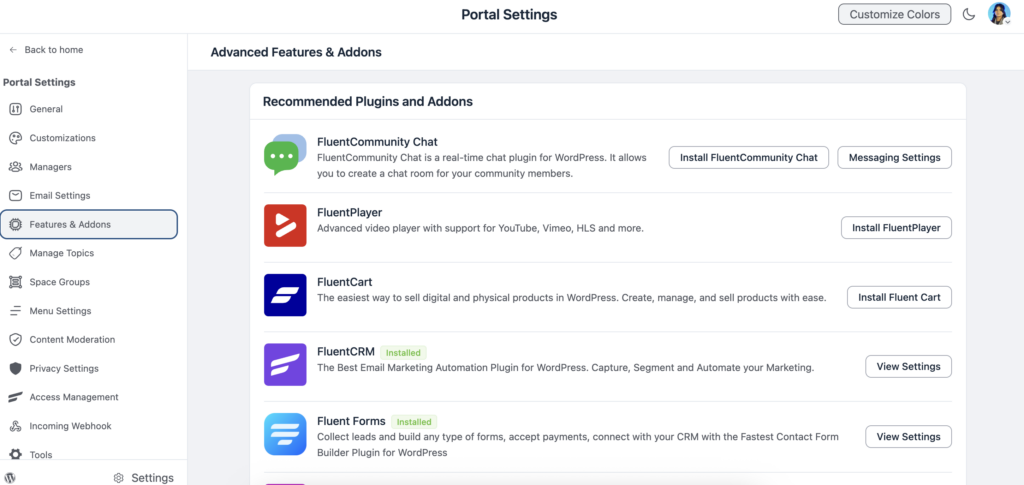
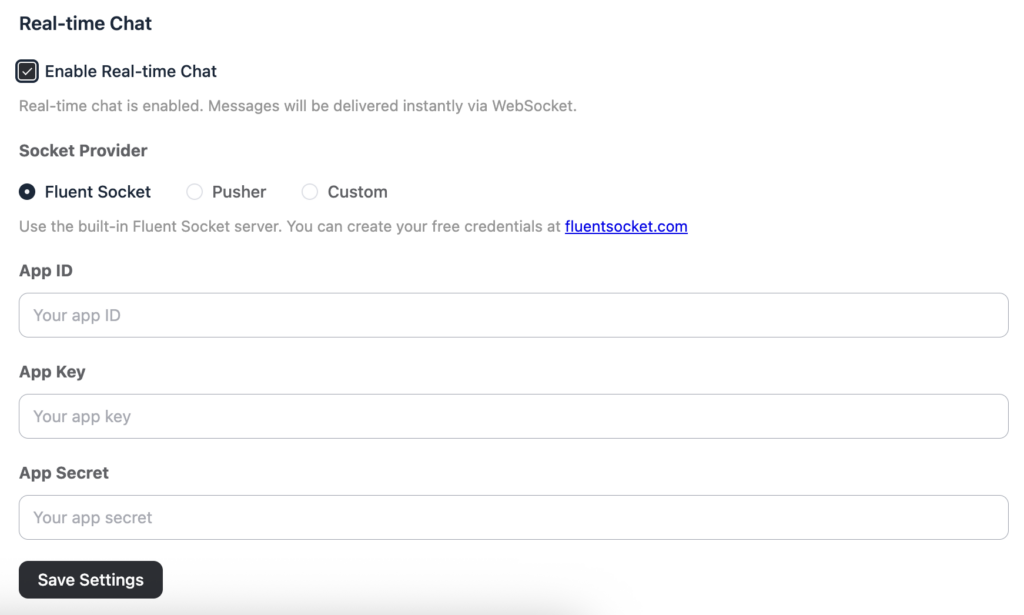
To get started, head over to your WordPress admin dashboard and navigate to the FluentCommunity Settings panel. From there, click on Features & Addons in the left sidebar. You’ll find FluentCommunity Chat listed among the available add-ons. Simply click the Activate FluentCommunity Chat button, and the feature will be enabled on your site immediately.
Once activated, a new Messaging Settings option becomes available.
This is where you customize how the chat behaves for your community, and there’s a meaningful set of options to work through. Taking a few minutes to configure these properly makes a real difference in how the feature feels for your members.
Configuring Your Messaging Settings
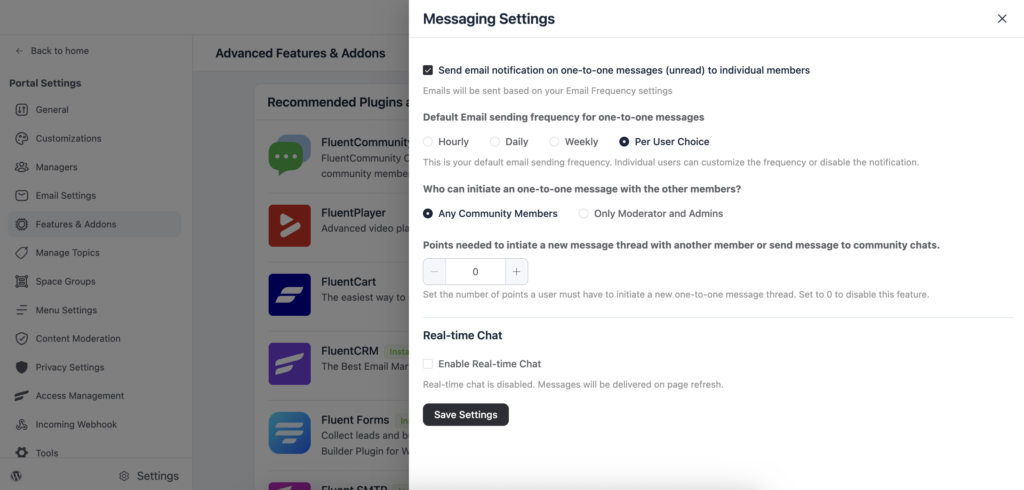
After enabling the chat, the first thing you’ll want to do is open Messaging Settings. This section controls both the messaging experience and the notification behavior that goes alongside it.
One of the most useful options here is the ability to send email notifications for unread one-to-one messages. When this is enabled, members receive an email alert if they have an unread direct message waiting for them.
This is particularly valuable because not every member will check your community portal every day. An email nudge brings them back, increases the chances of conversations continuing, and keeps your community feeling active and responsive. Naturally, you’ll want to match this setting with your broader email notification strategy, but for most communities, enabling it is the right default.
Beyond notifications, the Messaging Settings panel also gives you control over who can send messages to whom. This is an important consideration as your community grows. You may want to restrict messaging to members who follow each other, or to members within certain spaces, depending on the type of community you’re building. Having this level of control means you can enable chat confidently without worrying about unwanted messages between members who haven’t connected yet.
The Chat Widget in the Portal
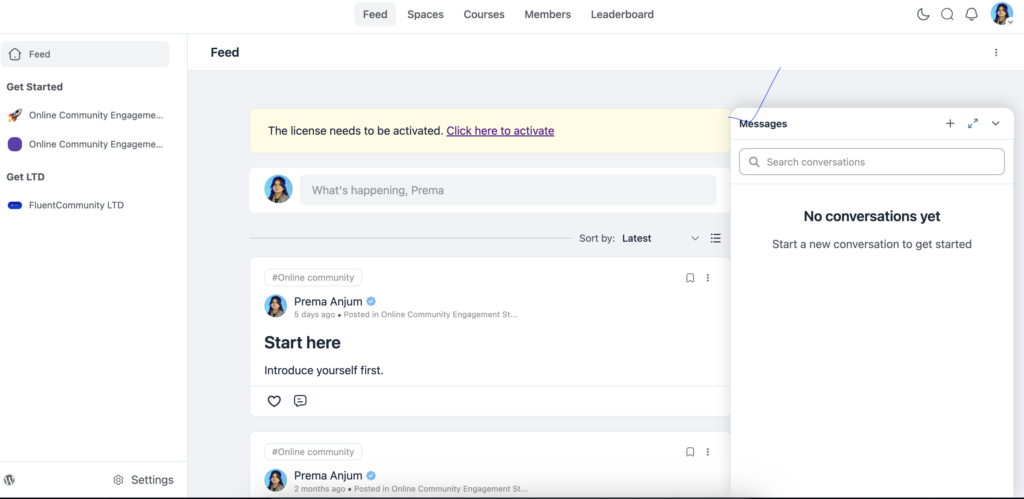
One of the standout UI decisions in FluentCommunity is the Chat Widget. Rather than requiring members to navigate to a separate messages section, the chat widget appears directly within the portal interface, giving members quick access to their conversations no matter which part of the community they’re currently browsing.
This was introduced as part of the version 2.2.0 update and has become a core part of how the messaging experience feels inside FluentCommunity. Instead of interrupting the browsing experience, the chat widget sits conveniently in the interface so members can dip in and out of conversations naturally. It’s a small design decision that has a noticeable impact on how connected the platform feels in practice.
What’s New: Chat and Notification Updates in 2.5.0
FluentCommunity has been evolving quickly, and the most recent update, version 2.5.0, released on May 20, 2026, brought several improvements that directly enhance the messaging and notification experience for your members.
The most significant addition for community managers is the new Unread Notifications Tab and Recent Notifications Popover. Previously, members had to rely on general notification counts. Now, there’s a dedicated tab showing only unread notifications, and a popover that surfaces recent activity at a glance. For communities where members are active across multiple spaces and conversations, this makes it far easier to stay on top of what needs attention without wading through older alerts.
Alongside that, version 2.5.0 also introduced in-app notifications for comment reactions. While this isn’t limited to the chat feature, it contributes to the same broader goal: ensuring members feel responded to and engaged in real time. When someone reacts to a comment, the original commenter receives a notification, a small but meaningful signal that their contribution was noticed.
Furthermore, the update improved the overall notification infrastructure with better settings persistence and a cleaner interface for managing notification preferences. For members who want to customize how and when they’re alerted, the experience is now considerably smoother.
Why Real-Time Chat Matters for Member Retention?
It’s one thing to have chat enabled, and another to understand why it matters for the health of your community. Direct, private messaging is consistently one of the top factors in member retention for online communities. When people feel they can connect personally, not just publicly, they invest more in the relationships they’re building. Those relationships are what keep members coming back long after the initial novelty of joining a new community wears off.
Moreover, for course creators and educators specifically, one-on-one chat adds a layer of mentorship and peer accountability that public discussion forums can’t fully replicate. A student who can quickly message a peer for encouragement or reach out to another course member for clarification is far more likely to complete the course and stay engaged throughout.
In this sense, enabling FluentCommunity Chat isn’t just a nice-to-have; it’s a direct investment in your community’s completion rates and long-term engagement. If you’re about to build an online community but don’t know what to do, check out our guide about building an online community from scratch.
Best Practices for Using FluentCommunity Chat
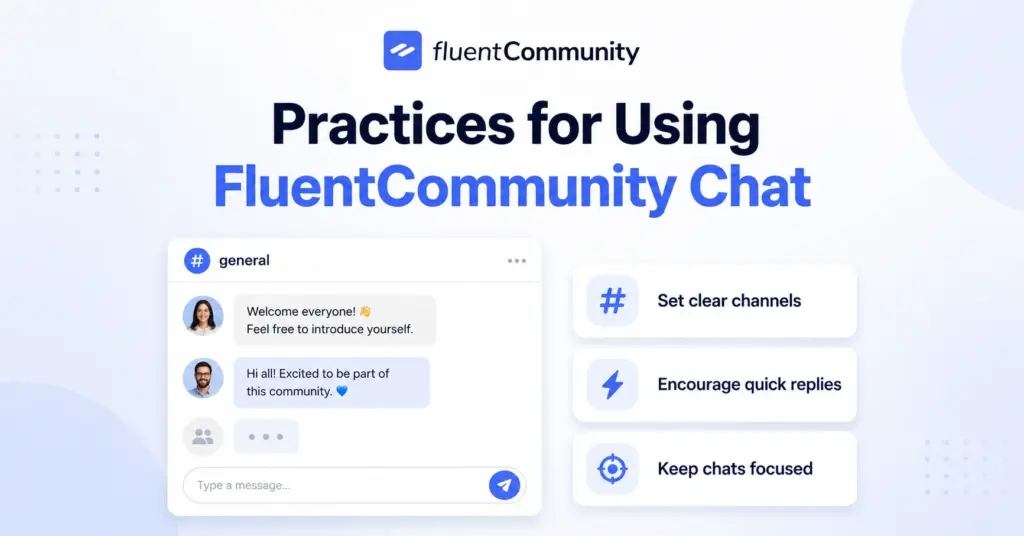
Getting the most out of FluentCommunity Chat comes down to a few straightforward habits.
First, encourage new members to introduce themselves and then directly message one or two other members as part of your onboarding flow. This gives chat a natural starting point rather than leaving it as a feature people discover on their own.
Second, make sure email notifications are enabled from the Messaging Settings, particularly for communities where members may not log in daily. The prompt to return to a conversation can be the difference between a connection that grows and one that fades.
Third, consider how chat complements the rest of your engagement strategy. FluentCommunity already includes leaderboards, polls, activity feeds, and community spaces, all of which drive interaction at a community level. Chat handles the personal, one-on-one layer. Together, they cover both the public and private dimensions of community life.
Finally, as your community scales, revisit your messaging permission settings periodically. What works for a community of 50 members may need adjustment when you reach 500. FluentCommunity gives you the controls to manage that growth without having to disable or compromise the feature.
Bringing It All Together
FluentCommunity Chat is one of those features that seems simple on the surface but has a compounding effect on community health over time. When members can reach each other directly, privately, and in real time, all within your WordPress platform. The community stops being just a place they visit and starts being a place where they actually belong.
With recent updates in version 2.5.0 strengthening the notification experience and the portal-integrated chat widget making conversations more accessible than ever, there’s never been a better time to activate it. Go to Features & Addons, turn it on, configure your messaging settings thoughtfully, and watch the depth of connection in your community grow.

Prema Anjum
My full name is Anzuman Ara Chowdhury. But people know me as Prema Anjum. I’m a Digital Marketer by profession, a WordPress community contributor, and a travel enthusiast by heart.
![SEO Title: 5 Best Community Portal Software [WordPress + SaaS Options]](https://fluentcommunity.co/wp-content/uploads/2026/10/community-portal-software-featured-1-1024x536.webp)
Add your first comment to this post