


Table of Content
Subscribe To Get
WordPress Guides, Tips, and Tutorials


Running a community comes with a long list of small jobs. Write the welcome post for a new space. Check what happened this week. Move a lesson. Look through the moderation queue. None of these is hard on its own, but together they eat the hours you meant to spend on the community itself.
Plenty of community owners already use an AI app for part of this. They ask it to draft a post, copy the text, open the dashboard, paste it in, fix the formatting, and publish. The AI does the writing, but you still do all the clicking. And the AI has no idea what’s actually happening in your community, because it can’t see it.
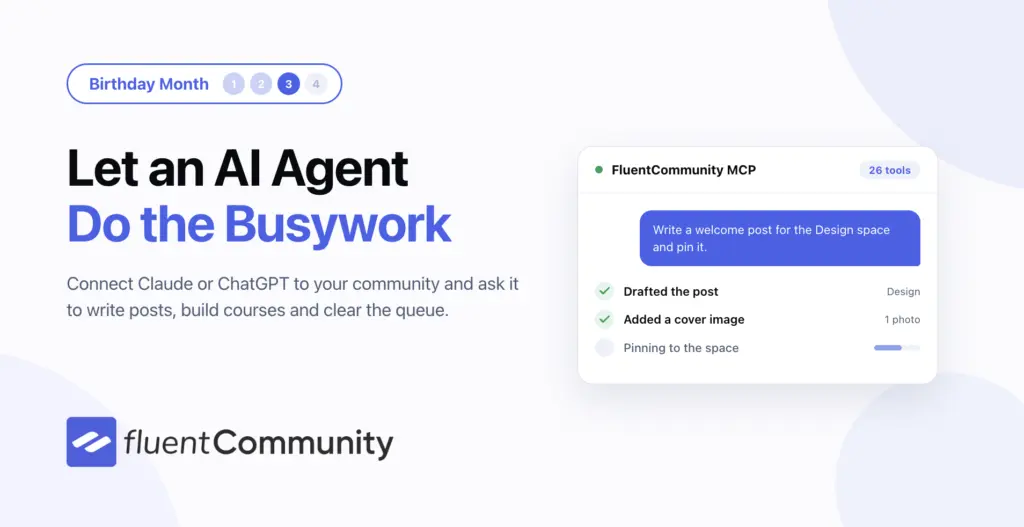
FluentCommunity now ships an MCP server that closes this gap. MCP is the standard AI apps use to talk to the tools you already own. Turn it on, connect your AI app once, and you can ask it to do community work in plain language. This post covers what the MCP server does, what an agent can handle, how to switch it on, and who gets to connect.
What the MCP Server Actually Does?
The MCP server lets an AI app work inside your community instead of beside it. Ask it to write a welcome post for a space, and it posts it. Ask what happened in your community this week, and it reads the feed and tells you. Ask it to draft a course section, move a lesson, or look through the moderation queue, and it does that too.
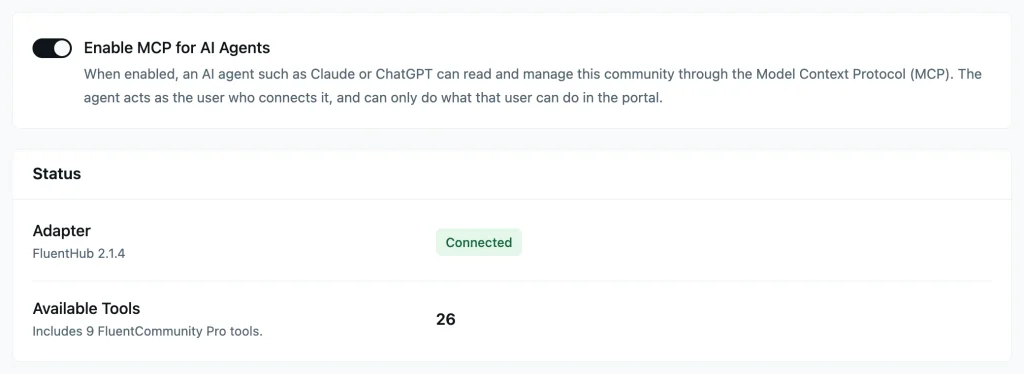
The important part is how it does the work. The agent goes through the same screens and rules you use. It doesn’t get a back door or special access, so nothing happens that you could not do yourself.
What an Agent Can Do?
There are 26 tools in all. Seventeen come with the free plugin, and nine more come with FluentCommunity Pro. Together they cover the things you do most often.
On the reading side, an agent can read the feed, search the community, and open a post along with its comments. That’s what lets it answer a question like “what did members talk about this week?” with real answers pulled from your community, not guesses.
On the writing side, it can write posts and comments, upload images, react, pin a post, and move a post to another space. So the welcome post, the weekly recap, or the announcement you keep putting off can go from request to published without you opening the editor.
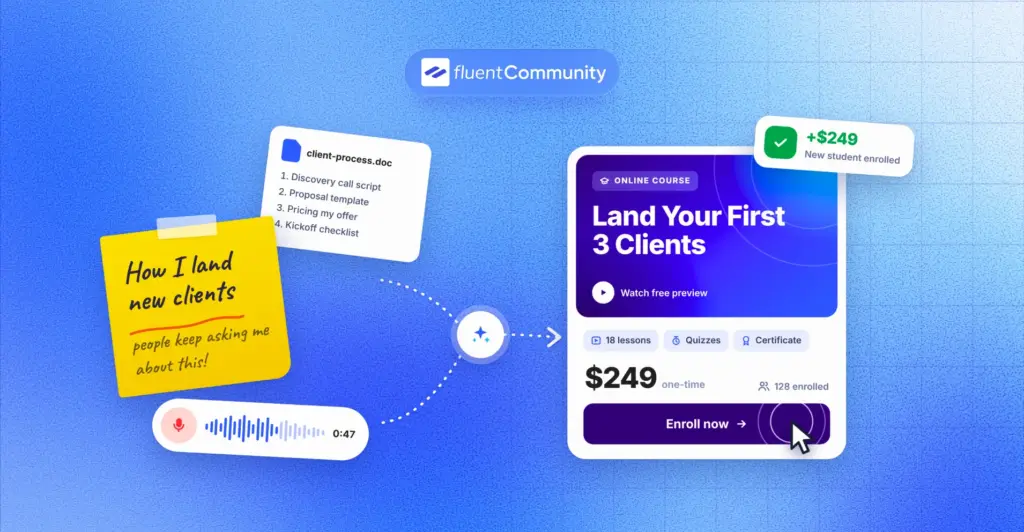
For courses, an agent can build and edit them lesson by lesson, keeping your existing blocks exactly as they are. It can also ask for the block guide, so the lesson content it writes is something the editor accepts the first time, rather than a pile of text you have to reformat afterwards.
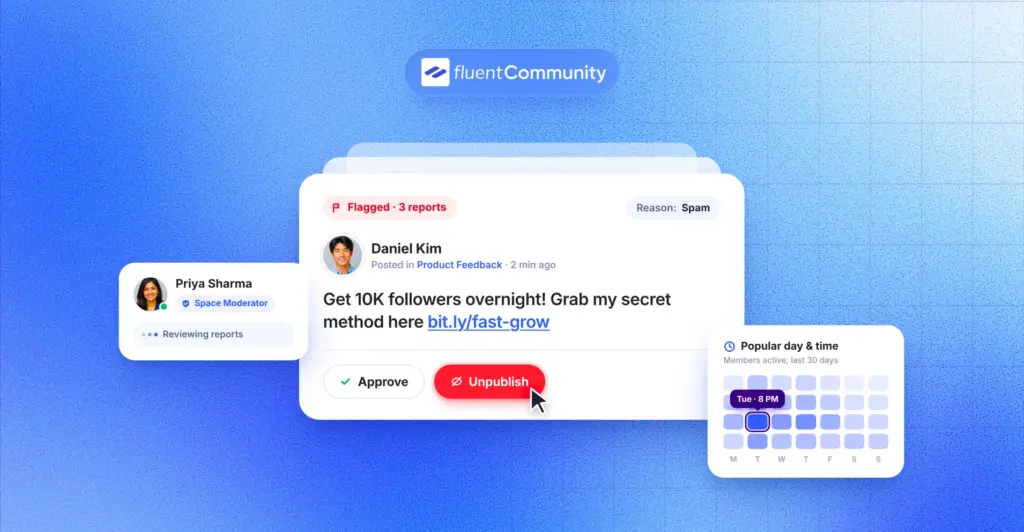
With Pro, the agent picks up the heavier admin work. It can work through the moderation queue, review reports, manage members and enrolments, read Insights, and grade quizzes.
Lesson Editing Is Built to Protect Your Work
Letting an AI touch your course content is the part most creators hesitate over, and for good reason. A lesson you spent hours on, with images sized just right and a layout that works, is not something you want rewritten from scratch because you asked for one paragraph to change.
FluentCommunity handles this carefully. When an agent changes a lesson, it edits only the blocks you asked about. Every other block is written back exactly as it was. An image keeps its size and its media, and your layout survives.
There’s a second safeguard too. If someone else saved the lesson while the agent was working, the agent’s save is refused instead of overwriting their work. So if a co-instructor updates a lesson at the same time you’ve asked the agent to edit it, their changes don’t quietly disappear.
Turning It On
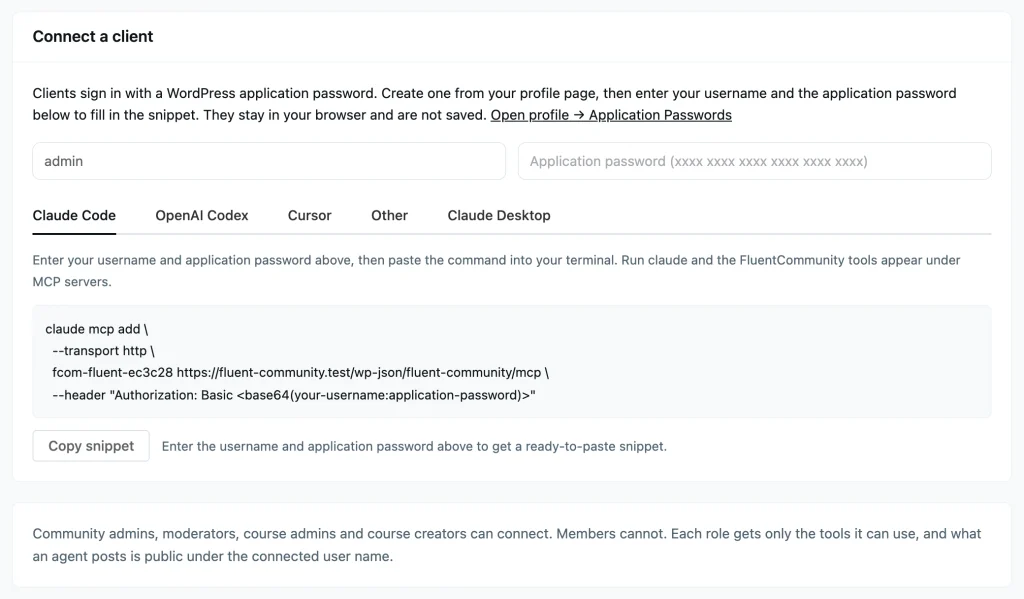
The MCP server is off until you switch it on. Nothing connects to your community unless you choose to allow it.
To turn it on, go to Settings → MCP for AI Agents. You need WordPress 6.9 or newer and the free FluentHub plugin, which carries the MCP adapter. If either one is missing, the screen tells you and links you straight to it, so you’re not left guessing what went wrong.
Two Ways to Connect
Once the server is on, there are two ways to connect your AI app. The easy one is FluentHub sign-in. You paste one URL into your AI app and sign in with your WordPress account, with no password to copy. That same URL also reaches your other Fluent plugins, so you connect once rather than setting up each plugin on its own.
If you’d rather not use FluentHub sign-in, the screen builds a ready-to-paste snippet from a WordPress application password instead. Either way, you’re not writing any configuration by hand.
Who Can Connect, and What They See
Community admins, moderators, course admins, and course creators can connect an AI app. Members cannot. The agent acts as the person who connected it, so each role gets only the tools it can use. A moderator’s agent can do what a moderator can do, and a course creator’s agent can do what a course creator can do. It never gains anything beyond that role.
This also means anything the agent posts appears publicly under that person’s name. If a moderator asks their agent to post an announcement, the community sees it as coming from that moderator. Keep that in mind before handing off anything public.
What This Looks Like in Practice?
Picture a course creator running a coding bootcamp community with a few hundred members. Every Monday she writes a recap of last week’s discussions, welcomes new members in the intro space, and checks whether any lessons need updating based on member questions.
After turning on the MCP server and connecting her AI app through FluentHub sign-in, she starts Monday by asking it what happened in the community last week. The agent reads the feed and gives her a summary of the main threads. She asks it to turn that into a recap post for the announcements space, reads the draft, and tells it to publish.
Next, a few members have asked the same question about a setup step in Lesson 3. She asks the agent to add a short troubleshooting note to that lesson. It edits only that part, and the screenshots and code blocks around it stay exactly as they were.
Her Monday work, which used to take most of the morning, now takes a fraction of it. Every post still goes out under her name, and the agent never does anything she couldn’t do herself.
Requests Worth Trying First
The quickest way to see what the agent can do is to hand it the jobs you already do every week. Start with requests that only read, such as a summary of the week or a search, so you can see how well the agent understands your community before you let it post anything.
If you’re a community admin or moderator, try asking it to summarize what happened in the community this week and point out the busiest threads. Ask it to search the community for every post about a topic members keep raising, so you know what to address next. When you’re ready for it to write, ask it to draft a welcome post for your Introductions space, show you the draft, and pin it once you approve. If posts keep landing in the wrong place, ask it to move them to the right space. With Pro, ask it to go through the moderation queue and tell you which reports need your attention first.
If you’re a course creator, ask the agent to read the block guide and then draft a new course section, so the content lands in the editor without cleanup. Ask it to move a lesson to a different section when your course structure changes. When a single part of a lesson needs fixing, name that part, for example “rewrite only the intro in Lesson 2”, and the rest of the lesson stays exactly as it is. With Pro, ask it to grade pending quizzes, or to read Insights and summarize how your community is doing.
One habit is worth building from day one: ask the agent to show you anything public before it publishes. It posts under your name, so a quick review keeps your voice consistent and catches anything that doesn’t sound like you.
Final Thoughts
An AI app that only writes text still leaves you doing the clicking. FluentCommunity’s MCP server lets the agent do the work inside your community, through the same screens and rules you already use, and only within what your role allows. Turn it on from Settings, connect once, and hand off the routine work you’ve been doing by hand.

Prema Anjum
My full name is Anzuman Ara Chowdhury. But people know me as Prema Anjum. I’m a Digital Marketer by profession, a WordPress community contributor, and a travel enthusiast by heart.
Add your first comment to this post