

Custom Ordering for Spaces and Courses in FluentCommunity

Table of Content
Subscribe To Get
WordPress Guides, Tips, and Tutorials


Every community tells a story the moment a new member lands. Before they read a single post or open a single lesson, they scan the list of spaces and courses and quietly decide where to go first. If that list feels random, the story feels random too. The welcome space ends up buried, your flagship course sits somewhere in the middle, and an old event space from last spring sits proudly at the top.
That small moment matters more than most community owners realize. The order of your spaces and courses is your community’s first piece of navigation, and for a long time it was something you could not fully control. The listings decided their own order, and you simply worked around it.
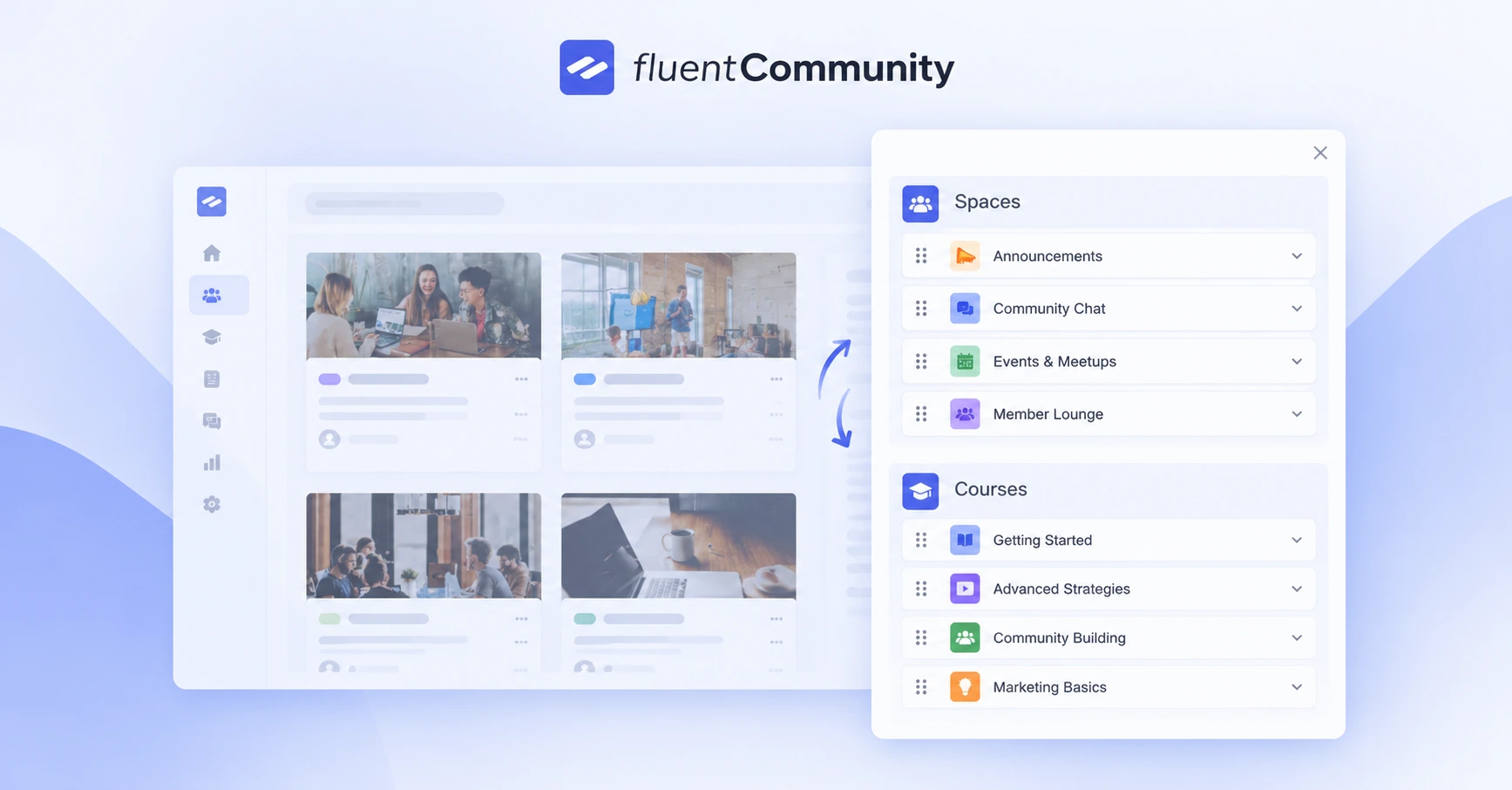
FluentCommunity now changes that. With custom ordering, admins can drag spaces and courses into exactly the order members should meet them, choose the default sort for each listing, and even lock that order in place so everyone sees the same thing. In this post, we will walk through why ordering matters, how the feature works, and how to use it to build a smoother journey for every member who joins.
Why the Order of Your Community Matters?
Think about the last time you walked into a well-run event. Someone pointed you to registration first, then the main hall, then the breakout rooms. You never had to guess. A good online community works the same way, and the list of spaces and courses is the closest thing you have to that friendly person at the door.
When the order is intentional, members naturally move from the welcome area to introductions, then into the main discussion spaces, and finally into the courses that deliver the most value.
On the other hand, when the order is left to chance, people click whatever happens to appear first. Some of them land in an advanced course before they understand the basics, while others never discover the space you built specifically for beginners.
Order also signals priority. Whatever sits at the top looks important, so members assume it is where the action is. That makes ordering one of the simplest ways to highlight a new program, promote a paid course, or keep attention on the conversations that keep your community alive. In other words, a thoughtful order is not just tidy; it quietly shapes behavior.
What Changed in FluentCommunity?
Previously, the Discover and Courses listings in FluentCommunity decided their own order. You could build great spaces and courses, but you could not tell the platform which ones members should see first.
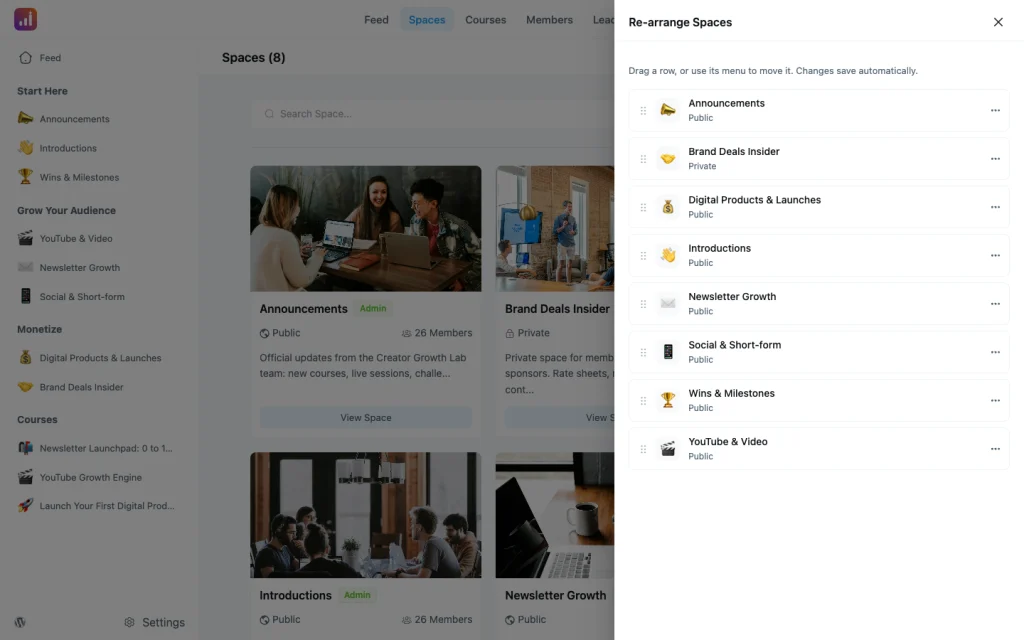
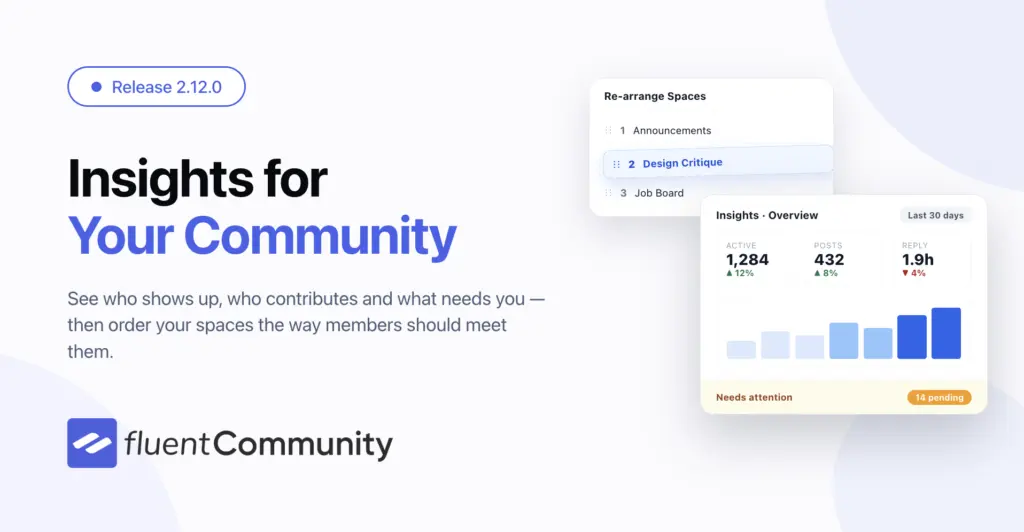
Now, admins get a Re-arrange option right in the page menu of these listings. You simply drag spaces or courses into the order you want members to see them and save the changes without ever leaving the page. There is no separate settings screen to dig through and no reloading back and forth to check your work. You see the list, you move things around, and you save.
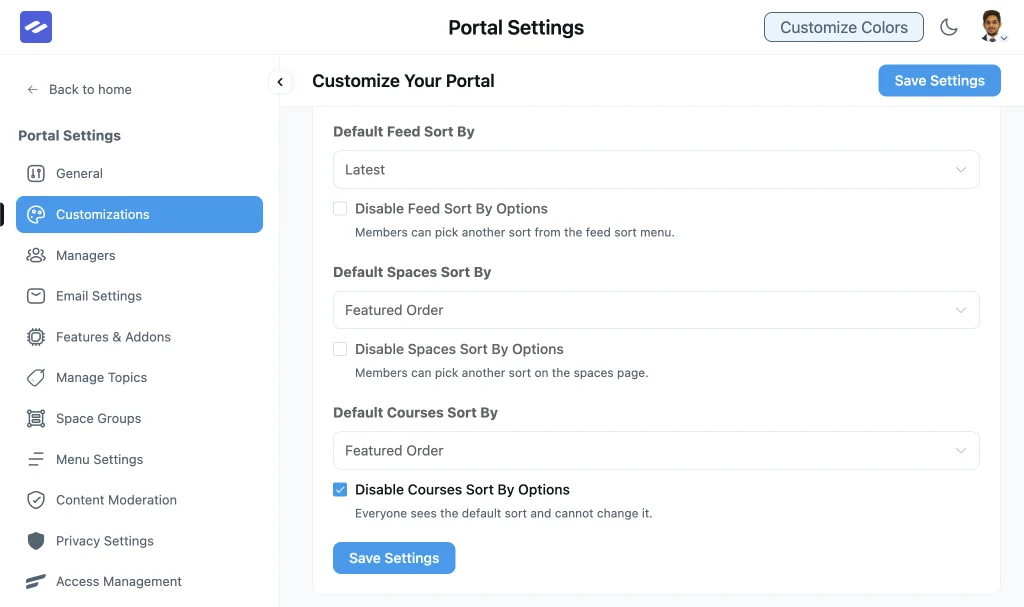
Alongside this, two new settings live in Customization Settings. The first lets you pick the default sort members see on each listing. The second lets you turn the sort dropdown off entirely, so your custom order becomes the only order. As a result, you can decide whether members get the freedom to re-sort the list themselves or whether everyone sees the same carefully planned layout.
The update also fixes two everyday frustrations. New spaces and courses no longer sink below your custom order, so fresh content does not get lost at the bottom of the list. In addition, secret spaces now show up in the drawer for the people who are allowed to see them, which makes private groups easier to reach for the right members without exposing them to everyone else.
How to Rearrange Spaces and Courses
Getting started takes only a few moments. First, open the Discover listing for spaces or the Courses listing in your community. Next, open the page menu and choose the Rearrange option. Your spaces or courses become draggable, so you can pick each one up and drop it into its new position.
Once the list looks the way you want, save your changes right there on the page. Because you never leave the listing, you can see exactly how the final order will look to members as you work. This makes it easy to experiment, step back, and adjust until the flow feels natural.
After that, head to Customization Settings to decide how members experience the listing. If you want members to see your custom order by default but still let them switch to another sort, simply set your preferred default and leave the dropdown on. However, if you want a consistent experience for everyone, turn the sort dropdown off so your order is the only one members ever see.
Choosing Between Flexibility and Consistency
The choice between keeping the sort dropdown and turning it off is worth a moment of thought, because it depends on the kind of community you run.
For a large, discussion-driven community with dozens of spaces, giving members a sort option can be helpful. Experienced members may want to browse in a different way, and the dropdown lets them do that while new members still see your recommended order by default.
For course-focused communities, training programs, and cohort-based groups, consistency usually wins. When your courses build on one another, you want every learner to see them in the same sequence. Turning off the dropdown removes any confusion and makes your order the official path. This pairs especially well with structured learning, where the order of courses reflects the order in which skills should be learned.
There is no wrong answer here. Instead, it comes down to whether your community is better served by freedom or by guidance, and you can change the setting at any time as your community grows.
Practical Ways to Use Custom Ordering
Once you have control over the order, a few simple strategies can make a real difference.
Start by building an onboarding path. Place your welcome space and introductions space at the very top so new members know exactly where to begin. Then follow with your most active discussion spaces, so newcomers see real conversations happening right away. This creates a natural first-week journey without needing a separate guide.
Next, arrange your courses in learning order. If you offer a beginner course, an intermediate course, and an advanced course, list them in that sequence. Learners will move through them in the right order simply by following the list, which reduces drop-off and helps people feel progress.
You can also use ordering to support your business goals. When you launch a new paid course or a premium space, move it near the top for a few weeks to give it visibility. Once the launch period ends, you can shift it to a more permanent position and spotlight the next priority instead.
Seasonal and event-based spaces benefit as well. During a live challenge, a workshop week, or a community event, bring that space to the front so members do not miss it. Afterward, move it down or archive it so it does not clutter the top of the list.
Finally, think about your private groups. Since secret spaces now appear in the drawer for the members who have access, you can organize exclusive groups, such as mastermind circles or VIP cohorts, so the right people find them easily while everyone else enjoys a clean, uncluttered view.
Conclusion
The order of your spaces and courses is the first conversation your community has with every member. With FluentCommunity’s custom ordering, you no longer leave that conversation to chance. Because FluentCommunity runs on your own WordPress site, that decision stays entirely in your hands. You can drag spaces and courses into the right sequence, set the default sort for each listing, and lock in a single order when consistency matters most. On top of that, new content stays visible and secret spaces reach the people who belong in them.
If you have been working around a random list, now is the perfect time to take control. Open your Discover and Courses listings, try the Re-arrange option, and build the path you want every member to follow.
Ready to give your members a clearer journey? Update FluentCommunity from your WordPress dashboard and start putting your spaces and courses in the right order today.

Prema Anjum
My full name is Anzuman Ara Chowdhury. But people know me as Prema Anjum. I’m a Digital Marketer by profession, a WordPress community contributor, and a travel enthusiast by heart.


Add your first comment to this post