

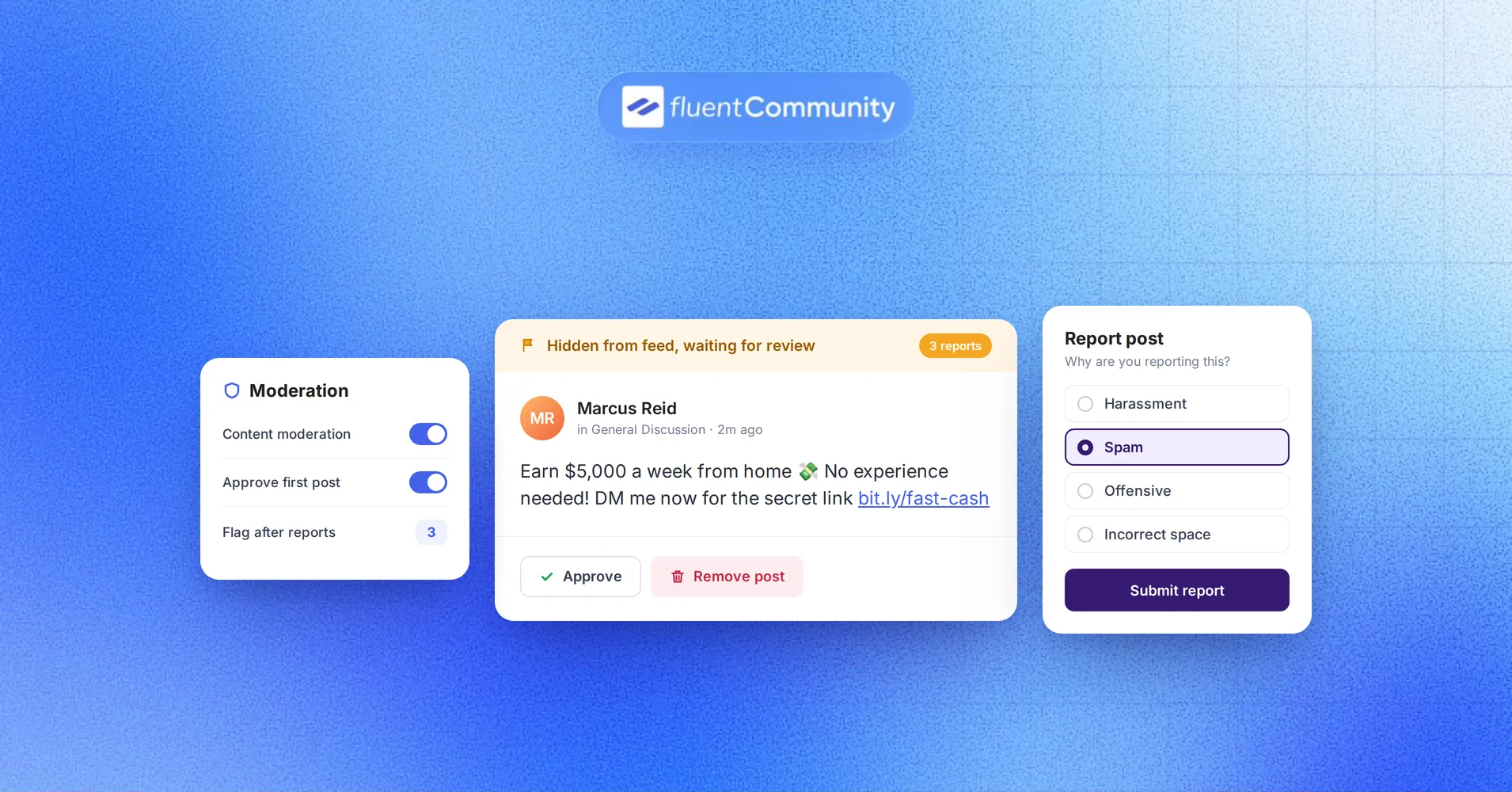
Online Content Moderation for Your Community with FluentCommunity

Table of Content
Subscribe To Get
WordPress Guides, Tips, and Tutorials


Every community gets its first bad post. Maybe it’s a spam link in your course group, or a heated comment that turns a helpful thread sour.
How you handle that moment shapes what members expect next.
This guide shows how online content moderation works and how to set it up in FluentCommunity, step by step.
Key Takeaways
- Online content moderation means reviewing what members post and acting on it based on published rules
- Most small communities do best with member reports, light automation, and approval for newcomers
- Short, specific guidelines make every moderation call easier to explain
- FluentCommunity handles reports, word filters, auto-flagging, and post approval from one settings screen
- Space-level moderator roles let trusted members help without full admin access
What Is Online Content Moderation?
Online content moderation is the process of reviewing what people post on a website or online community and deciding whether it stays, gets edited, or gets removed, based on rules the owner has published.
That’s the whole idea. You set the rules, members post, and someone (or something) checks that the posts follow the rules. When a post breaks them, you act. When it doesn’t, you leave it alone.
A good moderation setup does two jobs at once. It removes the obvious junk, like spam and abuse. It also signals to every quiet member that this is a place where people behave, which makes them more likely to speak up.
What Counts as Content in an Online Community
People often think moderation only means deleting rude comments. In a real community, the list of things you may need to review is longer:
- Posts in your feed and inside each space
- Comments and replies under those posts
- Images, videos, GIFs, and uploaded files
- Links, especially to outside offers or products
- Chat messages in groups and direct messages
- Profile details like names, bios, and avatars
You don’t need to watch all of these equally. A course community might care most about comments under lessons. A brand community might care most about links that promote competitors or scams.
Content Moderation vs Community Management
These two terms get mixed up a lot. Community management is the whole job: onboarding, events, engagement, growth, and member support. Content moderation is one part of that job, the part that enforces the rules.
Think of a local soccer league. Community management is running the league, booking fields, and getting teams to show up. Moderation is the referee. You need both, but the referee only matters when there’s a game worth protecting.
Why Online Content Moderation Matters for Your Community
Bad behavior online isn’t rare. According to Pew Research Center, 41% of Americans have personally experienced some form of online harassment. Your members bring those experiences with them when they join your space.
The numbers have kept climbing since then. ADL’s 2024 Survey of Online Hate and Harassment found that 56% of Americans report experiencing online hate or harassment in their lifetimes, the highest rate since 2020.
People also expect platforms to step in. A 2023 survey covered by MIT Sloan found that 80% of respondents said platforms should try to reduce the spread of harmful misinformation. In simple terms, most members want someone keeping an eye on things.
Now, most of those numbers come from big social networks. Your community is different in three ways. Your brand name is on it. Members may be paying to be there. And because it’s smaller, one bad actor stands out far more than they would on a giant platform.
What a Messy Feed Actually Costs You
Picture a course creator with 300 students in a private community. One member starts dropping affiliate links in every lesson discussion. Nobody reports it because nobody knows how. Within a week, real questions get buried under promotions.
Here’s the honest part. Most members won’t complain. They’ll just stop posting. Your community goes quiet, and the drop in engagement looks like a content problem when it’s really a moderation problem.
That’s the hidden cost. Spam and hostility don’t only annoy people. They push your best members, the helpful ones who answer questions, into silence.
The 5 Main Types of Content Moderation
Researchers usually group content moderation methods into five types. According to an open textbook from the University of Arizona, these are pre-moderation, post-moderation, reactive moderation, distributed moderation, and automated moderation:
| Type | How It Works | Best For | Watch Out For |
| Pre-moderation | Content is reviewed before anyone sees it | New members, sensitive spaces, kids or health topics | Slows conversation down |
| Post-moderation | Content goes live, then a moderator reviews it | Active communities with a dedicated moderator | Bad posts are visible for a while |
| Reactive moderation | Members flag content, moderators review flags | Most small and mid-size communities | Depends on members actually reporting |
| Distributed moderation | Members manage their own experience, like blocking | Large, mature communities | Doesn’t remove content for everyone |
| Automated moderation | Rules or software screen content | Spam, banned words, high volume | Misses context and sarcasm |
Most healthy communities don’t pick one type. They mix two or three. For example, you might pre-moderate a member’s first post, rely on reactive reporting after that, and run an automated word filter in the background the whole time.
Here’s a simple way to think about it. Automation catches the obvious stuff. Reports catch what automation misses. Your judgment handles everything in between.
How to Pick the Right Moderation Mix for Your Community
There’s no single correct setup. The right mix depends on your size, your audience, and how much time you have each day. Below is a practical starting point based on community stage. Treat it as a default, then adjust once you see real behavior.
Just Launched (Under 100 Members)
At this stage, you probably know most members by name. Heavy rules will feel strange. Keep it light:
- Turn on member reporting so people have a clear way to flag problems
- Add a short word filter for slurs and obvious spam terms
- Require approval for each member’s first post
First-post approval is the quiet hero here. Spammers usually show up, post once, and leave. If that first post never goes live, they never get a foothold.
Growing Fast (Hundreds to a Few Thousand Members)
Now you can’t read everything. This is where reactive moderation and helpers matter most. Set an auto-flag threshold so heavily reported posts get pulled before you even see them.
Then bring in one or two trusted members as moderators for your busiest spaces.
Paid, Private, or Sensitive Communities
If members pay to join, or you discuss health, money, or personal topics, raise the bar. Consider holding all new posts for review in your most sensitive spaces.
A coaching mastermind or a support group for a nonprofit is a good fit for stricter pre-moderation in specific spaces while the rest stays open.
Write Community Guidelines Members Will Actually Read
Every moderation tool depends on one thing: rules people understand. The FluentCommunity docs say it plainly. Clear guidelines help members report content appropriately and help you moderate fairly. Without them, every removal feels personal.
Good guidelines are short. Aim for one screen, not a legal document. Here’s what to include:
- What the community is for, in one sentence
- What’s welcome, with one or two quick examples
- What’s not allowed, like spam, harassment, and off-topic promotion
- How to report something and what happens after
- What happens when someone breaks the rules
Use plain examples instead of vague words. “Be respectful” means different things to different people. “Criticize ideas, not people” is much clearer. “No self-promotion” is vague. “Share your own products only in the Wins space” tells people exactly where the line is.
Where should guidelines live? Put them somewhere members see on day one. In FluentCommunity, you can pin a post, mention them in your welcome banner, or create a Guidelines page inside a space using Space Pages, which is a Pro feature.
A Simple Consequence Ladder
Members trust moderation more when they can predict it. Write your consequences as a ladder and stick to it:
- First issue: a friendly private reminder with a link to the rule
- Second issue: the content is removed with a short note explaining why
- Repeat issues: the member is removed from that space
- Serious or harmful behavior: removal from the community right away
Spam bots and threats skip straight to the last step. Everyone else gets a chance to learn the norms first.
How to Set Up Online Content Moderation in FluentCommunity
Before the steps, here’s how the pieces fit together. Your guidelines set the rules. Member reports and filters catch problems. Approval settings decide what goes live. The moderation queue is where you make the final call. And moderators share the work so it doesn’t all land on you.
FluentCommunity is a WordPress community and course plugin, so all of this runs on your own site, with your own data. Here’s the setup, in order.
Step 1: Turn On Content Moderation
From your WordPress dashboard, go to FluentCommunity, then Settings, then the Content Moderation tab. Click the gear icon to open the Moderation Settings window and check Enable Content Moderation. Click Update to save.
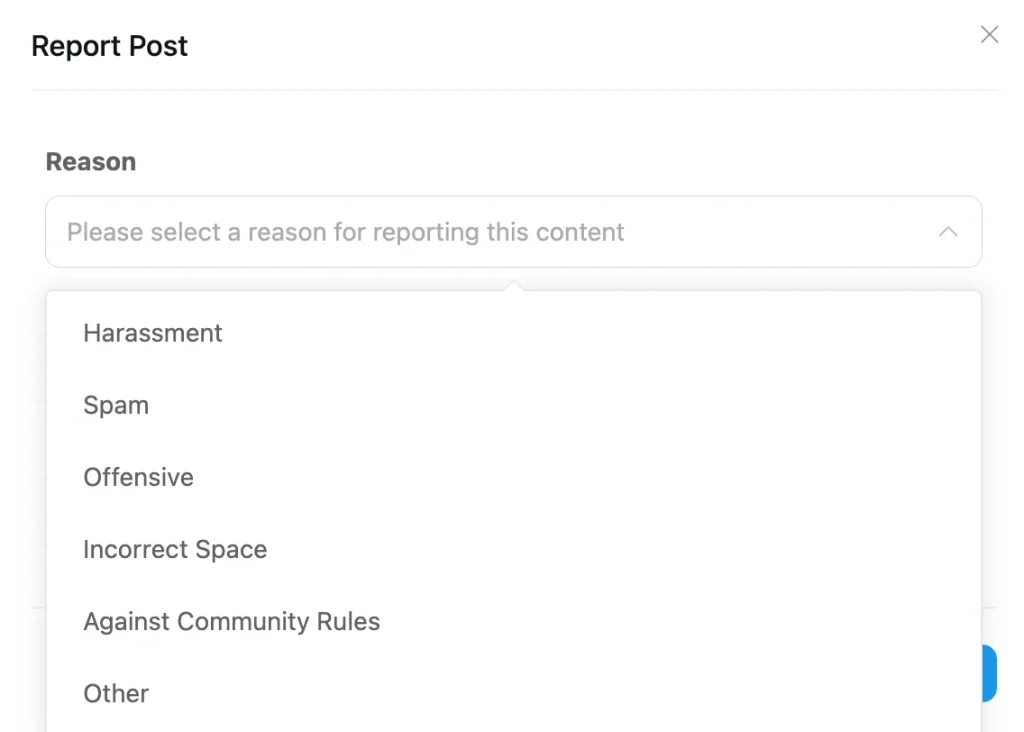
Once it’s on, members see a Report option in the three-dot menu on every post and comment. They pick a reason and can add an optional note. According to the FluentCommunity developer docs, the default reasons are harassment, spam, offensive, incorrect space, against community rules, and other.
Step 2: Build Your Profanity Filter
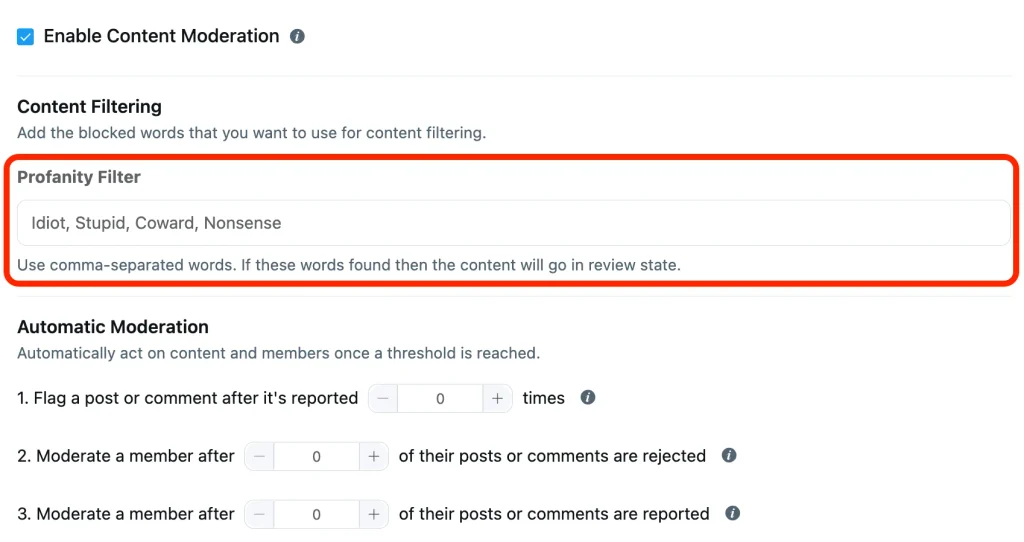
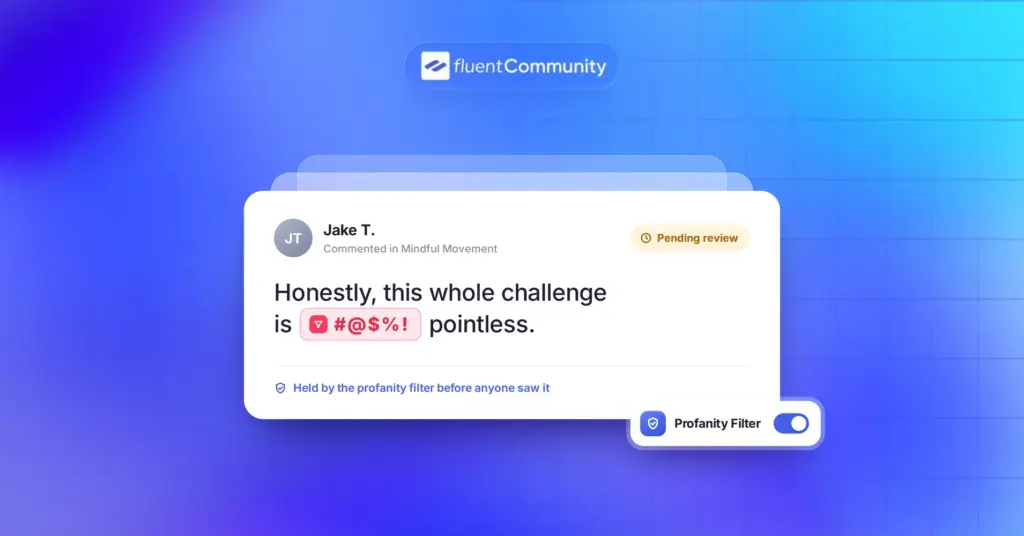
In the same settings window, you’ll find the Profanity Filter. Add blocked words separated by commas. When a post or comment contains one of them, it goes to review instead of publishing right away.
A few tips from running filters like this:
- Start with a short list of slurs and common spam terms
- Add common misspellings people use to dodge filters
- Test a few normal posts after saving to catch false matches
- Review the list once a month and remove words that cause problems
Keep in mind the filter holds content for review. It doesn’t delete anything. That makes it safe to be a little strict, because a real post just waits for your approval.
Step 3: Set Your Auto-Flag Threshold
The setting called “Flag a post or comment after it’s reported X times” decides how many reports automatically unpublish a piece of content. Enter 0 to turn it off.
For a small community, a threshold of 2 or 3 works well. For a large one, go a bit higher so a single disagreement doesn’t pull a post. Either way, check the Unpublished tab regularly. A group of members could mass-report a post they simply disagree with, and you can approve it back if the reports don’t hold up.
Step 4: Choose Who Needs Approval
FluentCommunity gives you three approval options in the Moderation Settings window:
- Mark all new posts as Pending, so every post needs admin approval
- Require approval for first post, so only a member’s first post waits for review
- Mark all new posts as Pending in the given spaces, for selected spaces only
For most communities, first-post approval is the sweet spot. It stops drive-by spam without slowing down your regulars. Use space-specific approval for sensitive areas, and save “all posts pending” for very small or very high-risk communities.
Step 5: Give Trusted Members Moderator Roles
You don’t have to moderate alone. FluentCommunity’s user roles work per space, so you can promote a helpful member to Moderator in one space without giving them access to your whole site.
A Moderator can edit or delete any post or comment within that space. A space Admin can also manage settings and members, including approving, removing, or blocking people.
To assign a role:
- Open the space and go to its Members tab
- Find the member and click the three-dot menu on their card
- Select Change Membership
- Pick Moderator from the Membership Role dropdown
- Click Update Role
Pick moderators who already help others without being asked. They know the culture, and members already trust them.
Step 6: Tighten Your Space Settings
Some moderation work is best done before anything gets posted. In each space’s settings, a few options act like built-in guardrails:
- Only admin or moderators can create post, which turns a space into an announcements channel
- Allow users to request to join, so admins and moderators approve new members
- Make members select a topic, which cuts down on off-topic posts
- Limit who can upload documents to admins and moderators
You can also set each space to Public, Private, or Secret. A Secret space is hidden from non-members and only reachable by direct link or invitation, which suits small private groups.
Step 7: Work the Moderation Queue
This is where you make decisions. Go to FluentCommunity, then Settings, then Content Moderation. The moderation dashboard lists all reported content and sorts it into four tabs: Pending, Flagged, Dismissed, and Unpublished.
Each row shows the content title, whether it’s a post or comment, who reported it, the date, and the number of reports. Click the three-dot menu on a row to:
- Review Report, to see who reported it and why
- Approve Post, to restore content to the feed
- Delete Report, to clear the report from the queue
If you use FluentCommunity Pro, you can also review unlisted posts. Turn on the Unlisted filter in any feed’s Sort by dropdown to see every unlisted post in one place.
Safety Tools Your Members Can Use on Their Own
Not every problem needs a moderator. Sometimes a member just doesn’t want to see another member’s posts. Giving people their own tools takes pressure off you, and it’s the distributed moderation type from earlier in action.
With the Follower Module turned on (FluentCommunity, then Portal Settings, then Features & Addons), members can block other members from their profile. The block is silent, so the other person isn’t notified. Members manage their blocked list from the Blocked tab on the Members page.
If you use Pro chat features, members can also mute, block, or report users in direct messages and group chats. Reporting a user sends a notification to site administrators, who can then decide what to do.
Tell members these tools exist. Mention them in your guidelines and welcome post. A tool nobody knows about doesn’t help anyone.
A Daily Moderation Routine That Takes About 15 Minutes
Moderation feels heavy when it’s random. It feels light when it’s a habit. For a small or mid-size community, a short daily check usually covers it. Here’s a routine you can copy:
- Open the Pending tab and approve or remove held posts
- Check the Flagged and Unpublished tabs for auto-pulled content
- Read each report’s reason before acting
- Send a short private note to anyone whose post you removed
- Skim your busiest space for anything nobody reported
Once a week, step back. Look for patterns in your reports. Are the same members showing up? Is one space getting most of the spam? Are certain filter words catching good posts? Small tweaks each week beat a big cleanup every few months.
How to Handle Gray-Area Posts
Some posts aren’t clearly wrong. Before you act, ask three questions. Does it break a written rule? Would most members want it gone?
Can a reminder fix it instead of a removal? If the answer to the first question is no, a friendly comment usually works better than deleting.
How to Message a Member After Removing a Post
Removals sting less when they come with a reason. Keep the note short and kind. Something like this works:
“Hi Sam, I removed your post in the Wins space because it linked to an outside offer, and our guidelines keep promotions to the Marketplace space. You’re welcome to share it there. Thanks for being part of the community!”
It names the rule, offers a fix, and keeps the door open. Most people respond well to that.
Human vs Automated Moderation: Where Each One Fits
AI moderation gets a lot of attention right now, and for giant platforms it makes sense. For an owned community, the bigger question is how you split the work between rules and people.
Automated rules are great at speed and volume. They never sleep, and they catch the same banned word every time. But they miss context. A word that’s offensive in one sentence can be harmless in another.
People are the opposite. They’re slower, but they understand sarcasm, inside jokes, and community culture. Research backs a mix. MIT professor David Rand, quoted in MIT Sloan’s coverage, describes crowd ratings as useful when they add to expert review, not when they replace it.
Your community works the same way. Member reports act like the crowd. You and your moderators act like the experts. FluentCommunity’s built-in automation is rule-based (word filters, report thresholds, and approval rules), so the final judgment stays with a human.
For developers, FluentCommunity also offers a moderation REST API and action hooks, so you can connect custom alerts or logging to your moderation workflow.
Common Content Moderation Mistakes to Avoid
Even well-meaning community owners slip into a few habits that make moderation harder. Watch for these online content moderation mistakes:
- Launching without written guidelines, then making up rules on the fly
- Removing posts silently, which makes members feel watched instead of protected
- Setting the profanity filter so broad that normal posts get held
- Ignoring the Unpublished tab after turning on auto-flagging
- Picking moderators based on activity alone instead of judgment
- Treating every report as a removal instead of reviewing context first
The common thread is consistency. Members can accept strict rules. What they don’t accept is rules that change depending on who posted.
Start Small, Stay Consistent, and Grow From There
You don’t need a big team or expensive tools to run a safe community. Start with the basics this week. Write one page of guidelines. Turn on reporting. Add a short word filter and first-post approval. Then pick one trusted member to help in your busiest space.
From there, let real behavior guide your next move. If spam spikes, tighten approvals. If reports pile up, add a moderator. If things stay calm, leave it alone.
If you’re building on WordPress, FluentCommunity gives you reporting, filters, approval rules, and space-level moderator roles in one plugin, on your own site. Set it up once, check your queue daily, and your community can grow without losing the friendly feel that made people join in the first place.
Frequently Asked Questions
What Does a Content Moderator Do?
A content moderator reviews posts, comments, and media that members share, then decides whether each item follows the community’s rules. They approve, edit, or remove content, respond to member reports, and sometimes message members about rule breaks. In smaller communities, the owner often does this job alone.
What Is the Best Type of Content Moderation for a Small Community?
For most small communities, reactive moderation works best, backed by a few automated rules. Let members report problems, run a short word filter, and require approval for each new member’s first post. This catches spam early without slowing down regular members.
Can You Automate Content Moderation in WordPress?
Yes, partly. FluentCommunity lets you automate the routine parts with a profanity filter, an auto-flag threshold based on report counts, and approval rules for new posts. These rules hold or unpublish content automatically, while a human still makes the final decision in the moderation queue.
How Many Moderators Does an Online Community Need?
There’s no fixed ratio. A new community with under 100 members can usually be moderated by the owner alone. Once reports start piling up or you can’t check the queue daily, add one trusted moderator for your busiest space, then add more as activity grows.
Do Members Get Notified When They’re Blocked in FluentCommunity?
No. According to the FluentCommunity docs, blocking another member is silent, so the blocked person isn’t notified. Members can review and unblock people anytime from the Blocked tab on the Members page.
Is Content Moderation the Same as Censorship?
Not in a private community. Moderation means enforcing rules that members agreed to when they joined, much like house rules at a club. Good moderation is transparent: the rules are written down, consequences are predictable, and members know how to report problems or ask about a decision.

Ashik Elahi
Ashik Elahi is a seasoned Digital Marketing Strategist with a passion for Content Marketing. He believes in the power of storytelling and crafting valuable content that resonates with readers.





Add your first comment to this post