

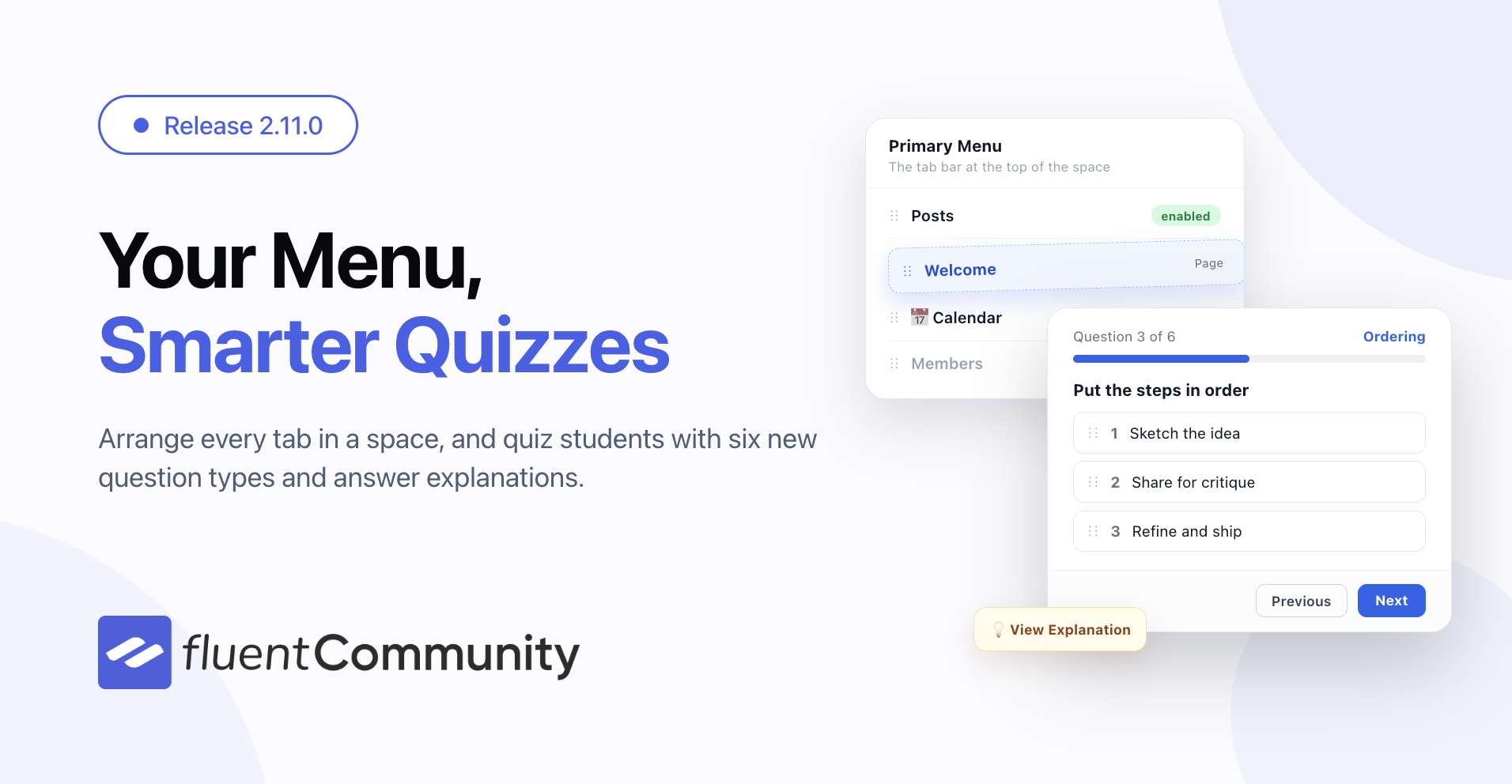
Introducing Advanced Quiz Builder & Space Menu – FluentCommunity 2.11

Table of Content
Subscribe To Get
WordPress Guides, Tips, and Tutorials


A space is only as easy to use as its menu. Until now, the tabs across the top of a space came in a fixed order, and the only thing you could really add was a row of extra links. FluentCommunity 2.11.0 hands that menu over to you and gives quizzes the biggest upgrade they have had since launch.
At a glance: a Space Menu Manager to order, rename, hide, and add to every tab in a space, six new quiz question types beyond simple multiple choice, a one-by-one quiz layout with a progress bar, and answer explanations that teach students why an answer was right or wrong.
Build the Menu Your Space Needs
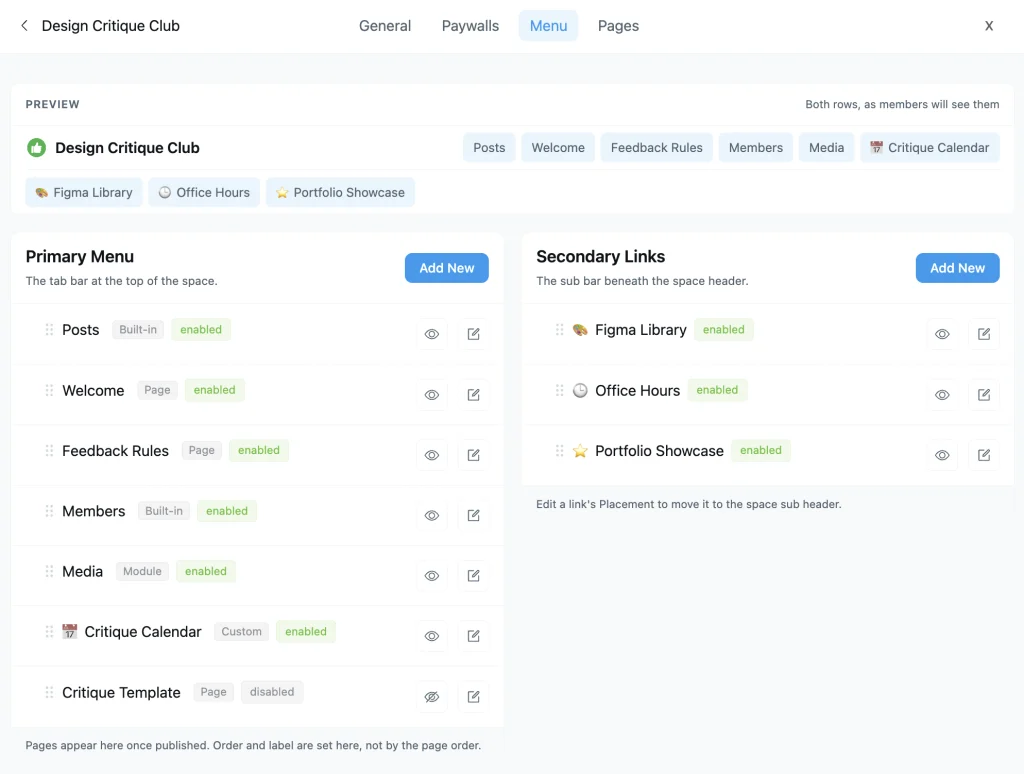
Open any space’s settings and you will find a new Menu tab. It shows both of the space’s menus side by side: the Primary Menu, which is the tab bar at the top of the space, and the Secondary Links in the sub bar just below it. A live preview at the top shows both rows exactly as members will see them.
Drag the tabs into the order you want. Want the welcome page before the feed, or members tucked at the end? Just drag it there. You can also rename any tab, give it an emoji or SVG icon, and hide the ones your space does not use, all without deleting anything.
- Add your own tabs. Link to any URL or to one of the space’s pages, and choose whether it opens in a new tab.
- Decide who sees each link. Show it to everyone, to logged-in members, to logged-out visitors only, or to members of specific spaces and courses.
- Move links between rows. Change a link’s Placement to move it from the tab bar to the sub bar, or back again.
- New pages show up automatically. Publish a space page and it joins the menu at the end, ready to be moved.
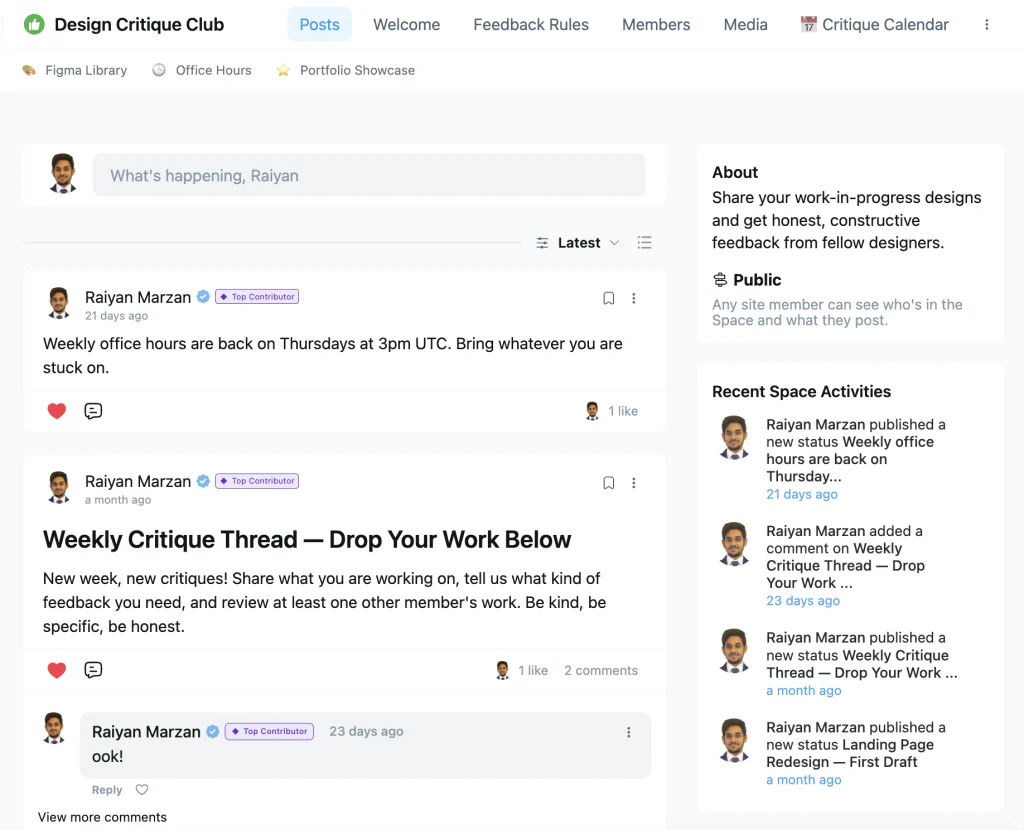
There is one safety net. At least one tab always stays visible, so you can never hide your way into a space nobody can navigate.
Six New Ways to Ask a Question
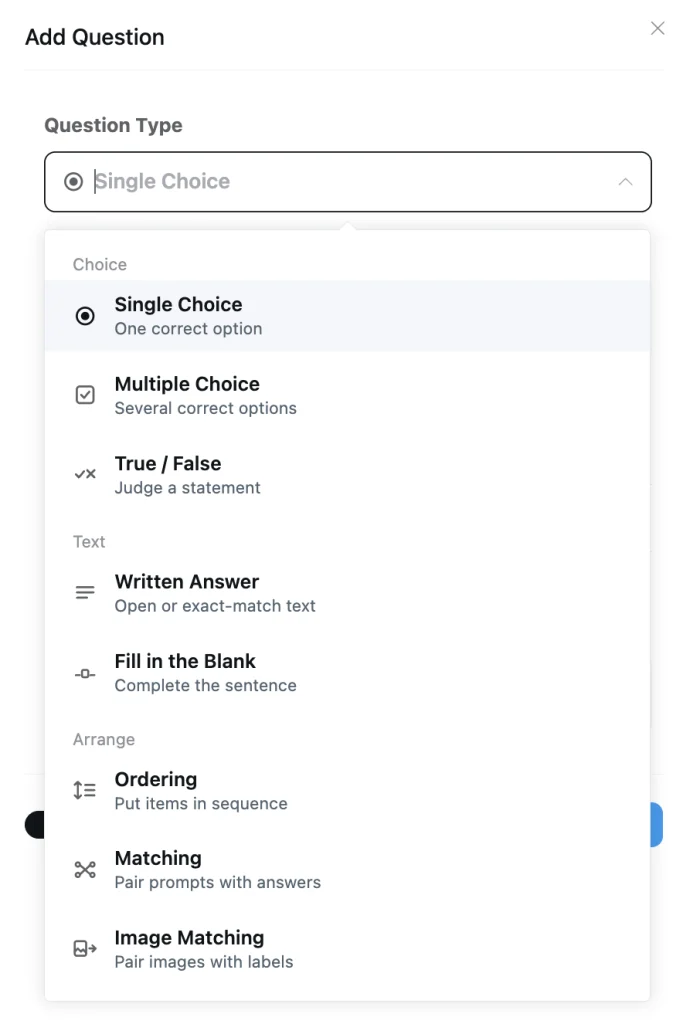
Single and multiple choice will only get you so far. Course quizzes (pro) now come with six more question types, grouped in the picker by what the student does: Choice, Text or Arrange.
- True / False — judge a single statement.
- Written Answer — accept any answer for reflection questions, or set exact answers and let the quiz grade them for you.
- Fill in the Blank — students complete a sentence, and each gap can accept more than one correct answer.
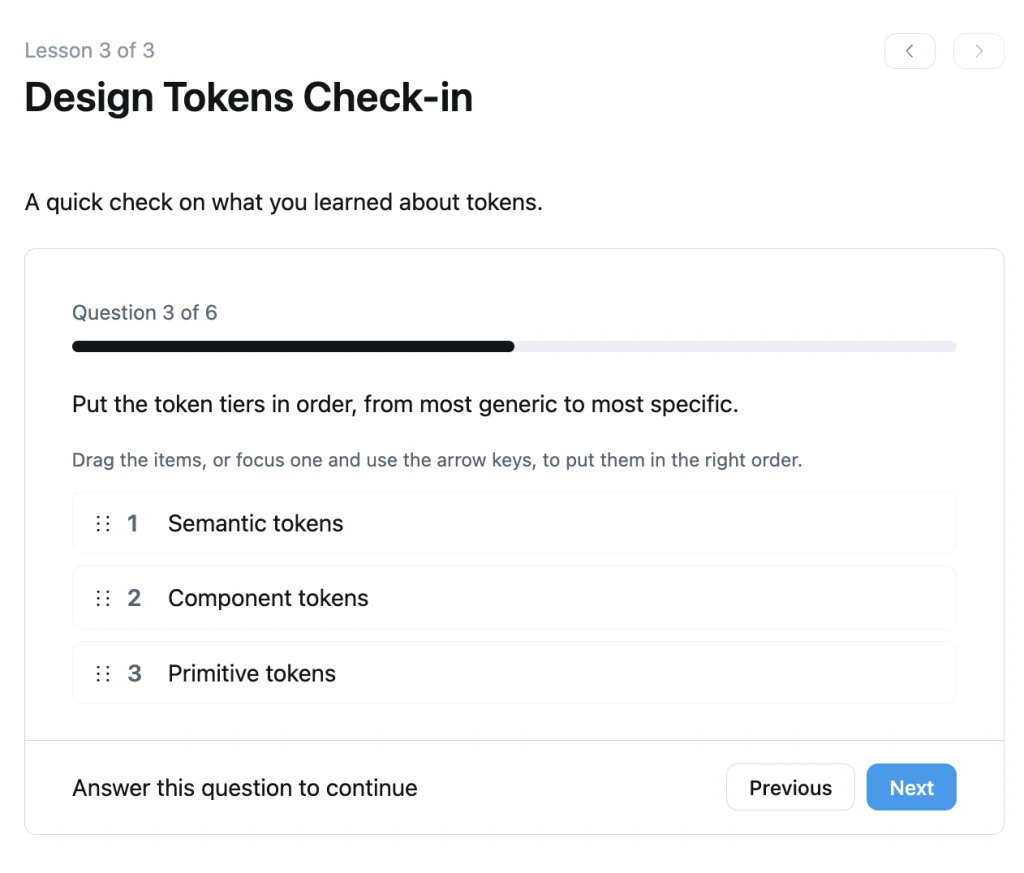
- Ordering — put steps in the right sequence by dragging, or with the arrow keys.
- Matching — pair each prompt with its answer, with optional extra answers to keep students thinking.
- Image Matching — pair images with the right labels.
Every type is graded on the server, and the correct answers never reach the student’s browser. Ordering items and matching choices are shuffled for each student, so there is nothing to copy from a friend’s screen.
One Question at a Time
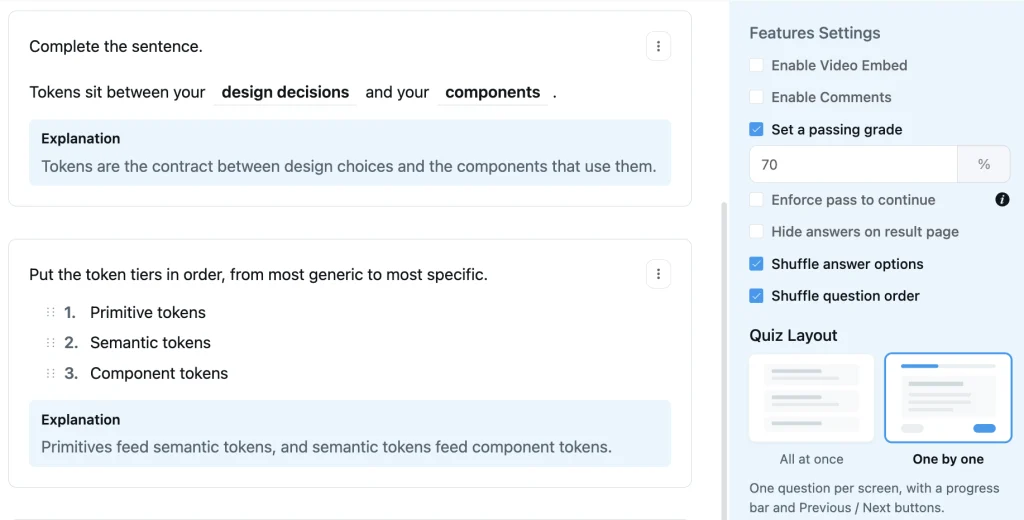
A long quiz on a single page can feel like a wall. The new Quiz Layout setting lets you choose between All at once, the classic single page, and One by one, which shows one question per screen with a progress bar and Previous / Next buttons.
It only changes how the quiz looks. Grading works the same way, and the result page still lists every question so students can review the whole quiz.
Two more settings sit right beside it: Shuffle answer options and Shuffle question order. Turn them on and students stop memorising where the right answer sits. Your own editing order stays exactly as you left it.
Explain the Answer, Not Just the Score
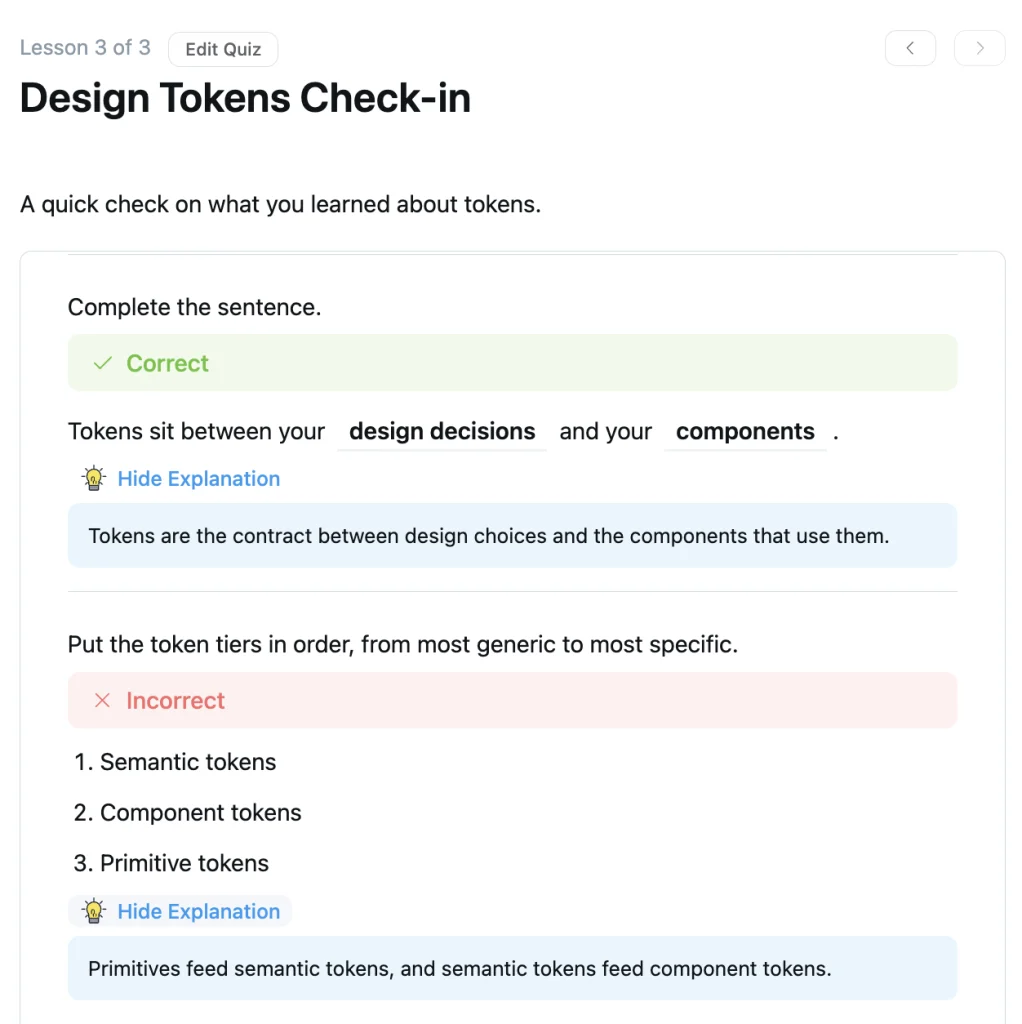
A score tells a student how they did. An explanation tells them what to learn from it. Each quiz question can now carry an Explanation (pro), written with the same formatting tools as a post.
After submitting, students see a View Explanation link under every question that has one, whether they got it right or wrong. Students cannot see explanations before they have attempted the quiz, and if you turn on Hide answers on result page, explanations stay hidden along with the answers.
While you build the quiz, each question card in the editor shows the first two lines of its explanation, with a See more link, so you can check your notes without opening every question.
More Improvements
Restart a course. Students can choose Restart Course from the course menu to reset their progress to 0% and work through it again. Course admins get a matching Restart Progress action for any student in the course members list. Both ask for confirmation first, and both now report a real failure instead of claiming success.
Works with the latest FluentAuth. If you use FluentAuth for magic login links or two-factor login, the portal login screen now hands off to it properly, so those features keep working on your community login.
Tidier space settings. The settings header no longer jumps around as you switch tabs, the Save button hides on tabs that save on their own, and the menu preview scrolls sideways instead of wrapping on smaller screens.
Everyday polish. Course rows line up properly on phones. When a push notification arrives while the portal is open, the bell count updates right away. Radio buttons now follow your theme’s button colour everywhere, instead of turning white in dark mode.
For developers. A new fluent_community/space_permalink filter lets you send a space’s link somewhere other than its default tab, like a landing page instead of the feed.
Bug Fixes and Stability
Hosting and security plugins. Embedded videos no longer get blocked by firewall rules such as Wordfence’s XSS protection. Link previews now work on hosts whose Redis setup blocks certain cache commands. And outgoing emails and sign-up names are now checked for injected email headers.
Content and counts. Custom SVG icons show up for guests and regular members again, not just for admins. Posts inside a space now show their own title in the browser tab, instead of the space name. Comment counts stay accurate after moderation and when comments are held for review.
Lessons and translations. Lesson videos keep their full width on course lesson pages. Labels in the block editor and on space pages, which were stuck in English, can now be translated.
Wrapping Up
FluentCommunity 2.11.0 lets you shape how members get around each space, and turns quizzes into a real teaching tool, with more ways to ask, a calmer way to answer and explanations that stick.
Update whenever you are ready — and let us know what you build with it.
FluentCommunity 2.11.0
- Introduced: Space Menu Manager with Drag-and-Drop Ordering
- Added: Fill in the Blank, Ordering, and Matching Quiz Questions
- Added: Written Answer Quiz Questions with Open or Exact-Match Grading
- Added: One-by-One Quiz Layout with Progress Bar
- Added: Shuffle Option for Quiz Questions and Answers
- Added: Per-Question Explanations for Quizzes
- Added: Course Progress Restart for Students and Admins
- Added: Filter to Override Space Permalink
- Improved: Compatibility with the Latest FluentAuth Login Flow
- Improved: Space Settings Layout and Menu Preview
- Improved: Course Module Layout on Mobile
- Improved: Notification Count Updates Instantly
- Improved: Radio Buttons Follow the Theme Color
- Fixed: Embedded Videos Blocked by WAF XSS Rules
- Fixed: Custom SVG Icons Hidden for Guests
- Fixed: Space Page Title Overwriting the Post Title
- Fixed: Comment Count Drift After Moderation
- Fixed: Untranslatable Block Editor and Space Page Labels
- Fixed: Lesson Video Shrinking on Course Lesson Pages

Shahjahan Jewel
Hello, this is Jewel, CEO & Head of Ideas at WPManageNinja. I am obsessed with WordPress since 2009. My aim is to be a user-centric developer first, and a serial entrepreneur second. You will find me discussing various tech issues and trying to come up with scalable solutions on different forums when I am not busy coding.



This is a very practical and helpful update. You have been adding so many things recently, and I have a feeling that this is just the start of things to come. 🙂 I wonder, would it be possible for you to create a demo/showcase community where you could continuously expand and demonstrate all features? At least when it comes to building courses, I find it hard to understand all what is possible, or see inspiration or examples.