

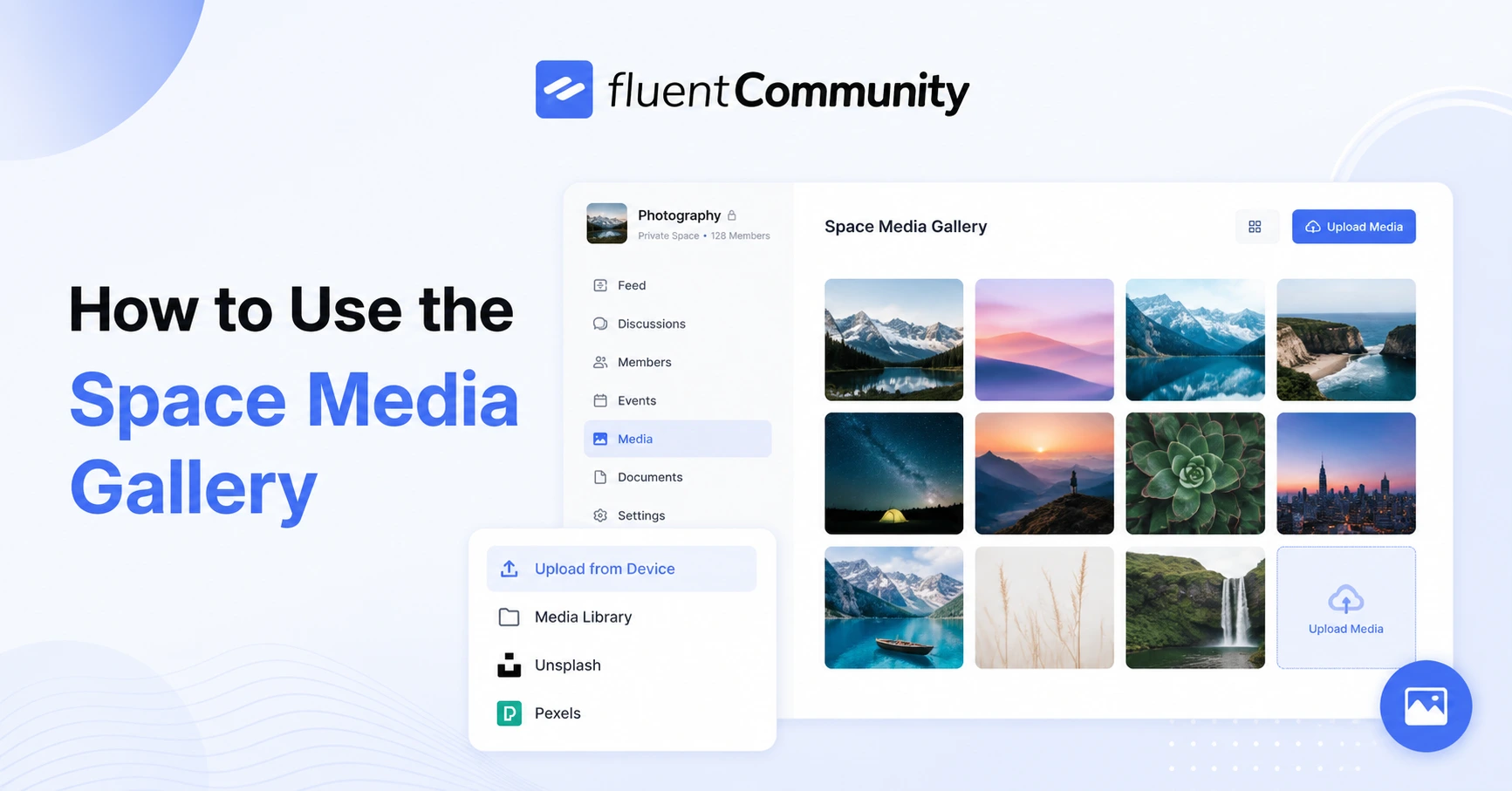
How to Use the Space Media Gallery in FluentCommunity

Table of Content
Subscribe To Get
WordPress Guides, Tips, and Tutorials


Photos and videos are some of the most engaging things your members share, but until now, they had one obvious weakness: once posted, they disappeared into the feed. A great event photo or a helpful tutorial video would get a burst of attention for a day, and then scroll out of view, buried under whatever got posted next. Anyone who joined the space a week later would likely never see it again, even if it was exactly the kind of content that made the space worth joining in the first place.
FluentCommunity’s new Space Media Gallery (pro) fixes that. Instead of letting images and videos live and die in the feed, it pulls everything shared in a space into one clean, browsable grid. A dedicated Media tab appears in the space. Members can toggle between images and videos, open anything in a modern lightbox, and jump straight back to the original post. It’s off by default, so you decide exactly where a gallery actually adds value. Here’s what it does, and where it fits.
What the Space Media Gallery Actually Does?
Once enabled, FluentCommunity automatically collects every image and video shared in that space and displays them in a single grid view, accessible through a new Media tab alongside the space’s usual feed, members, and other tabs. Members don’t have to do anything differently when they post; the gallery builds itself from content that’s already being shared.
Inside the tab, a simple toggle lets members switch between viewing images and videos, so a space with a mix of both stays easy to browse rather than turning into one long, undifferentiated scroll.
Clicking on any item opens it in a modern lightbox view, a clean, distraction-free way to look at the media at full size. From there, members can jump straight back to the original post, so context is never lost. A photo isn’t just a photo floating in a grid; it’s still connected to the comment thread and conversation it came from.
Why This Matters More Than It Seems?
It gives good content a second life. Right now, a great photo or video is only as visible as the moment it was posted. The Media Gallery means that content stays discoverable indefinitely, not just during the few hours it sits at the top of the feed.
It makes spaces feel more alive to new members. Someone joining a space for the first time can open the Media tab and immediately see the kind of content that gets shared there, event photos, member work, video walkthroughs, without having to scroll back through months of posts to get a feel for it.
It turns scattered uploads into a real archive. Over time, a space accumulates hundreds of images and videos. Without a gallery, that history is effectively invisible. With one, it becomes something members can actually browse, revisit, and use as a reference.
It keeps the feed focused while still surfacing media. Not every space needs this. A quiet, text-heavy discussion space probably doesn’t benefit much from a media grid.
A space built around events, visual work, or video lessons, on the other hand, gains an entirely new way for members to engage. That’s exactly why it’s off by default rather than forced on everywhere.
How to Enable the Media Gallery
Go to the space where you want the gallery to appear. Open that space’s Settings.
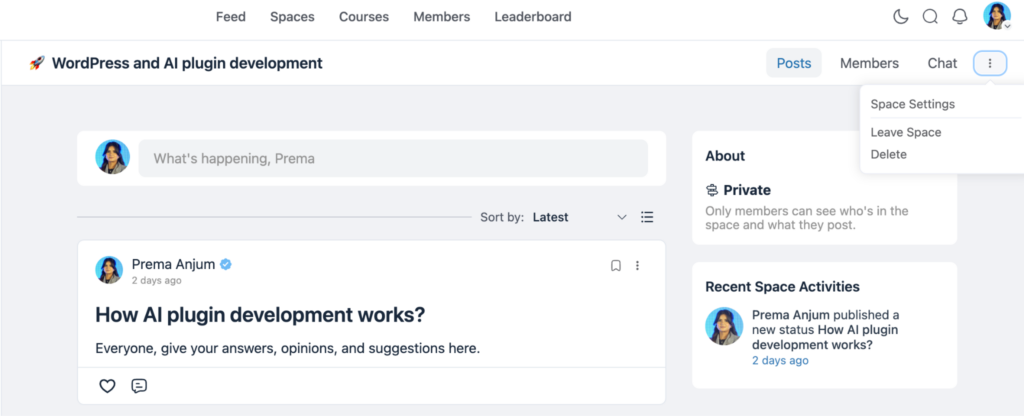
Find the Media Gallery option and switch it on. Save your changes, and the Media tab will appear in that space automatically.
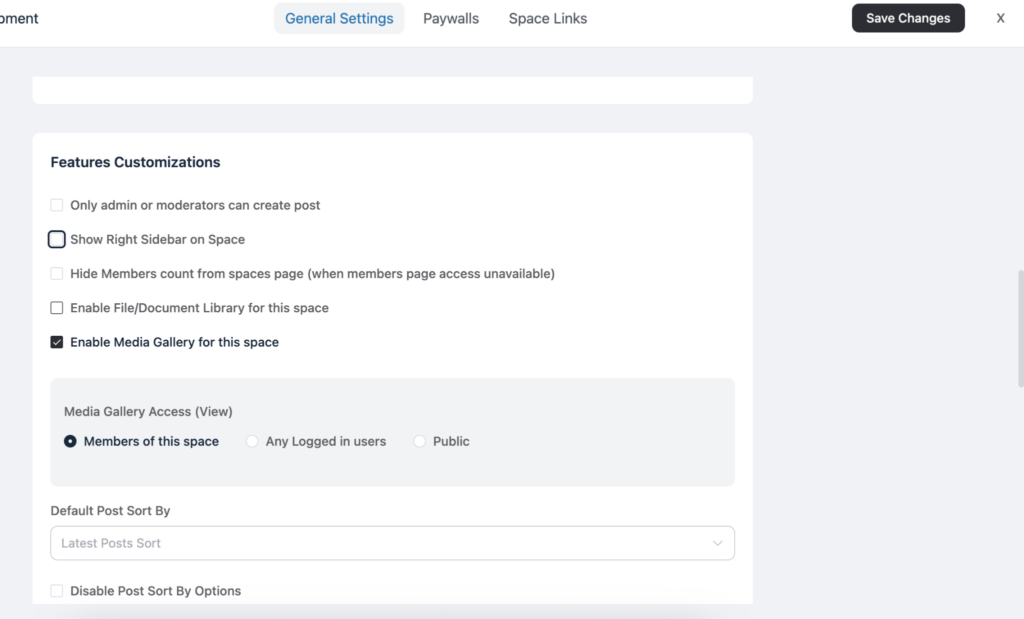
There’s no bulk import or backfill step needed beyond that. Once enabled, the gallery starts organizing images and videos as they’re shared going forward, and pulls in relevant existing media already posted in the space. Want to create a space first? Check out the linked blog post on the anchor text.
Use Cases by Community Type
Course creators often have members posting screenshots of finished projects, video walkthroughs of assignments, or progress photos across an entire cohort. Without a gallery, that proof of work is scattered across weeks of posts. With it, a prospective student, or a hesitant one deciding whether to keep going, can open the Media tab and see a wall of real results in seconds. That single view often does more convincing than another paragraph of course copy.
Coaches running accountability-style communities tend to rely heavily on visual check-ins: before-and-after photos, short video updates, screen recordings of a completed task. As those posts pile up, the gallery becomes a running visual record of member progress, which coaches can point to directly instead of asking members to scroll back and find their own history.
Brands with customer communities frequently collect user-generated content: product photos, unboxing videos, short clips of the product in use. Left in the feed, that content fades fast. Surfaced in a gallery, it functions almost like a built-in social proof wall, one that updates itself every time a customer posts, with no extra work from the brand.
Nonprofits and clubs generate a steady stream of event photos and video recaps, meetups, fundraisers, and workshops. A gallery turns that scattered documentation into something members can actually revisit, whether that’s someone who missed the event wanting to see what happened, or a member reliving it a year later.
Professional networks often see members sharing recorded sessions, event photos, or presentation slides as images. Instead of that material getting lost a few posts down, the gallery keeps it organized and easy to find, which matters especially for members who joined after a session already happened and want to catch up visually before reading through the full discussion.
Deciding Where to Turn It On
Since the Media Gallery works on a per-space basis, it’s worth being deliberate rather than switching it on everywhere by default. A space built around events, visual portfolios, video lessons, or user-generated content is a clear fit. A quieter, text-first discussion space may not need it at all, and adding an empty or sparsely populated Media tab there could do more to
clutter the navigation than to help anyone.
A reasonable approach is to start with the one or two spaces where media already gets shared the most, turn the gallery on there, and see how members use it before deciding whether it’s worth enabling more broadly across your community. From there, expanding to additional spaces is just a matter of repeating the same settings toggle, so there’s little downside to testing it in one place first.
Common Mistakes to Avoid
Don’t enable the gallery in every space just because the option exists. A space with only a handful of images posted over several months will show a mostly empty Media tab, which does more to signal inactivity than to showcase anything worth seeing.
Don’t forget to check both the image and video toggle after enabling it. Some spaces lean heavily toward one media type, and it’s worth confirming the gallery reflects that mix accurately rather than assuming it will look the way you expect.
Don’t treat the gallery as a replacement for the feed. Members still post, comment, and react in the feed as usual; the gallery is a secondary view built on top of that activity, not a new place to post from.
Don’t leave it on in a space where the content no longer fits its purpose. If a space shifts over time, from visual updates to mostly text discussion, for example, it’s worth revisiting whether the Media tab is still adding value or just sitting there unused.
A Few Questions Worth Answering First
Does turning on the gallery move or duplicate existing posts?
No. The gallery simply displays media that’s already been shared in that space; the original posts stay exactly where they are, and clicking through from the gallery takes members right back to them.
Can different spaces have different settings?
Yes. Since the Media Gallery is enabled per space, one space can have it on while another stays off, depending on whether that space’s content actually calls for it.
Will old media from before the feature existed show up too?
Existing images and videos already posted in a space are picked up once the gallery is turned on, so you’re not starting from a blank grid.
Final Thoughts
The Space Media Gallery doesn’t change how members post; it changes what happens to that content afterward. Instead of every photo and video living for a day and then disappearing into the scroll, it stays organized, browsable, and connected back to its original conversation. Turn it on in the spaces where visual content already matters, and what used to get buried becomes something members can actually come back to.

Prema Anjum
My full name is Anzuman Ara Chowdhury. But people know me as Prema Anjum. I’m a Digital Marketer by profession, a WordPress community contributor, and a travel enthusiast by heart.

![SEO Title: 5 Best Community Portal Software [WordPress + SaaS Options]](https://fluentcommunity.co/wp-content/uploads/2026/10/community-portal-software-featured-1-1024x536.webp)


Add your first comment to this post