

Introducing the MCP Server for AI Agents, a New Photo Experience and Many More

Table of Content
Subscribe To Get
WordPress Guides, Tips, and Tutorials


Welcome to week three of FluentCommunity’s Birthday Month. Every week this month we ship a release built around one idea. This week the idea is help: letting an AI agent do the work you would otherwise click through yourself.
The headline is the new MCP server, which lets an AI app such as Claude or ChatGPT read and manage your community for you. Next to it is a new way to post photos, with a gallery layout, a proper viewer, drag-to-reorder and photo descriptions. Alongside, the FluentEvent add-on gains a live countdown and guest capacity limits. There is also a password show and hide button, a FluentCommunity submenu in WordPress admin, and the usual round of fixes.
Let an AI Agent Run Your Community
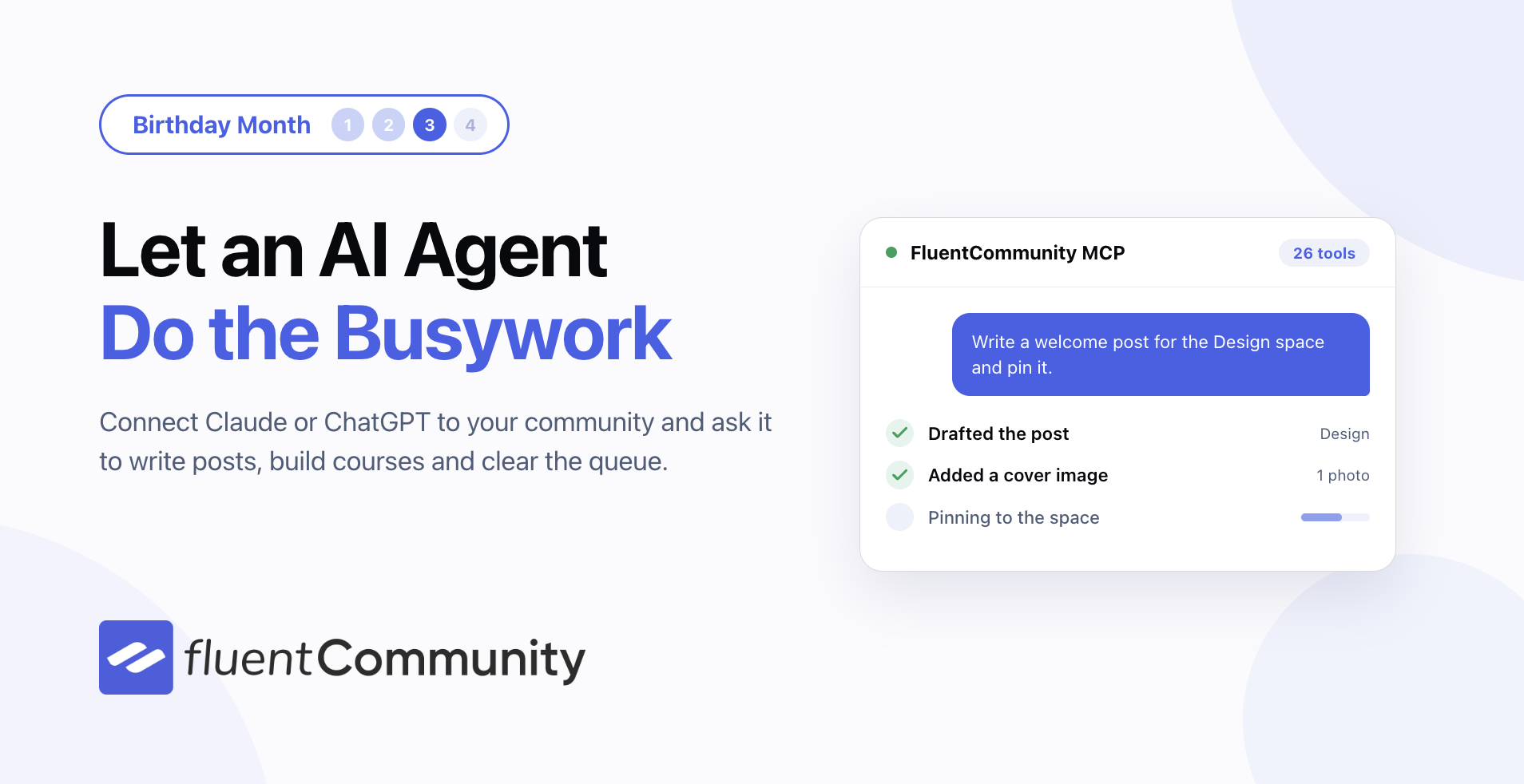
FluentCommunity now ships an MCP server. MCP is the standard that AI apps use to talk to the tools you already own. Turn it on, connect your AI app once, and you can ask it to do community work in plain language.
Here it is in action:
Ask it to write a welcome post for a space. Ask what happened in your community this week. Ask it to draft a course section, move a lesson, or look through the moderation queue. The agent does the work through the same screens and rules you use, so nothing happens that you could not do yourself.
What an Agent Can Do
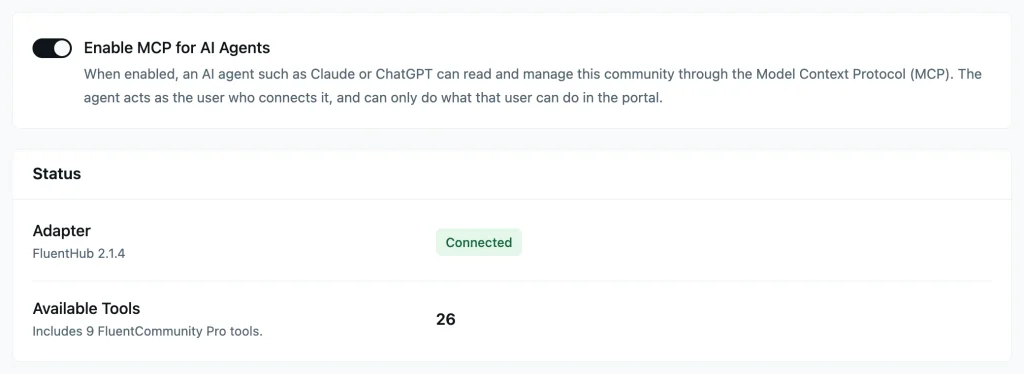
There are 26 tools in all: 17 in the free plugin and 9 more with Pro (pro). They cover the things you do most.
- Read the feed, search the community, and open a post with its comments
- Write posts and comments, upload images, react, pin, and move a post to another space
- Build and edit courses, lesson by lesson, keeping your existing blocks exactly as they are
- With Pro: work the moderation queue, review reports, manage members and enrolments, read Insights, and grade quizzes
- Ask for the block guide, so the agent writes lesson content the editor accepts first time
Lesson editing deserves a note. When an agent changes a lesson, it edits only the blocks you asked about. Every other block is written back exactly as it was, so an image keeps its size and its media, and your layout survives. If someone else saved the lesson while the agent was working, the save is refused instead of overwriting their work.
Turning It On
The server is off until you switch it on. Go to Settings → MCP for AI Agents and turn it on. You need WordPress 6.9 or newer and the free FluentHub plugin, which carries the MCP adapter; the screen tells you if either is missing and links you straight to it.
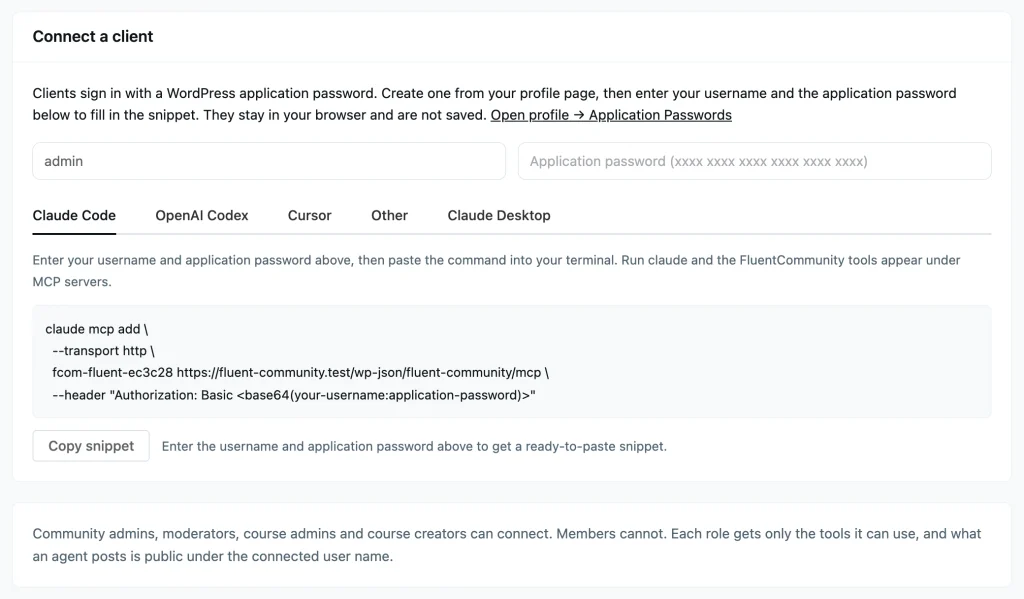
There are two ways to connect. The easy one is FluentHub sign-in: paste one URL into your AI app and sign in with your WordPress account, with no password to copy. That same URL also reaches your other Fluent plugins. If you would rather not use it, the screen builds a ready-to-paste snippet from a WordPress application password instead.
Who Can Connect, and What They See
Community admins, moderators, course admins and course creators can connect. Members cannot. The agent acts as the person who connected it, so each role gets only the tools it can use, and anything the agent posts appears publicly under that person’s name.
Photos That Look Like a Gallery
A post with several photos used to show them in a plain row. Now they lay out as a gallery. FluentCommunity picks the layout from how many photos there are and what shape they are, so two wide photos stack, two tall ones sit side by side, and three or four get a hero photo with the rest beside it.
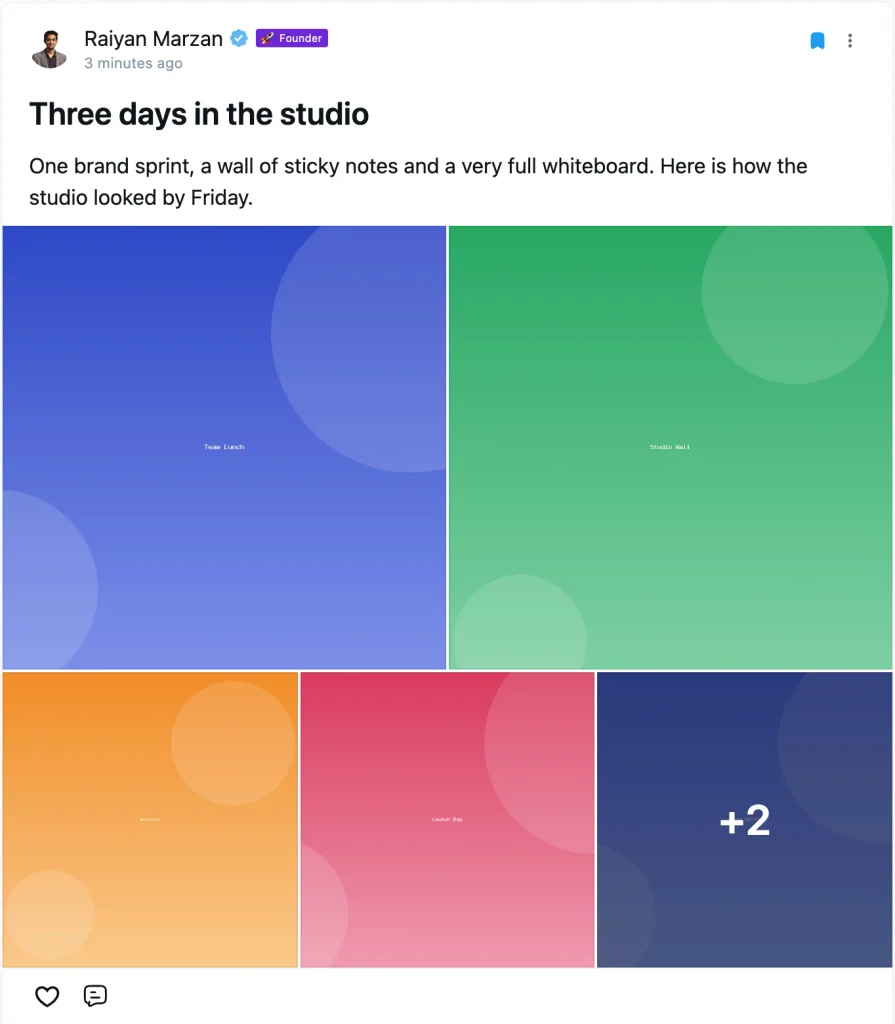
Five photos show at once on a wide screen and three on a phone, with a small +2 badge on the last tile for anything left over. Tap any photo and the viewer opens.
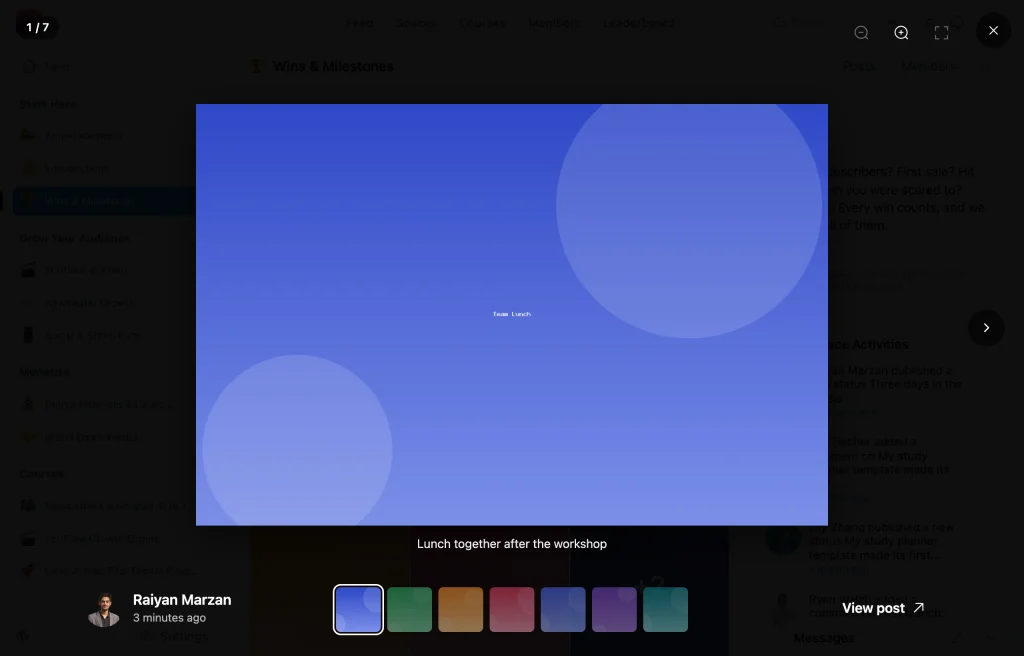
The viewer got a lot of attention this release. Photos slide as you move between them. Zoom follows your cursor, or your fingers on a phone, instead of jumping to the middle. You can swipe, pinch and drag, and the viewer closes when you move to another page rather than hanging around on top of it.
Put Photos in Order, and Describe Them
The first photo now decides the whole layout, so it matters which one comes first. You can drag photos into a new order in the post and comment composer. On a phone, hold a photo and then drag, so a normal swipe still scrolls the page. You can also move a photo with the arrow keys, and the new position is read out to screen readers.
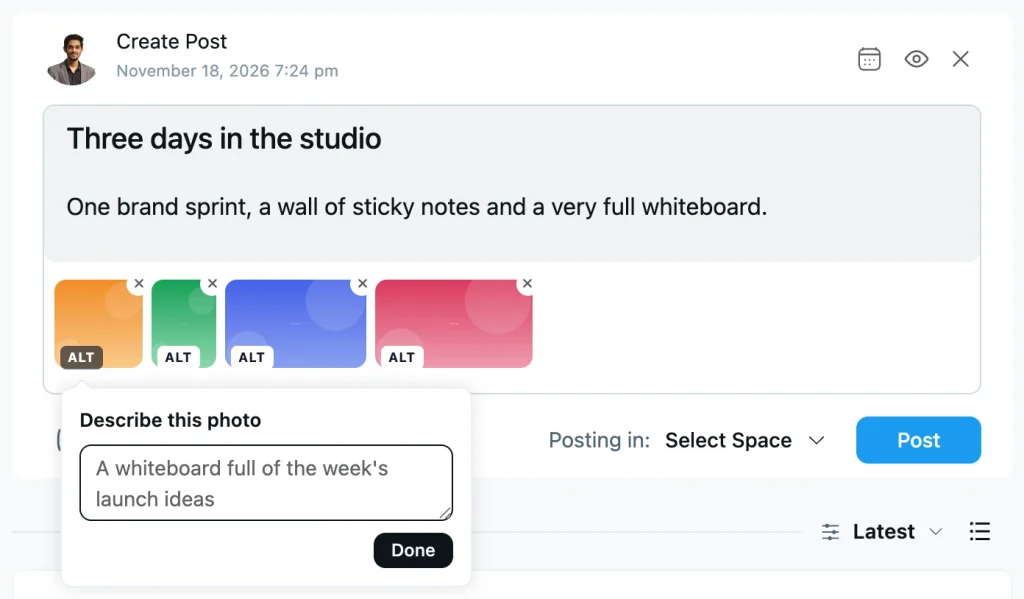
Each photo also carries a small ALT button. Tap it and you get one optional field: Describe this photo. Fill it in and that description becomes the photo’s label everywhere, and shows as a caption under the photo when someone opens it. Skip it and nothing changes.
It is a small field with a real effect. Before this, a screen reader announced your post photos as “Photo 3 of 7”. Now it reads what the photo actually shows.
A Live Countdown to Your Next Event
Community Events arrived last release. This week the FluentEvent add-on reaches 1.1.0, and it gets a home of its own: fluentevent.com. Two of its additions are worth a look here. The first is a countdown.
Already running FluentEvent? Update it from Plugins as usual. New to it, or on the free plugin where the one-click install is not available? Download fluent-event.zip and upload it under Plugins → Add New Plugin → Upload Plugin. It is free either way.
Community Events arrived last release. This week the FluentEvent add-on reaches 1.1.0, and two of its additions are worth a look. The first is a countdown.
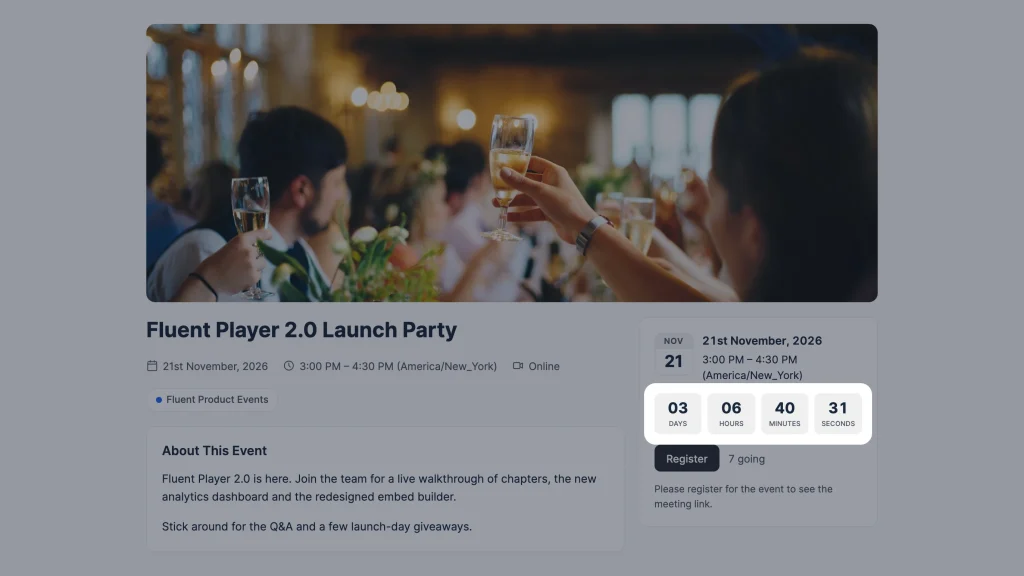
An event page used to say Starts in 3 days. Now you can choose a ticking countdown instead, with days, hours, minutes and seconds. It is a per-event choice, so a webinar starting tonight can count down while a conference three months out keeps the calmer wording.
When the clock reaches zero the countdown turns into a Happening now badge on its own, with nothing to refresh. Leave the tab open through the whole event and it catches up: it shows Ended rather than a stale timer.
Cap the Guest List, and Show What Is Left
Rooms have a size. Workshops have a sensible maximum. You can now set a guest capacity on any event that takes RSVPs or open registrations, and leave it at zero for the events where numbers do not matter.
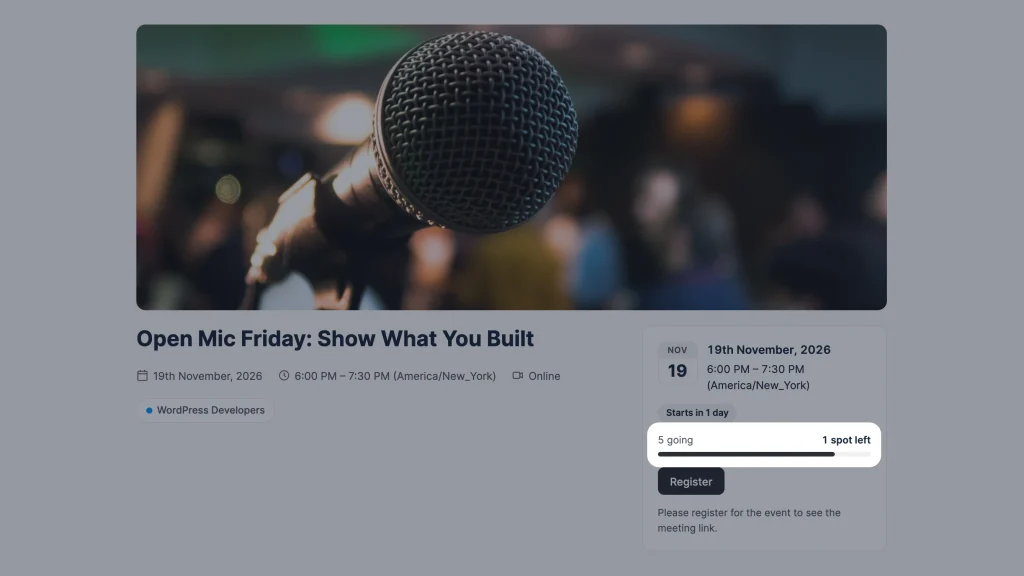
Turn on spots left and guests see a meter filling up, with 4 spots left beside it. That is a separate switch from the going count, so you can show the urgency without showing the headcount, or the other way round.
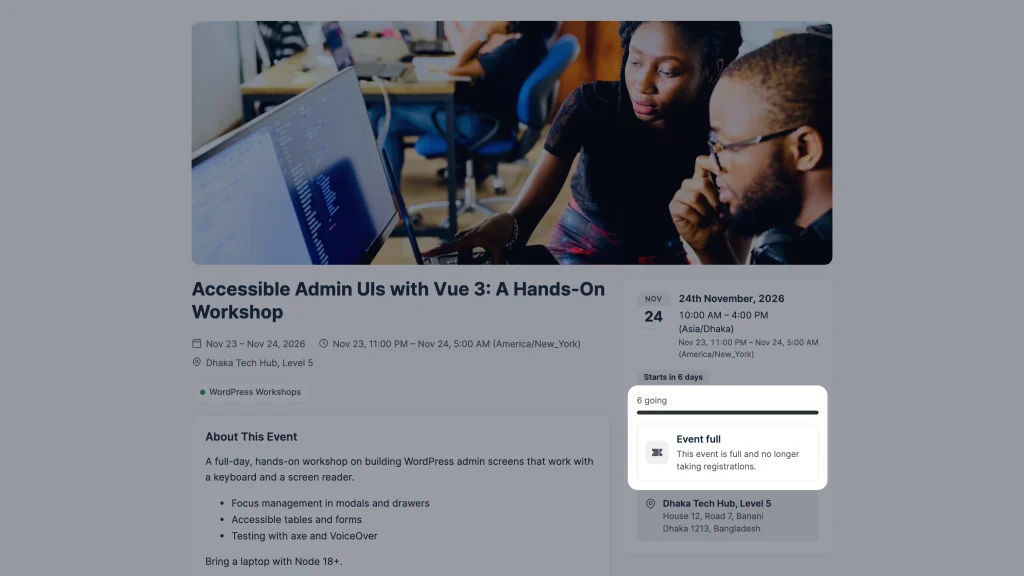
Once the last seat goes, the form is replaced by a clear Event full notice instead of letting someone fill in a registration that cannot be accepted. The seat check runs inside a locked transaction, so two people clicking at the same second cannot both take the last place. After the event, the meter stays as a record of how full it got.
Show the Password While You Type It
Signing up and logging in both have a show and hide button on the password field now. It is a small thing that saves a lot of failed logins, especially on a phone. It appears only on FluentCommunity’s own login and signup forms, so it never interferes with other forms on your site.
FluentCommunity in the WordPress Menu
Until now the FluentCommunity admin menu had no submenu, unlike every other Fluent plugin. Now it does. Insights, Members, Space Groups, Manage Courses and Settings all sit one click away in the WordPress sidebar.
The dashboard cards show the same links. Each one is listed only for people who can open it, so a course creator sees Manage Courses and a moderator does not see Settings.
Clear One Notification at a Time
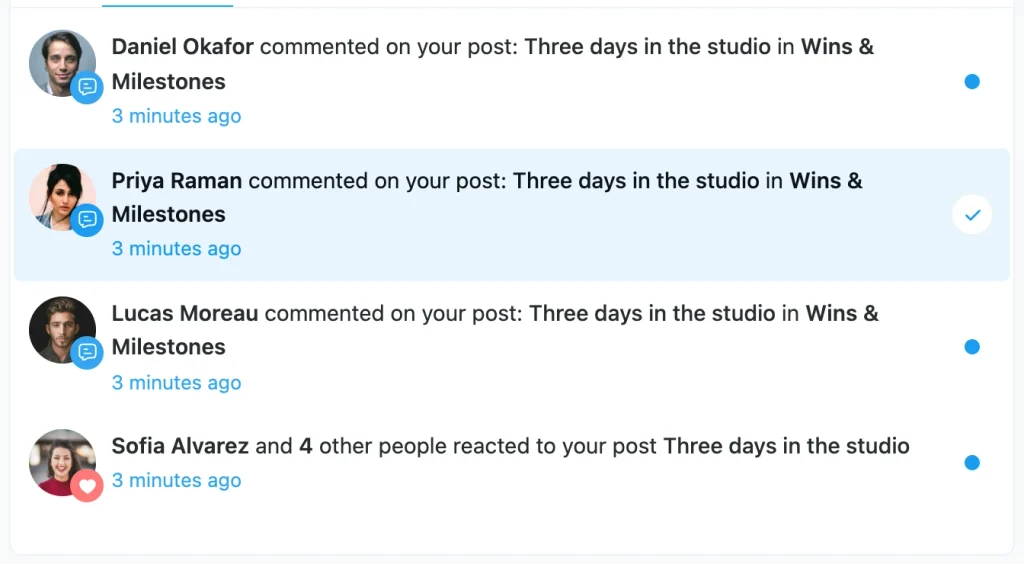
Clearing a like out of your unread list used to mean opening the post. Each unread notification now has a check button that marks just that one read, without taking you anywhere.
Reset Course Progress from FluentCRM
FluentCRM could already enroll and remove students, but not reset anyone’s progress (pro), so a “finished the course, now start again” automation had to be done by hand. There is now a Reset Course Progress action in the Community category.
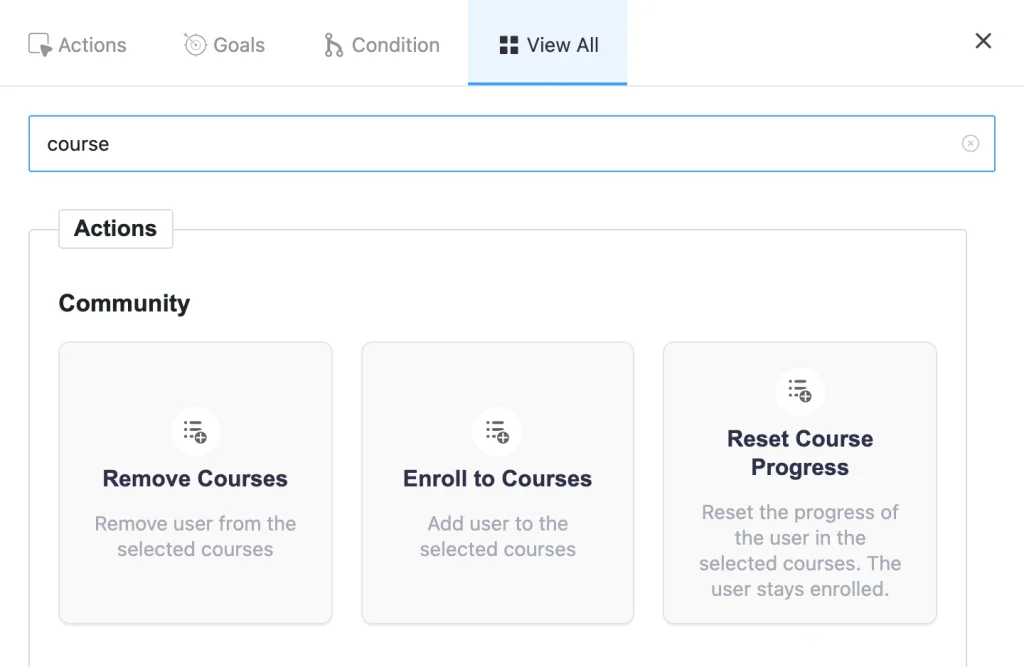
It resets only the courses where that contact is actually a student, and it keeps the enrolment, so the member stays in the course and simply starts from the beginning.
A Better Writing Editor
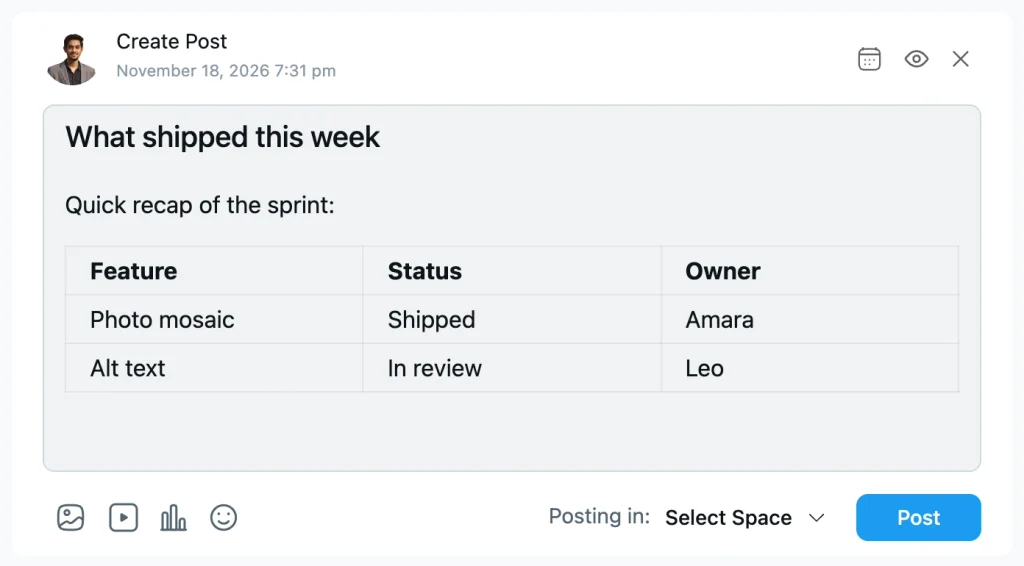
The post editor now runs on the current version of Milkdown instead of our own older copy of it. The visible win is tables: there is a Table item in the slash menu, and a published table scrolls sideways on a phone instead of breaking the layout.
A few long-standing annoyances went with it. The link popup is styled properly again. Clicking a link inside the editor no longer jumps the page to the top. Tab still moves focus where you expect, and bold or italic no longer bleeds across a line break. Quiz descriptions and profile bios get the same block handles the post editor has.
Smaller Things Worth Knowing
Feeds with many videos load faster. A video player used to load the moment its card appeared in the list, even far below the fold. Now each one loads only as it comes near the screen, and the space it will take is reserved, so the page does not jump while you read.
Profile photo uploads tell you what is happening. The photo button and its menu got a cleaner layout, and the photo now shows a loader while it uploads instead of sitting there looking finished.
The image limit works everywhere. Comments had no limit on the server, so the setting only applied in the browser. The limit now applies to posts and comments alike, counting inline images with the rest. Site admins and community moderators have no limit at all. The default is four images per post, and you can change it in Customization.
Card view uses a post’s featured image. A post with no photo of its own used to fall back to a pattern, even when it had a featured image, such as an event cover. Now the featured image is used first, and a post’s own photos still come before both.
More control for hosts and developers. A hosting platform can now supply the mailing settings for every site it runs and replace those fields with a notice. Announcement emails gained two filters, one to hold a send and one to narrow who receives it. There is also a new filter to skip remote link preview lookups, and one for reaction notifications.
Security Hardening
The messaging settings screen returned the socket app secret in plain text to every community admin (pro), who need not be a WordPress administrator. It now returns a masked value. No action is needed on your side beyond updating.
Bug Fixes and Stability
Quiz intros reach students again. Editing a quiz intro saved the new text but students kept seeing the old one, and clearing an intro left the old text in place. Both are fixed.
Your profile edits survive a photo upload. Uploading a photo while the profile form had unsaved changes threw those changes away, and could revert a header you had just approved. Upload state also carried over when you opened someone else’s profile. All three are fixed.
Images and embeds behave. WebP conversion could write an empty image file on some servers. Tweet, Instagram, TikTok and Reddit links showed as raw quote text instead of the real embed. A failed link preview was cached as if it had worked, so it stayed broken.
Everyday polish. Post previews and anchors work again on portals that use hash routing. Pasting from Google Docs keeps bold text and no longer mangles links in angle brackets. The Save Play Position option no longer looks available without FluentPlayer Pro. Courses and Spaces pages scroll back to the top when you move between them. And trending posts, the daily digest and the notification cleanup now compare dates in your site’s own time zone rather than UTC, so each one covers the window it says it does.
Wrapping Up
2.15.0 is about getting help. An AI agent can now take on the community work you would rather not click through, under your own account and your own rules. And when you do post yourself, your photos finally look the way you meant them to.
Update whenever you are ready. One more release to go this Birthday Month.
FluentCommunity 2.15.0
- Introduced: MCP Server for AI Agents
- Added: Multi-Image Post Layout With a Zoomable Photo Viewer
- Added: Photo Reordering in the Post and Comment Composer
- Added: Photo Descriptions and Captions in the Photo Viewer
- Added: Live Countdown to an Event’s Start
- Added: Guest Capacity Limit for RSVP and Open Events
- Added: Show/Hide Password Toggle on Login and Signup Forms
- Added: WordPress Admin Submenu With Quick Links to Portal Pages
- Added: FluentCRM Action to Reset Course Progress
- Added: Mark a Single Notification as Read
- Added: Filter to Skip Remote Link Preview Lookups
- Added: Reaction Notification Filter Hook
- Added: Host Overrides for Email Settings and Announcement Emails
- Improved: Markdown Editor on Milkdown 7.23 With Table Support
- Improved: Lazy-Loaded Video Players in the Feed
- Improved: Profile Photo Upload Menu With Upload Progress
- Improved: Image Limits for Comments, Lifted for Admins and Moderators
- Improved: Featured Image on Card View Posts
- Security: Masked Socket Secret in Messaging Settings
- Fixed: Quiz Intro Edits and Removals Not Shown to Students
- Fixed: Unsaved Profile Fields Cleared During Photo Upload
- Fixed: Empty Image Files After WebP Conversion
- Fixed: Post Previews and Anchors on Hash-Routed Portals
- Fixed: Google Docs Paste Bold and Angle-Bracket Links
- Fixed: Failed oEmbed Previews Cached as Results
- Fixed: X, Instagram and Other Script Embeds Shown as Raw Text
- Fixed: Save Play Position Offered Without FluentPlayer Pro
- Fixed: Trending Posts and Cleanup Compared in UTC, Not Site Time
- Fixed: Scroll to Top on Courses and Spaces Pages

Shahjahan Jewel
Hello, this is Jewel, CEO & Head of Ideas at WPManageNinja. I am obsessed with WordPress since 2009. My aim is to be a user-centric developer first, and a serial entrepreneur second. You will find me discussing various tech issues and trying to come up with scalable solutions on different forums when I am not busy coding.


Add your first comment to this post